1. Introdução
This manual provides essential information for setting up, operating, and maintaining your TECLAST X11 2-in-1 Laptop/Tablet. The TECLAST X11 is a versatile device designed to function as both a portable tablet and a compact laptop, running on Windows 10 Home. It features a 10.1-inch Full HD display, an Intel N4020 processor, 6GB RAM, and 128GB of internal storage.
2. O que está na caixa
- TECLAST X11 Tablet
- Adaptador de energia
- Cabo USB
- Manual do usuário (este documento)
Note: The keyboard and stylus pen are sold separately and are not included in the standard package.
3. Produto acabadoview
3.1 Principais Características
- Design 2 em 1: Seamlessly switch between tablet and laptop modes.
- Mostrar: 10.1-inch IPS Full HD (1920x1200) touchscreen.
- Processador: Intel Gemini Lake Reflash N4020 CPU (up to 2.8GHz).
- Armazenamento de memória: 6GB RAM, 128GB eMMC ROM (expandable up to 256GB via TF card).
- Sistema operacional: Windows 10 Home pré-instalado.
- Conectividade: Dual-band 2.4G/5G WiFi, Bluetooth 4.2.
- Câmeras: Câmera traseira de 5MP, câmera frontal de 2MP.
- Portas: USB 3.0, Mini-HDMI, Headphone Jack, DC Port.
- Suporte: Adjustable U-shaped kickstand (0° to 145°).
3.2 Layout do dispositivo
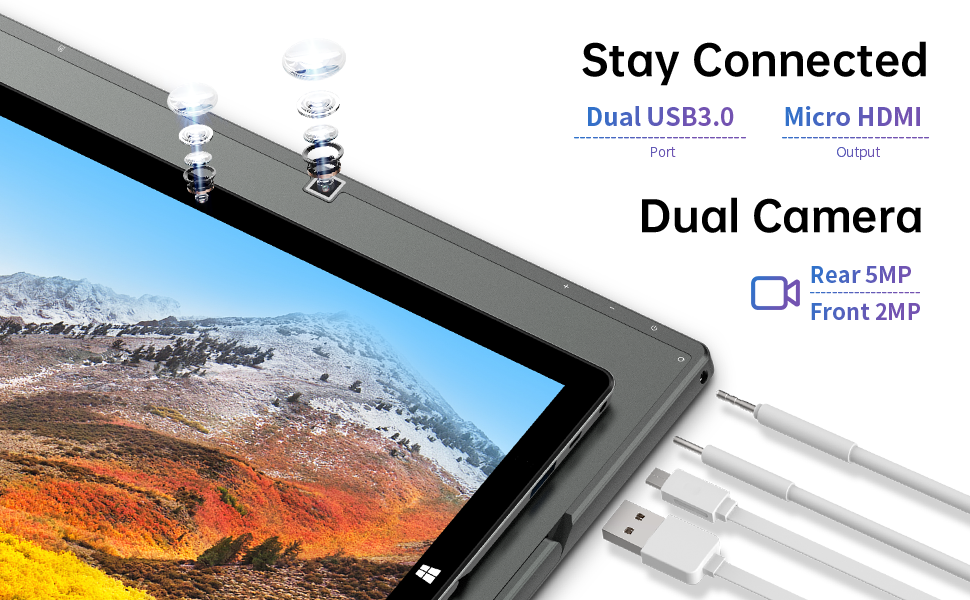
Imagem: Lado view of the TECLAST X11 tablet highlighting the USB 3.0 port, Micro HDMI output, and front/rear cameras.

Imagem: Detalhada view of the TECLAST X11's side ports, including USB 3.0, Mini-HDMI, DC power input, and headphone jack.
4. Configuração
4.1 Carregamento Inicial
Before first use, fully charge your TECLAST X11 tablet. Connect the provided power adapter to the DC port on the device and plug it into a power outlet. The charging indicator will illuminate.
4.2 Ligar/Desligar
- Para ligar: Pressione e segure o botão Liga / Desliga até que a tela acenda.
- Para desligar: Press and hold the Power button, then select "Shut down" from the on-screen options. Alternatively, go to Start Menu > Power > Shut down.
- Modo dormir: Pressione rapidamente o botão Liga/Desliga para colocar o dispositivo em modo de repouso ou para ativá-lo.
4.3 Configuração inicial do Windows
Upon first power-on, follow the on-screen instructions to complete the Windows 10 setup process. This includes selecting your region, language, connecting to a Wi-Fi network, and creating a user account.
5. Instruções de operação
5.1 Alternando entre modos
The TECLAST X11 is designed for flexibility, allowing you to switch between tablet and laptop modes.
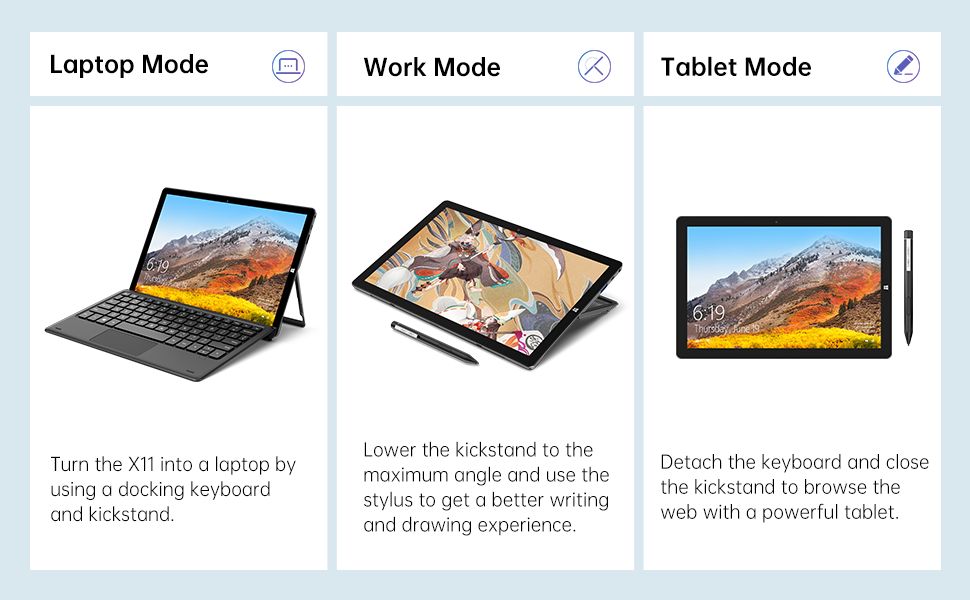
Image: The TECLAST X11 in laptop mode with the keyboard attached and kickstand deployed.
Modo laptop: Attach the magnetic docking keyboard and deploy the integrated kickstand. The device will automatically detect the keyboard and switch to laptop interface.

Image: A user holding the TECLAST X11 in tablet mode, interacting with the touchscreen.
Modo Tablet: Detach the keyboard. The device will automatically switch to tablet mode, optimizing the interface for touch input.

Imagem: Traseira view of the TECLAST X11 showing the adjustable kickstand extended.
Uso do suporte: The integrated U-shaped kickstand can be adjusted from 0° to 145° for comfortable viewing or typing angles.
5.2 Usando a tela sensível ao toque
The 10.1-inch IPS display supports 10-point multi-touch. Use standard touch gestures for navigation, zooming, and interaction with applications.
5.3 Conectividade externa
- USB 3.0: Connect external devices such as USB drives, mice, or printers.
- Mini-HDMI: Conecte a um monitor externo ou TV para obter uma tela maior.
- Bluetooth 4.2: Pair with Bluetooth-enabled accessories like headphones or speakers.
- Wi-fi: Connect to wireless networks for internet access. Supports 2.4G and 5G bands.
5.4 Demonstração em vídeo
Video: An official TECLAST video demonstrating the features and versatility of the X11 Windows tablet with its detachable keyboard and various usage scenarios.
6. Manutenção
6.1 Limpando o Dispositivo
- Use um pano macio e sem fiapos para limpar a tela e as superfícies externas.
- Para manchas persistentes, ligeiramente dampLimpe o pano com água ou uma solução de limpeza segura para telas.
- Evite usar produtos químicos agressivos, materiais abrasivos ou umidade excessiva.
6.2 Cuidados com a bateria
- Para prolongar a vida útil da bateria, evite temperaturas extremas.
- Não deixe o dispositivo totalmente carregado ou totalmente descarregado por períodos prolongados.
- Utilize apenas o carregador original ou um carregador compatível certificado.
6.3 Atualizações de Software
Regularly check for and install Windows updates to ensure optimal performance, security, and access to the latest features. Go to Start Menu > Settings > Update & Security > Windows Update.
7. Solução De Problemas
| Emitir | Solução possível |
|---|---|
| O dispositivo não liga | Ensure the device is charged. Connect the power adapter and try again. If unresponsive, press and hold the Power button for 10-15 seconds to perform a hard reset. |
| Problemas de conexão Wi-Fi | Check if Wi-Fi is enabled in Windows settings. Restart your router and the tablet. Ensure you are within range of the Wi-Fi signal. |
| Teclado não responde | Ensure the keyboard is securely attached to the magnetic docking port. Restart the tablet. Verify that the keyboard was purchased separately and is compatible. |
| Desempenho lento | Close unnecessary applications. Check for Windows updates. Ensure sufficient free storage space. Run a disk cleanup. |
| Screen rotation not working | Check if auto-rotate is enabled in Windows Action Center (swipe in from the right edge of the screen or click the icon in the taskbar). |
8. Especificações
| Recurso | Detalhe |
|---|---|
| Nome do modelo | X11 2-in-1 Tablet |
| Tamanho da tela | 10.1 polegadas |
| Resolução da tela | 1920 x 1200 pixels (FHD IPS) |
| Processador | Intel Gemini Lake Reflash N4020 (1.1GHz - 2.8GHz) |
| BATER | Memória RAM DDR6 de 4 GB |
| Disco rígido | 128 GB eMMC (expandable up to 256GB via TF card) |
| Placa gráfica | Gráficos Intel UHD 600 integrados |
| Sistema operacional | Windows 10 Início |
| Tipo sem fio | Bluetooth 4.2, Dual-band WiFi (2.4G + 5G) |
| Traseira Webresolução da câmera | 5 MP |
| Frente Webresolução da câmera | 2 MP |
| Portos | USB 3.0, Mini-HDMI, Headphone Jack, DC Port |
| Peso do item | 2.31 libra (aproximadamente 1.05 kg) |
| Baterias | 1 bateria de polímero de lítio (incluída) |
9. Garantia e Suporte
A TECLAST oferece um Serviço de garantia de 12 meses for the X11 2-in-1 Laptop/Tablet. If you encounter any issues or have questions regarding your device, please contact TECLAST customer support. Refer to the contact information provided with your product packaging or visit the official TECLAST website para detalhes de suporte.


