1. Introdução
Welcome to the user manual for your new HP 15.6 Inch FHD Laptop. This document provides essential information to help you set up, operate, maintain, and troubleshoot your device. Please read this manual carefully to ensure proper use and to maximize the performance and longevity of your laptop.
For your safety, always follow the instructions provided and refer to the official HP support website for additional assistance or warranty information.
2. Produto acabadoview
The HP 15.6 Inch FHD Laptop is designed for everyday computing, featuring an Intel Core i3-1115G4 processor, 8GB DDR4 RAM, and a fast 512GB PCIe SSD. It comes with Windows 10 Home in S mode, offering enhanced security and performance.
Principais características:
- Processador: Intel Core i3-1115G4 (até 4.1 GHz)
- Mostrar: 15.6" diagonal, Full HD (1920 x 1080) IPS, micro-edge, anti-glare
- Memória: Memória RAM DDR8 de 4 GB
- Armazenar: 512GB PCIe Solid State Drive
- Sistema operacional: Windows 10 Home (S Mode), free upgrade to Windows 11 available
- Conectividade: Wi-Fi (802.11a/b/g/n/ac), Bluetooth 4.2, Ethernet (RJ-45)
- Portas: USB Type-C, USB 3.1, HDMI, Headphone/Mic Combo, Multi-Format SD Media Card Reader
- Segurança: Leitor de impressão digital
- Webcâmera: Câmera HP True Vision HD 720p
Laptop Exterior and Ports:
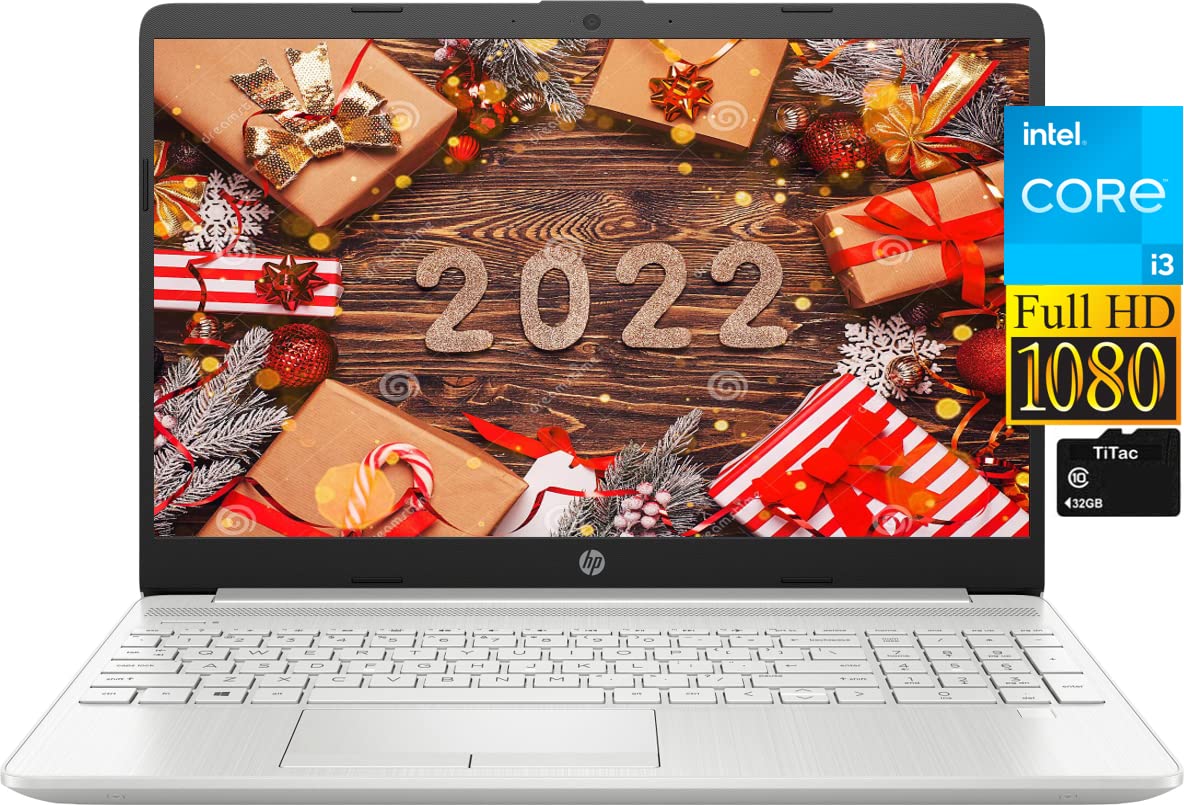
Imagem: Traseira view of the HP 15.6 Inch Laptop, showcasing its sleek silver design and the HP logo on the lid.

Imagem: Lado esquerdo view of the laptop, detailing the multi-format SD media card reader, two SuperSpeed USB Type-A ports, and the AC smart pin for power.

Imagem: Lado direito view of the laptop, displaying the RJ-45 Ethernet port, HDMI 1.4b port, SuperSpeed USB Type-C port, and the headphone/microphone combo jack.
3. Configuração
3.1 Inicialização e carregamento
- Desembale seu laptop e todos os acessórios.
- Connect the AC adapter to the laptop's power port and then to a power outlet. It is recommended to fully charge the battery before first use.
- Open the laptop lid and press the power button, usually located on the top right of the keyboard or side.
3.2 Operating System Setup (Windows 10 S Mode)
Upon first boot, you will be guided through the Windows 10 Home in S mode setup process. Follow the on-screen instructions to:
- Selecione sua região e layout de teclado.
- Conecte-se a uma rede Wi-Fi.
- Inicie sessão com a sua conta Microsoft ou crie uma nova.
- Set up a PIN for quick login.

Image: The HP 15.6 Inch Laptop with its screen displaying the Windows 10 desktop, illustrating the user interface during initial setup or normal operation.
3.3 Switching Out of S Mode (Optional)
Windows 10 Home in S mode is designed for security and performance by exclusively using apps from the Microsoft Store. If you need to install apps from outside the Microsoft Store, you can switch out of S mode. This is a one-way switch.
- Clique no "Start button" (Windows icon) at the bottom left of the screen.
- Selecione o "Configurações" icon (gear icon) above the "power" icon.
- Vá para "Update & Security", então selecione "Activation".
- Under the "Switch to Windows 10 Home" or "Switch to Windows 11 Home" section, select "Go to the Store".
- On the "Switch out of S mode" (or similar) page that appears in the Microsoft Store, click the "Get" botão.
- Follow any additional on-screen prompts to complete the switch.
4. Operando seu laptop
4.1 Teclado e touchpad
- Teclado: The laptop features a full-size US English keyboard. Use it for typing and executing commands.
- Painel tátil: The integrated touchpad supports multi-touch gestures for navigation. Tap to click, use two fingers to scroll, and pinch to zoom.
4.2 Leitor de impressão digital
For enhanced security and quick login, set up the fingerprint reader:
- Vá para Configurações > Contas > Opções de entrada.
- Em "Impressão digital do Windows Hello", clique "Set up" and follow the on-screen instructions to register your fingerprint.
4.3 Conectando-se às redes
- Wi-fi: Click the network icon in the taskbar, select your desired Wi-Fi network, enter the password, and click "Connect."
- Ethernet: Connect an Ethernet cable from your router or modem to the RJ-45 port on the side of your laptop. The connection should be established automatically.
4.4 Using External Devices and Ports
- USB Ports (Type-C and Type-A): Connect external storage devices, mice, keyboards, or other USB peripherals.
- HDMI: Use an HDMI cable to connect your laptop to an external monitor or TV for extended display.
- Conector combinado para fone de ouvido/microfone: Connect headphones, earbuds, or a headset with a 3.5mm jack for audio input/output.
- SD Media Card Reader: Insert an SD card to transfer photos, videos, or other files.
5. Manutenção
5.1 Limpando seu laptop
- Tela: Use um pano macio e sem fiapos levemente dampLimpe com água ou um produto de limpeza para telas. Não borrife líquido diretamente na tela.
- Teclado e chassi: Use um pano macio e seco. Para sujeira persistente, um pano levemente umedecidoamp Pode-se usar um pano, garantindo que nenhum líquido entre nas aberturas. Ar comprimido pode ajudar a remover a poeira entre as teclas.
- Desligue sempre o computador portátil e retire-o da tomada antes de o limpar.
5.2 Cuidados com a bateria
- Evite temperaturas extremas.
- Não descarregue completamente a bateria com frequência.
- Se for guardar o laptop por um período prolongado, certifique-se de que a bateria esteja carregada em cerca de 50%.
5.3 Atualizações de Software
Regularly check for and install Windows updates and HP driver updates to ensure optimal performance and security. Go to Configurações > Atualização e segurança > Windows Update.
6. Solução De Problemas
6.1 Problemas e soluções comuns
- O laptop não liga: Verifique se o adaptador CA está conectado firmemente e se a tomada está funcionando. Tente usar outra tomada.
- Nenhuma imagem exibida na tela: Connect an external monitor to check if the laptop is functioning. If it works, the laptop screen may need service. Try adjusting display brightness (Fn + F2/F3 keys).
- A conexão Wi-Fi não está funcionando: Check if Wi-Fi is enabled (Fn + F12 key or in Windows settings). Restart your router and laptop.
- Desempenho lento: Feche aplicativos desnecessários. Verifique se há malware. Certifique-se de ter espaço livre suficiente no SSD.
6.2 Redefinição de fábrica
If you encounter persistent software issues, you can reset your PC. Go to Settings > Update & Security > Recovery and select "Get started" under "Reset this PC." You will have options to keep your files or remove everything.
7. Especificações
| Componente | Detalhe |
|---|---|
| Processador | Intel Core i3-1115G4 (up to 4.1 GHz, 6 MB L3 cache, 2 cores) |
| Gráficos | Gráficos Intel UHD (Integrados) |
| Sistema operacional | Windows 10 Home 64-bit (S Mode) |
| Memória (RAM) | Memória RAM DDR8 de 4 GB |
| Armazenar | Unidade de estado sólido (SSD) PCIe de 512 GB |
| Mostrar | 15.6" diagonal, FHD (1920 x 1080), IPS, micro-edge, anti-glare, 250 nits, 45% NTSC |
| Conectividade sem fio | 802.11a/b/g/n/ac (1x1) Wi-Fi and Bluetooth 4.2 combo |
| Portos | 1x USB Type-C, 2x USB 3.1 Type-A, 1x HDMI 1.4b, 1x RJ-45 (Ethernet), 1x AC smart pin, 1x Headphone/Mic Combo Jack, 1x Multi-Format SD Media Card Reader |
| Áudio | Alto-falantes duplos |
| Webcâmera | Câmera HP True Vision 720p HD com microfones digitais de matriz dupla integrados |
| Teclado | Teclado de tamanho normal em inglês americano, sem retroiluminação |
| Bateria | 3 células, 41 Wh de íons de lítio |
| Dimensões (C x L x A) | 14.11 x 9.53 x 0.78 polegadas (35.84 x 24.21 x 1.98 cm) |
| Peso | 3.86 libras (1.75 kg) |
| Cor | Prata |
8. Garantia e Suporte
Your HP laptop comes with a standard manufacturer's warranty. Please refer to the warranty card included with your product or visit the official HP support website for detailed terms and conditions, including warranty duration and service options.
For technical support, driver downloads, or further assistance, please visit the official HP Support website: support.hp.com