1. Introdução e maisview
The Wemo Smart Video Doorbell is designed for seamless integration with Apple HomeKit Secure Video, providing a convenient and secure method to monitor your home and communicate with visitors. This device offers a wide field of view and high-definition video quality, ensuring comprehensive coverage of your doorstep. It leverages your existing iCloud subscription for secure storage of motion-based recordings within the Apple Home App.
Key features include face recognition, dual-band Wi-Fi connectivity for reliable performance, and infrared technology for clear night vision. This doorbell is compatible exclusively with wired 16-24V AC doorbell systems.
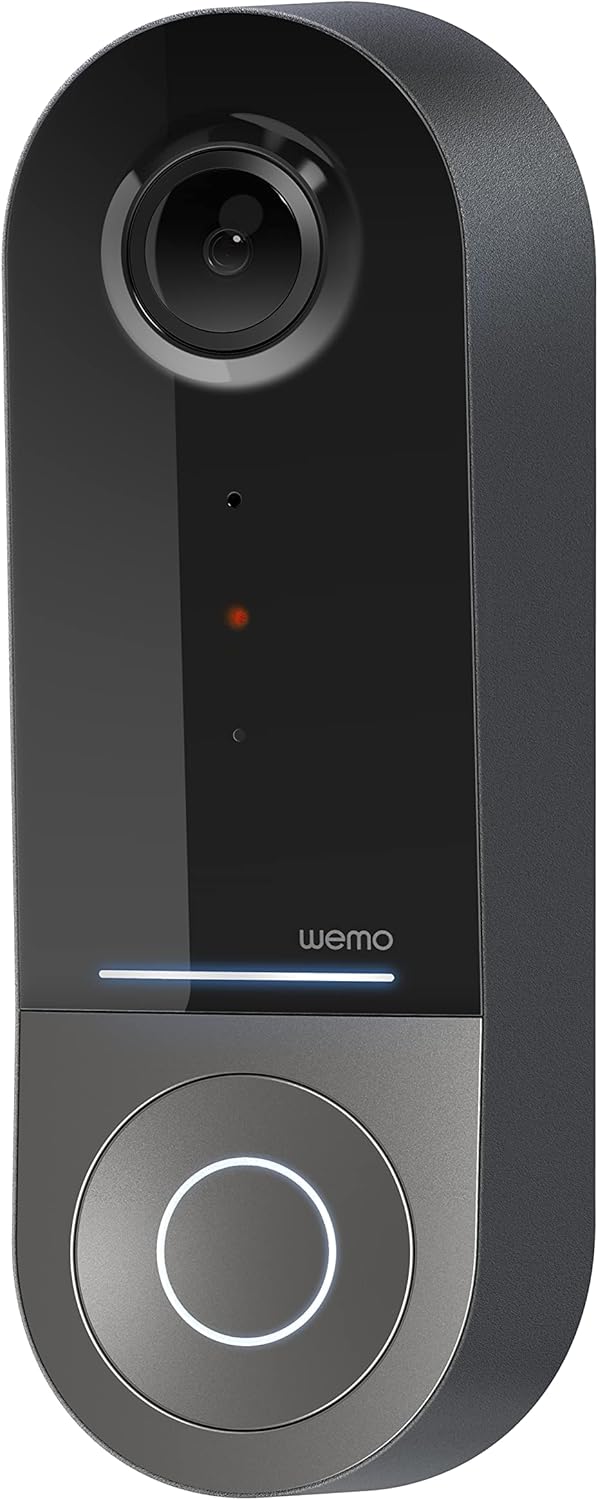
Figure 1: Wemo Smart Video Doorbell
2. Configuração e instalação
2.1 Lista de verificação de pré-instalação
- Ensure you have a wired doorbell system with 16-24V AC power.
- Download the Apple Home App on your iOS device.
- Confirm strong 2.4GHz and 5GHz Wi-Fi signal at your doorbell location.
2.2 Instalação Física
- Desligue a alimentação: Before beginning installation, turn off power to your existing doorbell system at the circuit breaker.
- Remove old doorbell: Remova cuidadosamente o botão da campainha existente.
- Install mounting bracket: Use the provided screws and screwdriver to securely attach the mounting bracket to your wall. If needed, use the left/right wedges to adjust the viewângulo de engate.
- Connect power kit: Follow the instructions in the included Setup Guide to properly install the Power Kit with Connectors into your existing chime box. This is crucial for correct operation.
- Wire the Wemo Doorbell: Connect the existing doorbell wires to the terminals on the back of the Wemo Smart Video Doorbell.
- Mount the doorbell: Secure the Wemo Smart Video Doorbell onto the mounting bracket.
- Restaure a energia: Ligue novamente a energia no disjuntor.
2.3 Configuração do aplicativo
- Open the Apple Home App on your iOS device.
- Tap the '+' icon to add a new accessory.
- Scan the HomeKit setup code provided with your Wemo Smart Video Doorbell.
- Follow the on-screen prompts to name your doorbell, assign it to a room, and configure HomeKit Secure Video settings, including motion detection and face recognition preferences.
3. Instruções de operação
3.1 Ao vivo View e notificações
- Access live video feed directly from the Apple Home App on your iPhone, iPad, or HomePod.
- Receive instant notifications on your iOS device when motion is detected or the doorbell is pressed.
- Utilize face recognition to receive specific alerts for known individuals.

Figure 2: Face Recognition with HomeKit Secure Video
3.2 Gravação e armazenamento de vídeo
- HomeKit Secure Video stores 10 days of motion-based recording history in your iCloud account.
- Review recorded events directly within the Apple Home App.

Figure 3: iCloud Recording via Apple Home App
Áudio bidirecional 3.3
- Engage in real-time two-way conversations with visitors through the Apple Home App.
3.4 Advanced Video Features
- Campo Amplo de View: The camera offers a 178° vertical, 140° horizontal, and 223° diagonal field of view for extensive coverage.
- HD Resolution with HDR: Enjoy crystal clear 1200x1600 resolution video with HDR for optimal image quality in varying light conditions.
- Visão noturna aprimorada: Infrared technology provides clear video even in low-light conditions.

Figure 4: Enhanced Night Vision
3.5 Conectividade Wi-Fi de banda dupla
- The doorbell utilizes both 2.4GHz and 5GHz Wi-Fi bands.
- The 2.4GHz band offers a longer range and better penetration through walls.
- The 5GHz band provides higher speeds for closer proximity connections.

Figura 5: Conectividade Wi-Fi de banda dupla
4. Manutenção e solução de problemas
4.1 Cuidados Gerais
- Limpe regularmente a lente da câmera com um pano macio e seco.amp cloth to ensure clear video quality.
- Ensure the doorbell is free from obstructions that might block its field of view ou microfone.
Solução de problemas 4.2
- Problemas de conectividade: If the doorbell frequently disconnects, ensure your Wi-Fi signal is strong at the installation location. Consider adjusting your router's band (2.4GHz for range, 5GHz for speed) or adding a Wi-Fi extender.
- Problemas de energia: Verify that your wired doorbell system provides the required 16-24V AC. Insufficient voltage can lead to intermittent operation or device resets. Consult a qualified electrician if you suspect voltage questões.
- Capacidade de resposta do aplicativo: If the Apple Home App is slow to connect or display the live feed, ensure your iOS device and HomeKit hub (e.g., Apple TV, HomePod) are updated and have a stable internet connection. Restarting the doorbell or your HomeKit hub may resolve temporary glitches.
5. Especificações
| Uso interno/externo | Ar livre |
| Dispositivos compatíveis | HomePod, iPad, iPhone |
| Fonte de energia | Corded Electric (16-24V AC) |
| Protocolo de conectividade | Wi-Fi (2.4 GHz e 5 GHz) |
| Tipo de controlador | Apple HomeKit |
| Tipo de montagem | Montagem na parede |
| Resolução de captura de vídeo | 1200x1600 (HD, HDR-enabled) |
| Cor | Preto |
| Dimensões do item C x L x A | 2.1 x 1.8 x 5 polegadas |
| Peso do item | 13.7 onças |
| Características especiais | HD Resolution, Image Sensor, Night Vision, HDR |
6. O que está na caixa
- Campainha de vídeo inteligente
- Guia de configuração
- Suporte de montagem
- Left/Right Wedge
- Parafusos e chave de fenda
- Power Kit with Connectors
7. Vídeo oficial do produto
Video 1: Official Wemo Video Doorbell overview, mostrarasing features and design.
8. Garantia e Suporte
For warranty information and technical support, please refer to the official WeMo webou entre em contato diretamente com o serviço de atendimento ao cliente. Guarde o comprovante de compra para eventuais solicitações de garantia.


