Introdução
This manual provides detailed instructions for the installation, operation, and maintenance of your Everycom EC-901 80mm Thermal POS Receipt Printer. Please read this manual thoroughly before using the printer to ensure proper functionality and to prevent damage.
Informações de segurança
- Certifique-se de que a impressora esteja conectada a uma fonte de alimentação com a voltagem correta.tage.
- Não exponha a impressora à água ou a altos níveis de umidade.
- Evite colocar a impressora sob luz solar direta ou perto de fontes de calor.
- Use only specified thermal paper for optimal performance and to prevent damage to the print head.
- Não tente desmontar ou reparar a impressora por conta própria. Contate pessoal de serviço qualificado.
Conteúdo da embalagem
Verifique se todos os itens estão presentes na embalagem:
- Everycom EC-901 Thermal POS Receipt Printer
- Roll paper × 1 Roll (for initial testing)
- CD-ROM (containing Drivers, Utility Software, Manuals)
- Guia de papel
- Paper Bearing
- Cabo USB
- Cabo adaptador de força
Produto acimaview
The Everycom EC-901 is a compact 80mm (3-inch) thermal POS receipt printer designed for efficient and reliable printing. It features a USB and LAN interface for versatile connectivity.

Figura 1: Frente view of the Everycom EC-901 Thermal POS Receipt Printer.
Principais características:
- Velocidade de impressão rápida: Up to 160mm per second for quick receipt output.
- Fácil carregamento de papel: Drop-in paper loading mechanism for quick and easy media changes.
- Design compacto: Low space requirement with an integrated power supply.
- Variable Paper Width: Supports 80mm paper width.
- Conectividade: USB and LAN interface options.
- Alta resolução: 203 x 203 DPI for clear print quality.
- Baixos níveis de ruído: Operates quietly, suitable for various work environments.

Figure 2: Top-open design for easy paper roll installation.
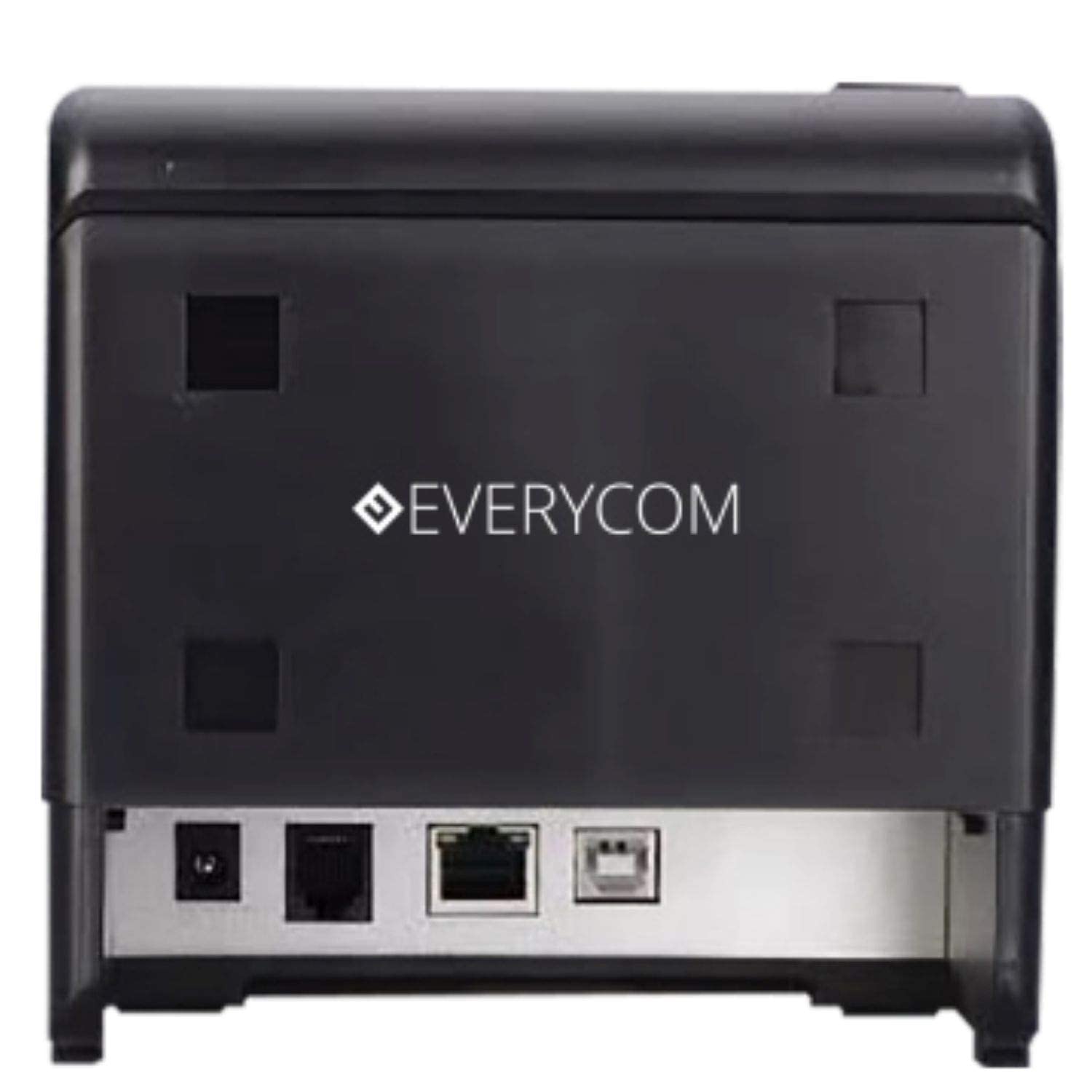
Figura 3: Traseira view showing USB and LAN connectivity ports.

Figure 4: The EC-901 printer is designed for low noise operation.

Figure 5: The EC-901 printer features an easy-to-use design for paper installation.
Configurar
1. Conectando a impressora
- Connect the power adapter cable to the printer's power port and then plug it into a suitable electrical outlet.
- For USB connection: Connect one end of the USB cable to the printer's USB port and the other end to your computer.
- For LAN connection: Connect an Ethernet cable to the printer's LAN port and the other end to your network router or switch.
- Turn on the printer using the power switch located on the front or side of the device.
2. Installing the Paper Roll
- Open the printer cover by pressing the release button or lifting the cover.
- Insert the thermal paper roll into the compartment with the paper feeding from the bottom and exiting towards the front.
- Puxe uma pequena quantidade de papel para fora da lâmina de corte.
- Feche a tampa da impressora firmemente até ouvir um clique.
3. Instalação do driver
Insert the provided CD-ROM into your computer's CD/DVD drive. Follow the on-screen instructions to install the printer drivers and utility software. Drivers are typically compatible with Windows operating systems, including Windows 10.
Instruções de operação
Luzes indicadoras:
- PODER: Indica que a impressora está ligada.
- ERRO: Lights up or flashes to indicate an error (e.g., print head overheating, cover open).
- PAPEL: Indicates low paper or no paper.
Basic Printing:
Once the printer is connected and drivers are installed, you can print receipts from your POS software or any application that supports printing. Ensure the Everycom EC-901 is selected as the default printer or the desired printer in your application's print settings.
Manutenção
Limpeza da impressora:
- Turn off the printer and disconnect the power cable before cleaning.
- Use um pano macio e sem fiapos dampened with isopropyl alcohol to gently clean the thermal print head. Allow it to dry completely before use.
- Wipe the exterior of the printer with a soft, dry cloth. Do not use abrasive cleaners.
Substituição de papel:
When the PAPER indicator lights up or printing becomes faint, replace the paper roll following the steps outlined in the "Installing the Paper Roll" section.
Solução de problemas
| Problema | Possível causa | Solução |
|---|---|---|
| A impressora não liga. | Cabo de alimentação desconectado ou problema na tomada. | Check power cable connections. Ensure the power outlet is functional. |
| Sem impressão ou saída em branco. | No paper, paper loaded incorrectly, or print head issue. | Check paper roll and ensure it's loaded correctly. Clean the print head if necessary. Verify printer drivers are installed. |
| PAPER indicator is on. | Paper roll is empty or low. | Substitua o rolo de papel. |
| ERROR indicator is on. | Printer cover open, print head overheating, or other internal error. | Ensure the printer cover is closed properly. Turn off the printer, wait a few minutes for it to cool down, then restart. If the issue persists, contact support. |
| A impressora não é reconhecida pelo computador. | Driver not installed or USB/LAN cable issue. | Reinstall printer drivers. Check USB/LAN cable connections. Try a different port or cable. |
Especificações
| Recurso | Detalhe |
|---|---|
| Nome do modelo | CE-901 |
| Tecnologia de impressão | Térmico |
| Mídia impressa | Paper (plain thermal) |
| Tamanho máximo da mídia | 3 polegadas (80 mm) |
| Velocidade Máxima de Impressão | 160 mm/segundo |
| Resolução | 203 x 203 DPI |
| Tecnologia de Conectividade | USB, LAN Interface |
| Saída da impressora | Monocromático |
| Sistema operacional | Windows 10 (and compatible with other Windows versions) |
| Dimensões do produto (CxLxA) | 19.8 x 14.8 x 14.8 cm |
| Peso do item | 1.8 kg |
| Recurso especial | Without Auto cutter |
Garantia e Suporte
For technical assistance, warranty claims, or any product-related inquiries, please contact Everycom customer support.
- Número gratuito: 1800 121 4480
- Horas de trabalho: Segunda a sábado, das 10h às 18h30 (exceto em feriados).