Introdução
This manual provides essential information for setting up, operating, maintaining, and troubleshooting your Acer Veriton X4680G Desktop Computer. Please read this document thoroughly before using the product to ensure proper function and longevity. Keep this manual for future reference.
Conteúdo da embalagem
Verifique se todos os itens estão presentes na embalagem:
- Acer Veriton X4680G Desktop PC
- Teclado USB
- Mouse USB
- Cabo de alimentação
- Documentação (Guia de Início Rápido, Cartão de Garantia)
Produto acimaview
Familiarize yourself with the physical components of your desktop computer.
Frente View
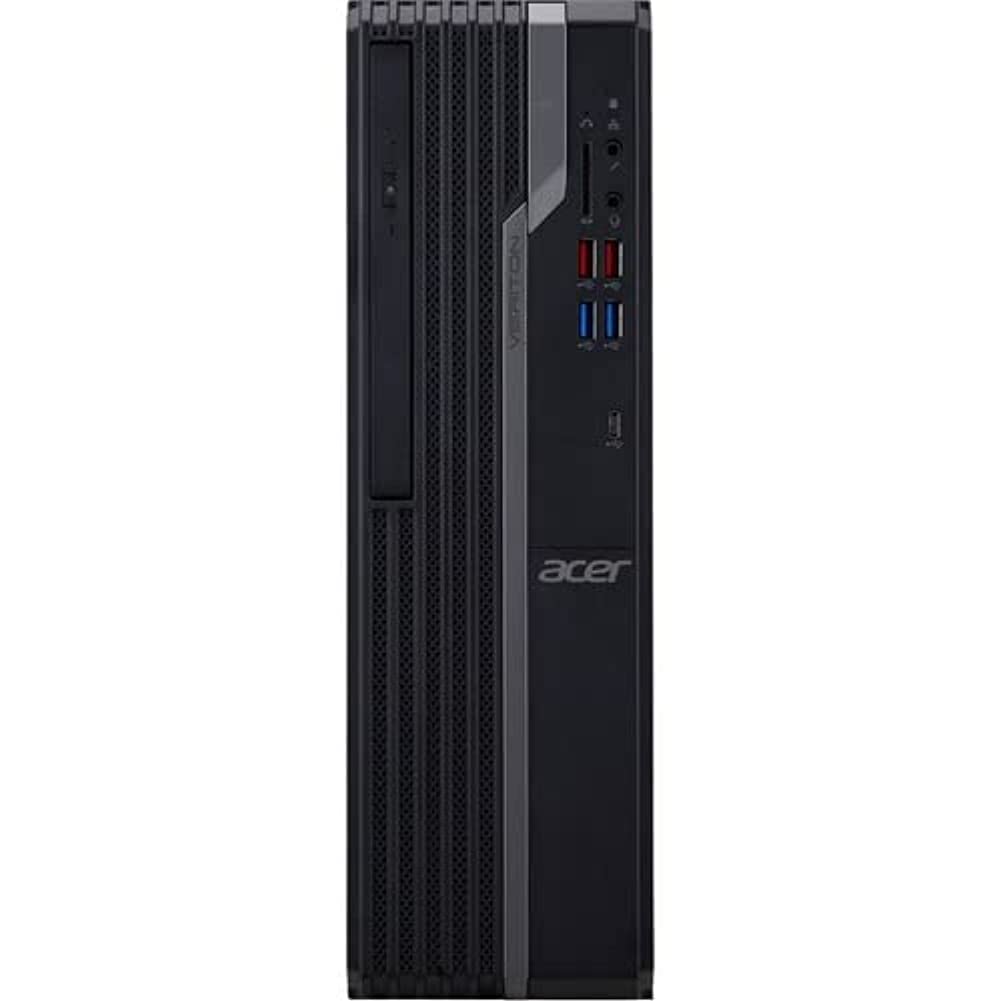
This image displays the front of the Acer Veriton X4680G desktop computer, highlighting the optical drive, front USB ports (including USB 3.2 and USB 2.0), audio jacks, and the power button. The 'Veriton' branding and Acer logo are visible on the chassis.
Traseira View

This image shows the rear panel of the Acer Veriton X4680G, detailing the various input/output ports. These include multiple USB ports, Ethernet port, audio jacks, video output ports (VGA, DisplayPort), and the power input connector. Expansion slots are also visible.
Configurar
Follow these steps to set up your new desktop computer.
1. Conectando Periféricos
- Monitor: Connect your monitor to one of the video output ports (VGA or DisplayPort) on the rear of the computer using the appropriate cable.
- Teclado e Mouse: Connect the USB keyboard and mouse to any available USB ports on the front or rear of the computer.
- Rede: For a wired internet connection, connect an Ethernet cable from your router or modem to the Ethernet port on the rear of the computer. For wireless, ensure your system has Wi-Fi enabled.
- Áudio: Connect speakers or headphones to the audio output jack on the front or rear panel.
2. Conexão de energia
- Connect the power cord to the power input on the rear of the computer.
- Conecte a outra extremidade do cabo de alimentação a uma tomada elétrica aterrada.
3. Ligação inicial
- Pressione o botão liga/desliga localizado no painel frontal do computador.
- The computer will boot up, and the Windows 10 Pro operating system will load. Follow any on-screen instructions for initial setup, such as language selection and user account creation.
Instruções de operação
Guidance for basic operation of your Acer Veriton X4680G.
Windows 10 Pro
Your computer comes pre-installed with Windows 10 Pro. This operating system provides a familiar interface for managing files, running applications, and browsing the internet. Utilize the Start Menu for quick access to programs and settings.
Using the Optical Drive (DVD-Writer)
The integrated DVD-Writer allows you to read and write CDs and DVDs.
- To open the tray, press the eject button on the drive face.
- Place a disc onto the tray with the label side facing up.
- Gently push the tray back into the computer until it clicks shut.
- The operating system will typically prompt you for action or automatically play media.
Portas USB
The computer features multiple USB 2.0 and USB 3.2 ports for connecting external devices such as external hard drives, printers, and other peripherals. USB 3.2 ports offer faster data transfer speeds.
Manutenção
Regular maintenance helps ensure optimal performance and extends the lifespan of your computer.
Limpeza
- Exterior: Use um pano macio e macioamp Use um pano para limpar as superfícies externas. Evite produtos químicos agressivos.
- Vents: Periodically use compressed air to clear dust from the ventilation grilles to prevent overheating.
- Tela: For monitors, use a specialized screen cleaner and a microfiber cloth.
Atualizações de software
Mantenha seu sistema operacional e drivers atualizados para garantir segurança e desempenho.
- Atualizações do Windows: Regularly check for and install Windows updates via the Settings app.
- Atualizações de Driver: Visit the Acer support webSite para obter os drivers mais recentes para o seu modelo específico.
Backup de dados
Faça backup regularmente de seus arquivos importantes filePara evitar a perda de dados, copie os dados para um disco rígido externo ou para armazenamento em nuvem.
Solução de problemas
Esta seção aborda problemas comuns que você pode encontrar.
Sem energia
- Certifique-se de que o cabo de alimentação esteja firmemente conectado tanto ao computador quanto à tomada elétrica.
- Verifique se a tomada elétrica está funcionando conectando outro aparelho.
- Check the power supply unit (PSU) switch on the rear of the computer, if present, to ensure it is in the 'On' position.
Nenhuma imagem exibida no monitor
- Confirm the monitor's power cable is connected and the monitor is turned on.
- Check that the video cable (VGA or DisplayPort) is securely connected to both the computer and the monitor.
- Ensure the monitor's input source is set correctly (e.g., VGA, DisplayPort).
Lentidão do sistema
- Feche os aplicativos desnecessários que estão sendo executados em segundo plano.
- Check disk space; a full drive can impact performance.
- Execute uma verificação de vírus para verificar a presença de malware.
- Certifique-se de que o Windows e os drivers estejam atualizados.
Especificações
Detailed technical specifications for the Acer Veriton X4680G Desktop Computer.
| Recurso | Especificação |
|---|---|
| Processador | Intel Core i7-11700 Octa-core (8 Core) 2.50 GHz |
| BATER | Memória RAM DDR8 de 4 GB |
| Armazenar | 256 GB PCI Express SSD |
| Sistema operacional | Windows 10 Pro |
| Placa gráfica | Gráficos Intel Iris Xe |
| Unidade óptica | DVD-Writer |
| Conectividade sem fio | 802.11ax, Bluetooth |
| Portas USB 2.0 | 4 |
| Dimensões (CxLxA) | 16.34 x 19.49 x 6.69 polegadas |
| Peso do item | 14.52 libras |
| Cor | Preto |
Garantia e Suporte
Your Acer Veriton X4680G Desktop Computer is covered by a limited warranty. Please refer to the warranty card included in your package for specific terms and conditions, including warranty period and coverage details.
Para suporte técnico, downloads de drivers ou assistência adicional, visite o site oficial de suporte da Acer. website or contact Acer customer service. Have your product model number (DT.VWEAA.003) and serial number ready when seeking support.
Observação: Os termos da garantia podem variar conforme a região.


