Introdução
This manual provides essential information for setting up, operating, maintaining, and troubleshooting your HP 15 Laptop. Please read this guide thoroughly to ensure proper use and to maximize the performance and longevity of your device.
Primeiros passos: Configuração
1. Unboxing Your Laptop
Carefully remove the laptop and all accessories from the packaging. Ensure all components are present: the HP 15 Laptop, AC power adapter, and any included documentation.
2. Conectando à energia
Connect the AC power adapter to the laptop's power port and then plug it into a wall outlet. It is recommended to fully charge the battery before the first use.
3. Inicialização e configuração do Windows
Press the power button located on the keyboard deck. The laptop will power on, and you will be guided through the Windows 11 Home setup process. Follow the on-screen instructions to configure your language, region, network, and user account.
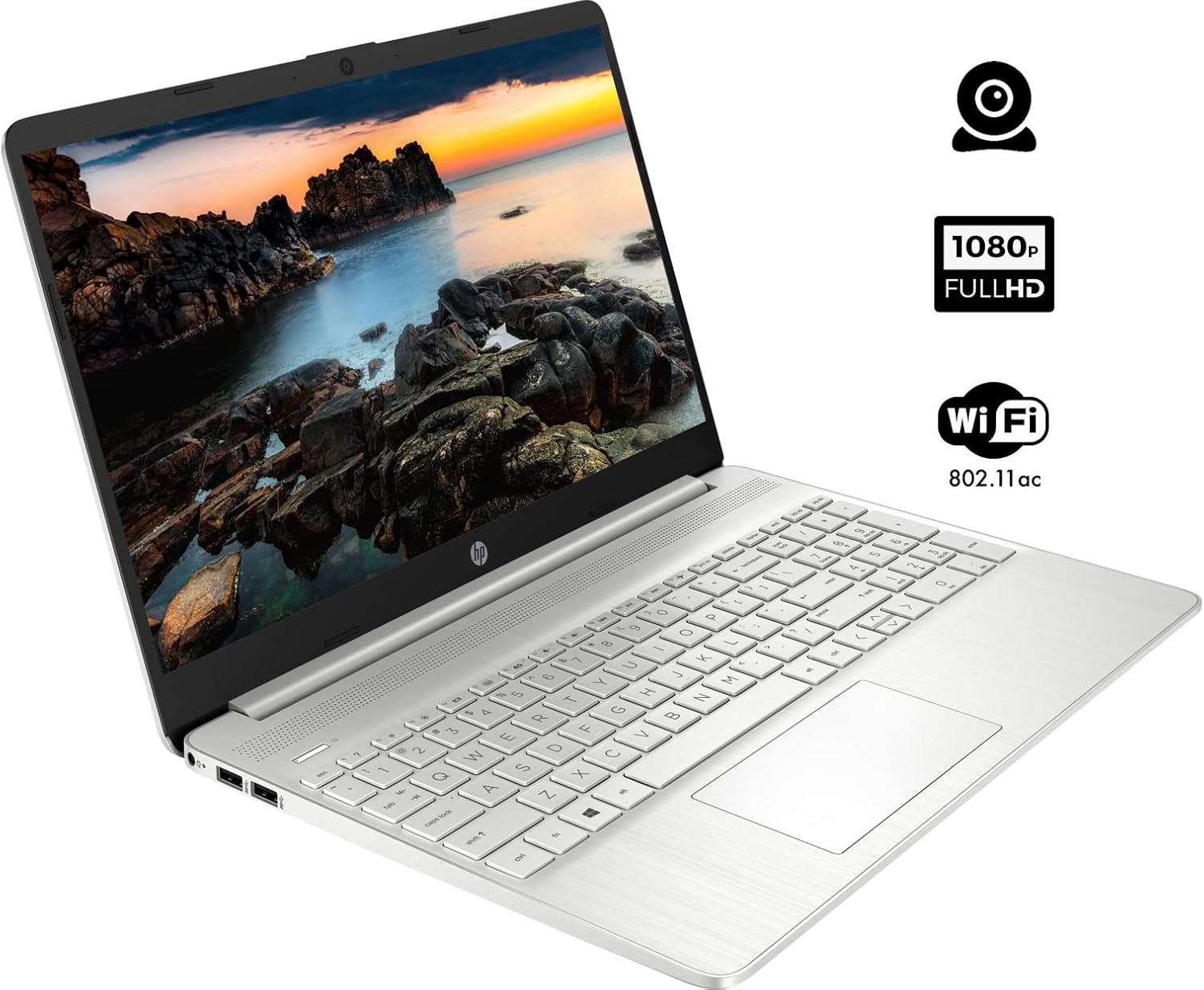
The HP 15 Laptop, ready for initial setup. Ensure the power adapter is connected before first use.
Operando seu laptop
1. Ligar/desligar
- Ligar: Pressione o botão liga/desliga.
- Desligar: Click the Windows Start button, then select Energia > Desligar. Avoid forced shutdowns by holding the power button unless necessary.
2. Utilização do teclado e do touchpad
- Teclado: Use the integrated keyboard for typing. Function keys (F1-F12) often have secondary actions (e.g., volume, brightness) accessible by pressing the Fn chave simultaneamente.
- Painel tátil: O touchpad funciona como um mouse. Toque para clicar, use dois dedos para rolar e faça o gesto de pinça para ampliar.
3. Conectando Periféricos
Your HP 15 Laptop features various ports for connecting external devices:
- Portas USB Tipo A: Para conectar dispositivos USB padrão, como mouses, teclados ou discos rígidos externos.
- Porta USB Tipo-C: Uma porta versátil para transferência de dados.
- Porta HDMI: Conecte-se a monitores ou projetores externos.
- Conector combinado para fone de ouvido/microfone: Para saída de áudio para fones de ouvido ou entrada de um microfone.
- Leitor de cartão SD: Insira um cartão SD para transferência de dados.

This diagram illustrates the various ports available on your HP 15 Laptop, including USB-C, USB-A, HDMI, audio jack, SD card reader, and the power input.
4. Conectando-se ao Wi-Fi
Para se conectar a uma rede sem fio:
- Clique no ícone do Wi-Fi na barra de tarefas.
- Selecione a rede desejada na lista.
- Enter the network password if prompted, then click Conectar.
5. Conectando dispositivos Bluetooth
Para emparelhar um dispositivo Bluetooth:
- Vá para Configurações > Bluetooth e dispositivos.
- Certifique-se de que o Bluetooth esteja ativado. On.
- Selecione Adicionar dispositivo and follow the on-screen instructions to pair your device.

The HP 15 Laptop features an integrated webcam for video calls and supports Wi-Fi 802.11ac for wireless internet connectivity.
Manutenção
1. Limpando seu laptop
- Tela: Use um pano macio e sem fiapos levemente dampLimpe com água ou um produto de limpeza para telas. Evite produtos químicos agressivos.
- Teclado e chassi: Use a soft cloth to wipe surfaces. Compressed air can remove dust from between keys.
2. Atualizações de software
Regularly update your operating system and drivers to ensure optimal performance and security. Windows Update typically handles this automatically, but you can manually check via Configurações > Windows Update.
3. Cuidados com a bateria
- Evite descarregar completamente a bateria com frequência.
- If storing the laptop for an extended period, charge the battery to about 50% and store it in a cool, dry place.
Solução de problemas
Esta seção aborda problemas comuns que você pode encontrar.
Sem energia
- Certifique-se de que o adaptador CA esteja conectado firmemente tanto ao laptop quanto a uma tomada elétrica em funcionamento.
- Verifique se a tomada está funcionando conectando outro aparelho.
- Se a bateria estiver completamente descarregada, deixe-a carregar por alguns minutos antes de tentar ligá-la.
Problemas de exibição
- If the screen is blank, try adjusting the brightness using the function keys (e.g., F2/F3).
- Connect an external monitor via the HDMI port to check if the issue is with the laptop's display or graphics output.
- Certifique-se de que os drivers da placa gráfica estejam atualizados.
Problemas de conectividade Wi-Fi
- Verifique se o Wi-Fi está ativado nas configurações do Windows.
- Reinicie o roteador e o modem.
- Certifique-se de estar dentro do alcance da rede Wi-Fi.
- Check for updated network drivers.
Desempenho lento
- Feche os aplicativos desnecessários que estão sendo executados em segundo plano.
- Ensure your operating system and drivers are updated.
- Check for sufficient free space on your storage drive.
- Run a scan for malware or viruses.
Especificações
Below are the technical specifications for the HP 15 Laptop (Model 15):
| Recurso | Detalhe |
|---|---|
| Tamanho de exibição da tela em pé | 15.6 polegadas |
| Resolução da tela | 1920 x 1080 pixels (FHD) |
| Processador | AMD Ryzen 5 5500U (6 núcleos, 12 threads, até 4.0 GHz) |
| BATER | 12 GB DDR4 |
| Disco rígido | SSD PCIe NVMe M.2 de 1 TB |
| Coprocessador gráfico | AMD Radeon Integrated Graphics |
| Sistema operacional | Windows 11 Início |
| Portas USB 3.0 | 3 (2x Type-A, 1x Type-C) |
| Porta HDMI | 1 (HDMI 1.4b) |
| Conectividade | Wi-Fi 802.11ac, Bluetooth |
| Webcâmera | Integrado Webcam com microfone |
| Peso do item | 3.74 libras |
| Dimensões do produto | 14.11 x 9.53 x 0.7 polegadas |
| Cor | Prata |

The HP 15 Laptop in its closed state, highlighting its sleek silver design and the HP branding.
Informações de garantia
Your HP 15 Laptop comes with a standard manufacturer's warranty. For detailed information regarding warranty terms, conditions, and duration, please refer to the warranty card included with your product or visit the official HP support website.
Apoiar
Para obter mais assistência, suporte técnico ou para baixar drivers e softwares atualizados, visite o site oficial de suporte da HP. website. Lá você também encontra perguntas frequentes e fóruns da comunidade para obter ajuda adicional.
Suporte HP Website: support.hp.com