1. Introdução
Thank you for choosing the XTREMTEC Wireless Keyboard and Mouse Combo. This ultra-slim, retro-style peripheral set is designed for comfortable and quiet operation across various devices. This manual provides essential information for setup, operation, maintenance, and troubleshooting to ensure optimal performance.
2. Conteúdo da embalagem
- XTREMTEC Wireless Keyboard
- XTREMTEC Wireless Mouse
- 2.4G Nano USB Receiver (stored inside the keyboard's battery compartment)
- Adaptador USB-C
- Silicone Keyboard Cover
- Manual do usuário
3. Configuração
Follow these steps to set up your XTREMTEC Wireless Keyboard and Mouse Combo:
- Instale as baterias:
- For the mouse: Open the battery compartment on the underside of the mouse and insert 1 AA battery (not included), ensuring correct polarity.
- For the keyboard: Open the battery compartment on the back of the keyboard and insert 2 AAA batteries (not included), ensuring correct polarity.
- Conecte o receptor USB:
- Locate the 2.4G Nano USB receiver stored inside the keyboard's battery compartment. Remove it.
- Plug the USB receiver into an available USB port on your computer. If your device only has USB-C ports, use the provided USB-C adapter.
- Ligar:
- Slide the ON/OFF switch on the bottom of the mouse to the 'ON' position.
- Slide the ON/OFF switch on the back of the keyboard to the 'ON' position.
- Conexão automática: O teclado e o mouse devem se conectar automaticamente ao seu computador. Normalmente, não são necessários drivers adicionais.

Image: The 2.4GHz wireless connection setup, showing the USB receiver plugged into a laptop.
Video: A demonstration of the XTREMTEC Slim Wireless 2.4G Keyboard and Mouse Combo setup process.
4. Instruções de operação
Maximize your productivity and comfort with these operating features:
- Experiência de digitação silenciosa: The keyboard features noise-reduced scissor switches and vintage typewriter-inspired round keycaps for a comfortable and quiet typing experience. The mouse also offers noiseless clicks.
- Ajuste de DPI: The optical wireless mouse allows you to adjust the DPI (dots per inch) sensitivity between 3 different levels with a single click, adapting to your preference.
- Atalhos multimídia: Access common functions quickly with 15 multimedia shortcuts integrated into the keyboard. These include controls for music, volume, homepage, email, and more.
- Função de bloqueio de tela: The keyboard includes a dedicated button to quickly lock your screen for privacy and security.
- Modo de suspensão automático: Both the keyboard and mouse feature an auto-sleep mode to conserve battery life when not in use. They will wake instantly with a single click or key press.

Image: Detail of the keyboard showcasing whisper-quiet keys and noiseless mouse technology.
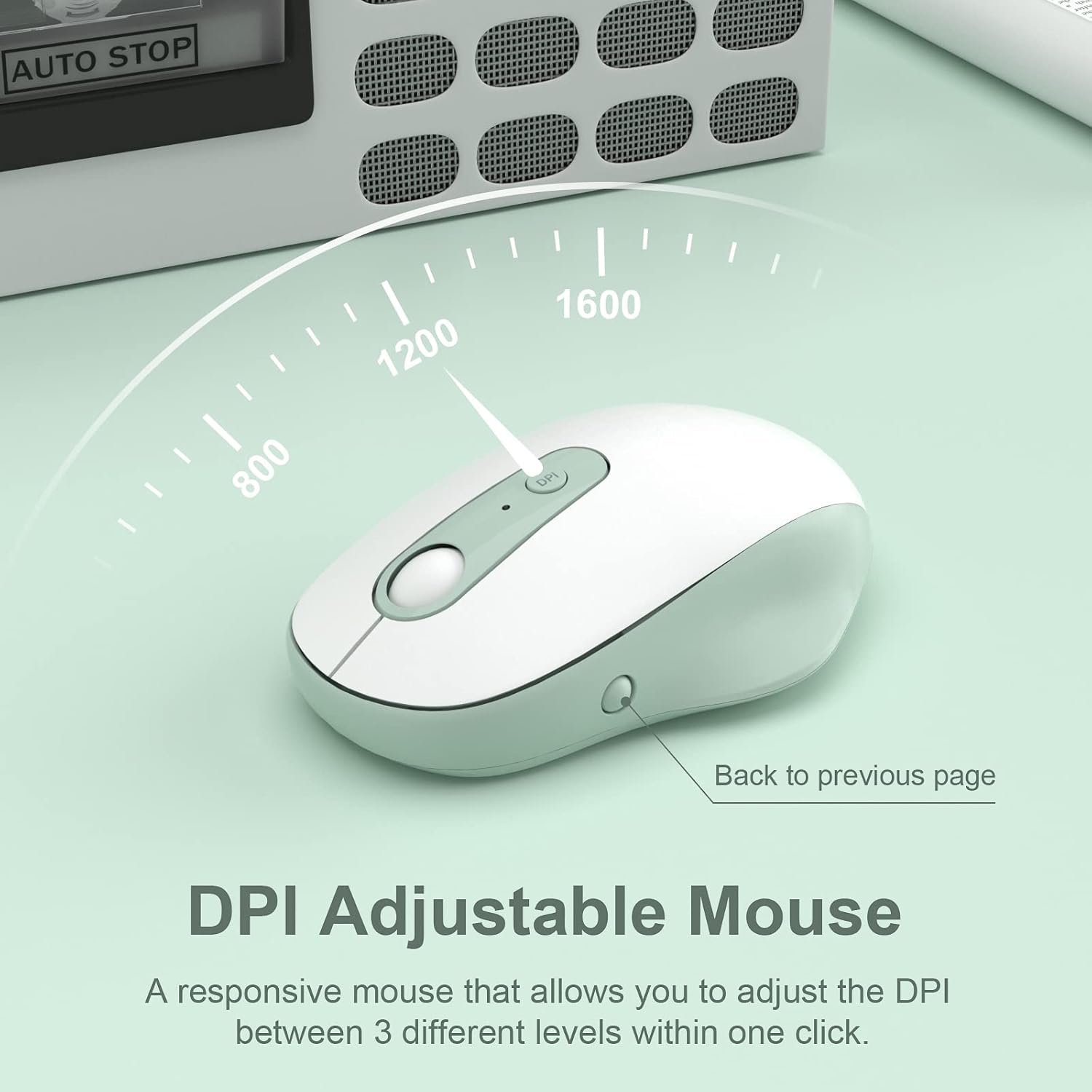
Image: The DPI adjustable mouse, illustrating its responsiveness and settings.
Video: A demonstration of the XTREMTEC Wireless Keyboard and Mouse Combo, highlighting its quiet round keys.
5. Manutenção
To ensure the longevity and optimal performance of your XTREMTEC combo:
- Capa de silicone: Use the provided soft silicone cover to protect your keyboard from dust, spills, and scratches when not in use.
- Teclas duráveis: The keys are designed to withstand up to 3 million presses and feature a UV coating to prevent letters from fading or scratching easily.
- Limpeza: Regularly wipe down the surfaces with a soft, dry cloth. For deeper cleaning, carefully remove the silicone cover and clean the keyboard keys.

Image: The keyboard with its water and dust resistant silicone cover, also showing a USB-C adapter.
6. Solução De Problemas
If you encounter any issues, please try the following steps:
- Sem conexão:
- Certifique-se de que o teclado e o mouse estejam ligados.
- Check that the USB receiver is securely plugged into your computer's USB port. Try a different USB port if necessary.
- Verify that the batteries in both devices are correctly installed and not depleted. Replace batteries if needed.
- Conexão lenta ou intermitente:
- Aproxime o teclado e o mouse do receptor USB.
- Avoid placing the receiver near other electronic devices that might cause interference (e.g., Wi-Fi routers, other wireless devices).
- Certifique-se de que o sistema operacional do seu computador esteja atualizado.
- Mouse Cursor Not Moving:
- Check the mouse's power switch and battery.
- Ensure the mouse is on a suitable surface (a mouse pad is recommended).
7. Especificações
| Número do modelo | KB-K101A |
| Dimensões do produto | 15.31 x 5.3 x 0.16 polegadas |
| Peso do item | 1.3 libras |
| Pilhas necessárias | 1 AA battery (for mouse), 2 AAA batteries (for keyboard) |
| Tecnologia de Conectividade | 2.4G USB Wireless Technology |
| Dispositivos compatíveis | Mac OS, Windows, PC, Desktop computer, Laptop |
| Recurso especial | Round Key, Scissor Switch, DPI Adjustment |
8. Garantia e Suporte
For warranty information and customer support, please refer to the documentation included with your product or visit the official XTREMTEC website. You may also contact XTREMTEC customer service directly for assistance.