1. Introdução
Thank you for choosing the PeriPage A6 Mini Portable Thermal Printer. This compact and versatile device allows you to print photos, labels, notes, lists, and more directly from your smartphone or PC. With its high-resolution thermal printing technology, you can enjoy clear and crisp prints without the need for ink cartridges. This manual provides essential information on setting up, operating, maintaining, and troubleshooting your new printer.
3. Conteúdo da embalagem
Verifique se todos os itens estão presentes no seu pacote:
- PeriPage A6 Mini Printer
- Rolo de papel térmico
- Cabo USB
- Manual do usuário

Image: Contents of the PeriPage A6 Mini Printer package, showing the printer, a roll of thermal paper, a USB charging cable, and the user manual.
4. Produto acabadoview
4.1 Principais Características
- Ultra HD Printing: 304 DPI resolution for clear and detailed prints.
- Impressão térmica sem tinta: No ink cartridges required, reducing operating costs.
- Multifuncional: Supports printing of photos, labels, notes, lists, QR codes, web páginas e muito mais.
- Conectividade Bluetooth: Seamless wireless connection to iOS and Android smartphones.
- Design portátil: Compact and lightweight with a built-in 1000mAh rechargeable battery.
- Suporte versátil para papel: Compatible with various thermal paper types including standard, sticky, transparent, and colorful options.
4.2 Componentes da impressora
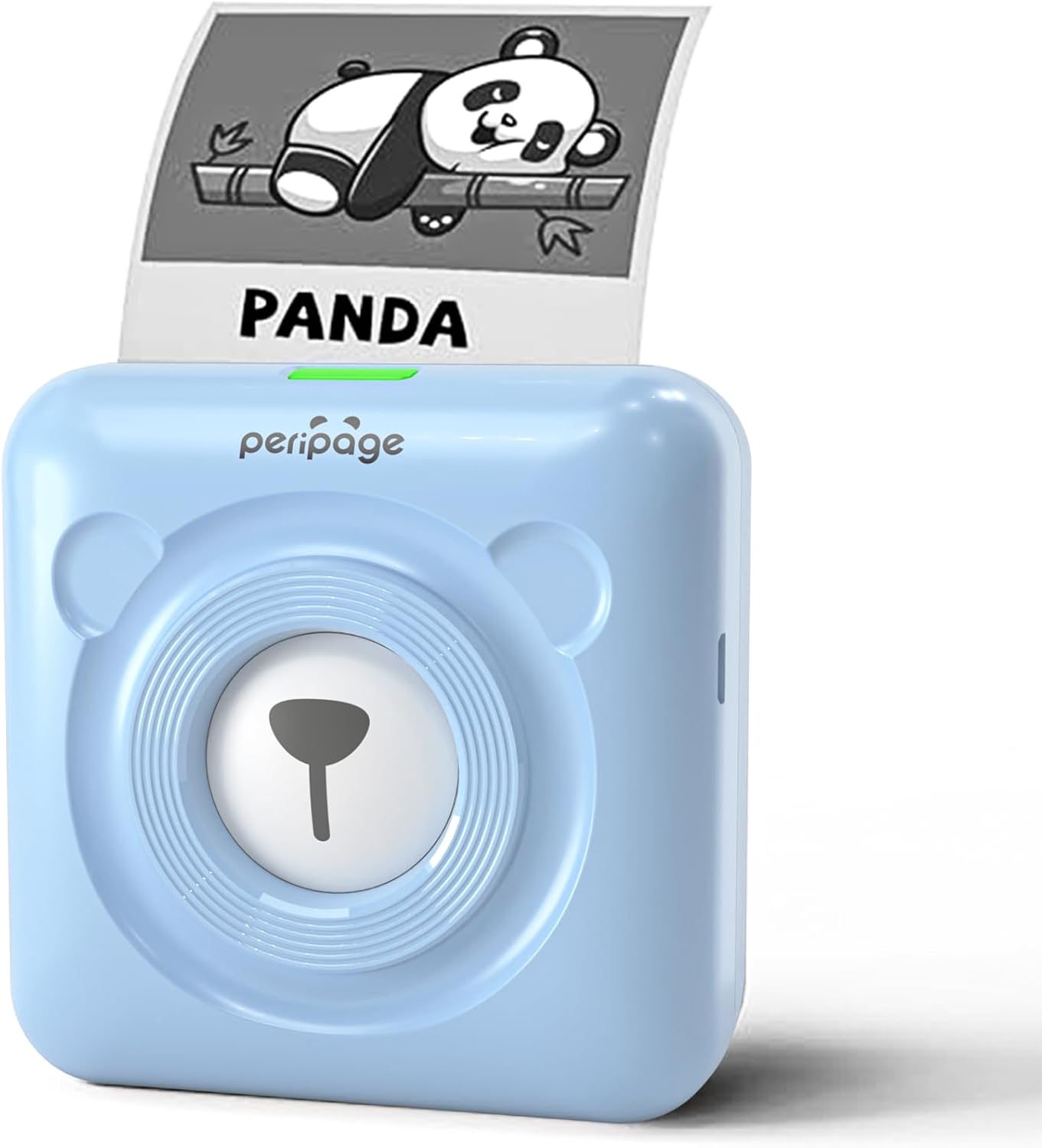
Image: The PeriPage A6 Mini Printer in blue, demonstrating a printed output. The printer features a bear-like design on its front.

Image: A visual comparison highlighting the superior print resolution of the PeriPage A6 Mini Printer (304 DPI) compared to a standard definition printer, showing finer details in the printed image.
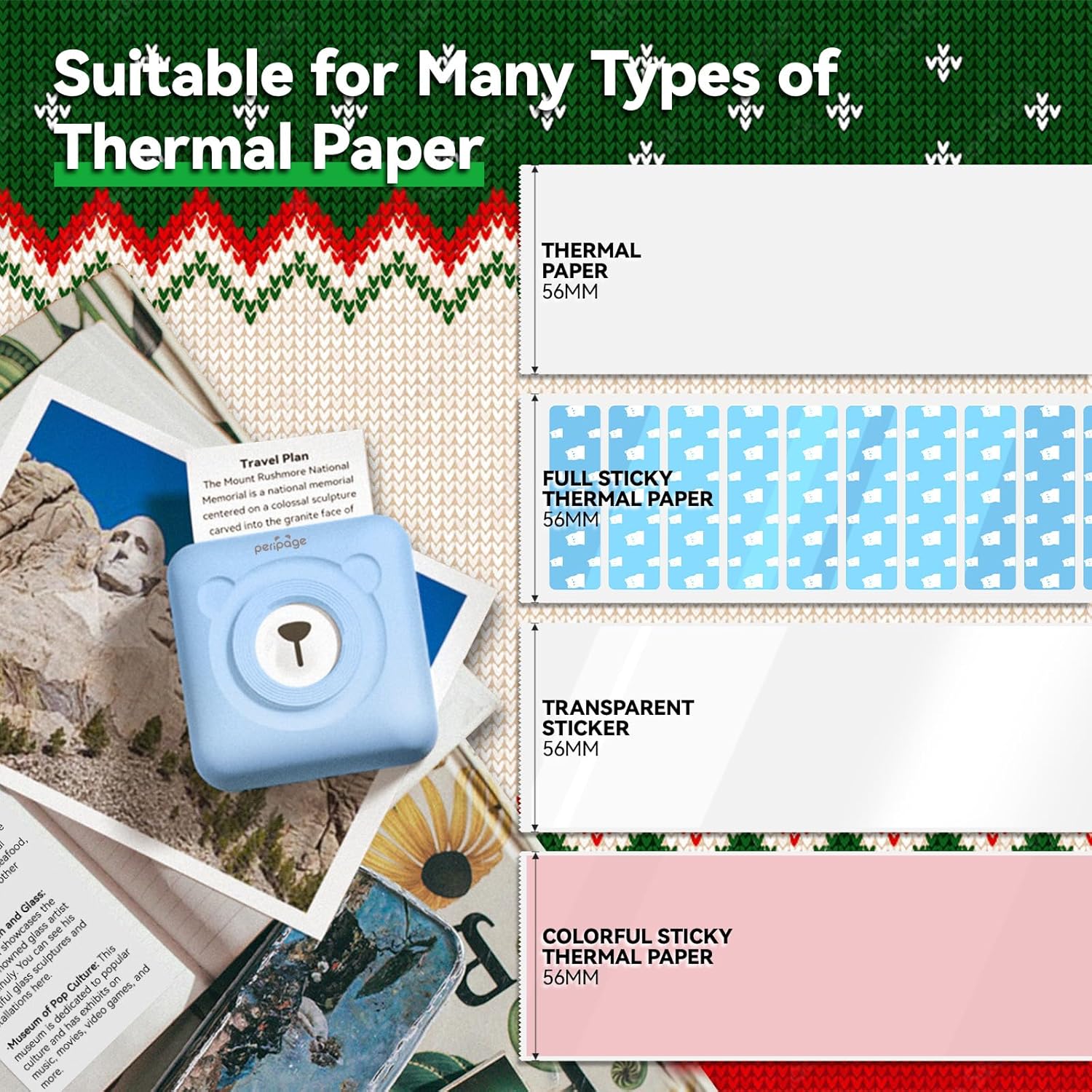
Image: An illustration showing the different types of thermal paper that can be used with the PeriPage A6 Mini Printer, such as standard thermal paper, full sticky thermal paper, transparent stickers, and colorful sticky thermal paper, all 56mm wide.
5. Guia de configuração
5.1 Carregando a impressora
Antes da primeira utilização, carregue totalmente a impressora utilizando o cabo USB fornecido. Conecte o cabo USB à porta de carregamento da impressora e a outra extremidade a um adaptador de energia USB (não incluído) ou a uma porta USB do computador. A luz indicadora mostrará o estado do carregamento.
5.2 Instalação do Papel Térmico
- Open the printer cover by gently sliding the release button or pressing the designated area.
- Insira o rolo de papel térmico no compartimento de papel, certificando-se de que o lado de impressão esteja voltado para a cabeça de impressão.
- Puxe uma pequena quantidade de papel para fora da cabeça de impressão.
- Feche a tampa da impressora firmemente até ouvir um clique.
5.3 Downloading the PeriPage App
The PeriPage A6 Mini Printer requires the official PeriPage APP for full functionality. You can download it via:
- Searching for "PeriPage" in your device's APP store (Apple App Store for iOS, Google Play Store for Android).
- Scanning the QR code provided in the instruction manual or on the product packaging.
- Visiting the official download page: https://www.ileadtek.com/download/app/peripage.html

Image: A guide illustrating two methods to download the PeriPage App: searching on Google Play or Apple App Store, or scanning a QR code.
5.4 Conectando ao seu dispositivo (Bluetooth)
- Ensure your PeriPage A6 printer is turned on.
- Ative o Bluetooth no seu smartphone.
- Open the PeriPage App. The app will guide you to connect to the printer.
- Select your printer from the list of available Bluetooth devices within the app. The printer's name usually starts with "PeriPage".
- Após a conexão, o aplicativo indicará que a conexão foi bem-sucedida.

Image: A visual representation of connecting the PeriPage A6 Mini Printer to a smartphone via the PeriPage App, showing the app interface and Bluetooth icon.
6. Instruções de operação
The PeriPage App offers a wide range of functions to maximize your printer's utility.
6.1 Basic Printing Steps (via App)
- Ligue a impressora: Pressione o botão liga/desliga da impressora.
- Open the PeriPage App: Certifique-se de que sua impressora esteja conectada via Bluetooth.
- Select Printing Type: On the app's homepage, choose the type of content you wish to print (e.g., Photo Print, Label Print, Notes, Web Page Printing, OCR Text Recognition).
- Import/Create Content: Select the image, text, or template you want to print. The app provides various fonts and themes.
- Ajuste as configurações (opcional): Modify print density, size, or other parameters as needed.
- Imprimir: Tap the print button in the app. The printer will begin printing.

Image: A five-step visual guide demonstrating the printing process using the PeriPage App: 1. Press button to boot, 2. Enter PeriPage app, 3. Import file, 4. Connect via Bluetooth, 5. Get printed document.
6.2 Cenários de Uso
The PeriPage A6 is suitable for a variety of applications:
- Cozinha: Print labels for jars and containers.
- Estudar: Print study notes, lists, or quick references.
- Fotos: Print black and white photos for journaling or scrapbooking.
- Adesivos DIY: Create custom stickers for various purposes.
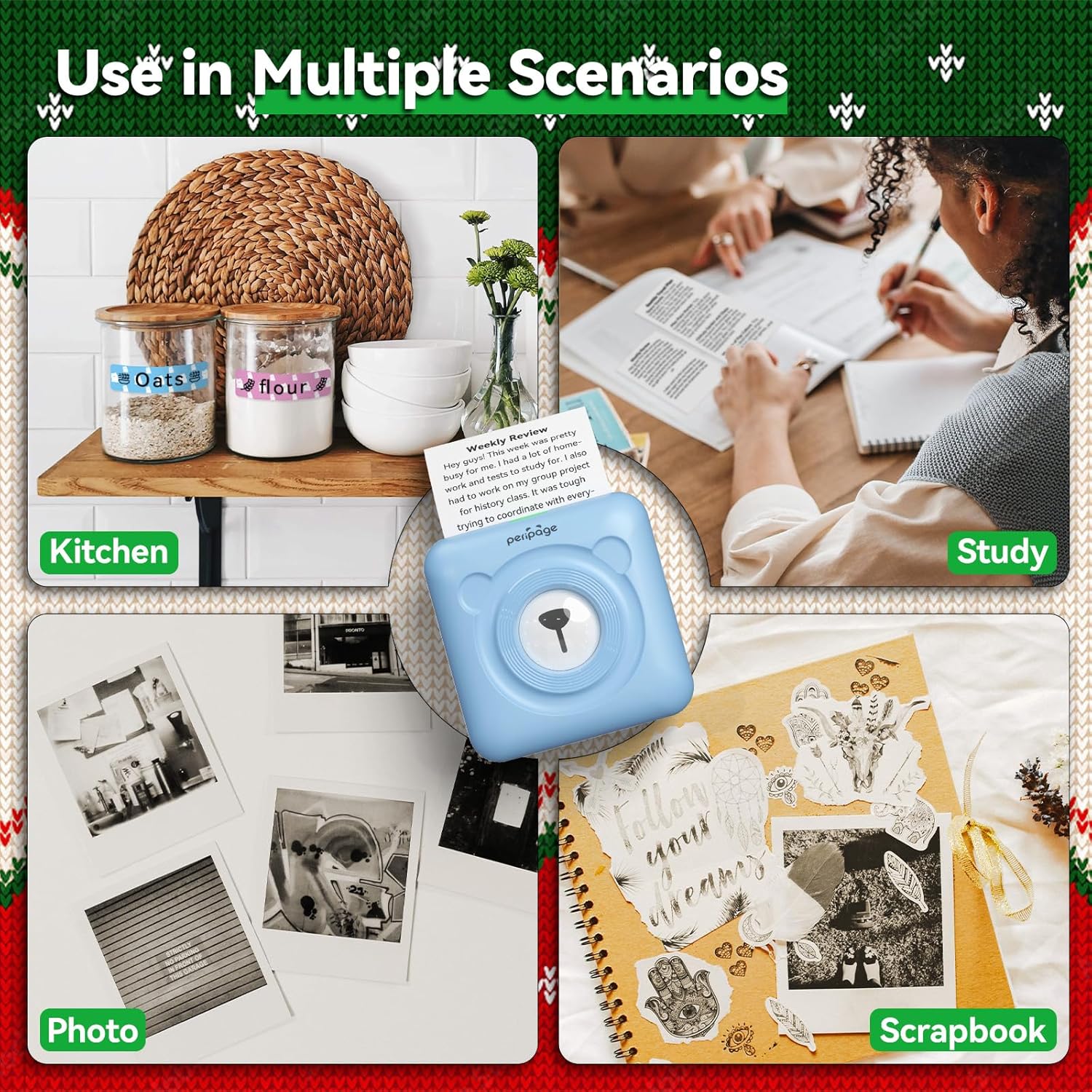
Imagem: Examples of the PeriPage A6 Mini Printer's use in multiple scenarios, including creating kitchen labels, printing study notes, printing photos, and enhancing scrapbooks.
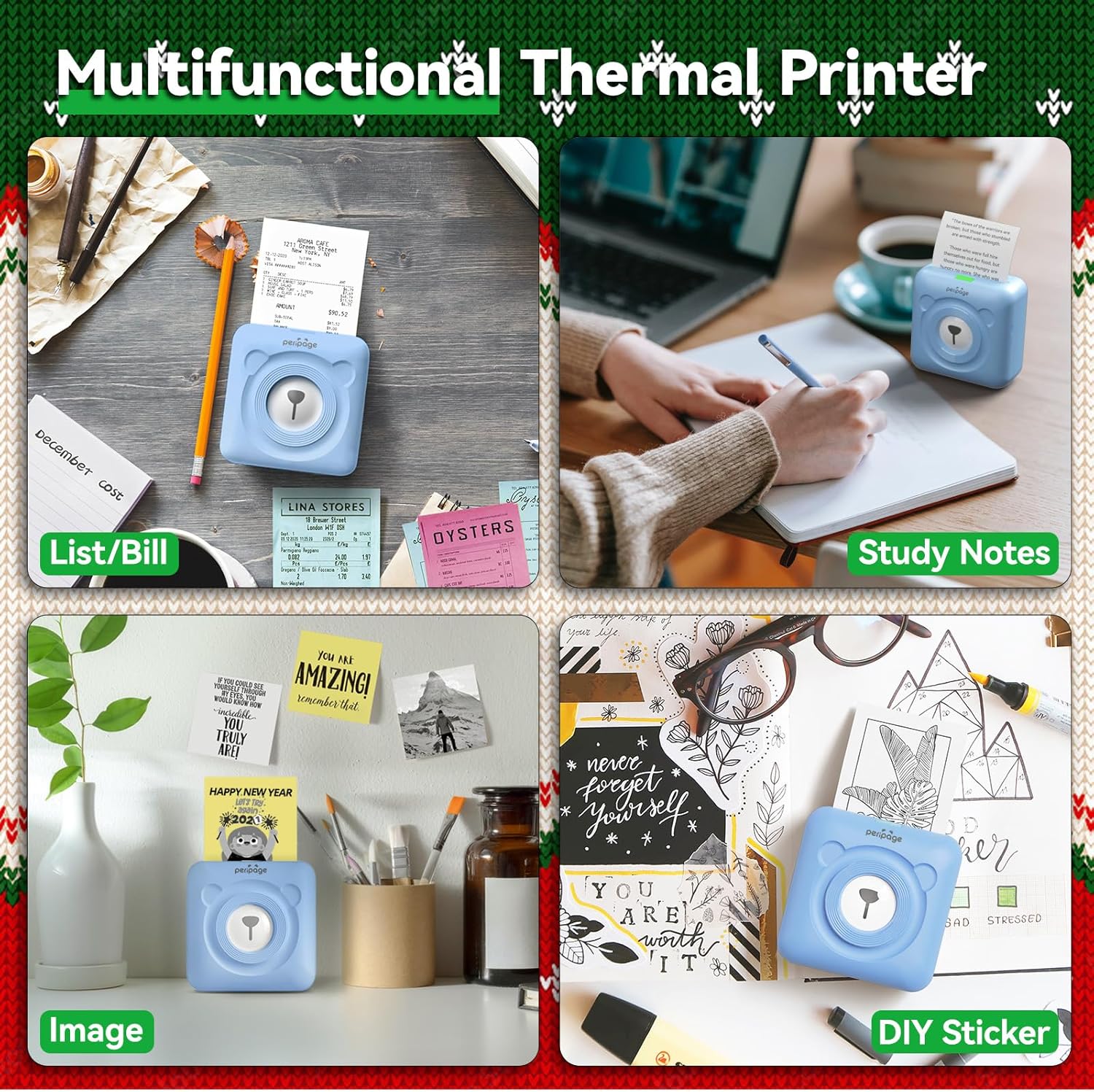
Image: A display of the PeriPage A6 Mini Printer's multifunctional thermal printing capabilities, showing its use for lists/bills, study notes, images, and DIY stickers.
7. Manutenção
7.1 Limpando a Impressora
To ensure optimal print quality and prolong the life of your printer, regular cleaning is recommended.
- Turn off the printer and disconnect the power cable before cleaning.
- Use um pano macio, seco e sem fiapos para limpar a parte externa da impressora.
- For the print head, gently wipe it with a cotton swab lightly dampFinalize com álcool isopropílico. Deixe secar completamente antes de usar.
- Não utilize produtos de limpeza abrasivos ou solventes.
7.2 Cuidados com a bateria
- Carregue a impressora regularmente, mesmo quando não estiver em uso, para manter a vida útil da bateria.
- Evite descarregar completamente a bateria com frequência.
- Guarde a impressora em local fresco e seco quando não estiver em uso por longos períodos.
8. Solução De Problemas
If you encounter issues with your PeriPage A6 Mini Printer, refer to the following common problems and solutions:
| Problema | Possível causa | Solução |
|---|
| A impressora não liga | Bateria fraca; botão liga/desliga não pressionado corretamente | Carregue a impressora; pressione e mantenha pressionado o botão liga/desliga por alguns segundos. |
| Não é possível conectar via Bluetooth | Bluetooth desligado; Impressora não detectável; Problema com o aplicativo | Ensure Bluetooth is enabled on your phone; Restart printer and phone; Reinstall PeriPage App. |
| Qualidade de impressão ruim / Impressões desbotadas | Paper installed incorrectly; Low battery; Dirty print head; Expired thermal paper | Reinstall paper with printing side facing up; Charge printer; Clean print head; Use new thermal paper. |
| Atolamento de papel | Paper not inserted straight; Too much paper pulled out | Open cover and carefully remove jammed paper; Reinsert paper correctly. |
| App is buggy or freezes | Falha no software; versão desatualizada do aplicativo | Close and reopen the app; Check for app updates; Reinstall the app. |
9. Especificações
| Recurso | Detalhe |
|---|
| Marca | PeriPageName |
| Nome do modelo | PeriPage A6 |
| Tecnologia de impressão | Térmico |
| Resolução | 304 DPI |
| Conectividade | Bluetooth, USB |
| Dispositivos compatíveis | Smartphones (iOS & Android), PC, Laptops |
| Tamanho máximo da mídia | 57mm (width) x 30mm (roll diameter) |
| Bateria | Bateria de íon de lítio de 1000 mAh (incluída) |
| Peso do item | 5.6 onças (160 gramas) |
| Dimensões do produto | 2.95"P x 2.95"L x 1.57"A |
| Componentes incluídos | Papel |
10. Garantia e Suporte
10.1 Informações de garantia
Please note that this product is listed with Sem garantia. For specific details regarding returns or defects, please refer to the retailer's policy where the product was purchased.
10.2 Suporte ao cliente
For further assistance, technical support, or inquiries not covered in this manual, please contact PeriPage customer service through their official website or the contact information provided by your retailer. Ensure you have your product model number (A6) and purchase details ready when contacting support.


