1. Introdução
The JLab Epic Wireless Mouse is designed for versatile use, offering multiple connectivity options and customizable features to enhance your productivity. This manual provides detailed instructions for setting up, operating, and maintaining your device.
2. O que está na caixa
- Rato épico
- Charging cord (USB-C to USB-A)
- Dongle sem fio USB de 2.4 GHz
- Guia de início rápido

3. Configuração
3.1. Carregando o mouse
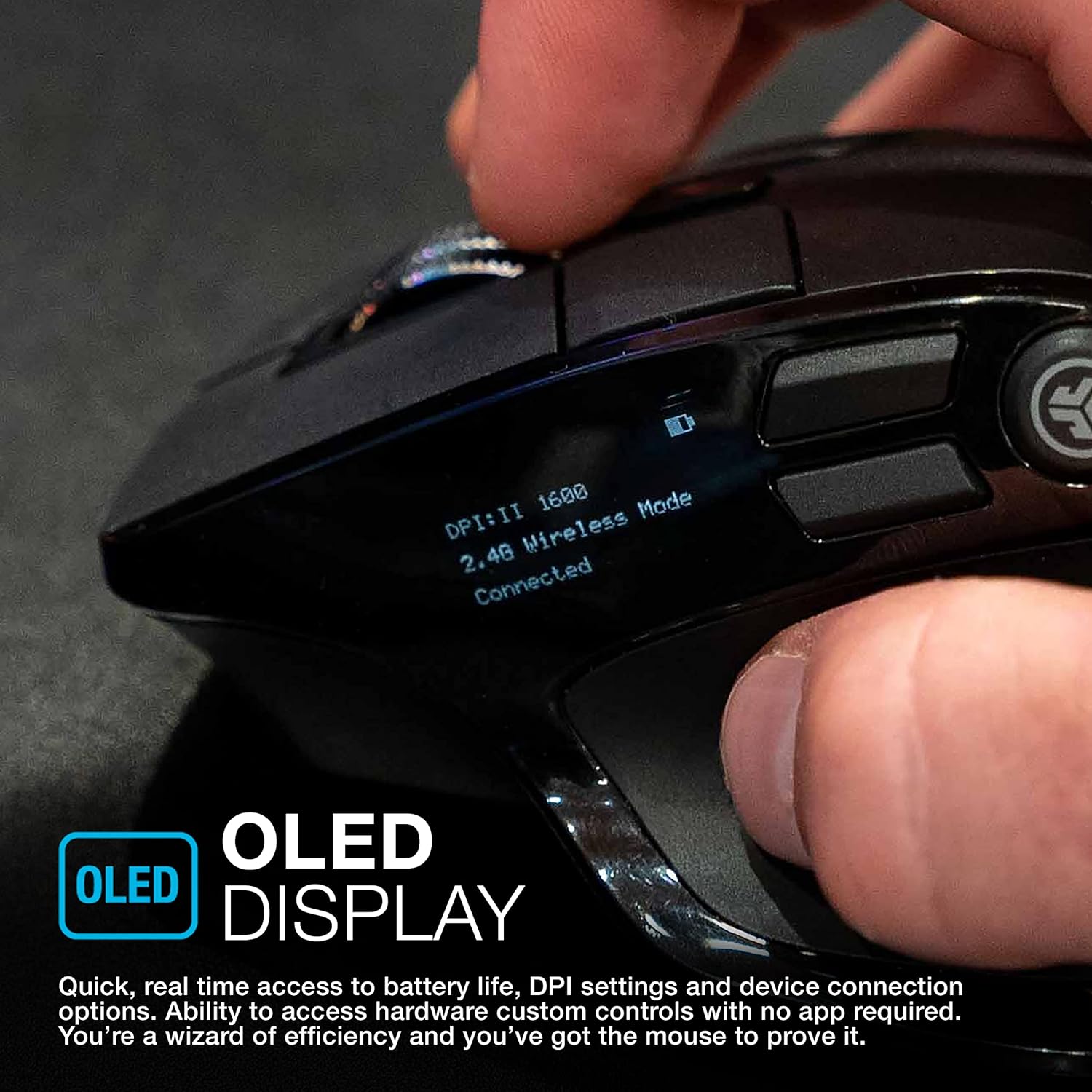
The Epic Wireless Mouse features a convenient rechargeable battery. Use the provided USB-C to USB-A charging cable to connect the mouse to a power source. The OLED display will show the battery life status.

3.2. Conectando-se aos dispositivos
The Epic Wireless Mouse offers flexible connection options: Bluetooth 5.2 or a 2.4GHz USB wireless dongle. It supports connection to up to three devices, allowing easy switching between them.
3.2.1. USB Dongle Connection
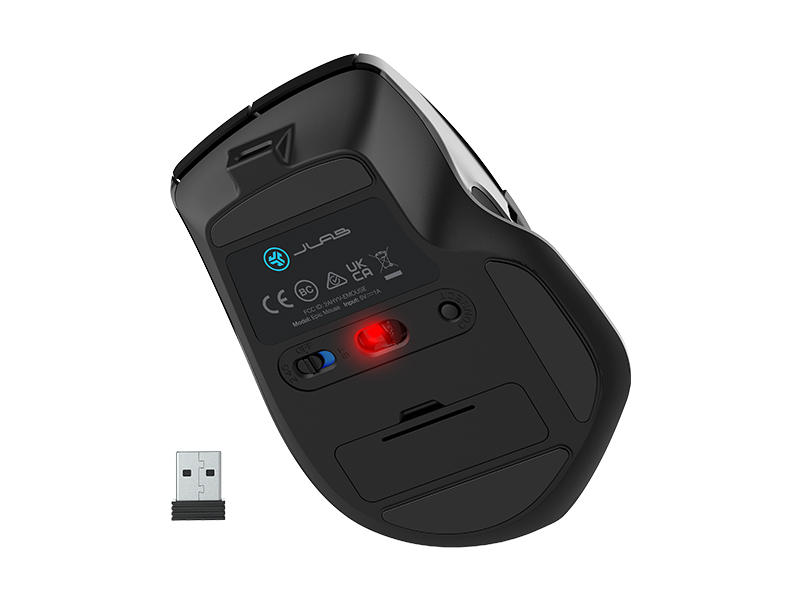
- Locate the 2.4GHz USB wireless dongle stored in the compartment on the underside of the mouse.
- Insira o dongle USB em uma porta USB disponível no seu computador.
- Turn on the mouse using the power switch located on the bottom. The mouse will automatically connect to your device.

3.2.2. Conexão Bluetooth
- Ligue o mouse usando o botão liga/desliga na parte inferior.
- Press the multi-device toggle button (usually located on the bottom or side) to select a Bluetooth channel (e.g., Bluetooth 1 or Bluetooth 2).
- On your device, go to Bluetooth settings and select "JLab Epic Mouse" from the list of available devices to pair.
- The mouse can remember up to two Bluetooth connections, allowing seamless switching between paired devices.
4. Instruções de operação
4.1. Display OLED
The integrated OLED display provides real-time access to important information such as battery life, DPI settings, and current device connection options. This allows for quick hardware control without needing additional software.
4.2. Custom User Profiles and Programmable Buttons
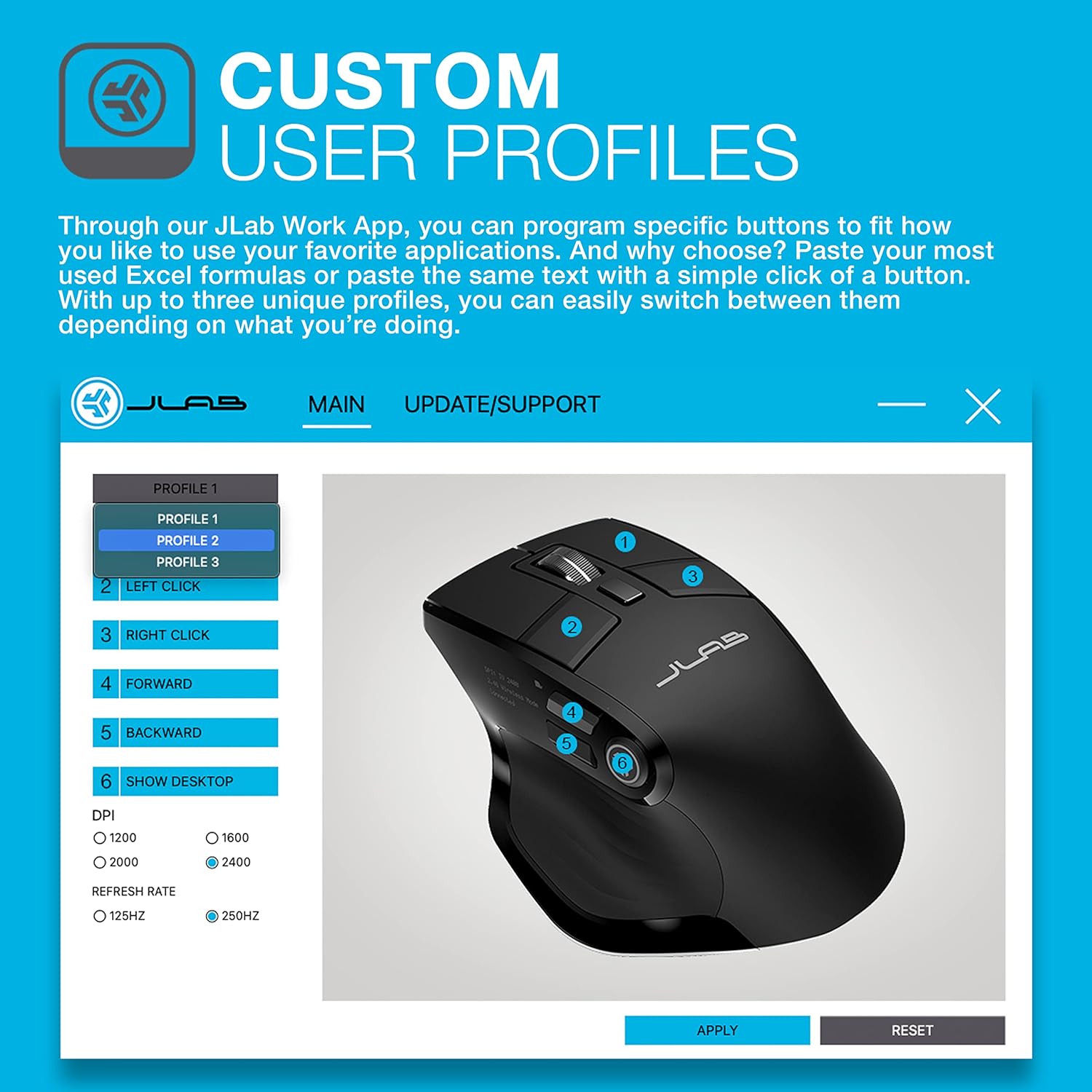
Utilize the JLab Work App to program specific buttons and create up to three unique user profiles. This allows you to customize button functions for different applications or tasks, such as pasting Excel formulas or specific text with a single click. You can easily switch between these profiles conforme necessário.
4.3. Adjustable Tracking (DPI)
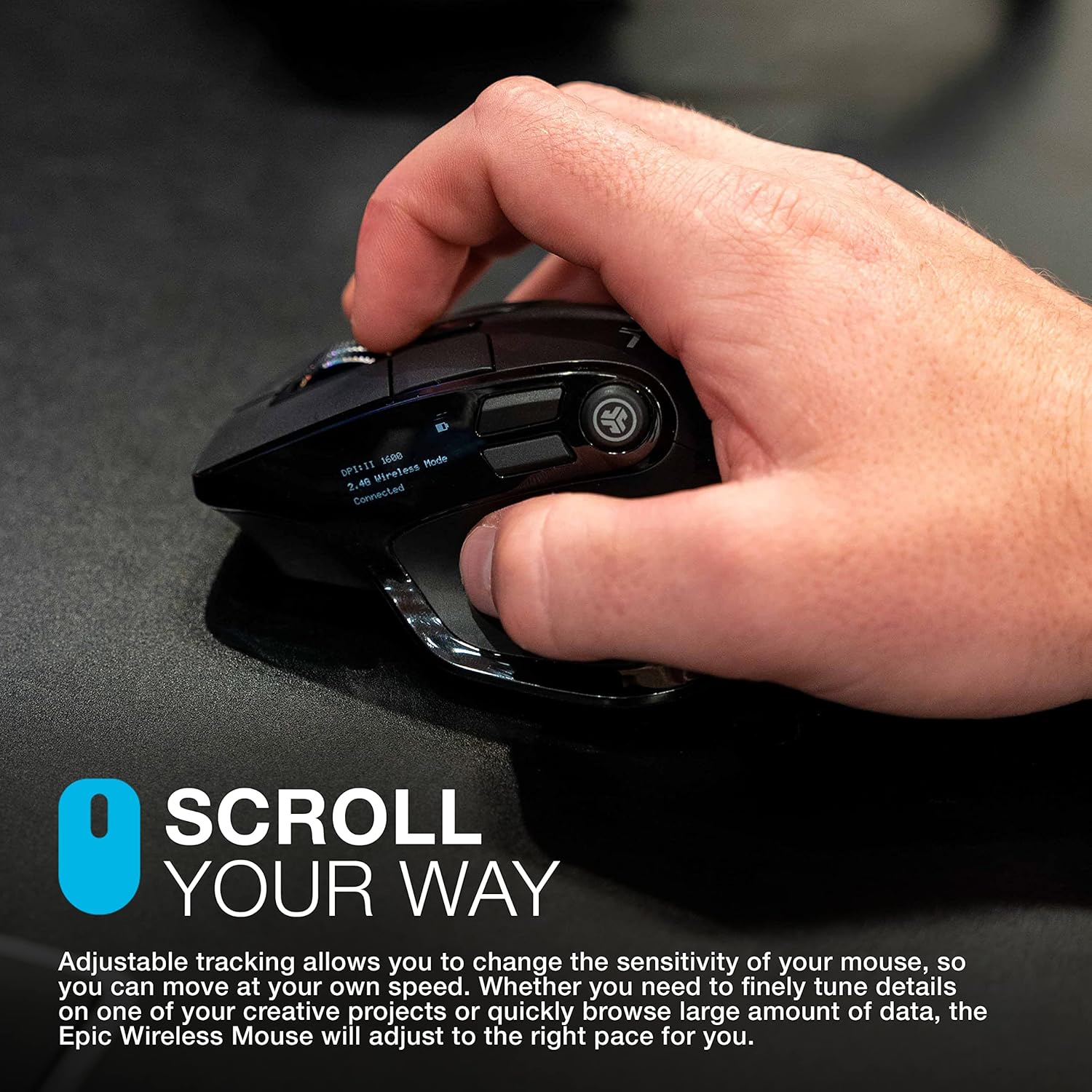
Adjust the mouse sensitivity (DPI) to match your preferred cursor speed. The Epic Wireless Mouse adapts to your needs, whether you require precise movements for detailed work or faster tracking for general browsing.
4.4. Quiet Clicks
The mouse features silent buttons, minimizing clicking noise. This design is beneficial for quiet work environments, ensuring minimal disturbance to others.

4.5. Design ergonômico
The mouse is designed for maximum comfort and functionality during extended use. Its ergonomic shape aims to reduce hand and wrist strain.

5. Manutenção
5.1. Duração da bateria e carregamento
The Epic Wireless Mouse is equipped with an 800 mAh rechargeable battery. Connect the provided USB-C to USB-A cable to charge. The OLED display provides quick access to real-time battery life information.

6. Solução De Problemas
- Jumpy Scroll Wheel: If the scroll wheel exhibits inconsistent behavior (e.g., scrolling in the opposite direction), try cleaning the scroll wheel mechanism. If the issue persists, contact customer support.
- Mouse Stops Responding (USB Dongle): If the mouse occasionally stops responding when connected via the USB dongle, try power cycling the mouse using its power switch. Ensure the dongle is securely inserted.
- Problemas de conectividade Bluetooth: For unstable Bluetooth connections, especially with MacBooks, it is recommended to initially connect and configure the mouse using the USB dongle. Once settings are saved, the Bluetooth connection may be more stable. If issues persist, ensure the mouse is not trying to connect to too many devices simultaneously.
- JLab Work App Not Recognizing Mouse: When using the JLab Work App for customization, ensure the mouse is connected via the USB dongle for proper recognition and configuration.
- Laggy Bluetooth: Bluetooth connections can sometimes experience slight lag. For optimal performance, especially in tasks requiring high precision, use the 2.4GHz USB dongle.
7. Especificações
| Recurso | Detalhe |
|---|---|
| Dimensões do produto | 1.89 x 1.89 x 0.04 polegadas |
| Peso do item | 4.9 onças |
| Número do modelo do item | MEPICMOUSERBLK124 |
| Baterias | Rechargeable (800 mAh) |
| Tecnologia de Conectividade | Bluetooth 5.2, 2.4GHz Radio Frequency (USB Dongle) |
| Recurso especial | Wireless, OLED Display, Custom User Profiles, Adjustable Tracking, Silent Clicks |
| Tecnologia de detecção de movimento | Óptico |
8. Garantia e suporte
The JLab Epic Wireless Mouse comes with a limited two-year warranty. For further support, troubleshooting, or product registration, please visit the official JLab webou consulte o Guia de Início Rápido incluído no seu pacote.
A 30-day satisfaction guarantee is also provided directly by JLab.


