1. Introdução
The Renkchip Wireless HDMI Transmitter and Receiver system provides a convenient solution for wirelessly transmitting 1080P/60Hz HD video and audio signals. This system eliminates the need for long HDMI cables, offering a plug-and-play experience for various applications including home theater, conferences, office presentations, and educational settings. The receiver unit features both HDMI and VGA output ports for broad compatibility with HDTVs and projectors.
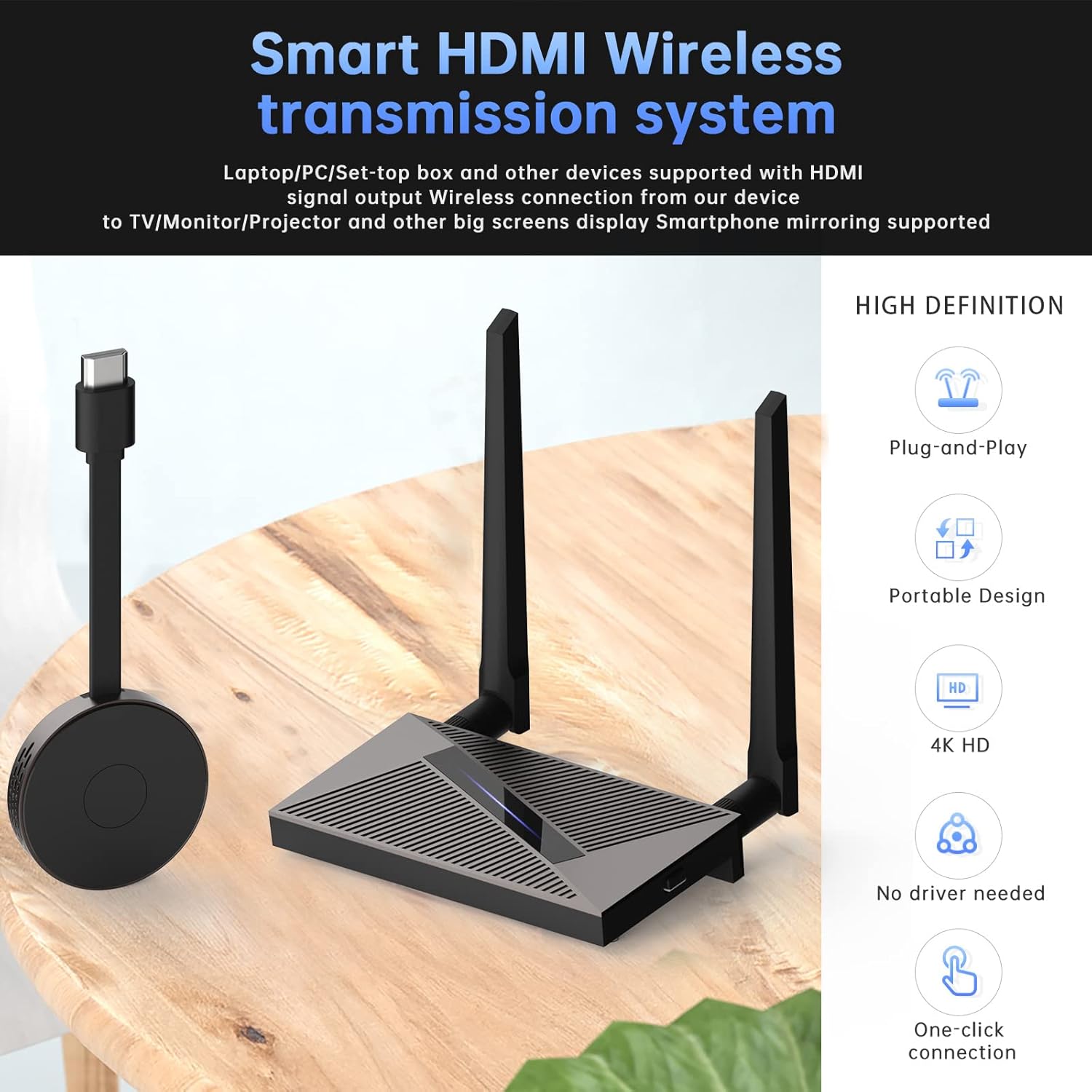
Imagem: Acimaview of the Renkchip Wireless HDMI Transmitter and Receiver system, highlighting its key features like plug-and-play functionality and 1080P HD support.
2. O que está na caixa
Por favor, verifique o conteúdo da embalagem para garantir que todos os itens estejam presentes:
- 1 x transmissor HDMI sem fio
- 1 x receptor HDMI sem fio
- 2 x USB Power Cables (for Transmitter and Receiver)
- 1 x HDMI Cable (for Receiver connection)
- Manual do usuário
Observação: Two 5V/2A USB power adapters are required and not included. If using a VGA port on the receiver, an additional VGA cable is required and not included.
3. Instruções de configuração
Follow these steps to set up your Renkchip Wireless HDMI system:
3.1 Connect the Receiver (RX)
- Connect the receiver unit to your display device (HDTV or projector) using either an HDMI cable or a VGA cable.
- Connect one of the provided USB power cables to the receiver's power input port and the other end to a 5V/2A USB power adapter (not included). Ensure the receiver powers on.
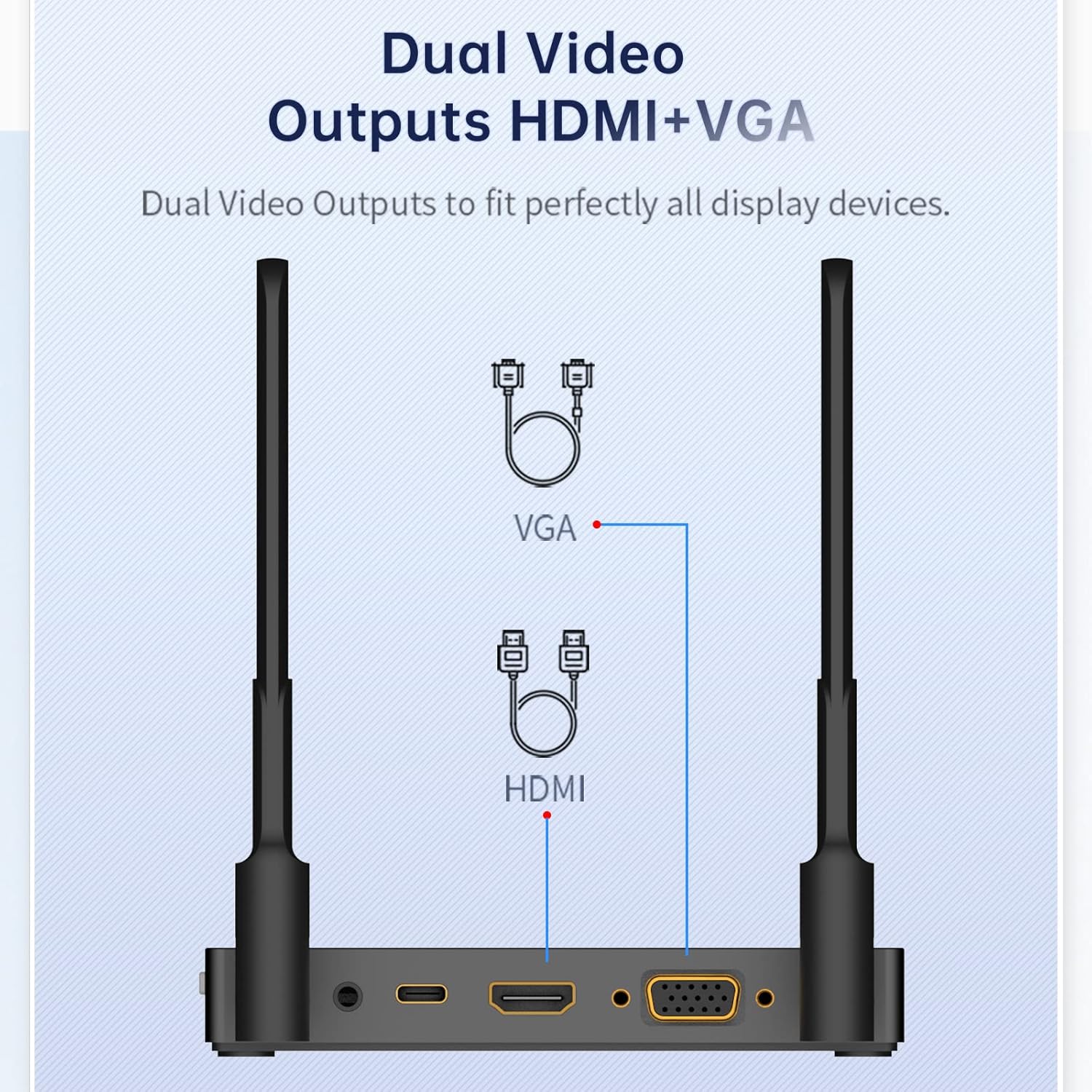
Image: Close-up of the receiver unit, showing the HDMI, VGA, and power input ports.

Image: Diagram illustrating how to connect the transmitter to a source device and the receiver to a display device.
3.2 Connect the Transmitter (TX)
- Connect the transmitter unit to the HDMI output port of your source device (laptop, PC, smartphone with HDMI output, etc.).
- Connect the second USB power cable to the transmitter's power input port and the other end to a 5V/2A USB power adapter (not included). Ensure the transmitter powers on.

Image: A laptop connected to the wireless HDMI transmitter, demonstrating a typical setup for presentations.
3.3 Initial Pairing (Factory Paired)
The transmitter and receiver units are pre-paired at the factory. No manual pairing is typically required for initial use. Once both units are powered on and connected, the display should automatically show the mirrored content from your source device.
4. Instruções de operação
Using your Renkchip Wireless HDMI system is straightforward:
4.1 Operação básica
- Ensure both the transmitter and receiver are properly connected and powered on.
- Select the correct HDMI or VGA input on your display device where the receiver is connected.
- The content from your source device should now be mirrored or extended to the display.

Image: A smartphone wirelessly mirroring its display to a large television screen, showcasing the device's mirroring capability.
4.2 One-Click Disconnect/Reconnect
The transmitter features a button for quick disconnection and reconnection of the signal. This is useful for privacy during meetings or when you need to temporarily stop sharing your screen.
- Para desconectar: Press the button on the transmitter once. The signal to the receiver will stop.
- Para reconectar: Press the button on the transmitter again. The signal will resume transmission to the receiver.

Image: The transmitter unit with its one-click button, used for instantly disconnecting or reconnecting the display signal for privacy or convenience.
5. Manutenção
To ensure the longevity and optimal performance of your Renkchip Wireless HDMI system, follow these maintenance guidelines:
- Limpeza: Use a soft, dry cloth to clean the surfaces of the transmitter and receiver. Avoid using liquid cleaners or abrasive materials.
- Armazenar: Quando não estiverem em uso por longos períodos, guarde os dispositivos em local fresco e seco, longe da luz solar direta e de temperaturas extremas.
- Manuseio: Handle the units with care to prevent physical damage. Avoid dropping or subjecting them to strong impacts.
- Ventilação: Ensure the receiver unit has adequate ventilation. While some heat generation is normal during operation, blocking ventilation holes can affect performance and lifespan.
6. Solução De Problemas
If you encounter issues with your Renkchip Wireless HDMI system, refer to the following common questions and solutions:
- Q: Can the transmission distance reach 98 feet?
- A: The theoretical transmission distance tested in the laboratory can reach up to 98 feet (30 meters). However, in actual use, external factors such as wall thickness, materials, and air humidity may affect the maximum effective transmission distance.
- Q: Do I need to prepare USB power adapters?
- A: Yes, the transmitter and receiver require external power. While USB cables are included, you need to provide two separate 5V/2A USB power adapters (not included). If using a VGA port, an additional VGA cable is also required (not included).
- Q: Is it normal for the device to heat up during use?
- A: Yes, it is a normal phenomenon. Due to the significant amount of signal decoding and processing, the product will generate some heat during operation. The device is designed with ventilation holes to manage this heat, and it will not affect the product's lifespan during long-term use.
- Q: How do I re-pair the transmitter and receiver?
- A: The units are pre-paired from the factory. If re-pairing is necessary, insert a thin tool (like a thimble or paperclip) into the receiver's "RESET" position and hold for 5 seconds to enter pairing mode. Then, press and hold the button on the transmitter for 3 seconds. The indicator light on the transmitter will flash quickly, indicating successful pairing. The screen should display a confirmation after approximately 20 seconds.
- Q: Do I need to install a driver or app, or enter personal information?
- A: No, this product is designed for plug-and-play operation and does not require any driver installation, app installation, or personal information for verification. This ensures ease of use and privacy.

Image: A visual representation of common questions and their answers regarding the Renkchip Wireless HDMI system, covering topics like transmission distance, power requirements, and pairing.
7. Especificações
| Marca | Renkchip |
| Número do modelo | Z07 |
| Tecnologia de Conectividade | HDMI, VGA |
| Tipo de conector | HDMI, VGA |
| Resolução | 1080p (1920x1080 pixels) |
| Características especiais | DLNA, Miracast |
| Dimensões do produto | 9 x 6 x 2 polegadas |
| Peso do item | 1.19 libras |
| Cor | Preto |
8. Garantia e Suporte
For warranty information and technical support, please refer to the documentation included with your product or contact Renkchip customer service through their official website ou a loja onde o produto foi adquirido. Guarde o comprovante de compra para eventuais solicitações de garantia.


