1. Introdução
This manual provides essential instructions for setting up, operating, and maintaining your Huawei H158-381 5G CPE Pro 5 Router. Please read this guide thoroughly before using the device to ensure proper functionality and safety.
2. Conteúdo da embalagem
Verifique se todos os seguintes itens estão incluídos na embalagem do seu produto:
- Huawei H158-381 5G CPE Pro 5 Router
- Adaptador de energia 12V 3A
- Guia de início rápido (este manual)
3. Produto acabadoview
The Huawei H158-381 5G CPE Pro 5 Router is a high-performance wireless router designed for advanced internet connectivity. It supports both 5G and 4G networks, offering high-speed data transmission and robust Wi-Fi capabilities.
Principais características:
- 5G and 4G Network Compatibility: Supports 5G frequencies in NSA and SA modes (n1/3/5/7/20/28/71/38/40/41/77/78/79) and 4G bands (B1/3/5/7/8/18/19/20/26/28/32/34/38/39/40/41/42/43). Note: 2G and 3G are not supported.
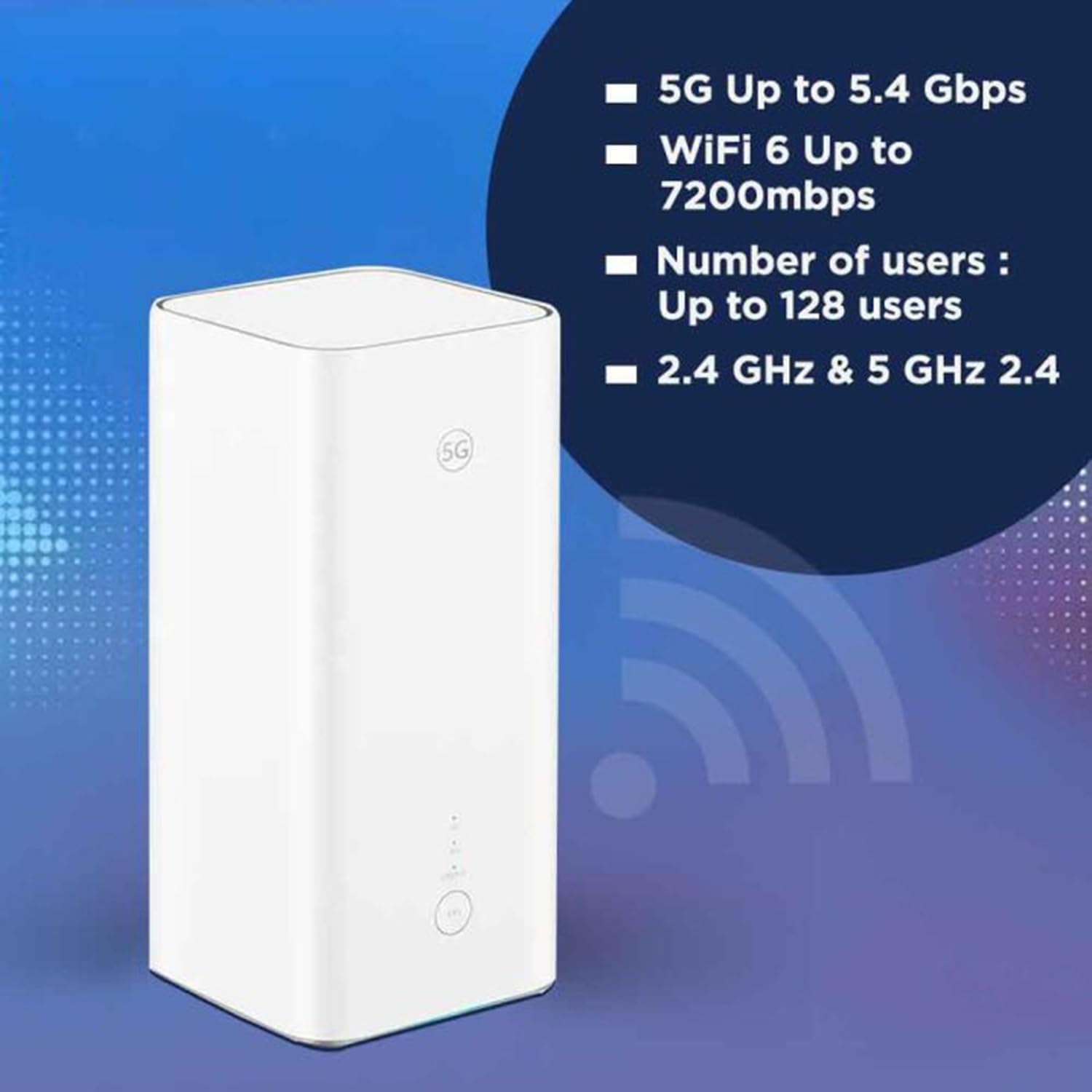
- Dados de alta velocidade: Achieves download speeds up to 5.4 Gbps and upload speeds up to 500 Mbps on 5G (network dependent).
- Wi-Fi 6 (AX7200): Provides Wi-Fi speeds up to 7200 Mbps across 2.4 GHz and 5 GHz bands, supporting up to 128 connected users.
- Segurança WPA3: Enhanced wireless security protocol for a safer network.
- Nano-SIM Slot: For mobile broadband connectivity.
- Integrated 5G NR Antenna: Features a 12 dBi internal antenna for optimized signal reception.
- Portas Ethernet: Includes 2 Ethernet ports for wired connections.
Componentes físicos:


4. Guia de configuração
4.1 Instalação do cartão SIM
- Locate the Nano-SIM card slot on your router.
- Insert a Nano-SIM card into the slot. Ensure the SIM card is correctly oriented according to the diagram near the slot.
- Importante: It is recommended to disable the PIN code of your SIM card using a mobile phone before inserting it into the router for a smoother setup process.
4.2 Conexão de Energia
- Connect the provided 12V 3A power adapter to the router's power input port.
- Conecte o adaptador de alimentação a uma tomada elétrica adequada.
- The router will automatically power on. Wait for the status indicators to stabilize.
4.3 Configuração Inicial
Once powered on, the router will attempt to connect to the mobile network. You can access the router's web interface or use the dedicated mobile application for further configuration, such as changing Wi-Fi names and passwords.
5. Instruções de operação
5.1 Conectando dispositivos via Wi-Fi
- No seu dispositivo (smartphone, laptop, tablet), procure por redes Wi-Fi disponíveis.
- Select the Wi-Fi network name (SSID) corresponding to your router. The default SSID and password are usually found on a label at the bottom of the router.
- Digite a senha do Wi-Fi quando solicitado.
- Seu dispositivo agora deve estar conectado à internet.
5.2 Conectando dispositivos via Ethernet
The router features two Ethernet ports for wired connections:
- Connect one end of an Ethernet cable to an Ethernet port on the back of the router.
- Connect the other end of the Ethernet cable to the Ethernet port on your device (e.g., computer, gaming console, smart TV).
- O dispositivo deve estabelecer automaticamente uma conexão de rede com fio.
6. Recursos avançados
6.1 External Antenna Support
The Huawei H158-381 router supports external 5G antennas to enhance signal reception. To utilize this feature:
- Install your external 5G antennas according to their respective instructions.
- Connect the external antennas to the designated external antenna ports on the router.
- Open the router's management application (e.g., Deco app), navigate to Advanced > External Antennas, and activate the external antennas option.
- When activated, the external antennas will replace a portion of the internal antennas for signal reception.
6.2 Vídeo de resumo do produto
Assista ao vídeo para uma visão geral rápida.view of the Huawei H158-381 5G CPE Pro 5 Router's features and benefits.
6.1 vídeo: A product summary video showcasing the Huawei H158-381 5G CPE Pro 5 Router's design and core functionalities.
7. Especificações técnicas
| Recurso | Especificação |
|---|---|
| Marca | HUAWEI |
| Fabricante | HUAWEI |
| Série | H158-381 |
| Dimensões do produto | 10.3 x 10.3 x 22.6 cm; 915 g |
| Número do modelo do item | H158-381 |
| Cor | Branco |
| Tipo de Conectividade | Wi-fi |
| Tipo sem fio | 802.11ax |
| Número de portas Ethernet | 2 |
| Volumetage | 12 volts |
| Sistema operacional | RouterOS |
| Pilhas incluídas | Não |
| Atualizações de software garantidas até | 23 de maio de 2025 |
| Nome do modelo | H158-381 |
| Características especiais | WPS |
| Classe de Banda de Frequência | Banda dupla |
| Padrão de comunicação sem fio | 802.11ax |
| Dispositivos compatíveis | Game console, tablet, personal computer, smartphone, smart television, streaming device, security camera, printer, smart thermostat |
| Usos recomendados do produto | Início, Negócios |
| Componentes incluídos | Manual, 12V 3A Charger, Router H158-381 |
| Tecnologia de Conexão | Ethernet, Wi-Fi |
8. Manutenção
To ensure the longevity and optimal performance of your router, consider the following maintenance tips:
- Colocação: Coloque o roteador em um local central, longe de obstruções e outros dispositivos eletrônicos que possam causar interferência.
- Limpeza: Mantenha o roteador limpo e livre de poeira. Use um pano macio e seco para a limpeza.
- Atualizações de firmware: Regularly check for and install firmware updates to benefit from improved performance, security, and new features. This can usually be done through the router's web interface ou aplicativo móvel.
- Ventilação: Ensure the router has adequate ventilation to prevent overheating. Do not cover ventilation openings.
9. Solução De Problemas
Se você tiver problemas com o seu roteador, tente os seguintes passos de resolução de problemas:
- Sem conexão com a Internet:
- Verifique se o cartão SIM está inserido corretamente e ativado.
- Ensure the router is powered on and all indicator lights are functioning as expected.
- Restart the router by unplugging it from the power source, waiting 30 seconds, and plugging it back in.
- Verify your mobile data plan is active and has sufficient data.
- Velocidade lenta do Wi-Fi:
- Aproxime-se do roteador para melhorar a intensidade do sinal.
- Reduza o número de dispositivos conectados ou atividades que consomem muita largura de banda.
- Verifique se há interferência de outros dispositivos eletrônicos.
- Consider using external antennas if signal strength is consistently low.
- Não consigo acessar as configurações do roteador:
- Certifique-se de que seu dispositivo esteja conectado à rede Wi-Fi do roteador ou por meio de um cabo Ethernet.
- Verify you are entering the correct IP address (usually 192.168.8.1 or 192.168.1.1) in your web navegador.
- Confirm you are using the correct administrator username and password.
If problems persist, consult the official Huawei support webPara obter mais assistência, visite o site ou entre em contato com o serviço de atendimento ao cliente.
10. Garantia e Suporte
Para informações sobre a garantia, consulte o cartão de garantia incluído com o seu produto ou visite o site oficial da HUAWEI. website. Technical support and customer service contact details can also be found on the HUAWEI support portal.