1. Introdução
The BuzzTV B5 is an advanced Android 11 TV Box designed to deliver a superior 4K UHD streaming experience. This device allows you to access a wide range of entertainment, including movies, TV shows, and applications, directly on your television. This manual provides essential information for the proper setup, operation, maintenance, and troubleshooting of your BuzzTV B5.
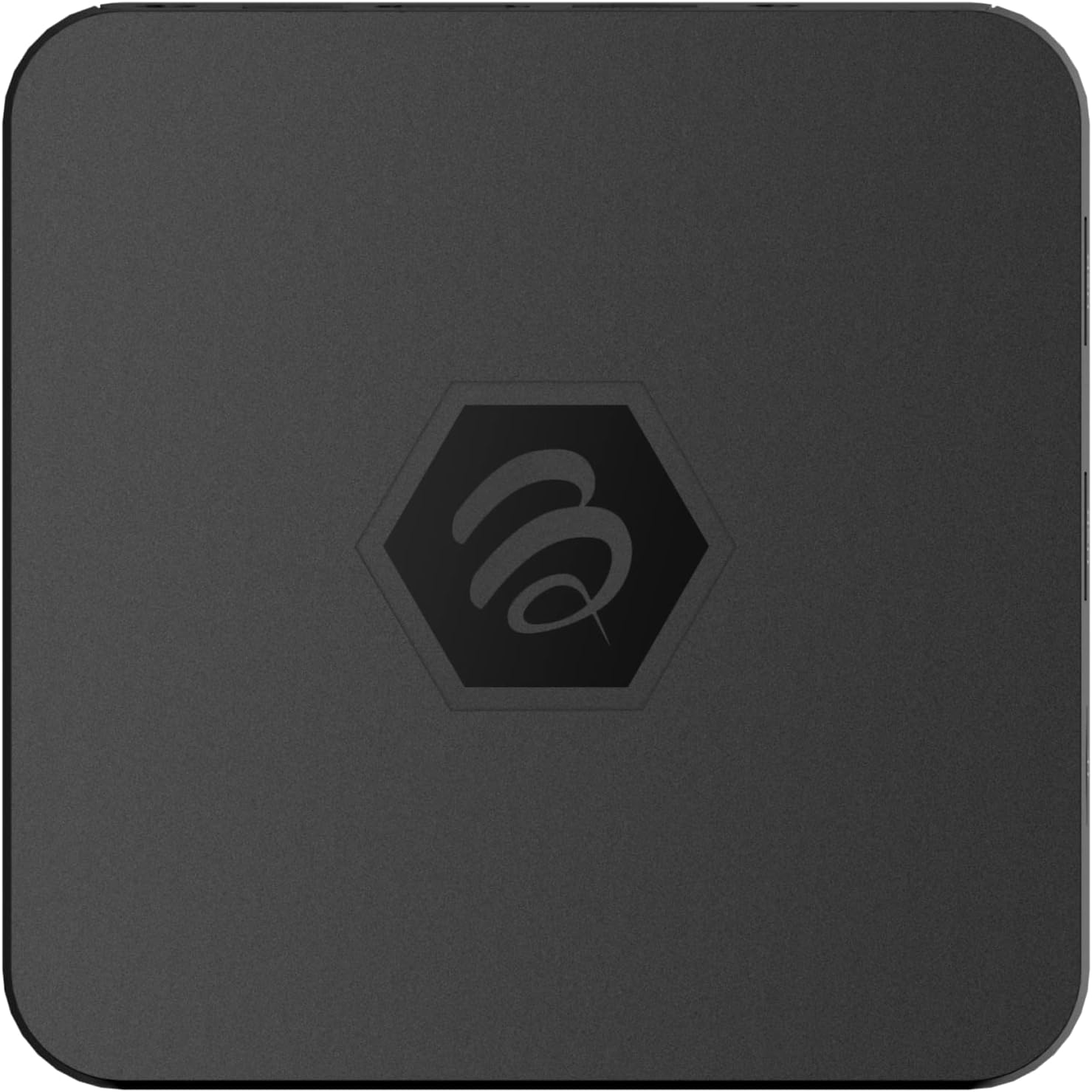
Imagem 1.1: Topo view of the BuzzTV B5 Android 11 TV Box.
2. Conteúdo da embalagem
Please verify that all items listed below are included in your BuzzTV B5 package:
- BuzzTV B5 Set Top Box
- IR-100 Remote Control
- Adaptador de fonte de alimentação
- 2 pilhas AAA (para o controle remoto)
- Cabo HDMI
- Manual do usuário (este documento)

Image 2.1: Contents included in the BuzzTV B5 retail package.
3. Guia de configuração
Follow these steps to set up your BuzzTV B5 TV Box:
- Conectar à TV: Connect one end of the provided HDMI cable to the HDMI port on the BuzzTV B5 and the other end to an available HDMI input on your television.
- Conecte a energia: Plug the power supply adapter into the DC 5V port on the BuzzTV B5, then plug the adapter into a wall outlet. The device should power on automatically or can be powered on using the remote control.
- Insira as pilhas no controle remoto: Open the battery compartment on the back of the IR-100 Remote Control and insert the two AAA batteries, ensuring correct polarity (+/-).
- Conexão de rede: Once the device boots up, follow the on-screen instructions to connect to your network. You can choose between Wi-Fi (wireless) or Ethernet (wired) connection. For a wired connection, connect an Ethernet cable from your router to the Ethernet port on the BuzzTV B5.
- Configuração inicial: Complete the initial Android setup process, which may include language selection, Google account login, and time zone settings.

Image 3.1: Rear ports of the BuzzTV B5 for connectivity.
4. Instruções de operação
The BuzzTV B5 operates on Android 11, providing a user-friendly interface for navigation and content access.
4.1 Funções de controle remoto
The IR-100 Remote Control is your primary interface for the BuzzTV B5. Key functions include:
- Botão de energia: Liga ou desliga o dispositivo.
- Teclado de navegação (Cima/Baixo/Esquerda/Direita/OK): Utilizado para navegar em menus e selecionar itens.
- Botão Voltar: Volta para a tela ou menu anterior.
- Botão Home: Retorna à tela inicial principal do Android.
- Botões de volume: Ajusta o volume do áudio.
- App/Menu Buttons: Accesses specific applications or context menus.

Image 4.1: Layout of the IR-100 Remote Control.
4.2 Acessando aplicativos
From the home screen, you can access pre-installed applications like Netflix and YouTube, or download new applications from the Google Play Store. Use the navigation pad on your remote to select and launch applications.
4.3 4K UHD Streaming
The BuzzTV B5 supports 4K UHD resolution. Ensure your television is 4K compatible and that you are using a high-speed HDMI cable for optimal picture quality. Streaming quality will also depend on your internet connection speed and the content source.
5. Manutenção
To ensure the longevity and optimal performance of your BuzzTV B5, consider the following maintenance tips:
- Limpeza: Use um pano macio e seco para limpar a parte externa do dispositivo. Evite produtos de limpeza líquidos ou materiais abrasivos.
- Ventilação: Certifique-se de que o dispositivo esteja em uma área bem ventilada para evitar superaquecimento. Não cubra as aberturas de ventilação.
- Atualizações de software: Periodically check for and install system updates to benefit from new features, performance improvements, and security patches. These can usually be found in the device's settings menu.
- Ciclo de energia: If the device becomes unresponsive, disconnect the power adapter, wait 10 seconds, and then reconnect it to perform a power cycle.
6. Solução De Problemas
If you encounter issues with your BuzzTV B5, refer to the following common problems and solutions:
| Problema | Possível causa | Solução |
|---|---|---|
| Sem energia | Adaptador de energia não conectado; tomada não funcionando. | Verifique se o adaptador de energia está firmemente conectado ao dispositivo e a uma tomada elétrica em funcionamento. Tente usar outra tomada. |
| Sem sinal na TV | Incorrect HDMI input selected; faulty HDMI cable. | Select the correct HDMI input on your TV. Check HDMI cable connections or try a different HDMI cable. |
| O controle remoto não responde | Dead batteries; remote not paired (if applicable); obstruction. | Replace AAA batteries. Ensure no obstructions between remote and device. |
| Problemas de conexão de rede | Senha de Wi-Fi incorreta; problemas com o roteador; sinal fraco. | Verify Wi-Fi password. Restart your router. Move the device closer to the router or use an Ethernet cable. |
| Applications Crashing/Freezing | Insufficient memory; outdated app; software glitch. | Close background apps. Update the app or the device's firmware. Clear app cache/data in settings. |
7. Especificações
Detailed technical specifications for the BuzzTV B5 Android 11 TV Box:
- Sistema operacional: Sistema operacional Android 11
- CPU: Amlogic S905W2 Quad-Core A-35
- GPU: Mali-G31 MP2
- BATER: 2GB DDR
- Armazenar: 16 GB eMMC
- Wi-fi: Dual Band AC
- LAN: Ethernet 10/100 Mbps
- Bluetooth: 4.2
- Portas USB: 2x USB 2.0
- Ranhura MicroSD: 1
- Interface de energia: Corrente contínua 5 V
- Saída HDMI: 1
- Saída de áudio óptica: 1
- Resolução de saída: 4K (32 FPS)
- Dimensões: 9.06 x 5.63 x 2.32 polegadas
- Peso do item: 1.01 libras

Image 7.1: BuzzTV B5 with a summary of its technical specifications.
8. Informações de garantia
For detailed warranty information regarding your BuzzTV B5, please refer to the warranty card included in your product packaging or visit the official BuzzTV webOs termos e condições da garantia podem variar conforme a região e o revendedor.
9. Suporte
If you require further assistance or have questions not covered in this manual, please contact BuzzTV customer support or visit their official website for FAQs, software downloads, and additional resources.
BuzzTV Official Website: www.buzztv.com


