1. Introdução
This manual provides detailed instructions for the setup, operation, maintenance, and troubleshooting of your Xprinter XP-233B Thermal Barcode Printer. The XP-233B is designed for efficient thermal printing of barcodes and labels, utilizing heat-sensitive paper without the need for ink or ribbons.
2. Instruções de segurança
- Certifique-se de que a impressora esteja conectada a uma fonte de alimentação com a voltagem correta.tage conforme especificado no adaptador de energia.
- Não exponha a impressora à água ou umidade excessiva.
- Evite colocar a impressora sob luz solar direta ou perto de fontes de calor.
- Mantenha a impressora longe de poeira e detritos para evitar danos aos componentes internos.
- Do not attempt to disassemble or repair the printer yourself. Contact qualified service personnel for assistance.
- Use only recommended thermal label rolls to ensure optimal print quality and printer longevity.
3. Conteúdo da embalagem
Verifique se todos os itens estão presentes na embalagem:
- Xprinter XP-233B Thermal Barcode Printer
- Adaptador de energia
- Cabo USB
- Guia de Início Rápido (se incluído)
- Driver CD (if included, drivers can also be downloaded online)
4. Produto acabadoview
Familiarize yourself with the main components of the XP-233B printer.

Figura 4.1: Frente view of the Xprinter XP-233B, showing the power switch, control panel, and label output slot.

Figura 4.2: Traseira view of the Xprinter XP-233B, highlighting the USB, Ethernet, and power input ports.
Funções do painel de controle:
- Botão ALIMENTAR: Press to feed a blank label. Hold to perform a self-test print.
- Botão PAUSAR: Interrompe ou retoma a impressão.
- Botão CANCELAR: Cancela a impressão atual.
- Indicadores LED: Display printer status (e.g., Power, Error, Paper Out). Refer to troubleshooting for specific light patterns.
5. Configuração
5.1 Conectando a Impressora
- Connect the power adapter to the printer's power input port and then plug it into a wall outlet.
- Connect the USB cable from the printer to your computer. For Ethernet connectivity, connect an Ethernet cable from the printer to your network router or switch.
- Ligue a impressora usando o interruptor localizado na lateral.
5.2 Carregando Etiquetas
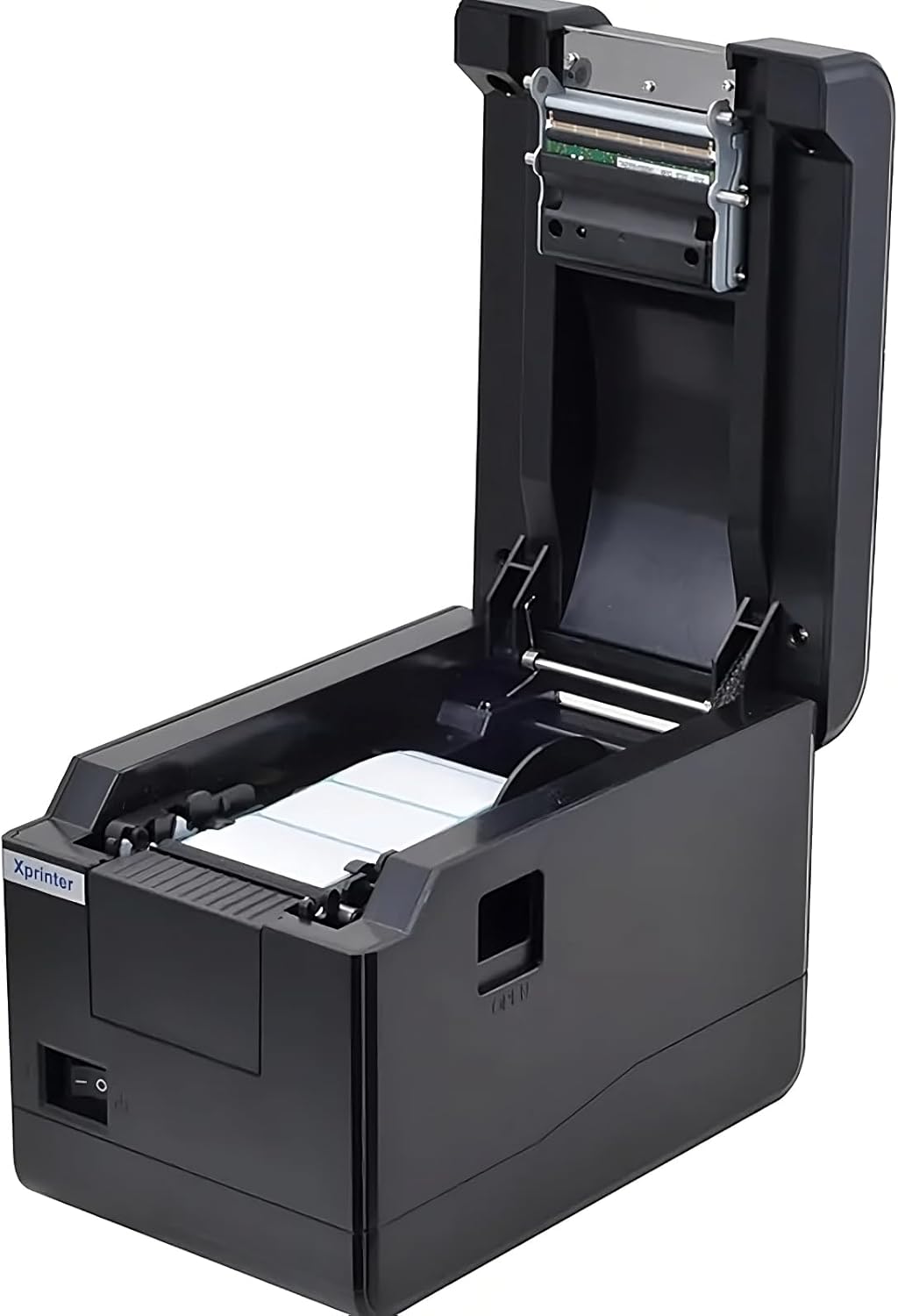
Figura 5.1: Careca view of the Xprinter XP-233B with the cover open, illustrating the label loading area.
- Press the 'OPEN' button on the side of the printer to open the top cover.
- Place the thermal label roll into the label compartment, ensuring the labels feed from the bottom of the roll and the printable side faces upwards.
- Adjust the movable label guides to fit the width of your label roll snugly, without pinching the labels.
- Pull a few labels past the print head and out through the front slot.
- Feche bem a tampa superior até ouvir um clique.
- The printer will automatically calibrate and feed a few labels to detect the label gap.
5.3 Instalação do driver
Install the printer drivers on your computer. Drivers can typically be found on the included CD or downloaded from the official Xprinter website. Siga as instruções na tela para instalação.
6. Operando a impressora
6.1 Impressão básica
Once the printer is set up and drivers are installed, you can print labels from your application (e.g., label design software, shipping software). Ensure the correct printer model (Xprinter XP-233B) is selected in your application's print settings.
6.2 Impressão de autoteste
To perform a self-test print:
- Ensure the printer is powered on and labels are loaded.
- Pressione e segure o ALIMENTAR button for approximately 3-5 seconds until the printer starts printing.
- The self-test print will display printer information and a test pattern, confirming basic functionality.
7. Manutenção
7.1 Limpeza da cabeça de impressão
Regular cleaning of the print head ensures optimal print quality and extends the printer's lifespan. Clean the print head when print quality degrades or after every few rolls of labels.
- Desligue a impressora e desconecte o cabo de alimentação.
- Abra a tampa superior.
- Limpe suavemente a superfície da cabeça de impressão com um cotonete levemente úmido.ampened with isopropyl alcohol (70% or higher).
- Allow the print head to dry completely (approximately 2-3 minutes) before closing the cover and turning on the printer.
7.2 Limpeza do Exterior
Limpe a parte externa da impressora com um pano macio e seco.amp pano. Não use produtos químicos agressivos ou produtos de limpeza abrasivos.
8. Solução De Problemas
| Problema | Possível causa | Solução |
|---|---|---|
| A impressora não liga | Power cord loose; power outlet faulty; power adapter damaged. | Check power connections; try a different outlet; replace power adapter if necessary. |
| No labels feeding | Labels incorrectly loaded; paper out; label guides too tight. | Reload labels correctly; replace label roll; adjust label guides. |
| Qualidade de impressão ruim (desbotada, com linhas) | Print head dirty; low-quality labels; print head damaged. | Clean print head (refer to Section 7.1); use recommended thermal labels; contact support if print head is damaged. |
| Printer not responding to print commands | Incorrect driver installed; USB/Ethernet cable loose; printer paused. | Reinstall drivers; check cable connections; press PAUSA botão para retomar. |
| Labels skipping or misaligning | Incorrect label sensor calibration; label guides not set correctly. | Perform a self-test print to recalibrate; adjust label guides. |
9. Especificações
| Recurso | Especificação |
|---|---|
| Nome do modelo | Xprinter - Thermal barcode printer |
| Número do modelo do item | XP-233B |
| Tecnologia de impressora | Térmico |
| Tecnologia de Conectividade | Ethernet, USB |
| Saída da impressora | Monocromático |
| Mídia impressa | Etiquetas |
| Capacidade máxima de folhas | 100 (typical for roll capacity, actual sheet capacity depends on label size) |
| Dimensões do produto (P x L x A) | 26.8 x 18 x 17.2 cm |
| Peso do item | 1.2 kg |
| Cor | Preto |
10. Informações de garantia
Xprinter products typically come with a limited manufacturer's warranty. Please refer to the warranty card included with your product or visit the official Xprinter website for specific warranty terms and conditions, including coverage duration and service procedures. Keep your purchase receipt as proof of purchase for warranty claims.
11. Suporte ao cliente
For technical assistance, driver downloads, or further inquiries regarding your Xprinter XP-233B, please visit the official Xprinter support website or contact their customer service department. Contact information can usually be found on the Xprinter website ou na documentação fornecida com a sua impressora.


