1. Introdução
The VEDINDUST Dual Monitor KVM Switch is designed to enhance your workspace efficiency by allowing you to control two computers using a single keyboard and mouse. This device also enables the sharing of two monitors and four USB peripherals between the two connected computers. It supports high-resolution video output up to 4K at 60Hz, providing a clear and realistic visual experience.
This manual provides detailed instructions for setting up, operating, and troubleshooting your KVM switch to ensure optimal performance.
Notas importantes:
- The dual monitor functionality of this KVM switch requires that your computer natively supports two displays.
- To utilize extended or duplicate display modes, your computer must support multiple monitors.
- For full functionality, including USB peripheral sharing and dual monitor output, ensure that the USB port and both HDMI ports from each computer are connected simultaneously to the corresponding USB-C and HDMI ports on the KVM switch. A USB 3.0 to USB-C cable is included for this purpose.
- If the USB-C input port on the KVM is not connected or is improperly connected, the output USB peripherals will not be recognized.
- Achieving 4K resolution requires that both your computer and monitors support 4K, and you must use 4K-compatible HDMI cables.
- The KVM switch can connect to two computers simultaneously, but only one computer can be actively selected as the source at any given time. Switching between sources is done via the selection button.
2. Produto acabadoview e Características
The VEDINDUST KVM Switch is a compact device designed for seamless integration into various environments, including offices, conference rooms, and multimedia setups. It offers robust features for efficient multi-computer management.
Principais características:
- Suporte para monitor duplo: Control two computers and share two monitors with a single keyboard and mouse.
- Alta resolução: Supports resolutions up to 4K@60Hz, backward compatible with 4K@30Hz, 1440P@60Hz, and 1080P@60Hz.
- USB Peripheral Sharing: Share up to four USB devices (2x USB 2.0, 2x USB 3.0) between connected computers.
- Modos de exibição: Supports both Extended Mode (different content on each monitor) and Duplicate Mode (same content on both monitors).
- Troca fácil: Switch between computers with a single press of the device's selection button or via the included wired desktop controller. Hotkey switching is not supported.
- Transferência de dados: USB-C ports are for data transfer only; HDMI ports handle video signals.

Figura 1: Frente e traseira view of the VEDINDUST KVM Switch. The front panel features USB 2.0 and USB 3.0 ports, a PC selection button, and an LED indicator. The rear panel includes power input, PC input ports (HDMI and USB-C), and monitor output ports (HDMI).
3. Instruções de configuração
Follow these steps to correctly set up your VEDINDUST KVM Switch:
- Dispositivos de desligamento: Ensure all computers and monitors are powered off before beginning the connection process.
- Conectar monitores: Connect your two monitors to the KVM switch's OUT1 e OUT2 HDMI ports using HDMI cables.
- Connect PC1:
- Connect PC1's first HDMI output to the KVM's PC1 IN HDMI1 porta.
- Connect PC1's second HDMI output to the KVM's PC1 IN HDMI2 porta.
- Connect PC1's USB port to the KVM's PC1 IN USB-C port using the provided USB 3.0 to USB-C cable. This connection is crucial for keyboard, mouse, and other USB peripheral functionality.
- Connect PC2:
- Connect PC2's first HDMI output to the KVM's PC2 IN HDMI1 porta.
- Connect PC2's second HDMI output to the KVM's PC2 IN HDMI2 porta.
- Connect PC2's USB port to the KVM's PC2 IN USB-C port using the provided USB 3.0 to USB-C cable.
- Conecte periféricos USB: Connect your keyboard and mouse to the KVM's Portas USB 2.0 (labeled 1 and 2). Connect other USB peripherals (e.g., hard disk, flash drive) to the KVM's Portas USB 3.0 (labeled 3 and 4).
- Controlador de mesa Connect (opcional): If desired, plug the wired desktop controller into the Controlar jack on the KVM.
- Conecte a energia: Plug the DC12V power adapter into the KVM's power input and then into a power outlet. Turn on the KVM using the ON/OFF switch.
- Ligar dispositivos: Power on your monitors and then your computers.
- Definir configurações de exibição: Once your computers boot up, configure your display settings (Extend or Duplicate) within your operating system.

Figura 2: Detailed connection diagram for the KVM switch, illustrating how to connect two computers (PC1, PC2) to the KVM using HDMI and USB-C cables, and how to connect two monitors (OUT1, OUT2) and USB peripherals (mouse, keyboard, hard disk, flash disk) to the KVM.
4. Instruções de operação
The VEDINDUST KVM Switch offers simple methods for switching between connected computers.
Alternando entre computadores:
- Using the Device Button: Pressione o Selecione button located on the front panel of the KVM switch. Each press will cycle between PC1 and PC2. The LED indicator next to the button will illuminate to show which PC is currently active.
- Using the Wired Desktop Controller: If connected, press the button on the wired desktop controller to switch between PC1 and PC2. This allows for convenient switching if the KVM unit is not easily accessible.
Note: Hotkey switching via keyboard commands is not supported by this KVM model.

Figura 3: Illustration of the two switching methods: using the 'Select' button on the KVM device and using the external wired desktop controller for convenient remote switching.
5. Display Working Modes
The KVM switch supports two primary display modes, which are configured on your computer's operating system:
- Modo de extensão: In this mode, your two monitors display different content, effectively extending your desktop across both screens. This is ideal for multitasking and increasing screen real estate.
- Duplicate Mode (Mirror Mode): In this mode, both monitors display the exact same content. This is useful for presentations or when you need to show the same information on multiple screens.
Note: Your computer must support multiple monitors to utilize either Extend or Duplicate mode. These settings are managed within your computer's display settings (e.g., Windows Display Settings, macOS System Preferences).
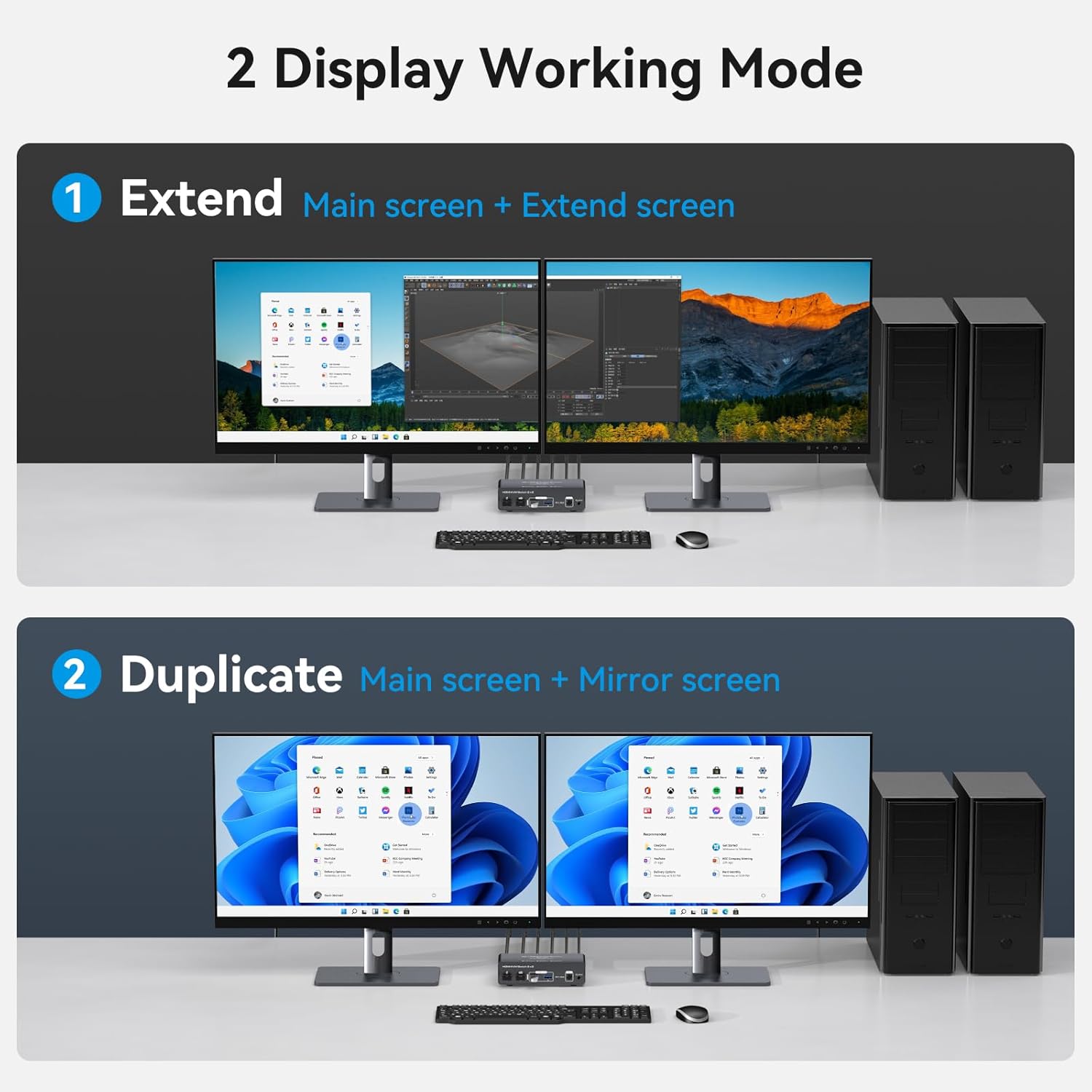
Figura 4: Visual representation of the two display working modes. The top image shows 'Extend Mode' with different content on each monitor. The bottom image shows 'Duplicate Mode' with identical content on both monitors.

Figura 5: Um example of the 4K60Hz Ultra High Definition display capability, showing clear and vibrant images across two monitors, supporting resolutions up to 4K at 60Hz with backward compatibility.
6. Solução De Problemas
Se você encontrar problemas com seu switch KVM, consulte os problemas e soluções comuns a seguir:
- Sem imagem ou resolução incorreta:
- Ensure all HDMI cables are securely connected between your computers, the KVM, and your monitors.
- Verify that your computers, monitors, and HDMI cables all support 4K resolution if you are aiming for 4K@60Hz output.
- Check your computer's display settings to ensure the correct resolution and display mode (Extend/Duplicate) are selected.
- Try restarting the KVM switch and then your computers and monitors.
- USB Peripherals (Keyboard, Mouse, etc.) Not Working:
- Confirm that the USB-C input cable from each computer is correctly and securely connected to the corresponding PC IN USB-C port on the KVM switch. This connection is essential for USB peripheral recognition.
- Certifique-se de que o switch KVM esteja ligado.
- Try connecting the USB peripherals directly to the computer to confirm they are functional.
- Reconnect the USB peripherals to the KVM's USB 2.0 or USB 3.0 ports.
- Cannot Switch Between Computers:
- Verify that the KVM switch is powered on and the power adapter is securely connected.
- Ensure all necessary cables (HDMI and USB-C) are connected from both computers to the KVM.
- Check if the LED indicator on the KVM changes when you press the Select button or the wired desktop controller button.
- Conexão intermitente:
- Ensure all cables are of good quality and securely connected. Loose connections can cause intermittent issues.
- Avoid using excessively long cables, especially for HDMI, as this can degrade signal quality.
7. Especificações
| Recurso | Especificação |
|---|---|
| Marca | VEDINDUSTRIA |
| Número do modelo | 20230829 |
| Tipo de interruptor | Comutador KVM |
| Número de computadores | 2 |
| Número de monitores | 2 |
| Resolução de vídeo | Up to 4K@60Hz (backward compatible with 4K@30Hz, 1440P@60Hz, 1080P@60Hz) |
| Portas USB | 2x USB 2.0, 2x USB 3.0 |
| Tipo de conector | USB Tipo C, HDMI |
| Modo de operação | Manual (Button Switch) |
| Classificação atual | 2 UMA |
| Dimensões (C x L x A) | Aproximadamente 14.1 cm x 6.8 cm x 3.8 cm (5.6 pol x 2.7 pol x 1.5 pol) |
| Peso | 530 gramas |

Figura 6: Sobreview of the package contents and the physical dimensions of the KVM switch, including the desktop control, USB 3.0 to USB-C cables, DC12V adapter, and user manual.
8. Manutenção
To ensure the longevity and optimal performance of your VEDINDUST KVM Switch, follow these simple maintenance guidelines:
- Limpeza: Use a soft, dry cloth to gently wipe the exterior of the KVM switch. Avoid using liquid cleaners or abrasive materials, as they may damage the surface or internal components.
- Armazenar: Store the KVM switch in a cool, dry place away from direct sunlight, extreme temperatures, and high humidity.
- Gerenciamento de cabos: Keep cables organized and untangled to prevent strain on the ports and accidental disconnections.
- Ventilação: Ensure the KVM switch has adequate ventilation to prevent overheating. Do not block any ventilation openings.
9. Garantia e Suporte
VEDINDUST is committed to providing reliable products and excellent customer service. If you encounter any problems or have questions regarding the use, setup, or functionality of your KVM switch, please do not hesitate to contact our professional after-sales support team.
Our support team is ready to provide you with professional solutions and assistance to ensure your satisfaction.
Please refer to your product packaging or the VEDINDUST official webPara obter detalhes específicos sobre a garantia e informações de contato, consulte o site.


