Manual do Usuário da Estação de Acoplamento para Laptop HC 11 em 1
Model: PCR100D | Brand: HC
Introdução
Thank you for choosing the HC 11-in-1 Laptop Docking Station Stand. This versatile device combines the functionality of a multi-port USB-C hub with an ergonomic, rotatable laptop stand, designed to enhance your productivity and workspace comfort. This manual provides detailed instructions for setup, operation, maintenance, and troubleshooting to ensure optimal performance of your new docking station.
Principais características
1. Comprehensive Connectivity (11-in-1 Ports)
The docking station is equipped with 11 essential ports to meet all your peripheral needs:
- 1 x USB-C 100W PD Charging Port (for power input only)
- 1 x 4K@60Hz HDMI Port (for video output)
- 1 x USB-A 3.0 Port (5Gbps data transfer)
- 2 x USB-A 2.0 Ports (for peripherals like mouse/keyboard)
- 2 x USB-C 3.0 Ports (5Gbps data transfer)
- 1 x Gigabit Ethernet RJ45 Port (1000Mbps stable network)
- 1 x Slot para cartão TF
- 1 x SD Card Slot (Note: Only one card slot can be used at a time)
- 1 x tomada de áudio de 3.5 mm
- 1 x USB-C Host Device Connection Port (built-in cable)

Detalhado view of the 11 functional ports.
2. High-Resolution Display & Data Transfer
- 4K@60Hz HDMI: Extend your laptop screen to an external monitor or TV with stunning 4K UHD resolution (3840x2160@60Hz). No drivers required.
- USB de alta velocidade: Enjoy data transfers up to 5Gbps with USB 3.0 ports, significantly faster than USB 2.0.
- Gigabit Ethernet: Experience stable and high-speed internet with the 1000Mbps RJ45 Ethernet port.
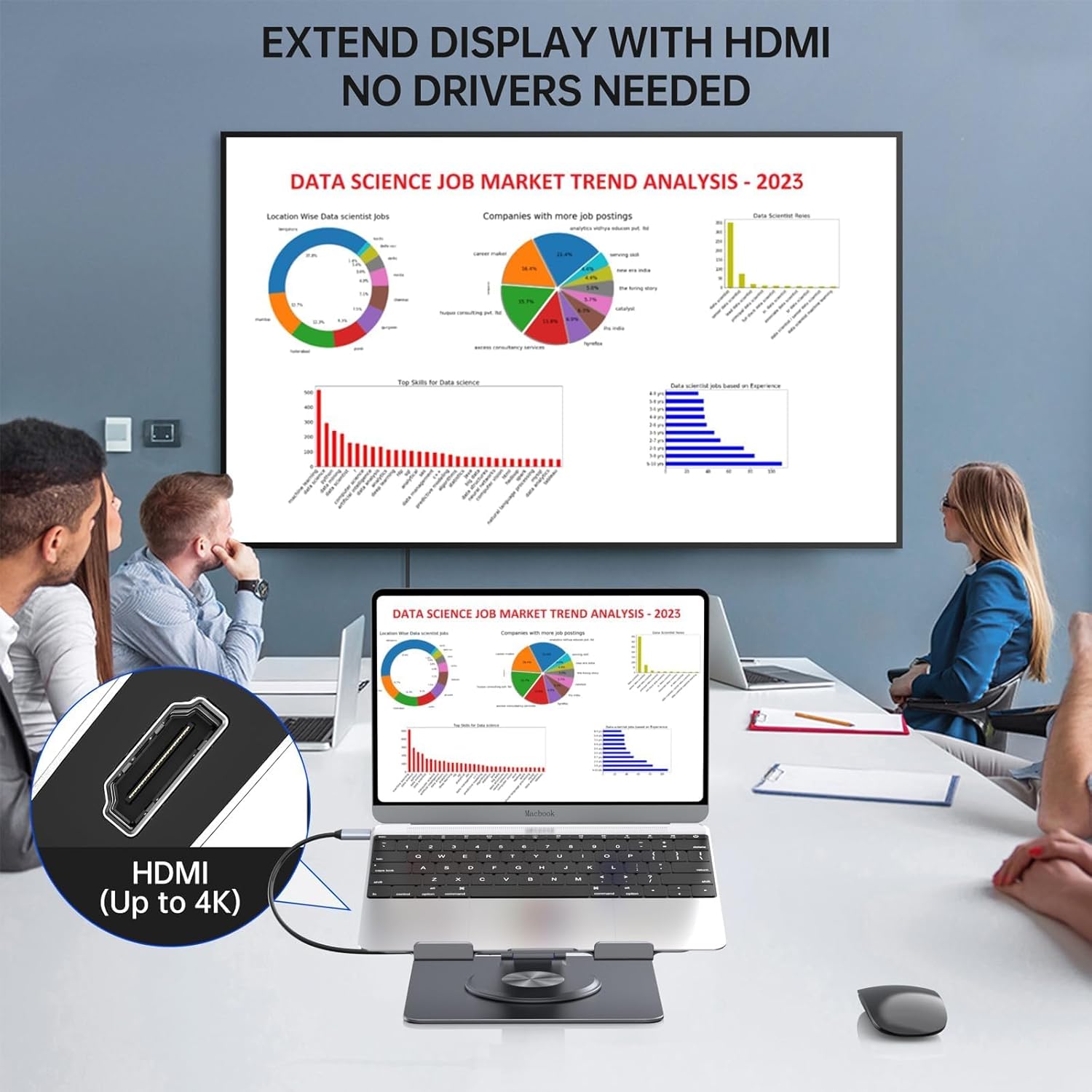
Extend your display with 4K HDMI output.

High-speed data transfer and stable Ethernet connection.
3. Power Delivery & Efficient Heat Dissipation
- PD100W Fast Charge: The Type-C pass-through PD charge port supports up to 100W power input, allowing you to charge your laptop and other devices simultaneously. (Charger not included).
- Dissipação de calor superior: Crafted from aluminum alloy with a hollowed-out design, the stand significantly improves cooling and airflow for your devices.

Fast charging with PD100W support.

Hollow design for enhanced heat dissipation.
4. Adjustable & Rotatable Design
- Ajustes ergonômicos: The stand can be adjusted in height and angle to provide an ergonomic viewing experience, reducing neck and eye strain.
- Rotação de 360 graus: The base features a 360-degree rotatable design, allowing you to easily share your screen with others without moving the entire setup.
- Dobrável e portátil: Its foldable design makes it convenient for storage and transport.

360-degree swivel for easy screen sharing.
5. Ampla compatibilidade
Compatible with most laptops and tablets ranging from 7 to 15.6 inches, including MacBook Pro/Air, Dell Latitude, Dell XPS, HP Spectre, Microsoft Surface Book, and more. Ensure your device has a full-function USB-C port for complete compatibility.

Check your laptop's USB-C port for full functionality.
Guia de configuração
- Desembale o suporte: Carefully remove the docking station stand from its packaging.
- Coloque em uma superfície estável: Posicione o suporte sobre uma mesa ou superfície plana e estável.
- Ajuste o suporte: Adjust the height and angle of the stand to your preferred ergonomic position. The joints are designed to be firm to maintain stability.
- Conectar ao laptop: Use the built-in USB-C host cable from the docking station to connect to a full-function USB-C port on your laptop or tablet.
- Conectar à energia (opcional, mas recomendado): For optimal performance and charging, connect a USB-C PD charger (up to 100W, not included) to the USB-C PD input port on the docking station.
- Conecte periféricos: Plug in your desired peripherals such as external monitors (via HDMI), USB devices (mouse, keyboard, external drives), Ethernet cable, and audio devices into the corresponding ports on the docking station.
Instruções de operação
Adjusting Height and Angle
The stand's arm and platform can be adjusted to various angles and heights. Apply firm but steady pressure to move the joints. This ensures the stand remains stable once set to your desired position.
Using the 360-Degree Rotation
The base of the stand allows for a full 360-degree rotation. Simply rotate the top platform to share your screen or adjust your viewing angle without repositioning the entire stand.
Video demonstrating the 360-degree rotation and various features of the HC Laptop Docking Station Stand.
Display Modes (with HDMI)
Once an external monitor is connected via HDMI, your laptop's operating system (Windows, macOS, Chrome OS, etc.) will typically detect it automatically. You can then configure the display mode (e.g., Extend, Duplicate, Second Screen Only) through your system's display settings.
Manutenção
To ensure the longevity and optimal performance of your HC Docking Station Stand, follow these simple maintenance guidelines:
- Limpeza: Use a soft, dry cloth to wipe down the aluminum surfaces. For stubborn smudges, a slightly damp Pode-se usar um pano e secar imediatamente. Evite produtos de limpeza abrasivos ou solventes.
- Remoção de poeira: Periodically use compressed air to clear dust from the ports and ventilation slots to maintain proper airflow and connectivity.
- Armazenar: When not in use for extended periods, fold the stand to its compact form and store it in a dry, cool place away from direct sunlight and extreme temperatures.
- Gerenciamento de cabos: Ensure cables are not excessively bent or strained, which can damage them over time.
Solução de problemas
Problemas e soluções comuns:
- Sem imagem no monitor externo:
- Verifique se a porta USB-C do seu laptop suporta saída de vídeo (Modo Alternativo DisplayPort).
- Check that the HDMI cable is securely connected to both the docking station and the monitor.
- Verifique se a entrada do monitor está configurada corretamente para HDMI.
- Tente reiniciar o seu laptop.
- Devices Not Recognized / Slow Data Transfer:
- Ensure the USB-C host cable is fully inserted into your laptop.
- If connecting high-power devices, ensure the PD port is connected to a power source.
- Try connecting the device directly to your laptop to rule out device issues.
- For optimal performance, avoid connecting too many power-hungry devices simultaneously without external power.
- No Power Delivery (PD) to Laptop:
- Ensure your USB-C PD charger is connected to the docking station's PD input port.
- Verify your charger's wattage is sufficient for your laptop (100W max supported by the dock).
- Confirm your laptop's USB-C port supports power input.
- Problemas de conexão Ethernet:
- Check that the Ethernet cable is securely connected to both the docking station and your router/modem.
- Verifique as configurações de rede no seu laptop.
- Tente reiniciar o seu roteador/modem.
Especificações
| Recurso | Detalhe |
|---|---|
| Número do modelo | PCR100D |
| Dimensões do produto | 9.84 x 7.87 x 1.88 polegadas |
| Peso do item | 2.09 libras |
| Material | Liga de alumínio, silicone |
| Número de portas | 11 |
| Resolução HDMI | Up to 4K UHD (3840x2160@60Hz) |
| Velocidade de transferência de dados USB | Até 5 Gbps (USB 3.0) |
| Velocidade Ethernet | 1000 Mbps (Gigabit) |
| Fornecimento de energia (PD) | Até 100W |
| Compatible Laptop/Tablet Size | 7-15.6 polegadas |

Product dimensions and key specifications.

The stand is built to hold up to 18 pounds, ensuring stability for various devices.
Garantia e Suporte
Specific warranty details are not provided in the product data. Please refer to the product packaging or the official HC website para obter as informações de garantia mais atualizadas.
For technical support, troubleshooting assistance, or any inquiries regarding your HC 11-in-1 Laptop Docking Station Stand, please contact HC customer service through their official channels. Contact information can typically be found on the product packaging or the manufacturer's website.