Introdução
The Tera 8100Pro Wireless 2D QR Barcode Scanner is a versatile and robust device designed for efficient barcode scanning in various environments. Featuring advanced connectivity options and a durable build, it provides reliable performance for businesses and individuals alike. This manual provides comprehensive instructions for setup, operation, maintenance, and troubleshooting.
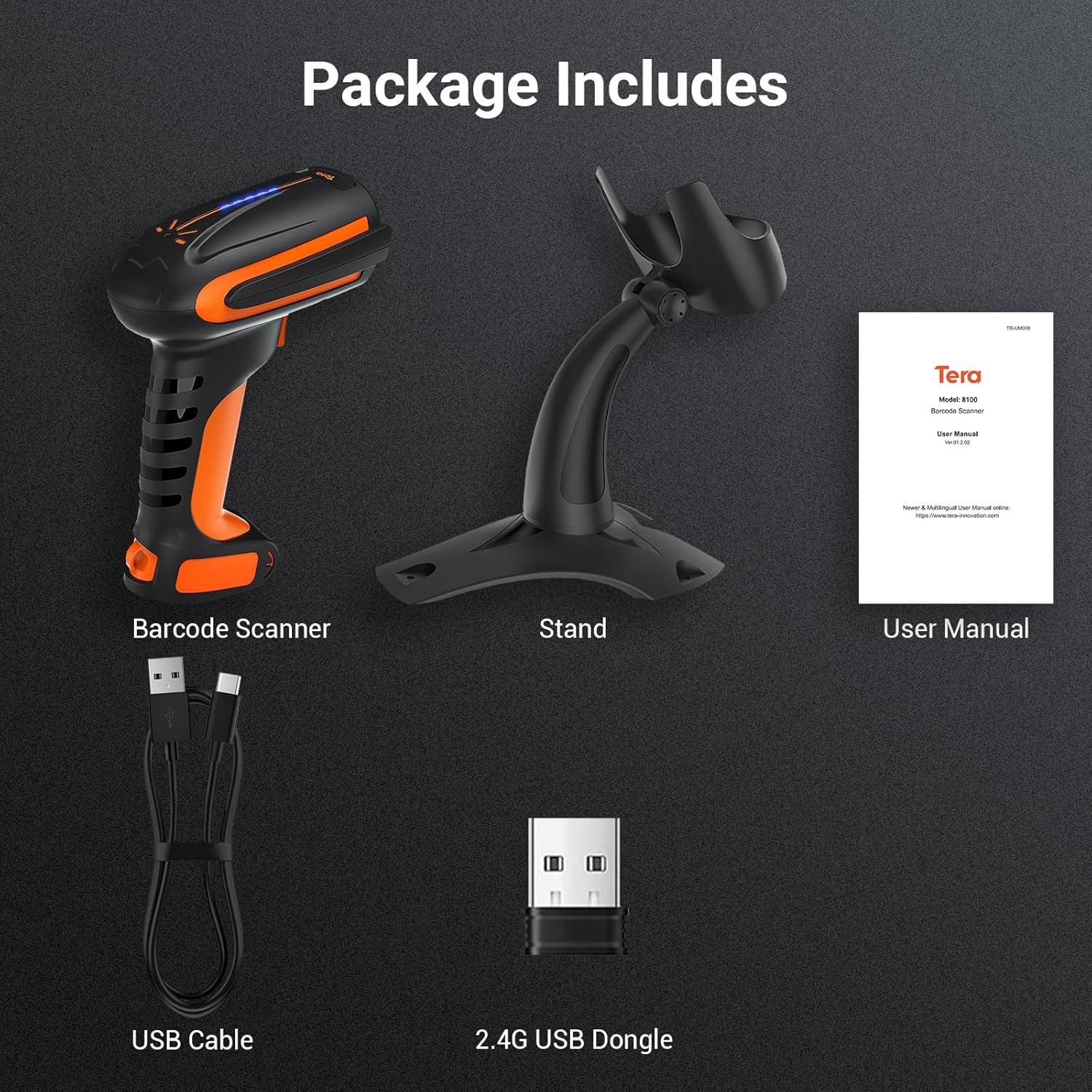
Conteúdo da embalagem
Ao abrir a embalagem, verifique se todos os seguintes itens estão incluídos:
- Leitor de código de barras x1
- Suporte para leitor de código de barras x1
- Cabo USB x1
- Dongle USB 2.4G x1
- Manual do usuário x1
Características
The Tera 8100Pro scanner is equipped with several advanced features to enhance user experience and operational efficiency:
- Indicador de Nível da Bateria: The scanner features a new battery indicator light system. Each of the four indicator lights represents 25% of the 2500mAh battery capacity, allowing for easy monitoring and planning of usage.
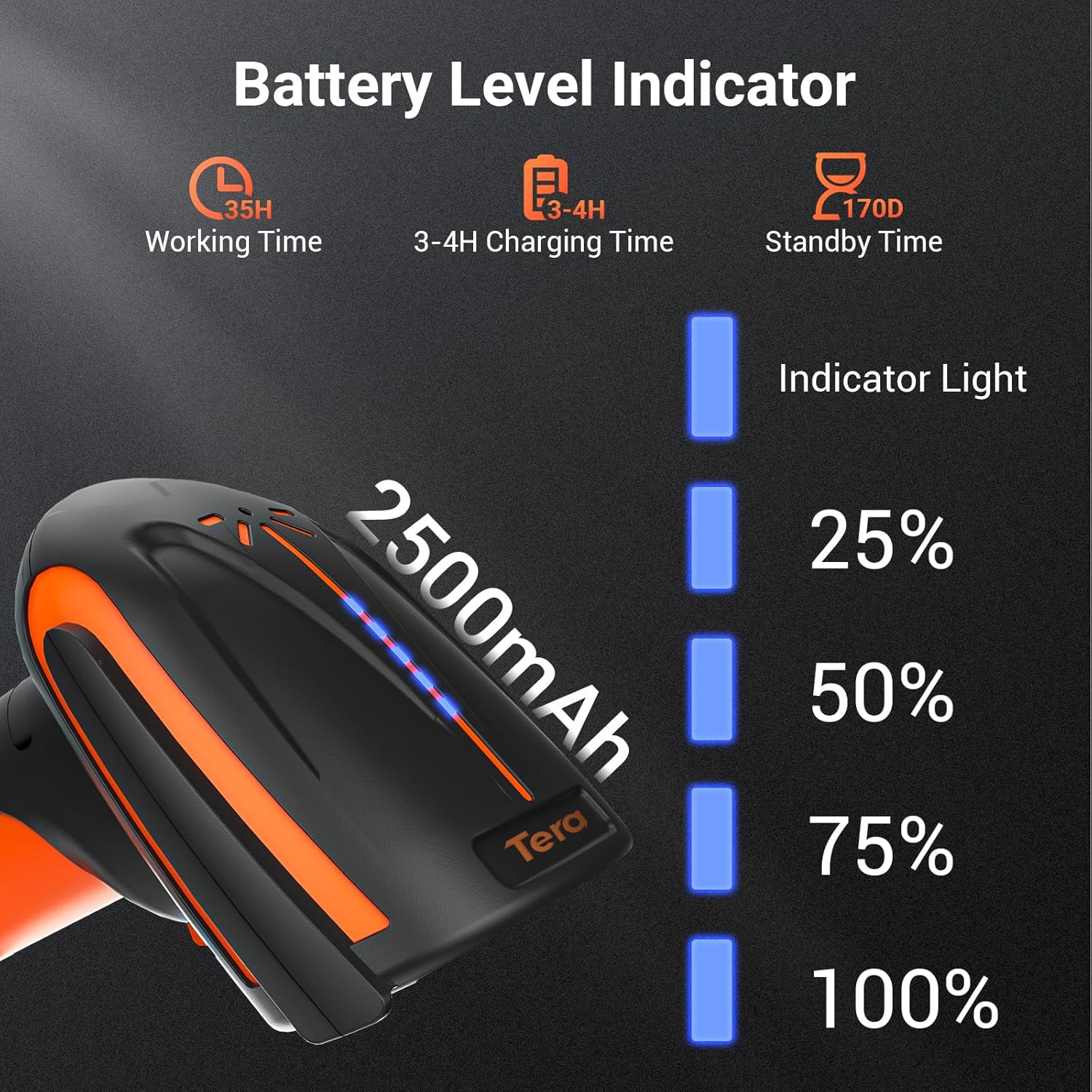
Figure 2: Battery Level Indicator on the Tera 8100Pro. - Industrial-Grade Durability: Designed for heavy-duty use, the 8100Pro is highly resistant to drops (up to 9.84ft), dust, and water, ensuring reliability in demanding environments.
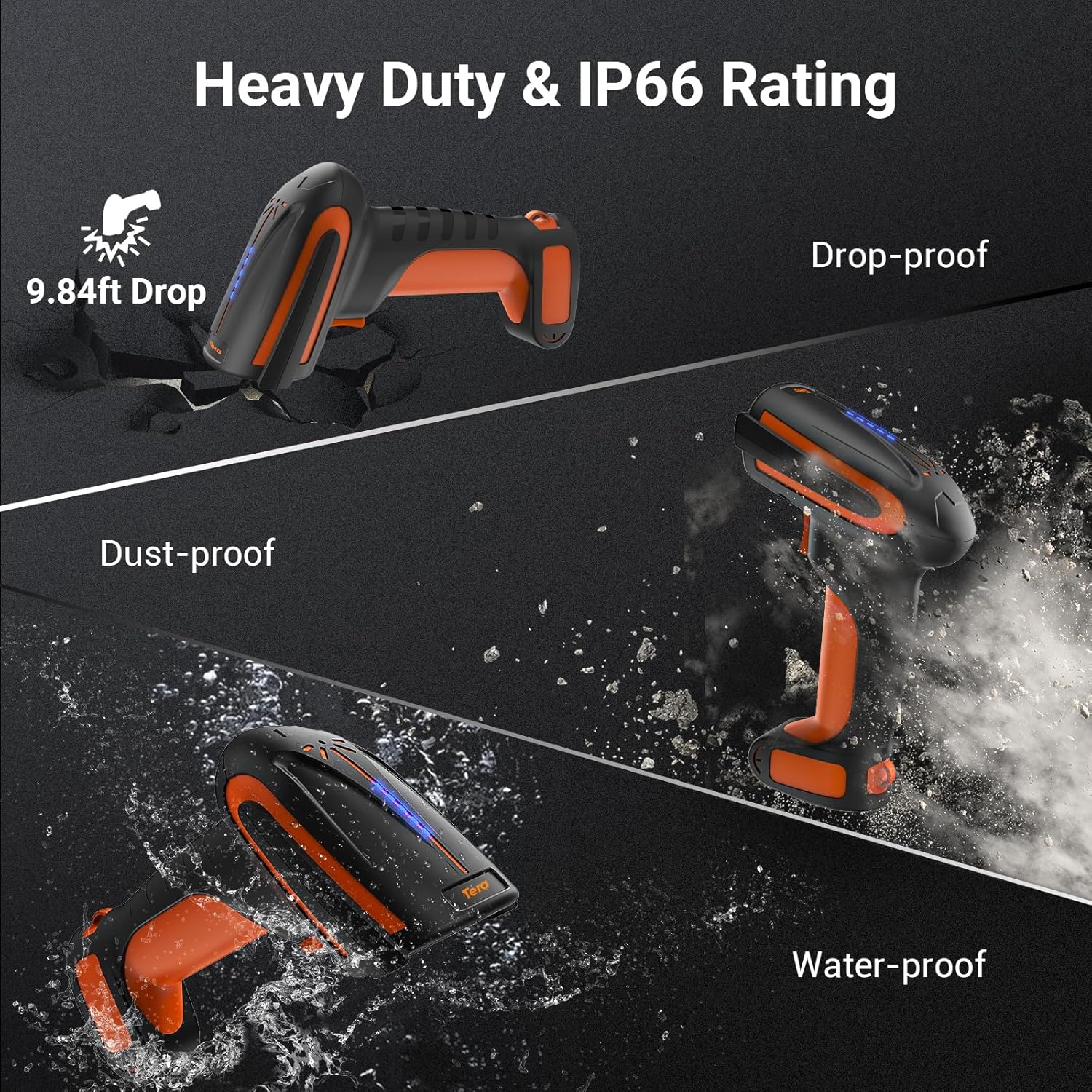
Figure 3: Durability features of the Tera 8100Pro. - Superior Scanning Capabilities: This scanner can read various barcode types, including 1D, 2D, and QR codes, even if they are smudged, damaged, fuzzy, or reflective. It also excels at scanning barcodes directly from screens.

Figure 4: The Tera 8100Pro's advanced image scanning technology allows it to read barcodes from various surfaces and conditions, including damaged or reflective ones, unlike traditional laser scanners. - Conectividade 3 em 1: Offers flexible connection options including Bluetooth, 2.4G wireless via USB dongle, and direct USB wired connection. The 2.4G wireless mode provides a transmission distance of up to 328 feet in open environments.

Figure 5: 3-in-1 Connectivity Options. - Ampla compatibilidade: Compatible with a broad range of operating systems including Windows 11/10/8/7/XP, Mac OS, iOS, Android, and Linux.
- Vibration/Sound Alert: Users can switch between vibration and sound alerts for successful scans, providing flexibility for different working environments.
- Specific Symbology Setup: Allows for advanced customization, such as editing data (e.g., deleting characters or adding tabs) for specific barcode types like Code 39, while leaving others unedited.
- Operação mãos-livres: Includes a stable, adjustable stand for hands-free scanning, improving efficiency in high-volume scanning tasks.

Figure 6: Hands-Free Scanning with the Adjustable Stand.
Configurar
1. Carregando o scanner
Before first use, fully charge the scanner. Connect the provided USB cable to the scanner's charging port and the other end to a USB power adapter (not included) or a computer's USB port. The battery indicator lights will show charging progress.
2. Conectando o scanner
The Tera 8100Pro offers three connection methods:
Conexão com fio USB:
- Connect the USB cable directly from the scanner to your computer's USB port.
- The scanner will be recognized as a HID keyboard device. No driver installation is typically required.
Conexão sem fio 2.4G:
- Insira o dongle USB de 2.4 GHz em uma porta USB disponível no seu computador.
- Turn on the scanner. It should automatically pair with the dongle. If not, refer to the user manual for pairing instructions (usually involves scanning a specific pairing barcode).
Conexão Bluetooth:
- Ensure your device (smartphone, tablet, computer) has Bluetooth enabled.
- Put the scanner into Bluetooth pairing mode (refer to the included user manual for the specific barcode to scan for Bluetooth pairing).
- On your device, search for Bluetooth devices and select "Tera 8100Pro" (or similar name) to connect.
Operando o Scanner
Modos de digitalização:
The Tera 8100Pro supports two primary scanning modes:
- Modo de gatilho chave: Press the trigger button to activate the scan beam and read a barcode. Release the button to stop scanning.
- Modo de varredura contínua: The scanner continuously emits a scan beam, automatically reading any barcode placed in its path. This mode is ideal for hands-free operation with the stand.

Procedimento básico de digitalização:
- Aponte a janela do scanner para o código de barras que deseja ler.
- Ensure the scan beam covers the entire barcode.
- Press the trigger (or place the barcode in the beam for continuous mode).
- A successful scan will be indicated by a beep or vibration (depending on your settings) and the data will be transmitted to your connected device.
Configurações avançadas:
The scanner can be configured by scanning specific setup barcodes found in the full user manual (PDF). These settings include:
- Adjusting sound volume or switching to vibration mode.
- Adding prefixes or suffixes to scanned data.
- Enabling or disabling specific symbologies.
- Switching between Storage Mode (data stored internally, then uploaded) and Instant Upload Mode (data transmitted immediately).
Manutenção
Proper maintenance ensures the longevity and optimal performance of your Tera 8100Pro barcode scanner:
- Limpeza: Use a soft, dry, lint-free cloth to clean the scanner's exterior. For the scanning window, use a lens cleaning cloth and a mild, non-abrasive cleaner if necessary. Avoid harsh chemicals or abrasive materials.
- Armazenar: When not in use, store the scanner in a cool, dry place away from direct sunlight and extreme temperatures.
- Cuidados com a bateria: Para prolongar a vida útil da bateria, evite descarregá-la completamente com frequência. Se for armazená-la por um longo período, carregue a bateria até cerca de 50% e recarregue-a a cada poucos meses.
- Evite quedas: While the scanner is drop-proof, repeated severe impacts can still cause damage. Handle with care.
Solução de problemas
If you encounter issues with your Tera 8100Pro barcode scanner, refer to the following common problems and solutions:
| Problema | Possível causa | Solução |
|---|---|---|
| O scanner não liga. | Bateria fraca ou descarregada. | Carregue o scanner por pelo menos 3 a 4 horas. |
| O scanner não está conectando ao dispositivo. | Modo de conexão incorreto, fora do alcance ou problema de emparelhamento. | Ensure correct mode (USB, 2.4G, Bluetooth) is selected. Move closer to the receiver/device. Re-pair the scanner following the manual's instructions. |
| O leitor não está lendo códigos de barras. | Barcode damaged, poor lighting, incorrect symbology enabled, or dirty scanning window. | Try scanning a different, clear barcode. Ensure adequate lighting. Check symbology settings in the full user manual. Clean the scanning window. |
| Os dados digitalizados estão incorretos ou incompletos. | Prefix/suffix settings enabled, or data editing rules applied. | Refer to the full user manual to disable or adjust prefix/suffix settings and data editing rules. |
Especificações
| Atributo | Detalhe |
|---|---|
| Dimensões do produto | 9 x 5.3 x 3.7 polegadas |
| Peso do item | 1.52 libras |
| Bateria | 1 bateria de polímero de lítio (2500 mAh) |
| Tecnologia de Conectividade | Bluetooth, conexão sem fio 2.4G, cabo USB |
| Dispositivos compatíveis | Laptop, desktop, tablet, smartphone |
| Sistemas Operacionais | Windows 11/10/8/7/XP, Mac OS, iOS, Android, Linux |
| Fabricante | Tera |
| País de origem | China |
Vídeo oficial do produto
Este vídeo fornece uma visão geral sobreview of the Tera 8100Pro Barcode Scanner, demonstrating its features and functionality.
Garantia e Suporte
For detailed warranty information and technical support, please refer to the official Tera website or the full User Manual PDF provided with your product. You can also find the digital version of the user manual at: Tera 8100Pro User Manual (PDF).
For further assistance, please contact Tera customer support through their official channels.


