1. Produto acabadoview
The MONOKEI Standard Keyboard is a mechanical keyboard designed for a versatile typing experience. It features a durable construction, hot-swappable switches, and multiple connectivity options.
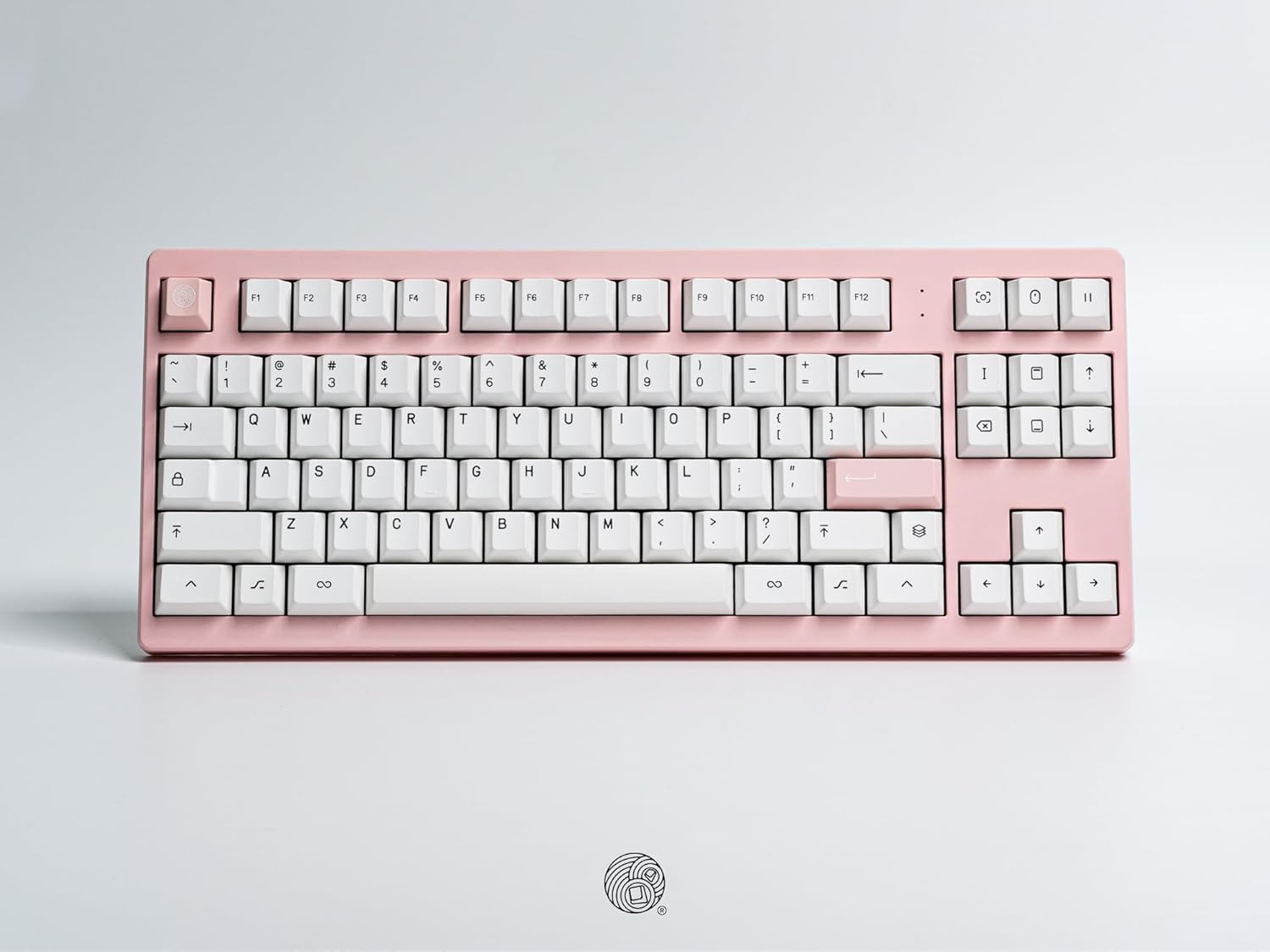
Uma sobrecarga view of the MONOKEI Standard Keyboard, showcasing its full layout in a blush pink casing with white PBT keycaps. The keyboard features a standard 87-key layout, including function keys, arrow keys, and a navigation cluster.
2. Configuração
2.1 Desembalagem e Conteúdo da Embalagem
Carefully remove the keyboard and accessories from the packaging. The box should contain:
- MONOKEI Standard Keyboard
- Cabo USB-C
- Extrator de Keycap
2.2 Conexão inicial
The MONOKEI Standard Keyboard supports both wired and wireless (Bluetooth) connectivity.
Conexão com fio:
- Connect the provided USB-C cable to the port on the keyboard.
- Conecte a outra extremidade do cabo USB-C a uma porta USB disponível no seu computador.
- O teclado será reconhecido automaticamente pelo seu sistema operacional.
Conexão sem fio (Bluetooth):
- Certifique-se de que o teclado esteja carregado ou conectado via USB-C para a configuração inicial.
- Turn on the keyboard's Bluetooth mode (refer to the Operating section for specific key combinations).
- On your device (PC, laptop, smartphone, tablet), navigate to Bluetooth settings.
- Procurar available devices and select 'MONOKEI Standard' to pair.
- Siga as instruções na tela para concluir o processo de pareamento.
2.3 Carregamento
Connect the USB-C cable to the keyboard and a power source (e.g., computer USB port, wall adapter). The keyboard can operate for up to 30 days on a full charge in wireless mode.
3. Instruções de operação
3.1 Funções básicas das teclas
The MONOKEI Standard Keyboard features a standard 87-key layout. All alphanumeric keys, symbols, and basic modifiers (Shift, Ctrl, Alt, Fn) function as expected.
3.2 Teclas de função especiais
The F1-F12 keys may have secondary functions when pressed in combination with the 'Fn' key. Refer to the keycap legends for specific media controls or system functions.
3.3 Operating System Mode Switching
The keyboard may default to a specific operating system layout (e.g., Mac). To switch between operating system modes (e.g., Windows/Mac), use the designated hotkey combination. Consult the included quick start guide for the specific key sequence.
3.4 Alternando entre dispositivos emparelhados
If multiple devices are paired via Bluetooth, use the designated function keys (often Fn + 1, 2, or 3) to switch between them quickly.
4. Manutenção
4.1 Limpeza do teclado
To clean the keyboard, power it off and disconnect it from your device. Use a soft, lint-free cloth lightly dampLimpe com água ou uma solução de limpeza suave. Evite borrifar líquidos diretamente no teclado. Para limpar entre as teclas, use ar comprimido ou uma escova pequena.
Substituição de teclas e interruptores 4.2
The MONOKEI Standard Keyboard features hot-swappable sockets, allowing for easy replacement of switches without soldering. To replace keycaps or switches:
- Remova cuidadosamente a tecla usando o extrator de teclas fornecido.
- Once the keycap is removed, use a switch puller (not included, but often bundled with replacement switches) to carefully extract the switch from its socket.
- Alinhe os pinos do novo interruptor com os orifícios na placa de circuito impresso e pressione firmemente até que ele se encaixe no lugar.
- Place the desired keycap onto the new switch stem.
Observação: Opening the keyboard casing may void the warranty. Exercise caution if considering internal modifications.
5. Solução De Problemas
5.1 Problemas de conectividade
- Teclado não conecta via Bluetooth: Ensure Bluetooth is enabled on both the keyboard and your device. Try unpairing and re-pairing the keyboard. Ensure the keyboard is sufficiently charged.
- Conexão com fio não reconhecida: Try a different USB port or cable. Ensure the cable is fully inserted into both the keyboard and the computer.
5.2 Teclas não respondem
- Individual keys: If a single key is not responding, the switch may be faulty or improperly seated. Try removing the keycap and switch, then re-inserting the switch firmly. If the issue persists, consider replacing the switch.
- Multiple keys: Ensure the keyboard is properly connected (wired or wireless). Restart your computer or device. If using wireless, check battery level.
5.3 Problemas de cobrança
- Ensure the USB-C cable is securely connected to both the keyboard and a working power source.
- Experimente um cabo USB-C ou adaptador de energia diferente.
6. Especificações
| Recurso | Detalhe |
|---|---|
| Dimensões do produto | 14.3 x 5.9 x 1.5 polegadas (14.3"C x 5.9"L x 1.5"A) |
| Peso do item | 2.1 libras |
| Material | Polybutylene Terephthalate (PBT Keycaps) |
| Tecnologia de Conectividade | Bluetooth, USB-C |
| Características especiais | Hot-Swappable, Long-lasting PBT keycaps, Wired, Wireless |
| Componentes incluídos | Keycap Puller, USB Cable |
| Dispositivos compatíveis | Laptop, PC, Smartphone, Tablet |
7. Garantia e Suporte
7.1 Informações de garantia
MONOKEI products are manufactured to high-quality standards. For specific warranty terms and conditions, please refer to the warranty card included with your product or visit the official MONOKEI website. Guarde o comprovante de compra para solicitações de garantia.
7.2 Suporte ao cliente
If you encounter any issues or have questions not covered in this manual, please contact MONOKEI customer support. You can find more information and contact details on the official MONOKEI store page:

