Introdução
Thank you for choosing the arVin D8 Pro Wireless Gamepad Controller. This manual provides detailed instructions for setting up, operating, and maintaining your controller to ensure an optimal gaming experience across various platforms including iOS, Android, PC, and Xbox consoles. Please read this manual thoroughly before use.
Configurar
1. Carregando o controlador
Before first use, fully charge the controller using the provided USB-C cable. Connect the cable to the controller's charging port and a compatible USB power source. The indicator lights will show charging status.
2. Ligar/desligar
To power on, press and hold the 'HOME' button for 2 seconds until the indicator lights flash. To power off, press and hold the 'HOME' button for 5 seconds until the lights turn off.
3. Device Mounting
The arVin D8 Pro features a stretched design that supports tablets and phones from 128-289mm in length and up to 13mm thick. This allows for use with various devices, including iPad Pro (M4) 13 inch, without needing to remove most phone cases.

Image: The arVin D8 Pro controller demonstrating its compatibility with various devices, including a Nintendo Switch, an iPhone, and an iPad, highlighting its adjustable length from 128-289mm.
4. Bluetooth Connection (iOS/iPad)
Follow these steps to connect your controller to an iOS device or iPad:
- Certifique-se de que o controlador esteja desligado.
- Hold down the 'RB' key, then press the 'HOME' key for 2 seconds. The indicator lights will flash quickly.
- On your iOS/iPad device, go to Configurações > Bluetooth.
- Procurar and select 'Xbox Wireless Controller' from the available devices.
- Once connected, the indicator light on the controller will remain solid.
Video: Instructions for connecting the arVin D8 Pro controller to an iPad or iPhone via Bluetooth, demonstrating the button presses and device pairing process.
5. Bluetooth Connection (Android Phone/Tablet)
There are two modes for Android connection:
Mode 1: Standard Android Connection
- Certifique-se de que o controlador esteja desligado.
- Hold down the 'RB' key, then press the 'HOME' key for 2 seconds. The indicator lights will flash quickly.
- No seu dispositivo Android, acesse Configurações > Bluetooth.
- Procurar and select 'Xbox Wireless Controller' from the available devices.
- Once connected, the indicator light on the controller will remain solid.
Mode 2: Direct Play Android Connection (for specific games)
- Certifique-se de que o controlador esteja desligado.
- Hold down the 'X' key, then press the 'HOME' key for 2 seconds. The indicator lights will flash quickly.
- No seu dispositivo Android, acesse Configurações > Bluetooth.
- Procurar and select 'BSP-D8Pro' from the available devices.
- Once connected, the indicator light on the controller will remain solid.
Video: A guide on how to connect the arVin D8 Pro controller to an Android phone or tablet, detailing the pairing process for different connection modes.
6. Bluetooth Connection (PC)
To connect your controller to a PC via Bluetooth:
- Certifique-se de que o controlador esteja desligado.
- Hold down the 'RB' key, then press the 'HOME' key for 2 seconds. The indicator lights will flash quickly.
- On your PC, enable Bluetooth and go to Configurações > Dispositivos > Bluetooth e outros dispositivos.
- Select 'Add Bluetooth or other device' and choose 'Bluetooth'.
- Procurar and select 'Xbox Wireless Controller'.
- Once connected, the indicator light on the controller will remain solid.
- For Steam games, ensure 'Xbox Configuration Support' is enabled in Steam's controller settings.
Video: Demonstrates how to connect the arVin D8 Pro controller to a PC via Bluetooth and set it up for Steam streaming, including enabling Xbox Configuration Support.
Operando o Controlador
1. Principais características
- Joysticks e gatilhos de efeito Hall: Designed for precise control with accuracy up to 0.1mm, minimizing drift and dead zones.
- Macro Programming (M1/M2): Two programmable buttons (M1/M2) support single or multiple programming modes to customize your gameplay.
- Função Turbo: Three adjustable turbo speeds (8, 15, 25 shoots/s) can be set for A/B/X/Y/LT/LB/RT/RB/cross keys.
- Adjustable RGB Lights: Customize the controller's lighting with various modes (Breathing, Fixed 7 colors, Off) by pressing the 'Programming key + L3 key'.
- Three Joystick Modes: Switch between FPS Mode, Normal Mode, and Racing Mode for optimized control in different game genres.
- ABXY Key-value Interchange: Allows swapping the functions of the ABXY buttons.
- Axis Calibration Function: For maintaining joystick accuracy.
- Controller Sleep/Wake Up/Off Function: For power management.
- Dual Vibration Function: Provides haptic feedback (Note: Not supported on iOS and Android devices).
- 6-Axis Gyroscope Function: Enhances motion control (Note: Not supported on iOS and Android devices).

Imagem: Um excessoview of the arVin D8 Pro controller's key features, including six-axis gyro, dual vibration, macro buttons, and turbo function.

Imagem: Detalhada view of the Hall Effect Joysticks and Triggers, emphasizing their precision and durability.
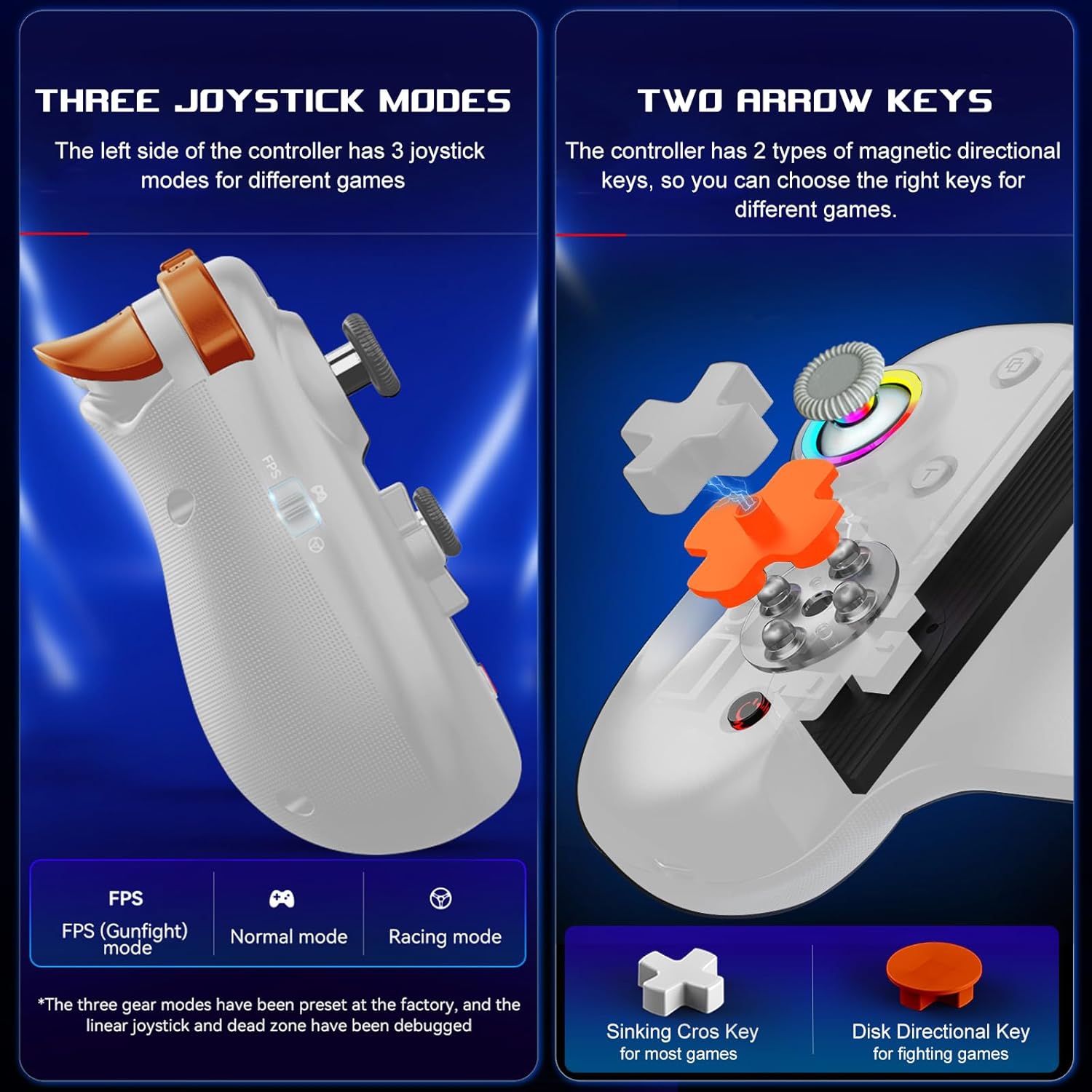
Image: Illustration of the three distinct joystick modes and the interchangeable magnetic arrow keys for varied gameplay.
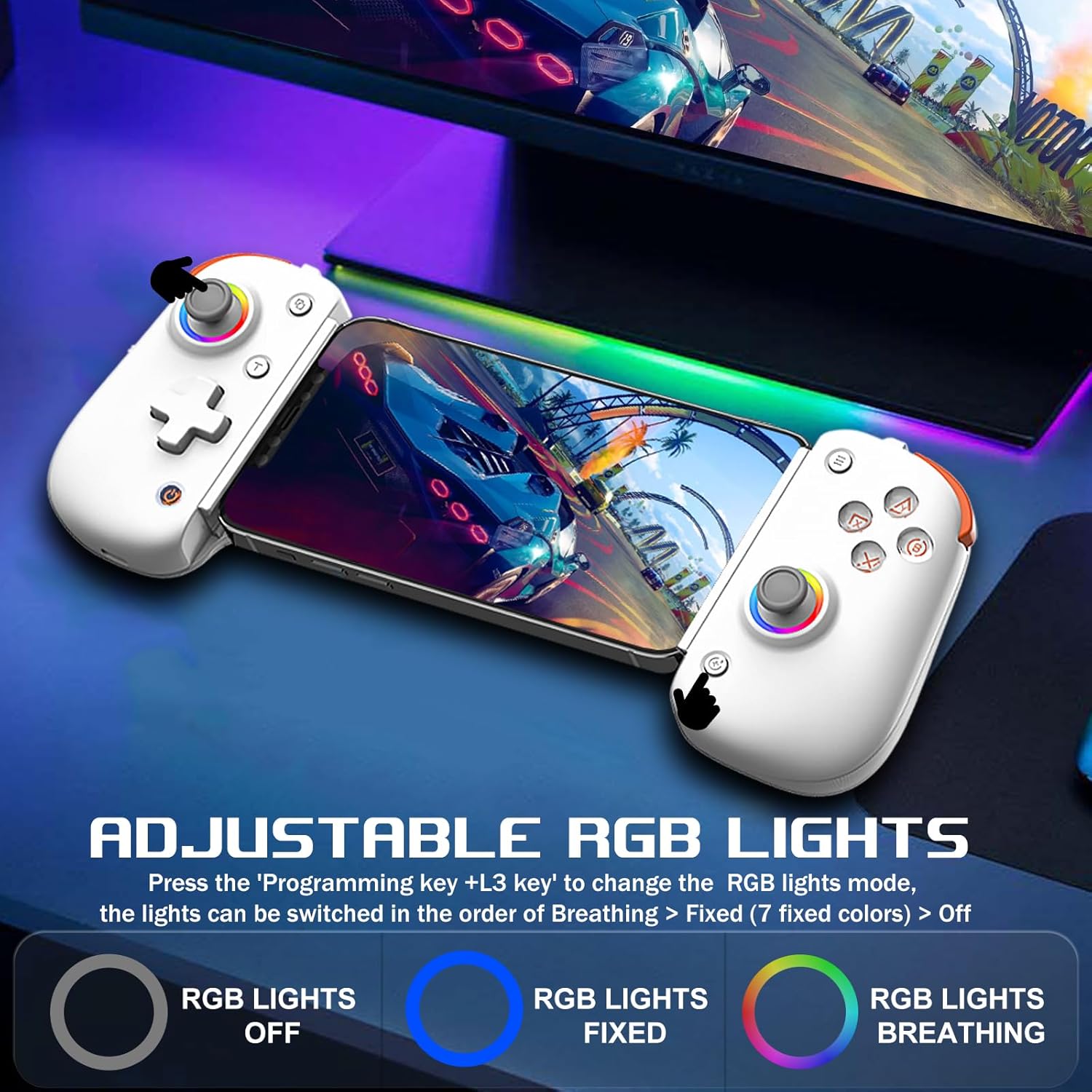
Image: Demonstrates the adjustable RGB lighting features of the controller, including different light modes.
Compatibilidade
The arVin D8 Pro Wireless Gamepad Controller offers broad compatibility:
- Sistemas operacionais: iOS 13.0+, Android 6.0+, Windows 7/8/10/11.
- Dispositivos: iPad/iPad mini/Air/Pro/iPhone/Macbook, Android phones/tablets (Galaxy Tab, Lenovo Tab, HUAWEI MatePad, Yoga Tab), PC/Laptop/Desktop, Nintendo Switch/Switch Lite/Switch OLED, PS3/PS4.
- Note on PS5: Compatible with PS5 for playing PS4 games only; does not support PS5 games.
- Exclusões: Not compatible with Apple TV, iPod, Fire TV/TV Box.
1. Cloud Gaming Support
The controller is compatible with most cloud gaming services and platforms:
- Xbox Game Pass
- Nvidia GeForce agora
- Amazon Luna
- Google Stadia
- Rainway
- Apple Arcade and MFi games
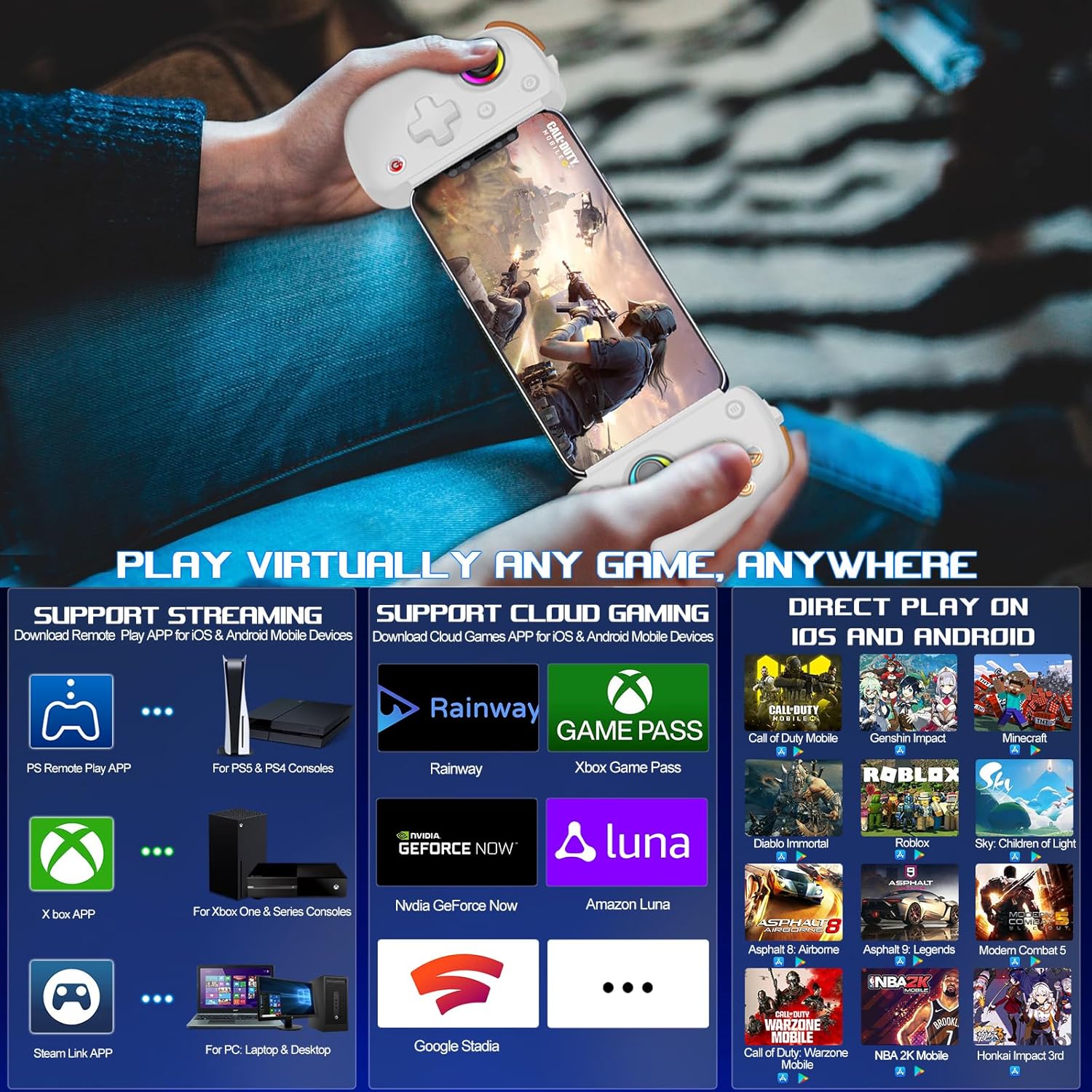
Image: Visual representation of the controller's support for popular cloud gaming platforms and direct play mobile titles.
2. Remote Play Support
Stream console games to your mobile device or tablet:
- PS Remote Play App: For PS5 and PS4 consoles.
- Xbox App: For Xbox One, Xbox Series S, and Xbox Series X consoles.
- Steam Link App: For PC/Laptop/Desktop.
Video: A demonstration of connecting the arVin D8 Pro controller for Xbox Remote Play, showing the setup process and gameplay.
3. Direct Play Games
The controller supports direct play for many popular mobile games, including:
- Call of Duty Mobile (CODM)
- Call of Duty: Warzone Mobile
- Impacto Genshin
- Sky: Children of Light
- Minecraft
- Diablo Immortal
- Combat Modern 5
- Asphalt 9: Legends
- Asphalt 8: Airborne
- And many more controller-supported titles.
Manutenção
To ensure the longevity and optimal performance of your arVin D8 Pro controller, follow these maintenance guidelines:
- Limpeza: Use a soft, dry cloth to wipe the controller. Avoid using harsh chemicals, solvents, or abrasive cleaners.
- Armazenar: Guarde o controlador em local fresco e seco, longe da luz solar direta e de temperaturas extremas.
- Cuidados com a bateria: Não exponha a bateria a altas temperaturas nem tente desmontá-la. Carregue o controlador regularmente, mesmo quando não estiver em uso, para manter a saúde da bateria.
- Manuseio: Evite deixar o controle cair ou submetê-lo a impactos fortes.
Solução de problemas
If you encounter issues with your arVin D8 Pro controller, please refer to the following common solutions:
- O controle não liga: Ensure the controller is fully charged. Connect it to a power source and try again.
- Não é possível conectar via Bluetooth:
- Ensure the controller is in the correct pairing mode for your device (e.g., 'RB' + 'HOME' for iOS/PC, 'X' + 'HOME' for Android Mode 2).
- Certifique-se de que o Bluetooth esteja ativado no seu dispositivo.
- Esqueça o dispositivo nas configurações de Bluetooth do seu aparelho e tente emparelhá-lo novamente.
- Reinicie o controlador e o seu dispositivo.
- Botões/Joysticks não respondem:
- Certifique-se de que o controlador esteja conectado corretamente.
- Try calibrating the joysticks (refer to the full manual for specific calibration steps if needed).
- Test the controller with a different game or application to determine if the issue is game-specific.
- Atrasos ou desconexões:
- Ensure your device is within range of the controller.
- Minimize a interferência de outros dispositivos sem fio.
- For streaming, ensure a stable and strong Wi-Fi connection for both your device and the host PC/console.
- Vibration/Gyro Not Working on iOS/Android: These functions are not supported on iOS and Android devices due to system limitations.
Especificações
| Recurso | Detalhe |
|---|---|
| Modelo | D8 Pro |
| Conectividade | Wireless (Bluetooth) |
| SO compatível | iOS 13.0+, Android 6.0+, Windows 7/8/10/11 |
| Comprimento do dispositivo suportado | 128-289 mm |
| Espessura do dispositivo suportada | Até 13 mm |
| Capacidade da bateria | 600mAh |
| Playtime (Full Charge) | Até 15 horas |
| Tipo de joystick | Joystick com sensor de efeito Hall |
| Tipo de gatilho | Hall Linear Trigger |
| Botões de macro | M1/M2 (Programmable) |
| Velocidades Turbo | 8, 15, 25 disparos/s |
| Características especiais | RGB Light, Dual Vibration (not iOS/Android), 6-Axis Gyroscope (not iOS/Android), ABXY Key-value Interchange, Axis Calibration |
| Peso do item | 12.8 onças |
| Dimensões da embalagem | 10.43 x 5.12 x 2.44 polegadas |
Garantia e Suporte
arVin products are designed and manufactured to the highest quality standards. This product is covered by a limited warranty from the date of purchase. Please retain your proof of purchase for warranty claims.
For technical support, troubleshooting assistance, or warranty inquiries, please contact arVin customer service through the retailer's platform or visit the official arVin website para informações de contato.


