Introdução
This manual provides detailed instructions for the OWC Gemini Thunderbolt (USB-C) Docking Station and External RAID Storage Solution. It covers setup, operation, maintenance, troubleshooting, and technical specifications to ensure optimal performance and longevity of your device.
Informações de segurança
- Leia todas as instruções cuidadosamente antes de usar o dispositivo.
- Não exponha o dispositivo à umidade ou temperaturas extremas.
- Use apenas o adaptador de energia fornecido com o dispositivo.
- Não tente abrir ou reparar o dispositivo por conta própria. Encaminhe todos os serviços de manutenção a pessoal qualificado.
- Garanta ventilação adequada ao redor do dispositivo para evitar superaquecimento.
Conteúdo da embalagem
Verifique se todos os itens estão presentes no seu pacote:
- OWC Gemini Thunderbolt (USB-C) Docking Station
- Adaptador de energia
- Thunderbolt (USB-C) Cable
- Manual do usuário (este documento)
- Drives (pre-installed for 32TB model)
Produto acimaview
The OWC Gemini is a versatile docking station and external storage solution designed for high-performance data management and expanded connectivity.

Imagem: Frente view of the OWC Gemini Thunderbolt Docking Station, showcasing its sleek black design and OWC branding.
Principais características
- Dual Drive Bays: Supports 2.5-inch and 3.5-inch SATA drives for flexible storage configurations.
- Hardware RAID: Offers RAID 0, RAID 1, SPAN, and JBOD modes for optimized performance or data redundancy.
- Thunderbolt (USB-C) Connectivity: Two Thunderbolt 3 (USB-C) ports for host connection, daisy-chaining, and power delivery (up to 27W).
- Conectividade Expandida: Includes two USB 3.2 Gen 2 Type-A ports, one HDMI port, one 2.5 Gigabit Ethernet port, and one SD 4.0/UHS-II media slot.
- Suporte para monitores de alta resolução: HDMI 2.1 supports up to 8K @ 120Hz, and Thunderbolt 3 supports up to 8K @ 60Hz or 4K @ 120Hz.
Layout da porta
The OWC Gemini provides a comprehensive set of ports for various connectivity needs.

Imagem: Traseira view of the OWC Gemini Docking Station, highlighting the 7 ports of connectivity including Thunderbolt, USB, HDMI, and Ethernet.
- Thunderbolt 3 (USB-C) Host Port: Conecta-se ao seu computador.
- Thunderbolt 3 (USB-C) Downstream Port: For daisy-chaining, additional displays, or charging USB-C devices.
- Portas USB 3.2 Gen 2 Tipo A (x2): Para conectar periféricos USB.
- Porta HDMI 2.1: Para conectar um monitor externo.
- Porta Ethernet de 2.5 Gigabits: For high-speed network connectivity.
- SD 4.0/UHS-II Media Slot: Located on the front panel for convenient access.
- Entrada de energia DC 12V: Conecta-se ao adaptador de energia.

Image: Close-up of the front panel of the OWC Gemini, showing the easily accessible SD card slot.
Configurar
1. Drive Installation (if applicable)
For models without pre-installed drives, follow these steps to install 2.5-inch or 3.5-inch SATA drives.

Image: The OWC Gemini unit illustrating its two flexible drive bays, compatible with both 2.5-inch and 3.5-inch drives.
- Ensure the device is powered off and disconnected from your computer.
- Open the drive bay door(s) according to the product's physical design.
- Insert your 2.5-inch or 3.5-inch SATA drives into the bays, ensuring they are securely seated.
- Close the drive bay door(s).
2. Configuração RAID
The OWC Gemini supports hardware RAID. Refer to the specific RAID configuration utility or physical switches on the device (if present) to set your desired RAID level (RAID 0, RAID 1, SPAN, or JBOD).
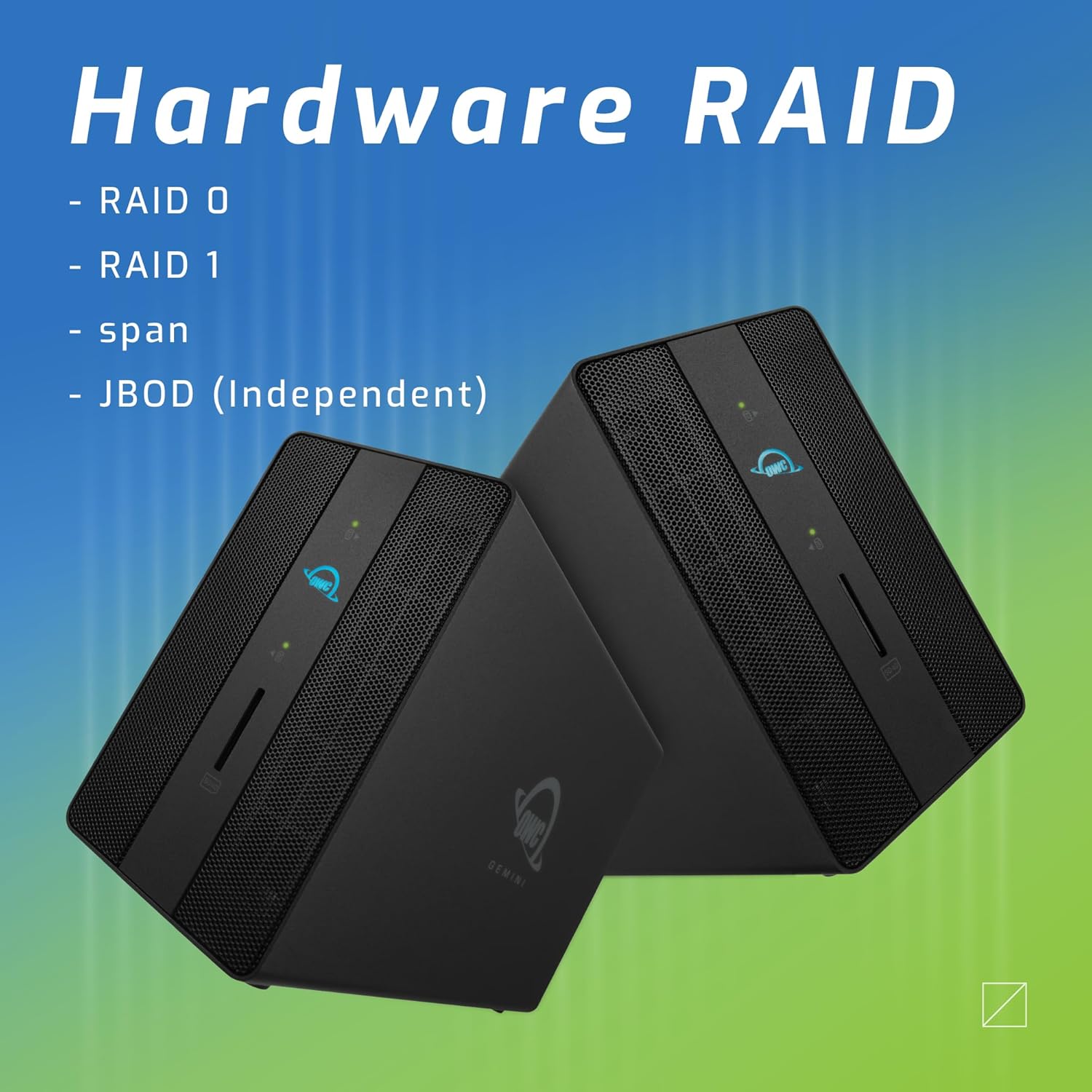
Image: Two OWC Gemini units, emphasizing the hardware RAID capabilities for configurations like RAID 0, RAID 1, SPAN, and JBOD.
RAID Levels Explained:
- RAID 0 (Striping): Combines drives for maximum speed and capacity, but offers no data redundancy.
- RAID 1 (espelhamento): Duplicates data across drives for redundancy, sacrificing half the total capacity for data protection.
- SPAN (Concatenação): Combines drives into a single large volume without striping or mirroring.
- JBOD (Just a Bunch Of Disks): Treats each drive as an independent volume.
3. Conectando ao seu computador
- Connect the power adapter to the DC 12V power input on the OWC Gemini and then to a power outlet.
- Connect one end of the Thunderbolt (USB-C) cable to the host port on the OWC Gemini.
- Connect the other end of the Thunderbolt (USB-C) cable to a Thunderbolt (USB-C) port on your computer.
- The device should power on automatically.
4. Initializing Drives
After connecting, your operating system may prompt you to initialize and format the new drives. Follow the on-screen instructions. For macOS, use Disk Utility. For Windows, use Disk Management.
Instruções de operação
Transferência de dados
Once the drives are initialized and formatted, they will appear as accessible volumes on your computer. You can drag and drop files to and from these volumes as you would with any other storage device.
Usando as portas USB
Connect USB peripherals such as external drives, keyboards, or mice to the two USB 3.2 Gen 2 Type-A ports. These ports support data transfer speeds up to 10 Gb/s.
Conectando um Monitor Externo
Use the HDMI 2.1 port to connect an external monitor. The Gemini supports resolutions up to 8K @ 120Hz via HDMI.
Conectividade de rede
Connect an Ethernet cable from your network router or switch to the 2.5 Gigabit Ethernet port on the Gemini for high-speed wired network access.
Using the SD Card Slot
Insert an SD 4.0/UHS-II compatible SD card into the front-facing slot for quick data transfer from cameras or other devices.
Daisy-Chaining and Power Delivery

Image: A close-up of the OWC Gemini's Thunderbolt ports, illustrating their use for daisy-chaining, connecting additional displays, and charging USB-C devices.
The second Thunderbolt 3 (USB-C) port allows you to:
- guirlanda de margaridas additional Thunderbolt devices.
- Conecte um additional display (up to 8K @ 60Hz or 4K @ 120Hz).
- Charge USB-C devices with up to 27 watts of power.
Manutenção
- Limpeza: Use um pano macio e seco para limpar a parte externa do dispositivo. Não use produtos de limpeza líquidos ou aerossóis.
- Ventilação: Ensure that the ventilation grilles are not obstructed to prevent overheating.
- Atualizações de firmware: Periodically check the OWC webSite para atualizações de firmware para garantir desempenho e compatibilidade ideais.
- Ejeção segura: Always safely eject the OWC Gemini from your operating system before disconnecting it or powering it off to prevent data corruption.
Solução de problemas
Dispositivo não reconhecido
- Ensure all cables are securely connected, especially the Thunderbolt cable to both the Gemini and your computer.
- Verify the power adapter is correctly connected and the device is receiving power.
- Try connecting the Gemini to a different Thunderbolt port on your computer.
- Reinicie o seu computador.
- Check your operating system's Disk Utility (macOS) or Disk Management (Windows) to see if the drives are detected but uninitialized or unformatted.
Slow Data Transfer Speeds
- Ensure you are using a Thunderbolt 3 compatible cable and port.
- Check the RAID configuration. RAID 1 (mirroring) will have slower write speeds than RAID 0 (striping).
- Close any unnecessary applications that might be consuming system resources.
- Certifique-se de que os drivers do seu computador estejam atualizados.
Problemas de exibição
- Verify the HDMI cable is securely connected to both the Gemini and your monitor.
- Check your display settings in your operating system.
- Ensure your monitor supports the resolution and refresh rate you are attempting to use.
- Experimente com um cabo HDMI ou monitor diferente, se possível.
Problemas de conexão de rede
- Ensure the Ethernet cable is securely connected to both the Gemini and your network device.
- Verifique as configurações de rede do seu computador.
- Reinicie o seu roteador/modem.
Especificações
| Recurso | Detalhe |
|---|---|
| Marca | OWC |
| Número do modelo | OWCTB3GM000H32 |
| Capacidade de armazenamento | 32.0TB (as configured) |
| Baías de Unidade | 2 (supports 2.5" and 3.5" SATA drives) |
| Níveis RAID | SPAN, RAID 0, RAID 1, JBOD (Hardware RAID) |
| Interface Host | Thunderbolt 3 (USB-C) |
| Taxa de transferência de dados | Up to 40 Gb/s (Thunderbolt 3), Up to 10 Gb/s (USB 3.2 Gen 2) |
| Portos | (1) Thunderbolt 3 (USB-C) Host, (1) Thunderbolt 3 (USB-C) Downstream, (2) USB 3.2 Gen 2 Type-A, (1) HDMI 2.1, (1) 2.5 Gigabit Ethernet, (1) SD 4.0/UHS-II |
| Suporte de exibição | HDMI 2.1: Up to 8K @ 120Hz; Thunderbolt 3: Up to 8K @ 60Hz or 4K @ 120Hz |
| Fornecimento de energia | Up to 27W via Thunderbolt 3 |
| Dispositivos compatíveis | Desktop, Laptop, Tablet (with Thunderbolt/USB-C port) |
| Cor | Preto |
| Peso | 9.35 libras (aprox.) |
| UPC | 810100983697 |
Garantia e Suporte
Informações de garantia
OWC products are covered by a limited warranty. Please refer to the official OWC webPara obter informações específicas sobre os termos e condições da garantia, consulte o site ou a documentação de compra. Guarde o comprovante de compra para eventuais solicitações de garantia.
Suporte Técnico
For technical assistance, troubleshooting, or further inquiries, please visit the official OWC support website ou entre em contato com o atendimento ao cliente.


