1. Produto acabadoview
The SofaBaton X1S Universal Remote Control is designed to centralize control of various home entertainment devices. It operates through a hub that communicates with devices via IR, Bluetooth, and Wi-Fi signals. The remote features an improved scroll wheel, a raise-to-wake function, and backlit buttons for enhanced usability.

Figure 1.1: SofaBaton X1S Remote Control and Hub. The remote features a display screen and various control buttons, while the hub is a compact, square device.
The system supports over 500,000 devices from more than 6,000 brands, including TVs, DVD/Blu-ray players, set-top boxes, stereo systems, and gaming consoles. It also integrates with Wi-Fi devices like Philips Hue and Sonos speakers.

Figure 1.2: Diagram illustrating the broad compatibility of the SofaBaton X1S with various home entertainment devices, including projectors, TVs, AV receivers, speakers, DVDs, and gaming consoles.
2. Guia de configuração
2.1. Desembalagem e inspeção inicial
Carefully remove all components from the packaging. Verify that you have the SofaBaton X1S remote, the hub, a USB-C charging cable, a power adapter, and two IR blasters.

Figure 2.1: The SofaBaton X1S remote and hub positioned in a living room, demonstrating their compact design and integration into a home entertainment setup.
2.2. Charging the Remote and Hub
Connect the hub to a power outlet using the provided USB-C cable and power adapter. The remote has a built-in rechargeable battery that can last up to 45 days on a single charge. Charge the remote via its USB-C port located at the bottom.
2.3. Downloading the SofaBaton App
The SofaBaton X1S is configured and controlled primarily through the SofaBaton smart remote app. Download the app from your device's respective app store (Google Play Store for Android or Apple App Store for iOS).

Figure 2.2: A smartphone screen displaying the SofaBaton app download page, with icons for Google Play and Apple App Store.
2.4. Connecting the Hub to Wi-Fi
- Open the SofaBaton app and create a free account or log in.
- Select the 'X Series' device type.
- Choose 'Setup New Hub' and follow the on-screen instructions to connect the hub to your home Wi-Fi network.
- Press and hold the button on the back of the hub for 3 seconds until the blue light blinks, indicating pairing mode.
- Select your Wi-Fi network and enter the password in the app.
2.5. Adicionando dispositivos
The SofaBaton X1S supports IR, Bluetooth, and Wi-Fi devices. You can add devices using one of two methods:
- Search in the Database: The app has a powerful cloud code library with over 500,000 devices. Procurar your device's brand and model.
- Learn from Original IR Remote: For IR devices not found in the database, you can teach the SofaBaton hub commands directly from your original remote. Point your original remote vertically at the hub's circular icon within 2-3 inches and press the desired button.
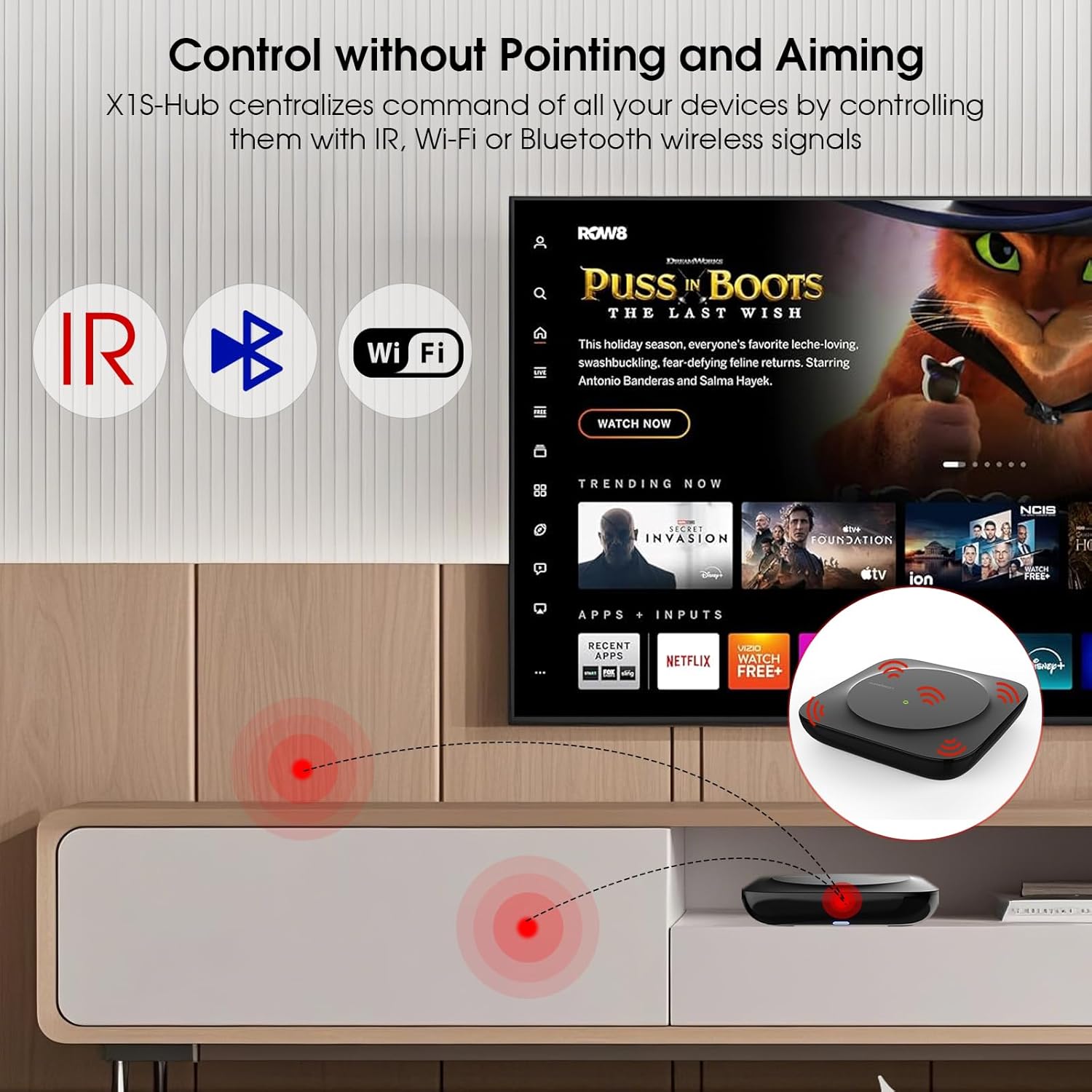
Figure 2.3: The X1S Hub centralizes control of devices using IR, Wi-Fi, or Bluetooth signals, allowing control without direct line-of-sight to the devices.
3. Instruções de operação
3.1. One-Click Activities
The Activity feature allows you to execute a series of predefined commands with a single button press. For example, setting an activity like "Movie Time" can automatically power on your TV, soundbar, and Blu-ray player, and switch to the correct input sources.

Figura 3.1: Um example of a one-click activity, showing how a single command can turn on multiple devices like a TV, soundbar, DVD player, and projector.
3.2. Integração do Controle por Voz
The SofaBaton X1S is compatible with smart assistants such as Amazon Alexa and Google Assistant. This enables voice control for activating activities and interacting with your smart home entertainment systems. For example, you can say, "Alexa, turn on Movie Time" to initiate your pre-configured activity.

Figure 3.2: A user interacting with a smart speaker to control their entertainment system using voice commands, demonstrating compatibility with Alexa and Google Assistant.
3.3. Personalized Macro Buttons
Customize key functions by assigning specific commands to each button. You can also create sequences of up to 10 commands that can be executed with a single button press, simplifying complex operations.
3.4. Find My Remote Feature
If you misplace your remote, you can use the SofaBaton app to trigger a beeping sound from the remote, helping you locate it quickly.

Figure 3.3: A user looking under furniture while the SofaBaton X1S remote beeps, illustrating the 'Find My Remote' feature.
4. Manutenção
4.1. Gerenciamento de bateria
The remote's built-in rechargeable battery provides up to 45 days of working time. Recharge the remote using the provided USB-C cable when the battery indicator is low.
4.2. Limpeza
To clean the remote and hub, use a soft, dry cloth. Avoid using abrasive cleaners or solvents that could damage the surfaces.
4.3. Atualizações de firmware
Ensure your SofaBaton app and devices are always updated to the latest firmware versions for optimal performance and new features. Updates are typically managed through the SofaBaton app.
5. Solução De Problemas
5.1. Problemas de conectividade
- **Remote not responding:** Ensure the remote is charged. Check the connection between the remote and the hub in the app.
- **Hub not connecting to Wi-Fi:** Verify your Wi-Fi password and network stability. Ensure the hub is within range of your Wi-Fi router.
- **IR Blasters not working:** Confirm the IR blasters are securely plugged into the hub. Position them correctly to face the devices you wish to control.
5.2. Device Control Problems
- **Device not responding to commands:** Double-check that the correct device profile is selected on the remote. If using IR, ensure there's no obstruction between the hub/blaster and the device.
- **Commands not learned correctly:** Repeat the learning process for specific commands, ensuring the original remote is pointed directly at the hub's IR receiver.
5.3. App Related Issues
- **App crashing or freezing:** Try restarting the app or reinstalling it. Ensure your smartphone's operating system is up to date.
- **Account login problems:** Verify your login credentials. Use the 'Forgot Password' option if necessary.
6. Especificações
| Recurso | Detalhe |
|---|---|
| Marca | SofáBaton |
| Número do modelo | X1S |
| Tecnologia de Conectividade | Bluetooth, Infrared, Wi-Fi |
| Número máximo de dispositivos compatíveis | 60 |
| Dispositivos compatíveis | DVD/Blu-ray Player, Set Top Box, Stereo System, Television, VCR |
| Características especiais | Backlit, Digital Display, Ergonomic, Rechargeable, Voice Search |
| Peso do item | 1.4 libras |
| Baterias | 1 bateria de polímero de lítio necessária (incluída) |
7. Garantia e Suporte
For warranty information and technical support, please refer to the official SofaBaton website or contact their customer service directly. Details can typically be found in the product packaging or on the manufacturer's support pages online.