1. Introdução
Welcome to the user manual for your Natec FURY SHOBO SH4F RGB MIDI TOWER PC Case. This guide provides essential information for the proper assembly, installation, operation, and maintenance of your new computer chassis. Please read this manual thoroughly before beginning installation to ensure optimal performance and longevity of your components.
2. Diretrizes de segurança
- Always disconnect the power supply from the wall outlet before installing or removing any components inside the PC case.
- Handle components with care to avoid damage from electrostatic discharge (ESD). Consider using an anti-static wrist strap.
- Mantenha peças pequenas, como parafusos, longe do alcance de crianças.
- Garanta uma ventilação adequada ao redor do gabinete do PC para evitar superaquecimento.
- Do not expose the case to extreme temperatures, humidity, or direct sunlight.
- Evite colocar objetos pesados em cima do gabinete.
3. Conteúdo da embalagem
Por favor, verifique se todos os itens estão presentes em sua embalagem:
- Natec FURY SHOBO SH4F RGB MIDI TOWER PC Case
- Accessory box (containing screws, cable ties, and other small parts)
- Manual do usuário (este documento)
4. Produto acabadoview
The Natec FURY SHOBO SH4F is a MIDI TOWER PC case designed for gaming and general-purpose computing, offering ample space for components and efficient cooling. It features a modern design with RGB lighting.
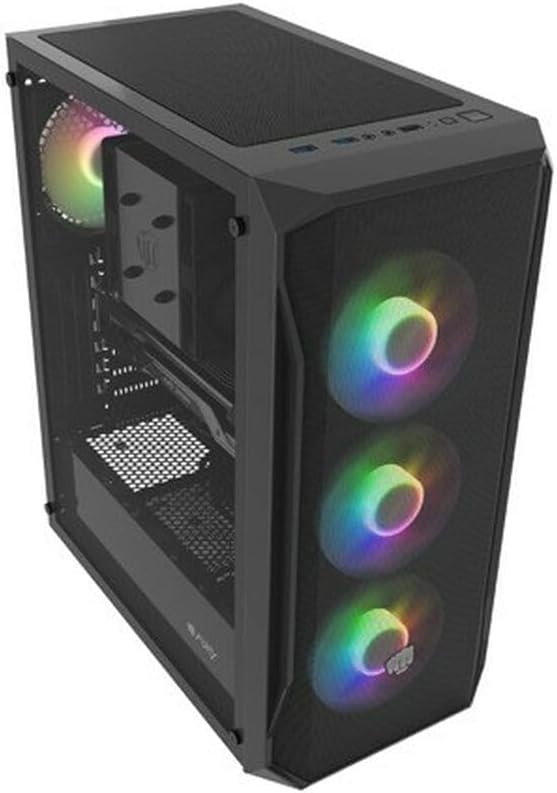
Figura 4.1: Um ângulo view of the Natec FURY SHOBO SH4F RGB MIDI TOWER PC Case, showcasing its black metal and tempered glass construction. The front panel features a mesh design with three illuminated RGB fans, and a single RGB fan is visible at the rear exhaust. The top panel includes I/O ports and a mesh filter.
4.1 Painel de E/S frontal
- Botão de energia
- Botão de reinicialização
- Porta USB 2.0 (x1)
- Conectores de áudio (fone de ouvido/microfone)
- RGB Control Button (if applicable)
4.2 Layout interno
The case supports Micro ATX and Mini ATX motherboards and features a bottom-mounted power supply bay. It includes dedicated areas for storage drives and efficient cable management.
5. Configuração e Instalação de Componentes
Follow these steps to install your PC components into the FURY SHOBO SH4F case.
5.1 Preparando o Caso
- Coloque a caixa sobre uma superfície plana e estável.
- Remove the side panels. Typically, the tempered glass side panel is secured with thumbscrews.
5.2 Instalação da placa-mãe
- Instale o espelho de E/S (caso não esteja pré-instalado na sua placa-mãe) na abertura traseira do gabinete.
- Ensure the motherboard standoffs are correctly aligned for your Micro ATX or Mini ATX motherboard. Adjust or install additional standoffs if necessary.
- Coloque cuidadosamente a placa-mãe sobre os espaçadores, alinhando os furos dos parafusos.
- Fixe a placa-mãe com os parafusos fornecidos. Não aperte demais.
5.3 Instalação da fonte de alimentação
- Locate the power supply bay at the bottom rear of the case.
- Slide your power supply unit (PSU) into the bay from the rear of the case, ensuring the fan faces downwards (if the case has a bottom vent) or upwards.
- Fixe a fonte de alimentação com parafusos na parte traseira do gabinete.
5.4 Instalação da unidade de armazenamento
Refer to your case's specific drive bay design for 2.5" SSDs and 3.5" HDDs. Typically, these involve trays or direct screw mounting.
5.5 Expansion Card Installation (e.g., Graphics Card)
- Remova as tampas dos slots PCI-E necessárias da parte traseira do gabinete.
- Insira sua placa de expansão no slot PCI-E correspondente na placa-mãe.
- Secure the card with a screw or the case's retention mechanism.
5.6 Gerenciamento de cabos
Utilize os recortes e pontos de fixação atrás da bandeja da placa-mãe para organizar e prender os cabos. Isso melhora o fluxo de ar e a estética.
5.7 Connecting RGB Fans
The pre-installed RGB fans typically connect to a central RGB controller or directly to your motherboard's RGB headers. Consult your motherboard manual for specific RGB header locations and software control. Ensure all fan power cables are connected to appropriate fan headers on the motherboard or a fan hub.
6. Operando o Gabinete do seu PC
6.1 Ligar/Desligar
After all components are installed and cables connected, plug your power supply into a wall outlet. Press the power button on the front I/O panel to turn on your system. To turn off, use the operating system's shutdown function or press and hold the power button for several seconds.
6.2 Controle de Iluminação RGB
If your case features an RGB control button on the front I/O panel, press it to cycle through various lighting modes and colors. For advanced customization, use your motherboard's RGB software (e.g., ASUS Aura Sync, MSI Mystic Light, Gigabyte RGB Fusion) if the fans are connected to compatible headers.
7. Manutenção
A manutenção regular ajuda a garantir o desempenho ideal e prolonga a vida útil dos componentes do seu PC.
7.1 Limpeza do filtro de poeira
The FURY SHOBO SH4F case includes dust filters (e.g., on the top and bottom). Periodically remove and clean these filters by rinsing them with water and allowing them to dry completely before re-installing. This prevents dust buildup and maintains airflow.
7.2 Limpeza Externa
Limpe a parte externa da capa com um pano macio e seco.amp pano. Evite produtos de limpeza abrasivos ou solventes que possam danificar o acabamento ou o vidro temperado.
8. Solução De Problemas
Caso encontre algum problema, consulte as seguintes etapas comuns de resolução de problemas:
- Sem energia: Ensure the power supply is properly connected to the wall outlet and the motherboard. Check all internal power cables (24-pin ATX, 8-pin CPU, GPU power). Verify the power button cable is correctly connected to the motherboard's front panel header.
- Ventiladores não estão girando: Check if fan power cables are securely connected to the motherboard or fan hub. Ensure the power supply is functioning.
- Iluminação RGB não funciona: Verify RGB cables are correctly connected to the RGB controller or motherboard header. If using a button, try cycling through modes. If using software, ensure it's installed and configured correctly.
- Superaquecimento: Ensure all fans are spinning correctly and oriented for proper airflow (intake/exhaust). Clean dust filters and internal components. Verify CPU cooler and GPU cooler are properly installed.
9. Especificações
| Marca | Natec |
| Série | SH4F |
| Número do modelo | NFO-2154 |
| Tipo de caso | Torre Midi |
| Compatibilidade da placa-mãe | Micro ATX, Mini ATX |
| Cor | Preto |
| Material | Metal |
| Dimensões do produto (CxLxA) | 19.69 x 16.93 x 9.84 polegadas (50 x 43 x 25 cm) |
| Peso do item | 9.46 libras (4.3 kg) |
| Tipo de montagem da fonte de alimentação | Montagem inferior |
| Método de resfriamento | Ar |
| Número de portas USB 2.0 | 1 |
10. Garantia e Suporte
Natec products are manufactured to high-quality standards. For information regarding warranty terms and conditions, please refer to the warranty card included with your product or visit the official Natec website. If you encounter any issues not covered in this manual or require further assistance, please contact Natec customer support through their official channels.
Fabricante: Natec


