1. Introdução
The One For All Smart Control Pro 8 (URC7981) is a universal remote control designed to manage up to eight different home entertainment devices. This remote simplifies your control experience by combining multiple remotes into one, offering features like a free advanced setup app, a learning function, and smart activities for seamless device interaction.
It is compatible with a wide range of devices including TVs, Set-Top Boxes (satellite/cable/DVB-T2), DVD/Blu-ray players, Audio systems, Soundbars, IR Game Consoles, and Media Players.

Image 1.1: The One For All Smart Control Pro 8 Universal Remote Control, showcasinSeu design elegante e disposição dos botões são notáveis.
2. Configuração
2.1. Instalação da bateria
Before first use, insert 2x AAA alkaline batteries (not included) into the remote control. Ensure correct polarity (+/-) as indicated inside the battery compartment.
2.2. Device Setup using the OFA Advanced App
The recommended method for setting up your Smart Control Pro 8 is by using the free One For All Advanced App. This app provides a guided setup process for all your devices.
- Download the 'OFA Advanced' app from your smartphone's app store (available for iOS and Android).
- Open the app and follow the on-screen instructions to pair your remote control via Bluetooth (if applicable) or to manually enter device codes.
- The app will guide you through selecting your device types (TV, STB, etc.) and brands, then testing the functionality.

Image 2.1: The One For All Smart Control Pro 8 remote control displayed alongside a smartphone running the OFA Advanced setup application.
2.3. Função de aprendizagem
The learning function allows you to copy any function directly from your original remote control to the Smart Control Pro 8. This is useful for functions not covered by the pre-programmed codes or for specific buttons you wish to customize.
- Place the Smart Control Pro 8 and your original remote on a flat surface, facing each other, approximately 1-2 inches apart.
- Follow the specific instructions in the OFA Advanced App or the remote's quick start guide to activate the learning mode.
- Press the button on the Smart Control Pro 8 where you want to store the function, then press the corresponding button on your original remote.
- The remote will indicate successful learning (e.g., LED flash). Repeat for all desired functions.

Image 2.2: Graphic representing the learning function, where the universal remote copies signals from an original remote.
3. Operando o controle remoto
3.1. Seleção de Dispositivo
At the top of the remote, you will find dedicated buttons for different device types (TV, STB, DVD, BLU, AUD, GAME, MEDIA, S.BAR). Press the corresponding button to select the device you wish to control.

Imagem 3.1: Frente view of the remote control, highlighting the device selection buttons at the top.
3.2. Smart Activities
The Smart Control Pro 8 features five smart activities that allow you to control multiple devices simultaneously for common scenarios:
- Assistir TV: Configures your TV and Set-Top Box.
- Assistir filme: Configures your TV, Blu-ray/DVD player, and Audio system.
- Play Game: Configures your TV and Game Console.
- Ouvir música: Configures your Audio system.
- Personalizado: A customizable activity for your specific needs.
These activities provide seamless control without needing to switch between device types manually.

Image 3.2: Graphic illustrating the concept of smart activities, simplifying control across multiple devices.
3.3. Quick Access App Buttons
Dedicated buttons for popular streaming services like Netflix, Amazon Prime Video, and YouTube provide instant access to your favorite content. These buttons can also be customized to launch other streaming applications.
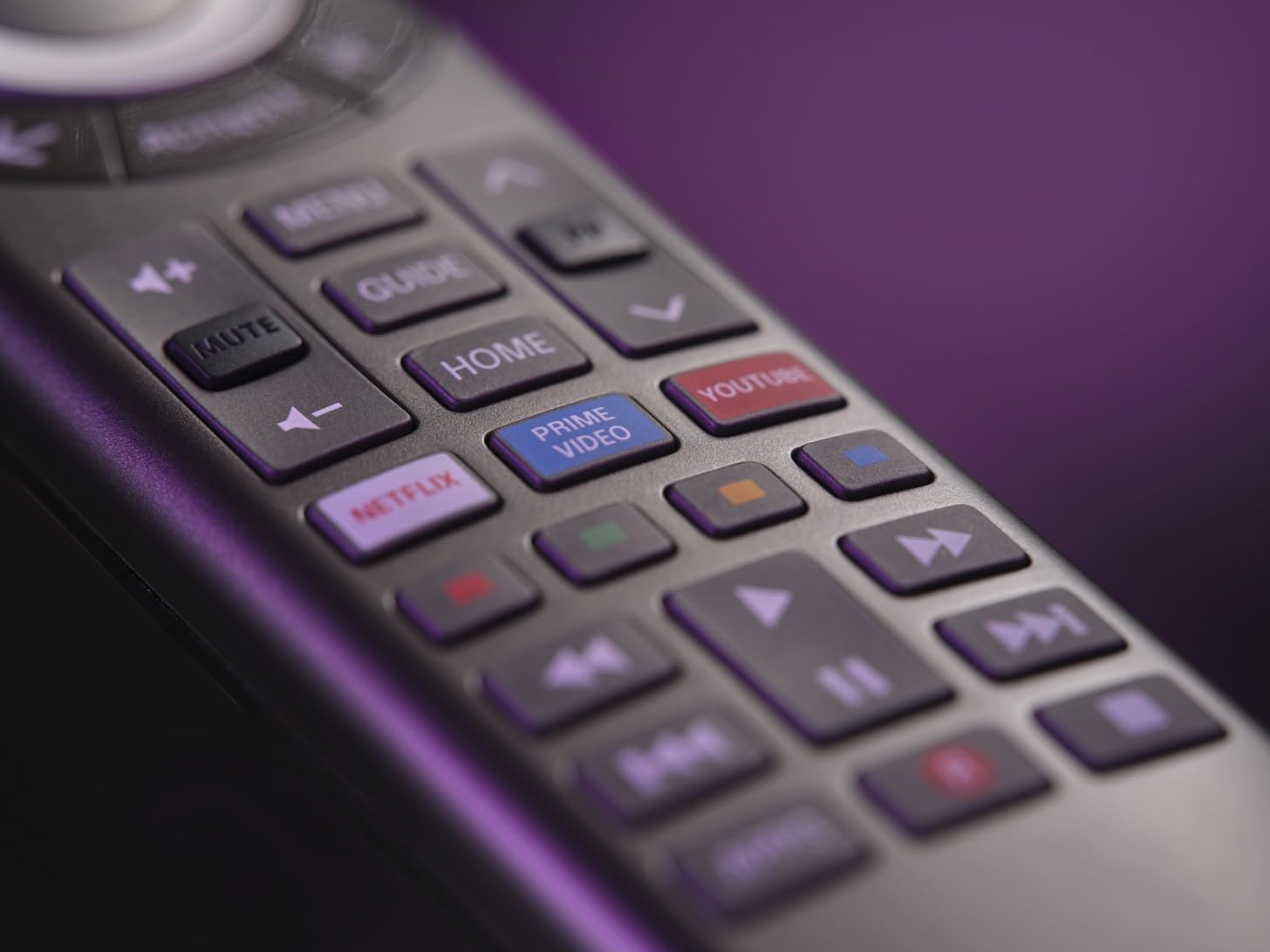
Imagem 3.3: Close-up view of the remote's quick access buttons for Netflix, Prime Video, and YouTube.
3.4. Advanced Features: Macros and Volume Lock
The OFA Advanced App allows for further customization, including setting up macros (sequences of commands) and enabling a volume lock feature. Volume lock ensures that the volume control always operates a specific device (e.g., your TV or AV Receiver), regardless of which device is currently selected.

Image 3.4: Screenshot of the OFA Advanced App showing the 'Set Up Macro' interface.

Image 3.5: Screenshot of the OFA Advanced App demonstrating the 'Volume Lock' setting.
4. Manutenção
4.1. Substituição da bateria
When the remote's performance degrades or the indicator light flashes, it is time to replace the batteries. Always replace both AAA batteries with new alkaline batteries. Do not mix old and new batteries, or different types of batteries.
4.2. Limpeza
Para limpar o controle remoto, use um pano macio e seco. Não use produtos de limpeza abrasivos, solventes ou panos úmidos, pois podem danificar a superfície ou os componentes internos do controle.
5. Solução De Problemas
5.1. Remote Not Responding
- Certifique-se de que as baterias novas estejam instaladas corretamente.
- Check that you have selected the correct device mode (e.g., TV button for TV functions).
- Certifique-se de que não haja obstruções entre o controle remoto e o dispositivo.
- Verify that the device code is correctly programmed. Re-run the setup process via the OFA Advanced App if necessary.
5.2. Learning Function Issues
- Ensure the original remote's batteries are fresh.
- Make sure the remotes are positioned correctly, facing each other at a short distance (1-2 inches).
- Try pressing the button on the original remote for a longer duration during the learning process.
5.3. Problemas de conectividade do aplicativo
- Certifique-se de que o Bluetooth do seu smartphone esteja ativado.
- Restart the OFA Advanced App and try connecting again.
- Verifique se há atualizações de aplicativos na loja de aplicativos do seu smartphone.
6. Especificações
| Recurso | Detalhe |
|---|---|
| Marca | Um por todos |
| Nome do modelo | URC7981 |
| Cor | Preto |
| Tecnologia de Conectividade | Infravermelho (IV) |
| Recurso especial | Luz de fundo |
| Número máximo de dispositivos suportados | 8 |
| Dispositivos compatíveis | TV, Set-Top Box, DVD/Blu-ray, Audio, Soundbar, IR Game Console, Media Player |
| Tipo de Bateria | Alcalino (AAA) |
7. Garantia e Suporte
One For All products are designed for reliability and performance. For specific warranty information, please refer to the documentation included with your purchase or visit the official One For All website. For technical support, frequently asked questions, and additional resources, please visit the One For All support page online.
Official One For All Website: www.oneforall.com


