1. Introdução
This manual provides instructions for the Varmilo Koi 73 JIS Keyboard with Sakura Switches (Model: VMMA73A039SAKURA). This keyboard features a unique design inspired by traditional Chinese Koi fish and water elements, combined with a modern aesthetic. It is a compact 65% size keyboard with a Japanese Industrial Standard (JIS) layout, designed for both functionality and portability. The keyboard is equipped with Cherry-style stabilizers for a stable typing experience.
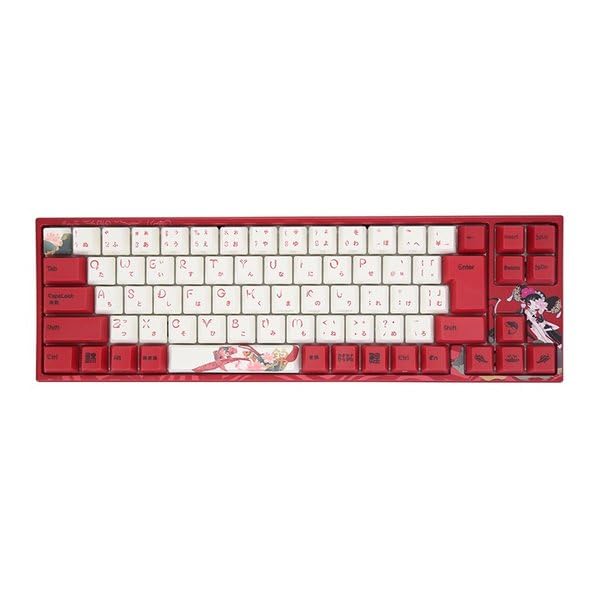
Image: Varmilo Koi 73 JIS Keyboard overview.
2. Principais características
- Unique Koi Design: Features vibrant koi fish illustrations and a red aesthetic, developed in collaboration with illustrator Li Huan.
- JIS Layout: 73-key Japanese Industrial Standard layout for specific regional input needs.
- Compact 65% Size: Optimizes desk space while retaining essential function and arrow keys.
- Customizable Switches: Offers a choice of Varmilo mechanical electrostatic capacity switches to suit individual typing preferences.
- Cherry-Style Stabilizers: Ensures consistent and stable key presses, especially for larger keys.
- Conectividade USB: Reliable wired connection for stable performance.
3. Guia de configuração
3.1 Conteúdo da embalagem
Antes de começar, verifique se todos os itens estão presentes na embalagem:
- Varmilo Koi 73 JIS Keyboard
- Cabo USB
- Manual do usuário (este documento)
3.2 Conectando o teclado
To connect your Varmilo Koi 73 keyboard to your computer, follow these steps:
- Localize a porta USB-C na parte traseira do teclado.
- Conecte uma extremidade do cabo USB fornecido à porta USB-C do teclado.
- Conecte a outra extremidade do cabo USB a uma porta USB disponível no seu computador.
- O teclado deve ser reconhecido automaticamente pelo seu sistema operacional.
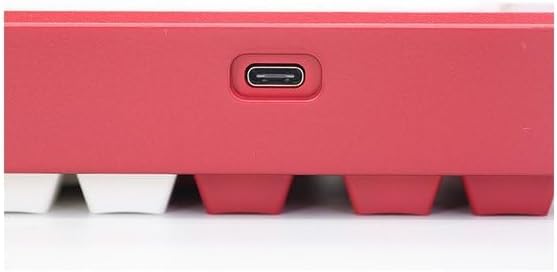
Image: USB-C port for keyboard connection.
3.3 Instalação do driver (opcional)
For advanced customization and optimal performance, it is recommended to install the Varmilo driver software. This software allows you to remap keys, adjust performance settings, and customize lighting effects.
Video: This video demonstrates the driver installation process and software usage for Varmilo keyboards. While it features the Muse65 model, the steps for driver installation and basic software navigation are generally applicable to other Varmilo keyboards like the Koi 73.
Please visit the official Varmilo website for the latest driver downloads specific to your keyboard model. Follow the on-screen instructions during installation.
4. Instruções de operação
4.1 Funções básicas das teclas
The Varmilo Koi 73 keyboard features a standard JIS layout. Most keys function as labeled. For special functions, refer to the combination keys below.
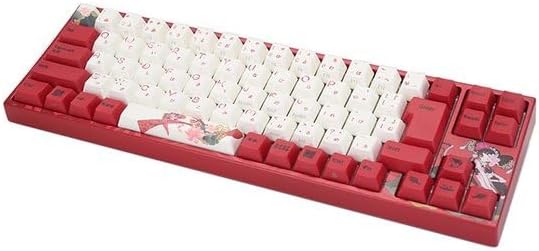
Imagem: Acimaview of the Varmilo Koi 73 JIS Keyboard layout.
4.2 Function (Fn) Key Combinations
Since this is a 73-key layout, some functions are accessed via the Fn key. Hold down the Fn key and press the corresponding key to activate its secondary function. Common Fn combinations include:
- Fn + F1-F12: Multimedia controls (e.g., volume, play/pause).
- Fn + Teclas de seta: Page Up/Down, Home/End (specific to model, refer to keycap legends).
- Tecla Fn + Tecla Win: Bloqueia/desbloqueia a tecla Windows.

Image: Left side keys, often used with Fn for additional functions.
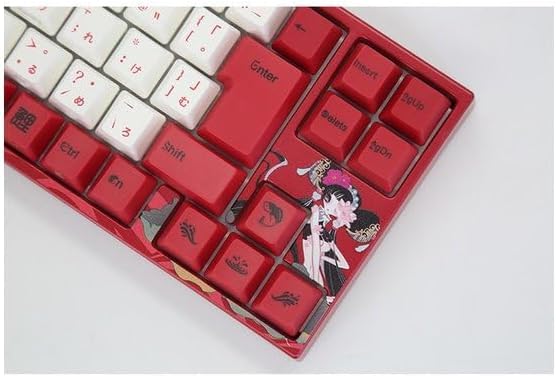
Image: Right side keys, including navigation and utility keys.
4.3 Efeitos de Iluminação
The Varmilo Koi 73 keyboard supports various RGB lighting effects. You can cycle through different modes and adjust brightness using specific key combinations. Refer to your keyboard's specific keycap legends or the driver software for detailed lighting controls.
Video: This video showcases various RGB lighting effects on a Varmilo keyboard. While the model shown is Muse65, it provides a general idea of the dynamic lighting capabilities available on Varmilo keyboards, including the Koi 73.
5. Manutenção e Cuidados
Proper maintenance ensures the longevity and optimal performance of your Varmilo Koi 73 keyboard.
- Limpeza das teclas: Gently remove keycaps using a keycap puller. Clean the keycaps with a soft cloth dampLimpe com água e sabão neutro. Certifique-se de que estejam completamente secas antes de recolocá-las.
- Limpeza da estrutura do teclado: Use um pano macio e seco para limpar o teclado. Para sujeira mais persistente, use um pano levemente umedecido.amp cloth with a small amount of isopropyl alcohol can be used. Avoid excessive moisture.
- Remoção de poeira: Use ar comprimido para remover poeira e detritos entre as teclas.
- Evite líquidos: Mantenha líquidos longe do teclado para evitar danos.
- Cuidados com os cabos: Não dobre ou amasse o cabo USB em excesso.
6. Solução De Problemas
If you encounter issues with your Varmilo Koi 73 keyboard, try the following solutions:
- Teclado não responde:
- Certifique-se de que o cabo USB esteja firmemente conectado tanto ao teclado quanto ao computador.
- Tente conectar o teclado a uma porta USB diferente do seu computador.
- Reinicie o seu computador.
- Se estiver usando um hub USB, tente conectar diretamente ao computador.
- Teclas não registradas:
- Verifique se há detritos ou objetos estranhos sob as teclas.
- If specific keys are not working, consider reinstalling the keyboard driver.
- Problemas de iluminação:
- Ensure the keyboard driver is installed and up to date.
- Use the Fn key combinations or driver software to adjust lighting modes and brightness.
- Windows Key Locked:
- Imprensa Tecla Fn + Tecla Win para ativar/desativar o bloqueio da tecla Windows.
If the problem persists, please contact Varmilo customer support for further assistance.
7. Especificações
| Marca | Varmilo |
| Número do modelo | VMMA73A039SAKURA |
| Layout do teclado | 73-key JIS (Japanese Industrial Standard) |
| Conectividade | Com fio USB |
| Tipo de interruptor | Mechanical (Linear) |
| Dispositivos compatíveis | Computador portátil |
| Dimensões do produto | 34.2 cm (C) x 34.2 cm (L) x 5.1 cm (A) |
| Componentes incluídos | Cabo USB |
8. Garantia e Suporte
Varmilo products typically come with a manufacturer's warranty. Please refer to the warranty card included with your product or visit the official Varmilo website para obter termos e condições detalhados da garantia.
For technical support, driver downloads, or further inquiries, please visit the official Varmilo support page or contact their customer service.
Official Varmilo Website: www.varmilo.com


