1. Introdução
The COMICA EJoy Uni Pro is a versatile wireless USB condenser microphone designed for high-quality audio capture across various platforms. It supports both wired and 2.4GHz wireless modes, making it suitable for PC gaming, streaming, podcasting, and content creation. Key features include a cardioid polar pattern, 48kHz/24bit professional recording, dynamic RGB lighting, gain control, real-time audio monitoring, a touch-sensitive mute button, and effective one-click noise cancellation.
2. Conteúdo da embalagem
Verifique se todos os itens listados abaixo estão incluídos no seu pacote:
- Condenser Microphone (TX) x1
- Filtro pop x1
- Desktop Mic Stand x1
- Receptor (RX) x1
- USB C to USB A Adapter x1
- USB C-USB C/USB A 2-in-1 Audio Cable x1

Image: Contents of the COMICA EJoy Uni Pro package, including microphone, stand, pop filter, receiver, and cables.
3. Configuração
3.1. Montagem Física
- Attach the microphone to the desktop mic stand. Ensure it is securely fastened.
- Conecte o filtro pop ao microfone. O filtro pop ajuda a reduzir sons plosivos (como 'p' e 'b') para um áudio mais nítido.

Image: The COMICA EJoy Uni Pro microphone fully assembled on its desktop stand with the pop filter attached.
3.2. Connectivity (Plug and Play)
The EJoy Uni Pro supports both wired and wireless connections, offering seamless plug-and-play compatibility with various devices.
- Conexão com fio: Use the provided USB C-USB C/USB A 2-in-1 Audio Cable. Connect the USB-C end to the microphone and the other end (USB-C or USB-A, using the adapter if needed) to your computer (Windows/Mac OS), PS4/PS5, tablet, or USB-C phone.
- Conexão sem fio: Insert the 2.4GHz wireless receiver (RX) into a compatible USB port on your device. The microphone will automatically pair.
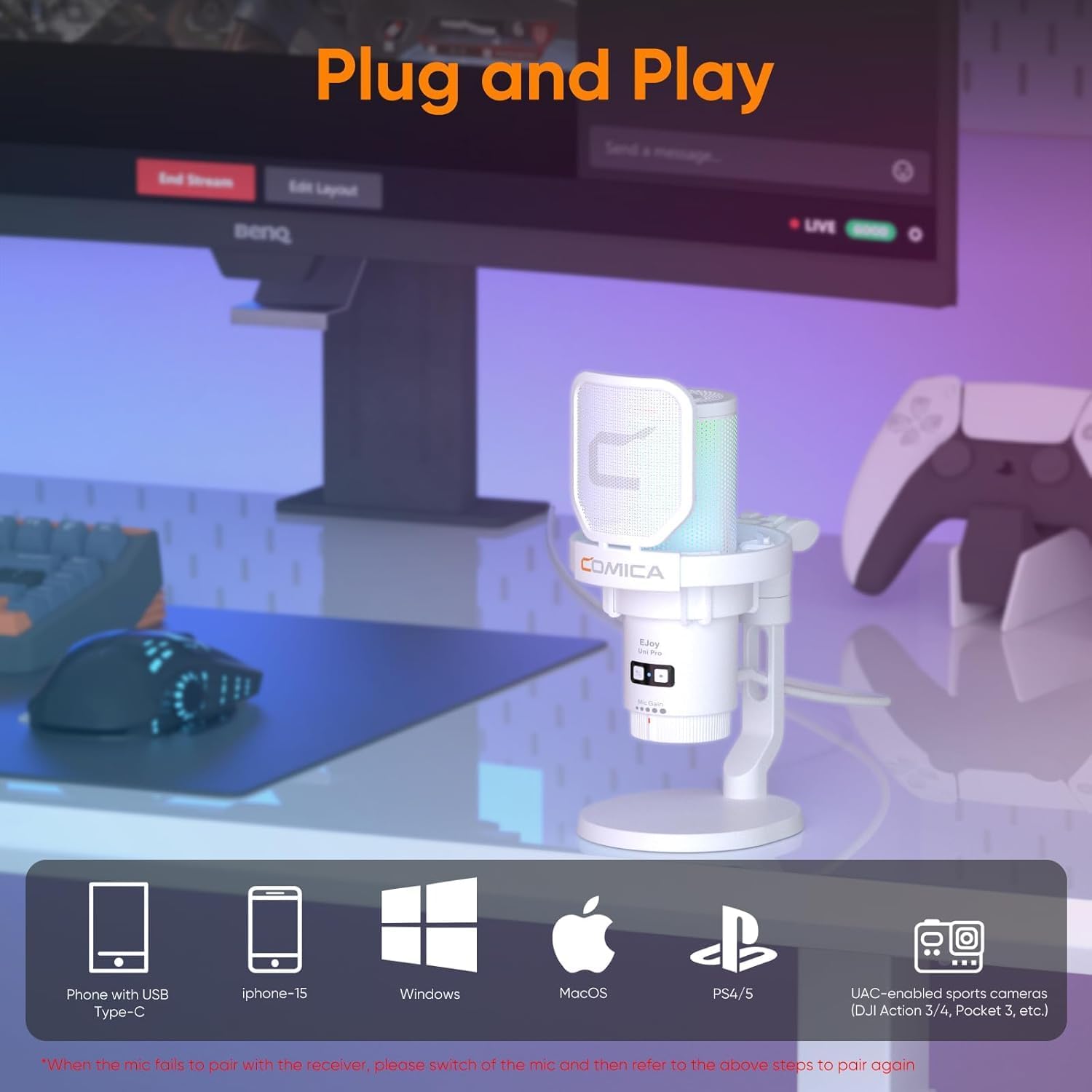
Image: Diagram illustrating wired and wireless connection methods for the microphone with different devices like phones, laptops, and gaming consoles.
4. Instruções de operação
4.1. Controles de áudio
- Controle de Ganho: Adjust the microphone's input sensitivity using the gain knob located on the microphone body. Rotate to increase or decrease the mic volume according to your needs.
- Monitoramento de áudio em tempo real: Plug headphones into the 3.5mm jack on the microphone to monitor your audio input in real-time. This allows you to hear exactly what the microphone is capturing.
- Touchable Muting Key: A touch-sensitive button on the top of the microphone allows for quick muting and unmuting. Tap to toggle the microphone's active state.

Imagem: Close-up view of the microphone's controls, highlighting the gain knob, headphone jack for monitoring, and the mute button.
4.2. Cancelamento de ruído
The EJoy Uni Pro features a one-click denoise function to minimize background noise, providing a clearer recording experience. Press the dedicated noise reduction button to activate or deactivate this feature.
Vídeo: Uma breve préviaview demonstrating the noise cancellation feature of the Comica EJoy Uni Pro microphone.
4.3. Efeitos de iluminação RGB
The microphone includes controllable dynamic radiant RGB lighting with three unique effects: breathing light, dynamic gradient, and audio dynamics. These effects can be adjusted to suit your preference.
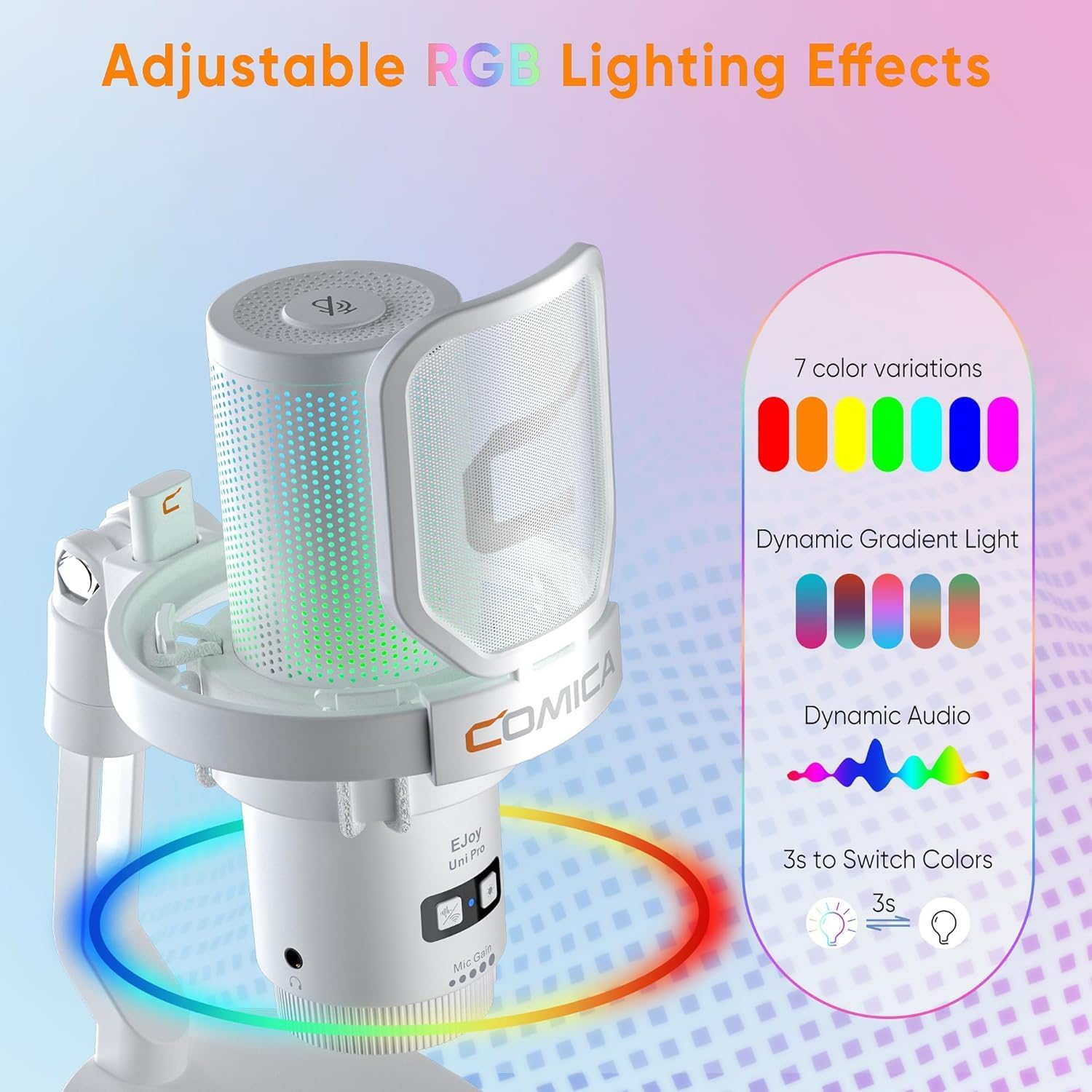
Image: Visual representation of the microphone's adjustable RGB lighting effects, including various color modes.
5. Manutenção
To ensure optimal performance and longevity of your COMICA EJoy Uni Pro microphone, follow these maintenance guidelines:
- Keep the microphone clean by gently wiping it with a soft, dry cloth. Avoid using harsh chemicals or abrasive materials.
- Guarde o microfone em local fresco e seco, longe da luz solar direta e de temperaturas extremas.
- Manuseie o microfone e seus componentes com cuidado para evitar danos físicos.
- Verifique regularmente as conexões dos cabos para detectar sinais de desgaste ou danos.
6. Solução De Problemas
If you encounter issues with your microphone, please refer to the following common troubleshooting steps:
- Sem saída de som:
- Ensure the microphone is properly connected (wired or wireless receiver inserted).
- Check if the microphone is muted (red light indicates mute). Tap the mute button to unmute.
- Verify the gain control is not set to minimum.
- Confirm the correct audio input device is selected in your computer's or device's sound settings.
- Poor Audio Quality/Background Noise:
- Activate the one-click denoise feature.
- Ensure the microphone is positioned correctly, utilizing its cardioid polar pattern (speak directly into the front).
- Check for environmental noise sources and minimize them.
- Ensure the pop filter is correctly installed to reduce plosives.
- Problemas de conexão sem fio:
- Ensure the wireless receiver is fully inserted into the USB port.
- If pairing fails, try re-pairing the microphone with the receiver by following the instructions in the quick guide.
- Check the battery level of the microphone.
7. Especificações
| Recurso | Descrição |
|---|---|
| Número do modelo | uni Pro(D) |
| Fator de forma do microfone | Mini |
| Padrão polar | Unidirecional (Cardióide) |
| SampTaxa de ling | 48 kHz/24 bits |
| Tecnologia de Conectividade | USB, USB C, Wireless (2.4GHz) |
| Tipo de conector | USB tipo A, USB tipo C |
| Dispositivos compatíveis | Desktop/PC, MAC OS/WINDOWS, PS4/PS5, Tablet, USB C Phone |
| Características especiais | Mute Function, Noise Reduction, Stand, Volume Control, Wireless and Wired Dual Mode, RGB Lighting |
| Sinal-Ruído | 72 dB |
| Fonte de energia | Elétrico com fio (alimentado por USB) |
| Tipo de Bateria | 1 polímero de lítio (incluído) |
| Peso do item | 1.58 libras (0.72 kg) |
| Dimensões da embalagem | 9.25 x 6.69 x 4.57 polegadas |
8. Garantia e Suporte
COMICA products are covered by a manufacturer's warranty. For detailed warranty information, product support, or service inquiries, please visit the official COMICA webou entre em contato diretamente com o serviço de atendimento ao cliente. Guarde o comprovante de compra como prova de aquisição.