1. Introdução
This manual provides essential information for using your new Tecno Spark 20C smartphone. It covers device setup, basic operations, maintenance tips, and troubleshooting common issues. Please read this manual carefully to ensure proper and safe use of your device.
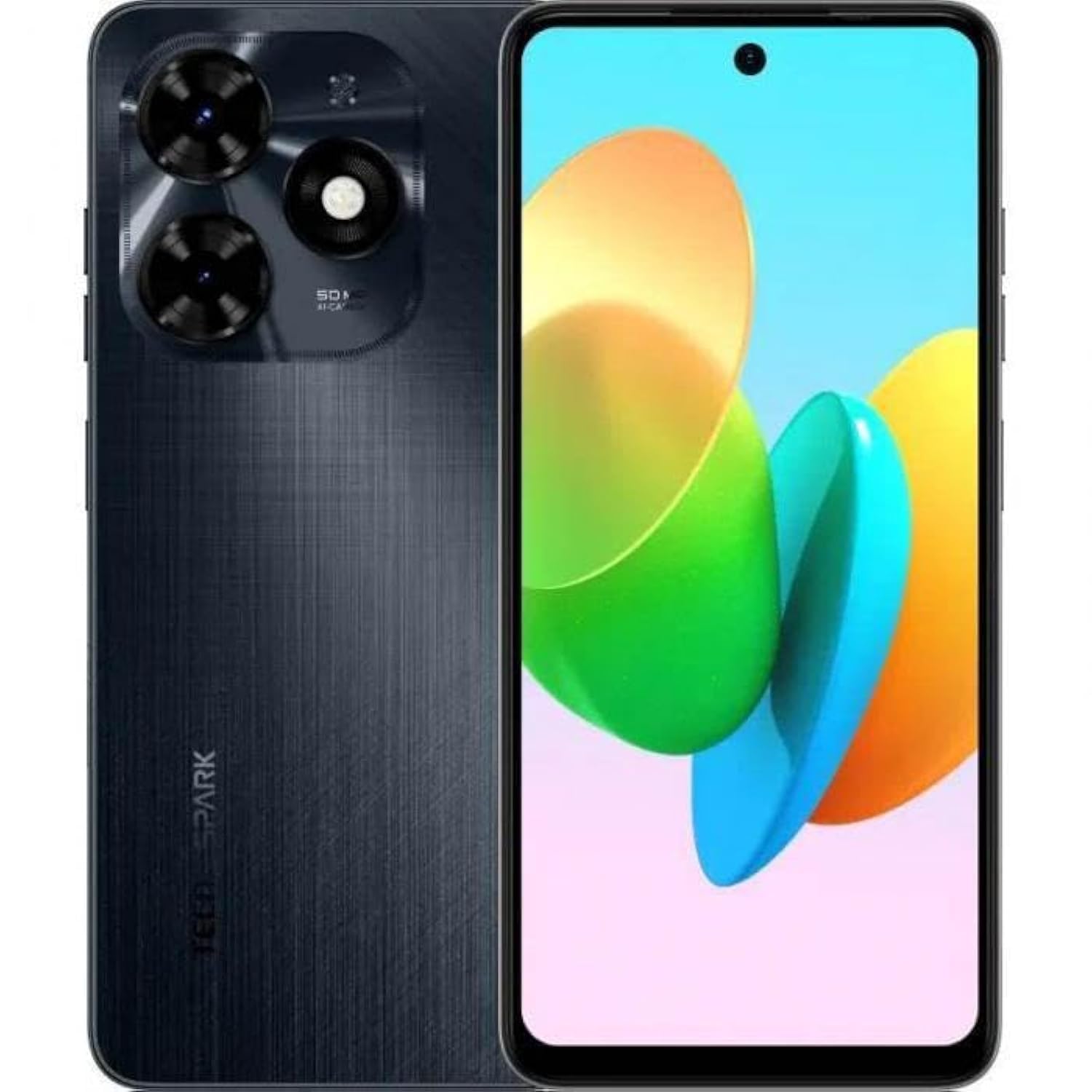
Imagem 1.1: Frente view of the Tecno Spark 20C smartphone.
2. Conteúdo da embalagem
Upon unboxing your Tecno Spark 20C, please verify that the following items are included:
- Tecno Spark 20C Smartphone
- Adaptador de energia
- Cabo de carregamento USB
- Ferramenta Ejetora SIM
- Guia de início rápido
- Cartão de garantia
3. Dispositivo acabadoview
The Tecno Spark 20C features a 6.6-inch HD+ display. The device is equipped with a 50-megapixel main camera on the rear and an 8-megapixel front camera. Physical buttons typically include power/lock and volume controls. Ports usually include a USB charging port and a 3.5mm audio jack.
4. Configuração
4.1. Instalação dos cartões SIM e microSD
- Localize a bandeja do cartão SIM na lateral do seu dispositivo.
- Insira a ferramenta de ejeção do SIM no pequeno orifício ao lado da bandeja e pressione suavemente até que a bandeja se solte.
- Insira seu(s) cartão(ões) Nano-SIM e/ou cartão MicroSD nos slots designados na bandeja. Certifique-se de que os contatos dourados estejam voltados para baixo.
- Reinsira cuidadosamente a bandeja no dispositivo.
4.2. Inicialização e configuração
- Mantenha pressionado o botão Liga/Desliga até que o logotipo da Tecno apareça.
- Follow the on-screen prompts to select your language, region, connect to a Wi-Fi network, and set up your Google account.
- You may also be prompted to set up a screen lock (PIN, pattern, or fingerprint).
4.3. Carregando o dispositivo
Connect the USB cable to the charging port on your phone and the other end to the power adapter. Plug the adapter into a wall outlet. The battery icon on the screen will indicate charging status. For optimal battery life, use the provided charger and cable.
5. Operação
5.1. Navegação Básica
Your Tecno Spark 20C uses a touchscreen interface. Common gestures include:
- Tocar: To open apps, select items, or confirm actions.
- Deslize: Para percorrer telas, listas ou páginas.
- Pitada: Para ampliar ou reduzir o zoom nas imagens e web páginas.
- Pressão longa: Para acessar menus contextuais ou mover ícones de aplicativos.
5.2. Fazer chamadas e enviar mensagens
Para fazer uma chamada, abra o Telefone No aplicativo, digite o número e toque no ícone de chamada. Para enviar uma mensagem, abra o aplicativo. Mensagens app, tap the new message icon, enter the recipient's number or select from contacts, and type your message.
5.3. Usando a câmera
Abra o Câmera app. The Tecno Spark 20C features a 50-megapixel main camera with AI image processing algorithms and an 8-megapixel front camera. Tap the shutter button to take a photo. Swipe to switch between photo, video, and other modes like panorama. AI features can automatically optimize settings for different scenes.
5.4. Conectividade com a Internet
Access the internet via Wi-Fi or mobile data (4G). To connect to Wi-Fi, go to Configurações > Rede e internet > Wi-Fi, turn Wi-Fi on, and select your desired network. To enable mobile data, go to Configurações > Rede e internet > Rede móvel and toggle Mobile data on.
5.5. NFC for Contactless Payments
The Tecno Spark 20C includes an NFC module. To use contactless payments, ensure NFC is enabled in Configurações > Dispositivos conectados > NFC. Set up your preferred payment app and hold your phone near a compatible payment terminal.
6. Manutenção
6.1. Limpando seu dispositivo
Use a soft, lint-free cloth to gently wipe the screen and body of your phone. Avoid using harsh chemicals or abrasive materials, which can damage the device's finish or screen coating.
6.2. Cuidados com a bateria
To prolong battery life, avoid exposing your phone to extreme temperatures. It is recommended to keep the battery charge between 20% and 80% for daily use. Avoid completely draining the battery frequently.
6.3. Atualizações de software
Verifique regularmente se há atualizações de software para garantir que seu dispositivo tenha os recursos mais recentes, patches de segurança e melhorias de desempenho. Acesse Configurações > Sistema > Atualização do sistema Para verificar e instalar as atualizações disponíveis.
7. Solução De Problemas
This section addresses common issues you might encounter with your Tecno Spark 20C.
- Dispositivo não liga: Ensure the battery is charged. Connect the charger and wait a few minutes before attempting to power on again. If it still doesn't turn on, try a forced restart by holding the Power button for about 10-15 seconds.
- Tela não responde: If the screen is frozen, perform a forced restart. If the issue persists, ensure your hands are clean and dry, and the screen is free of debris.
- Problemas de rede (sem sinal/Wi-Fi): Check if Airplane mode is off. For mobile data, ensure your SIM card is properly inserted and mobile data is enabled in settings. For Wi-Fi, try forgetting the network and reconnecting, or restart your router.
- Aplicativos travando ou congelando: Tente limpar o cache e os dados do aplicativo em Configurações > Aplicativos > [Nome do aplicativo] > Armazenamento e cache. If the problem continues, uninstall and reinstall the app. Ensure your device's software is up to date.
8. Especificações
Key technical specifications for the Tecno Spark 20C:
| Sistema operacional | Andróide T |
| Processador | Octa-core |
| Rede | 4G |
| Tamanho da tela | 6.6 polegadas HD+ |
| Resolução | 720*1612 |
| RAM instalada | 4 GB |
| Armazenamento interno | 256 GB |
| Capacidade da bateria | 5000 mAh (conforme descrição do produto) |
| Tecnologia de Conectividade | 4G, GSM |
| Operadora de telefonia móvel | Desbloqueado para todas as operadoras |
| Dimensões do produto | 16.3 x 8 x 0.8 cm; 410 g |
9. Garantia e Suporte
Your Tecno Spark 20C smartphone comes with a limited warranty. Please refer to the warranty card included in your package for detailed terms and conditions, including coverage period and service procedures. For technical support or further assistance, please visit the official Tecno website ou entre em contato com o atendimento ao cliente.


