1. Introdução
This user manual provides detailed instructions for the Baseus 17-in-1 Docking Station (Model: B0D78WFLST). This versatile docking station is designed to expand the connectivity of your laptop or compatible device, offering multiple ports for display, data transfer, networking, and power delivery. Please read this manual thoroughly before using the product to ensure proper operation and to maximize its capabilities.
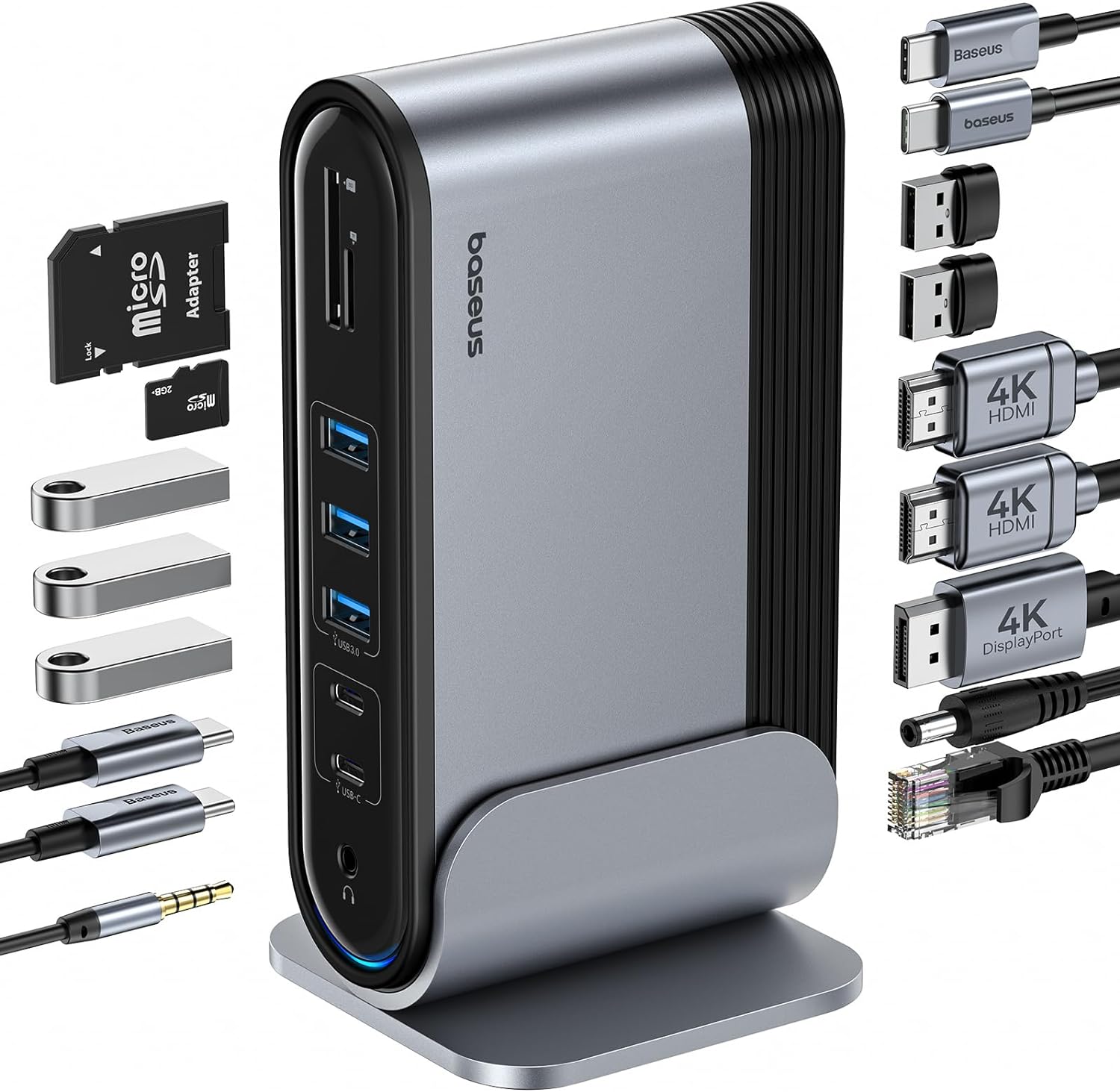
Figure 1: Baseus 17-in-1 Docking Station and included accessories.
2. Principais características
The Baseus 17-in-1 Docking Station offers comprehensive connectivity solutions:
- Expansão de portas 17 em 1: Integrates a wide array of ports for diverse connectivity needs.
- Triple Monitor Support: Connect up to three external monitors for enhanced productivity.
- Tela de alta resolução: Supports 4K@60Hz resolution for single and dual displays, and 1080P@60Hz for triple displays on Windows systems.
- Transferência rápida de dados: Features USB 3.0 ports with 5Gbps transfer speeds and USB 2.0 ports for peripherals.
- Fornecimento de energia de 100 W: Provides up to 85W power output to charge your laptop (100W input required).
- Gigabit Ethernet: Ensures stable and high-speed wired network connection up to 1Gbps.
- Leitor de cartão SD / TF: Convenient access to memory cards with speeds up to 104 MB/s.
- Conectividade de áudio: Integrated 3.5mm audio jack for headphones or speakers.
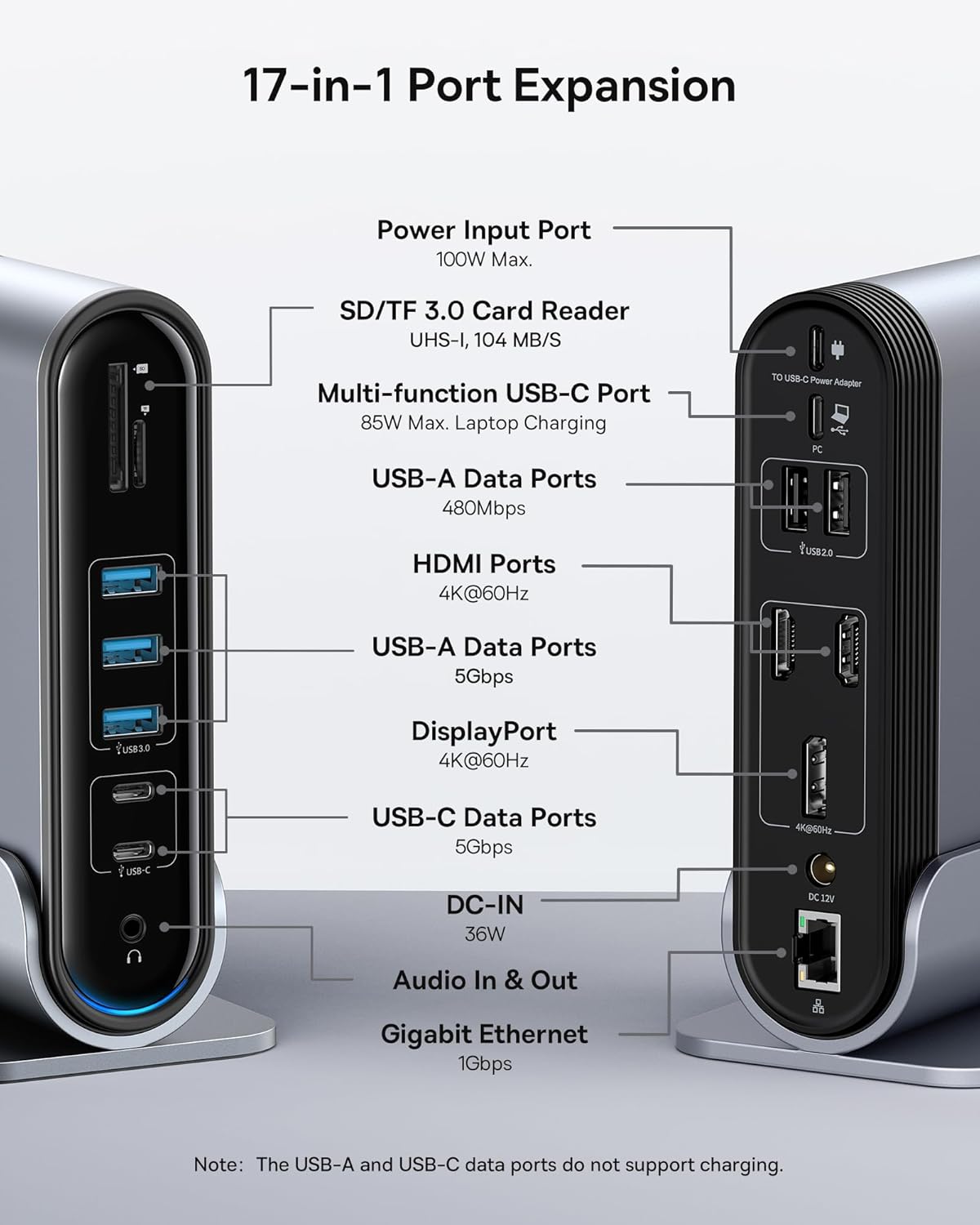
Figure 2: Detailed port layout and specifications of the docking station.
3. Conteúdo da embalagem
Por favor, verifique se todos os itens estão presentes na embalagem:
- Baseus UnionJoy Estação de acoplamento de tela tripla de 17 portas
- Suporte de doca
- Adaptador de energia
- Cabo USB-C para USB-C
- US Adapter Plug
- Plugue adaptador UE
- UK Adapter Plug
- Manual do usuário

Figura 3: O que está incluído na caixa.
4. Instruções de configuração
Follow these steps to set up your Baseus 17-in-1 Docking Station:
- Conecte a energia:
Connect the provided power adapter to the DC-IN port (36W) on the docking station. Use the appropriate regional adapter plug (US, EU, or UK) for your power outlet. For laptop charging, ensure a 100W PD charger (not included) is connected to the Power Input Port (100W Max.) on the docking station.

Figure 4: Power connection for the docking station and laptop charging.
- Conectar ao dispositivo host:
Use the included USB-C to USB-C cable to connect the docking station's Multi-function USB-C Port (85W Max. Laptop Charging) to your laptop or compatible host device.
- Conectar monitores:
Connect your external monitors to the HDMI Ports (4K@60Hz) and/or DisplayPort (4K@60Hz) on the docking station using appropriate cables. Refer to the "Operating Instructions" section for display mode configurations.
- Conecte periféricos:
Connect your USB devices (keyboard, mouse, external drives, etc.) to the available USB-A Data Ports (5Gbps or 480Mbps) and USB-C Data Ports (5Gbps). Insert SD or TF cards into the respective card reader slots.
- Conectar à rede (opcional):
For a wired network connection, connect an Ethernet cable from your router/modem to the Gigabit Ethernet port (1Gbps) on the docking station.
- Conecte áudio (opcional):
Connect headphones or speakers to the 3.5mm Audio In & Out jack.
5. Instruções de operação
5.1 Modos de exibição
The docking station supports various display configurations depending on your operating system and the number of connected monitors.
Para sistemas Windows:
- Mirror Mode (A+A+A): Displays the same content on all connected monitors and the laptop screen. Supports 1080P@60Hz.
- Extend Mode (A+B+C): Extends your desktop across multiple monitors, allowing different content on each screen. Supports 1080P@60Hz for triple display.
Para sistemas macOS:
- Mirror Mode (A+A+A): Displays the same content on all connected monitors and the laptop screen. Supports 4K@60Hz.
- Extend Mode (A+B+B): Extends your desktop across external monitors, but macOS typically mirrors content across multiple external displays when using a single MST hub. Supports 4K@60Hz.
- Note: macOS does not support triple extended display (A+B+C) through a single MST hub.

Figure 5: Display mode configurations for Windows and macOS.

Figure 6: Detailed resolution capabilities for various display configurations and DP versions.
5.2 Transferência de dados
The docking station provides high-speed data transfer capabilities:
- USB 3.0 (5 Gbps): Ideal for external hard drives, SSDs, and other high-bandwidth devices.
- USB 2.0 (480 Mbps): Suitable for keyboards, mice, printers, and other standard peripherals.
- Leitor de cartão SD / TF: Quickly transfer photos and videos from memory cards.

Figure 7: Illustrating super-fast data transfer via the docking station.
5.3 Fornecimento de energia
The docking station supports Power Delivery (PD) to charge your laptop:
- Connect a 100W PD charger (not included) to the dedicated Power Input Port on the docking station.
- The docking station will then provide up to 85W of power to your connected laptop via the USB-C host connection.
Note: The USB-A and USB-C data ports on the front of the docking station do not support charging.
6. Manutenção e Cuidados
To ensure the longevity and optimal performance of your docking station, follow these guidelines:
- Mantenha o dispositivo limpo, passando um pano macio e seco. Evite usar produtos de limpeza abrasivos ou solventes.
- Do not expose the docking station to water, moisture, or extreme temperatures.
- Evite deixar cair ou submeter o dispositivo a impactos fortes.
- Garanta uma ventilação adequada ao redor da estação de acoplamento para evitar o superaquecimento.
- Desconecte todos os cabos quando o dispositivo não estiver em uso por longos períodos.
7. Solução De Problemas
If you encounter issues with your Baseus 17-in-1 Docking Station, refer to the following common problems and solutions:
7.1 No Display Output / Flickering Screen
- Verifique as conexões dos cabos: Ensure all HDMI/DisplayPort cables are securely connected to both the docking station and the monitors.
- Verificar conexão com o host: Confirm the USB-C cable connecting the docking station to your laptop is firmly plugged in.
- Fonte de energia: Make sure the docking station is receiving adequate power from its power adapter.
- Configurações do visor: Check your computer's display settings (e.g., Windows Display Settings, macOS System Preferences > Displays) to ensure the external monitors are detected and configured correctly (Extend, Mirror).
- Atualizações de Driver: Ensure your laptop's graphics drivers and USB-C drivers are up to date.
- Compatibilidade de resolução: Verify that the selected resolution and refresh rate are supported by your monitors and the docking station. Refer to the "Multiple Display Modes" table in Section 5.1.
- macOS Triple Display: Remember that macOS does not support triple extended display (A+B+C) through a single MST hub.
7.2 USB Devices Not Working
- Reconnect Device: Unplug and re-plug the USB device from the docking station.
- Experimente uma porta diferente: Test the USB device in another USB port on the docking station or directly on your laptop to isolate the issue.
- Fonte de energia: Ensure the docking station has sufficient power, especially for power-hungry USB devices.
- Problemas com o driver: Check if the USB device requires specific drivers and ensure they are installed on your computer.
7.3 Laptop não carrega
- 100W PD Charger: Confirm you are using a 100W Power Delivery charger connected to the dedicated Power Input Port on the docking station. The docking station itself does not generate power for your laptop.
- Cabo USB-C: Ensure the USB-C cable connecting the docking station to your laptop supports power delivery.
- Compatibilidade de notebook: Verifique se o seu laptop suporta carregamento através da porta USB-C.
7.4 Ethernet Connection Issues
- Verificação do cabo: Certifique-se de que o cabo Ethernet esteja firmemente conectado tanto à estação de acoplamento quanto ao seu roteador/modem.
- Configurações de rede: Check your computer's network settings to ensure the Ethernet adapter is enabled and configured correctly.
- Roteador/Modem: Verify your router/modem is functioning properly.
8. Especificações
| Recurso | Especificação |
|---|---|
| Modelo | B0D78WFLST |
| Marca | Baseus |
| Total de portos | 17 |
| Portas HDMI | 2 (4K@60Hz) |
| Porta de exibição | 1 (4K@60Hz) |
| Portas de dados USB-A | 7 (3x 5Gbps, 4x 480Mbps) |
| Portas de dados USB-C | 2 (5 Gbps) |
| Fornecimento de energia (entrada) | 100W Max (via dedicated PD port) |
| Power Output (to Laptop) | 85W Max (via Multi-function USB-C Port) |
| Porta Ethernet | 1 (1Gbps Gigabit Ethernet) |
| Leitor de cartão | SD/TF (UHS-I, 104 MB/s) |
| Conector de áudio | Entrada e saída de áudio de 3.5 mm |
| Dispositivos compatíveis | Dell, HP, Mac, Lenovo, Steam Deck, etc. |
| Dimensões | 9.29 x 8.27 x 2.28 polegadas |
| Peso do item | 1.9 libras |
9. Garantia e Suporte
For warranty information and technical support, please refer to the official Baseus website or contact Baseus customer service directly. Keep your purchase receipt as proof of purchase for warranty claims.
Oficial Baseus Website: www.baseus.com
For further assistance, you may also contact the seller through the platform where you purchased the product.