1. Introdução
The TomTom GO Classic Lite (5 Inch) is a budget-friendly car satellite navigation device designed to provide cost-effective and reliable navigation. This device offers high-quality maps with monthly updates, live TomTom Traffic information, and the intuitive TomTom RouteBar for quick route overviews. It is engineered to provide confident and informed driving, ensuring peace of mind on the road.
Os principais recursos incluem:
- Trânsito TomTom: Real-time updates to avoid traffic jams and provide reliable estimated times of arrival (ETAs).
- Europe Map Updates: Monthly map updates included to ensure the latest road information.
- Clear and Responsive Screen: A 5-inch capacitive touchscreen with higher resolution for clear guidance.
- Alertas de radares de velocidade: Live notifications to help maintain speed limits (free for three months, then subscription-based).
- Updates via Wi-Fi: Conveniently update maps and software directly from the device without a computer.
- Exclusive TomTom Features: Includes the RouteBar, user-friendly interface, and smart search engine.
2. Configuração
2.1. O que está na caixa
Antes de começar, certifique-se de que todos os componentes estejam presentes:
- TomTom GO Classic Lite device with integrated mount
- Cabo USB-C
- Installation poster
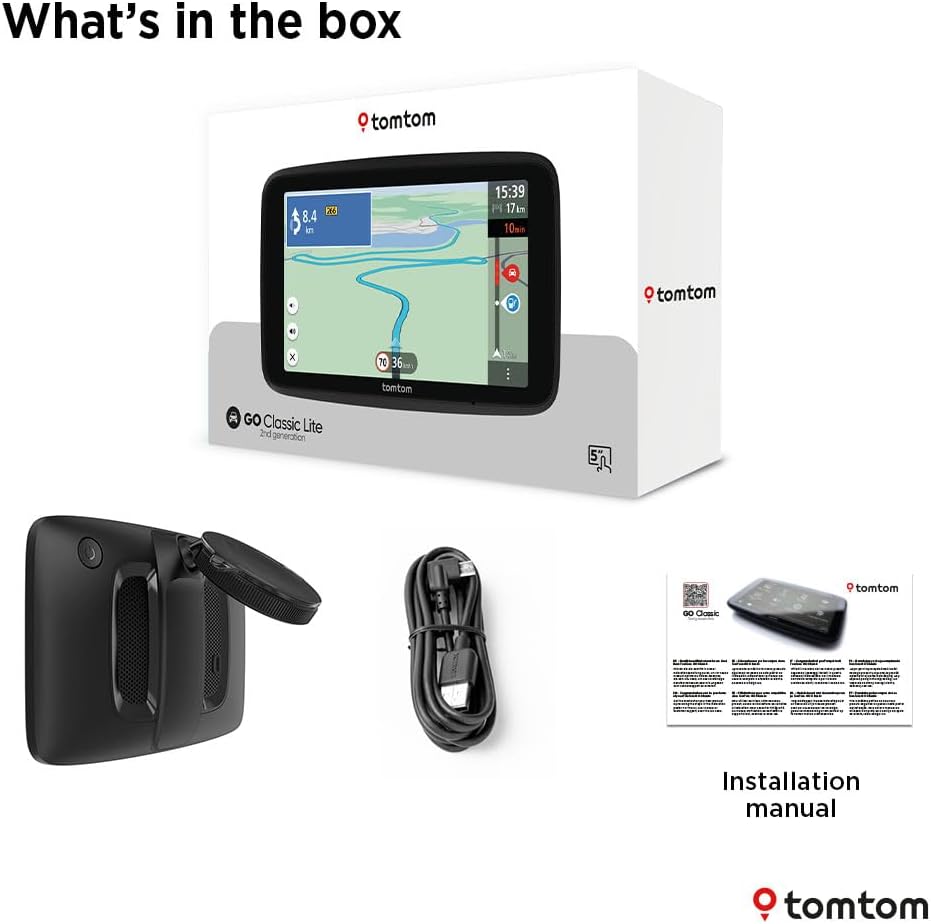
Image: Contents of the TomTom GO Classic Lite box.
2.2. Dispositivo acabadoview
Familiarize yourself with the device's physical components:

Imagem: Traseira view of the TomTom GO Classic Lite, highlighting the On/Off button, 5-inch capacitive touch screen, integrated reversible mount, powerful speaker, and USB-C port.
- Botão liga/desliga: Localizado na borda superior.
- Porta USB-C: Para carregamento e transferência de dados.
- Integrated Reversible Mount: Allows mounting on either the windscreen or dashboard.
- Orador Poderoso: For clear voice instructions.
2.3. Montagem do dispositivo
The TomTom GO Classic Lite features an integrated reversible mount for flexible placement in your vehicle.

Image: Mounting options for the TomTom GO Classic Lite, showing placement on a windscreen and dashboard. Note that dashboard mounting may require additional accessories.
- Windscreen Mounting: Attach the suction cup of the integrated mount firmly to a clean, dry area of your windscreen.
- Montagem no painel: For dashboard mounting, an adhesive disk or beanbag (sold separately) is required. Attach the mount to this accessory.
Certifique-se de que o dispositivo esteja montado com segurança e não obstrua a sua visão. view da estrada ou interferir com os airbags.
2.4. Initial Power On and Wi-Fi Setup
Upon first power-on, the device will guide you through the initial setup process, including connecting to a Wi-Fi network. This connection is crucial for downloading map updates and software updates.
- Press and hold the On/Off button to power on the device.
- Follow the on-screen prompts to select your language, region, and connect to your home or mobile Wi-Fi network.
- Once connected, the device will check for available updates.
3. Operando o dispositivo
3.1. Noções básicas de navegação
The TomTom GO Classic Lite provides clear visual and spoken instructions for navigation.

Image: The TomTom GO Classic Lite displaying an active navigation route.
- Inserir um destino: Tap the search icon on the main menu to enter an address, point of interest, or coordinates.
- Cálculo de rota: After entering your destination, the device will calculate the fastest route.
- Seguindo as instruções: Follow the spoken turn-by-turn directions and visual cues on the screen.
3.2. TomTom Traffic
TomTom Traffic provides real-time traffic information to help you avoid delays and find faster routes.

Image: TomTom GO Classic Lite displaying real-time traffic updates on the screen.
- Traffic information is automatically integrated into route planning.
- The device will suggest alternative routes if significant delays are detected on your current path.
3.3. TomTom RouteBar
The RouteBar provides a condensed summary of your route, showing upcoming traffic, points of interest, and potential delays at a glance.

Image: The TomTom RouteBar providing a quick overview of route information.
- View realistic ETAs, including potential traffic delays.
- See icons for road works, fuel stations, and other relevant information along your route.
3.4. Map Updates and Coverage
The device includes monthly map updates for Europe, ensuring you always have the most current road information.
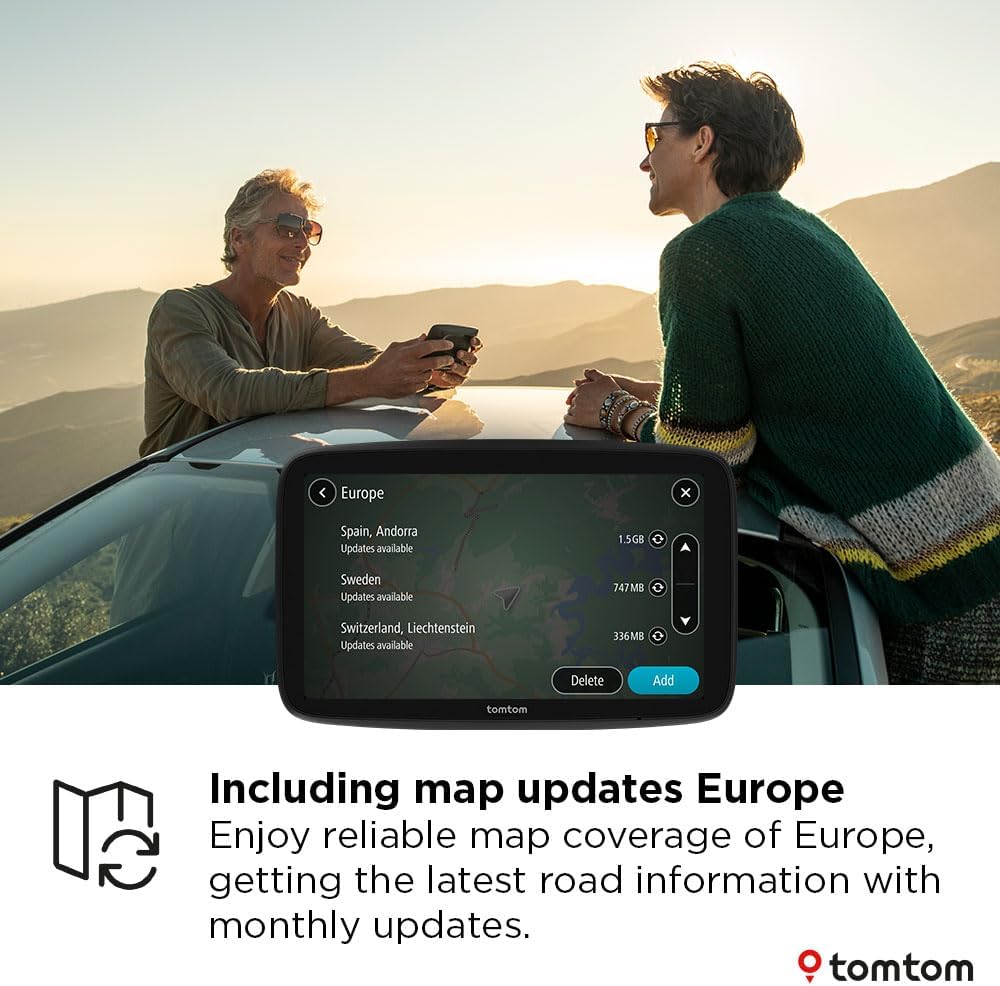
Image: TomTom GO Classic Lite displaying available map updates for various European countries.
- Map updates are delivered via Wi-Fi directly to your device.
- No computer is needed for these updates.
3.5. Speed Camera Alerts
Receive live notifications for speed cameras to help you stay informed and adhere to speed limits.
- Speed camera alerts are free for the first three months.
- A subscription is required to continue receiving alerts after the trial period.
4. Manutenção
4.1. Limpeza do dispositivo
- Use a soft, lint-free cloth to clean the screen and exterior of the device.
- Não utilize produtos de limpeza abrasivos ou solventes.
4.2. Atualizações de Software e Mapas
Regularly check for and install software and map updates to ensure optimal performance and the most accurate navigation data.
- Conecte seu dispositivo a uma rede Wi-Fi estável.
- Navigate to the 'Settings' menu on your device and look for 'Updates' or 'Maps & Software'.
- Siga as instruções na tela para baixar e instalar as atualizações disponíveis.
5. Solução De Problemas
5.1. O dispositivo não liga
- Certifique-se de que o dispositivo esteja totalmente carregado. Conecte-o a uma fonte de alimentação usando o cabo USB-C fornecido.
- Press and hold the On/Off button for at least 10-15 seconds to perform a soft reset.
5.2. Problemas com o sinal de GPS
- Certifique-se de que o dispositivo tenha uma clara view of the sky. Obstructions like tall buildings or tunnels can interfere with the GPS signal.
- Move the device to a different location in your vehicle, such as closer to the windscreen.
5.3. Problemas de conexão Wi-Fi
- Verifique se a sua senha de Wi-Fi está correta.
- Certifique-se de que o dispositivo esteja dentro do alcance do seu roteador Wi-Fi.
- Restart your Wi-Fi router and then try connecting the device again.
5.4. Map Update Failures
- Ensure you have a stable and strong Wi-Fi connection.
- Check if there is sufficient storage space on your device for the update.
- Try performing the update at a different time, as server load can sometimes affect download speeds.
6. Especificações
| Recurso | Detalhe |
|---|---|
| Marca | TomTom |
| Nome do modelo | Lite 5 inch |
| Tamanho da tela | 5 polegadas |
| Tipo de tela | Touchscreen capacitivo |
| Tipo de mapa | Europe (monthly updates included) |
| Tecnologia de Conectividade | USB-C, Wi-Fi, Bluetooth |
| Tipo de montagem | Integrated Reversible Mount (Dashboard Mount requires separate accessory) |
| Sistema operacional | Windows CE |
| Baterias | 1 bateria de polímero de lítio (incluída) |
| Dimensões da embalagem | 18.5 x 12.7 x 4.8 cm |
| Peso do item | 380 g |
| País de origem | China |
7. Garantia e Suporte
For warranty information and technical support, please refer to the official TomTom website or contact TomTom customer service directly. Details can typically be found on the TomTom support pages or within the device's digital documentation.
Visite o TomTom Store on Amazon Para obter mais informações sobre o produto e acessórios.


