1. Introdução
This manual provides essential information for setting up, operating, maintaining, and troubleshooting your Lenovo ThinkPad X1 Carbon Gen 12 Business Laptop. Please read this guide thoroughly to ensure optimal performance and longevity of your device.
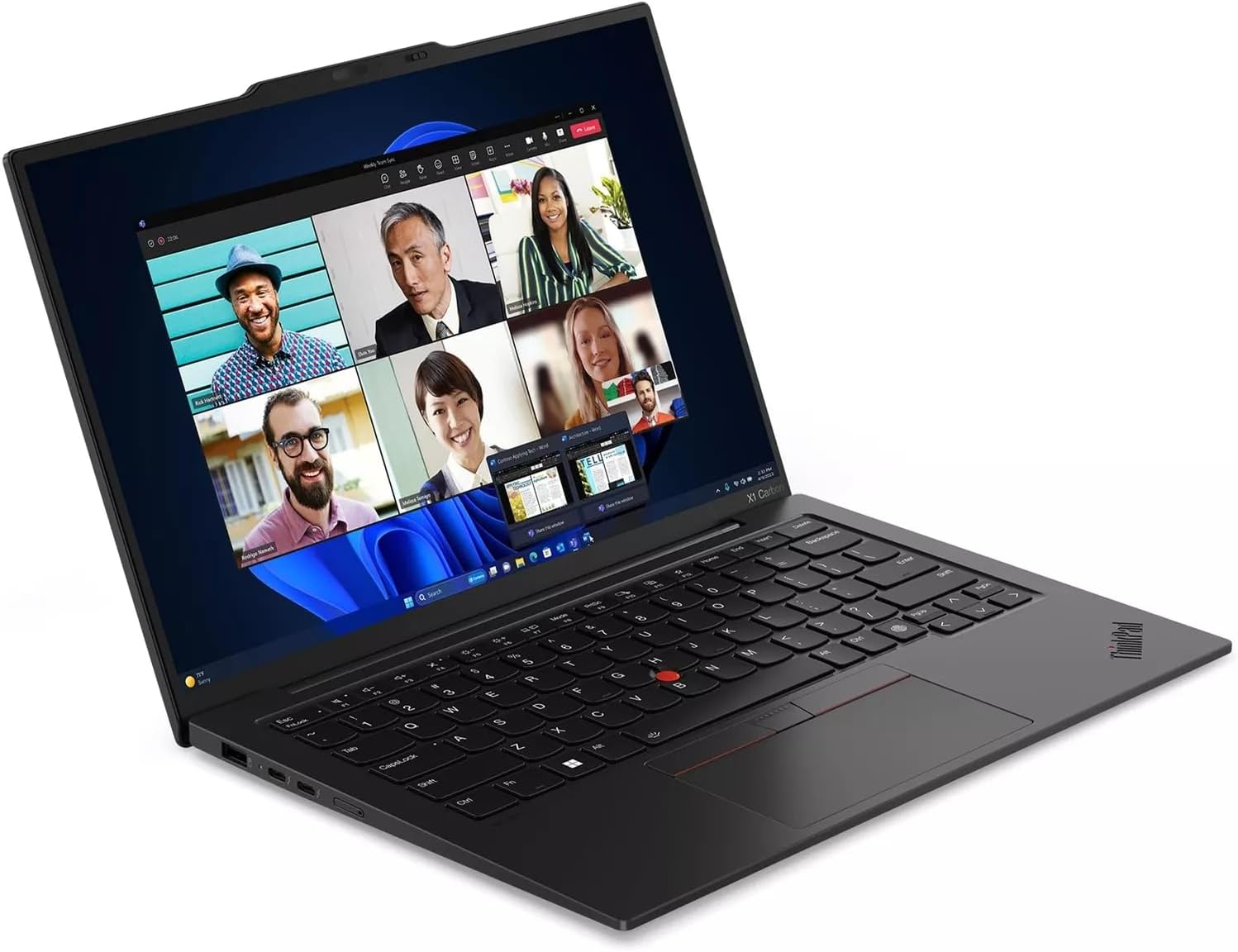
Figure 1.1: Lenovo ThinkPad X1 Carbon Gen 12 in use, showing a video conference.
2. Configuração
2.1 Desembalagem e Inspeção Inicial
Retire cuidadosamente todos os componentes da embalagem. Certifique-se de que os seguintes itens estejam presentes:
- ThinkPad X1 Carbon Gen 12 laptop
- 65W Slim Tip AC power adapter
- Bateria interna (pré-instalada)
- Guia de início rápido
Inspecione o laptop para verificar se há danos físicos. Caso encontre algum dano ou esteja faltando algum componente, entre em contato com o fornecedor imediatamente.
2.2 Conectando o Adaptador de Energia
Connect the 65W Slim Tip AC power adapter to the laptop's power input port and then to a power outlet. The laptop can be used while charging.
2.3 Inicialização do sistema operacional e configuração inicial
Press the power button located on the side of the laptop to turn it on. Follow the on-screen instructions to complete the Windows 11 Pro setup process. This includes setting up your user account, network connection, and initial preferences.
3. Operando seu laptop
3.1 Funções Básicas
- Botão de energia: Located on the side, used to turn the laptop on/off or put it to sleep.
- Teclado: The backlit keyboard features standard QWERTY layout and function keys.
- TrackPad: Use the integrated TrackPad with three buttons for navigation and interaction.
- Leitor de impressões digitais: For secure login, located near the keyboard. Follow Windows Hello setup for configuration.
- Câmera: The 1080P FHD IR+RGB camera includes a privacy shutter. Slide the shutter to cover the camera when not in use for enhanced privacy.
3.2 Portas e Conectores
Your ThinkPad X1 Carbon Gen 12 is equipped with various ports for connectivity. Refer to the diagram below for port identification.

Figure 3.1: Port Layout of ThinkPad X1 Carbon Gen 12
- USB-A (USB 5Gpbs)
- 2 x USB-C (Thunderbolt 4, USB 40Gbps)
- Optional SIM slot (Availability may vary by configuration)
- Botão de energia
- Combinação de fone de ouvido/microfone
- USB-A (USB 5Gpbs)
- HDMI 2.1
- Slot de segurança Kensington Nano
3.3 Conectividade sem fio
- Wi-fi: The laptop supports Intel Wi-Fi 6E AX211 2x2 AX vPro for high-speed wireless internet access. Connect to available Wi-Fi networks through Windows settings.
- Bluetooth: Integrated Bluetooth 5.1 (Windows 10) or Bluetooth 5.3 (Windows 11) allows connection to wireless peripherals such as mice, keyboards, and headphones.
4. Manutenção
4.1 Limpando seu laptop
- Use um pano macio e sem fiapos levementeampFinalize com água ou um produto de limpeza para telas para limpar o visor.
- Para o teclado e o chassi, use um pano macio. Evite produtos químicos agressivos ou materiais abrasivos.
- Certifique-se de que o laptop esteja desligado e desconectado da tomada antes de limpá-lo.
4.2 Cuidados com a bateria
- Para prolongar a vida útil da bateria, evite temperaturas extremas.
- Periodicamente, descarregue a bateria até cerca de 20% antes de recarregá-la.
- If storing the laptop for an extended period, charge the battery to approximately 50% and store in a cool, dry place.
4.3 Atualizações de Software
Verifique e instale regularmente as atualizações do sistema operacional (Windows Update) e as atualizações de drivers (Lenovo Van).tage software ou suporte da Lenovo website) para garantir desempenho e segurança ideais.
5. Solução De Problemas
Esta seção aborda problemas comuns que você pode encontrar.
5.1 Problemas de energia
- O laptop não liga: Ensure the power adapter is securely connected and the power outlet is functional. Try a different outlet. If the battery is completely drained, it may take a few minutes of charging before the laptop can power on.
- A bateria não carrega: Verify the power adapter is correctly connected. Check for any damage to the adapter or charging port.
5.2 Problemas de exibição
- Nenhuma exibição: Connect an external monitor to the HDMI port to check if the issue is with the laptop's internal display. Ensure the display brightness is not set to minimum.
- Tela piscando: Atualize seus drivers gráficos.
5.3 Problemas de conectividade
- A conexão Wi-Fi não está funcionando: Verifique se o Wi-Fi está ativado nas configurações do Windows. Reinicie o roteador e o laptop. Verifique se há drivers de Wi-Fi atualizados.
- Dispositivo Bluetooth não está emparelhando: Ensure the Bluetooth device is in pairing mode and within range. Check Bluetooth settings on your laptop.
5.4 Desempenho do Sistema
- Desempenho lento: Close unnecessary applications. Check Task Manager for processes consuming high CPU or memory. Ensure sufficient free storage space.
- Superaquecimento: Certifique-se de que as entradas de ventilação não estejam bloqueadas. Use o laptop em uma superfície plana e rígida.
Para questões mais complexas, consulte o suporte da Lenovo. website ou entre em contato com o suporte técnico.
6. Especificações
| Componente | Detalhe |
|---|---|
| Processador | Intel Core Ultra 7 165U vPro (E-cores up to 3.80 GHz, P-cores up to 4.90 GHz) |
| Mostrar | 14" WUXGA (1920 x 1200), IPS, Anti-Glare, Touch, 100%sRGB, 400 nits, 60Hz, Low Power |
| Memória | 32 GB LPDDR5X-6400MHz (Soldada) |
| Armazenar | SSD M.2 2280 PCIe Gen4 de 2 TB |
| Gráficos | Intel Integrated Graphics |
| Sistema operacional | Janelas 11 64 Pro |
| Câmera | 1080P FHD IR+RGB with Privacy Shutter |
| Teclado | Backlit, Black - English (US) |
| Rede sem fio | Intel Wi-Fi 6E AX211 2x2 AX vPro |
| Bluetooth | Bluetooth 5.1 (Windows 10) or Bluetooth 5.3 (Windows 11) |
| Portos | 2x USB-A (5Gpbs), 2x USB-C (Thunderbolt 4, 40Gbps), 1x HDMI 2.1, 1x Headphone/Mic Combo, 1x Kensington Nano Security Slot, Optional SIM slot |
| Dimensões (CxLxA) | 12.31 x 0.59 x 8.45 polegadas |
| Peso | 2.37 libras |
7. Informações de garantia
Seu notebook Lenovo ThinkPad X1 Carbon Gen 12 vem com um One Year Onsite Warranty. This warranty covers manufacturing defects and hardware failures under normal use conditions. For detailed terms and conditions, please refer to the warranty documentation included with your product or visit the official Lenovo support website.
8. Suporte
For further assistance, technical support, or to download the latest drivers and software, please visit the official Lenovo Support website:
You can also find contact information for customer service and technical support in your region on the Lenovo website.


