1. Introdução
This manual provides detailed instructions for setting up, operating, maintaining, and troubleshooting your UOTEK AX3000 5G WiFi 6 Router. This device offers high-speed 5G cellular network access and advanced WiFi 6 connectivity for your home or office environment.
2. Conteúdo da embalagem
- UOTEK AX3000 5G WiFi 6 Router (Model UT-R9010-M)
- 8 x High-Gain Omnidirectional Antennas
- Adaptador de energia
- Cabo Ethernet
- Manual do usuário / Guia de início rápido
3. Produto acabadoview
Familiarize yourself with the router's physical components and indicators.
3.1. Painel frontal
The front panel features LED indicators for Power, Internet status, 2.4GHz WiFi, 5GHz WiFi, and Cellular signal strength.
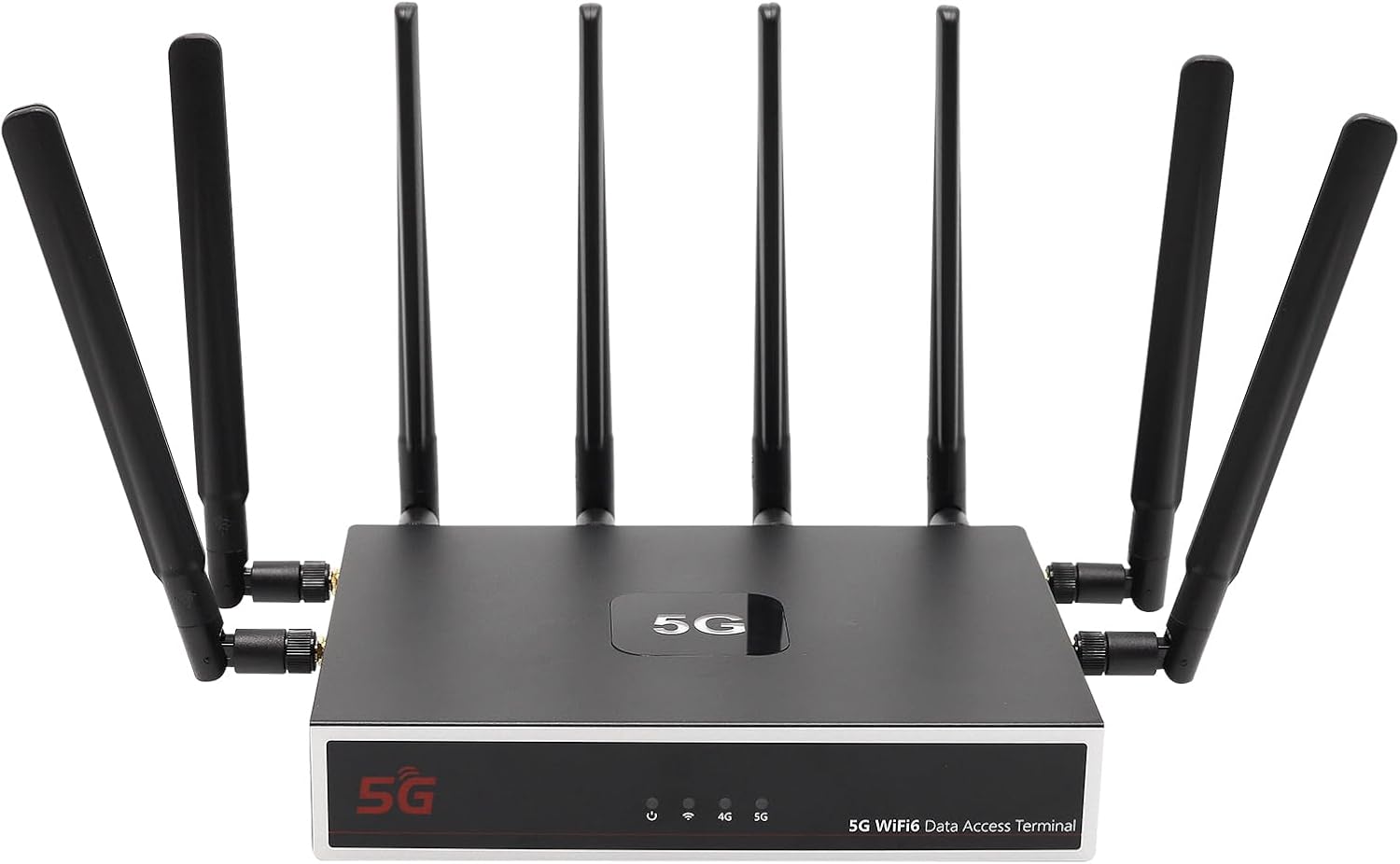
Imagem: Frente view of the UOTEK AX3000 5G WiFi 6 Router, showcasing its sleek design and 8 external antennas for enhanced signal coverage.
3.2. Painel lateral
The side panel includes the dual Nano SIM card slots and connectors for the external antennas.

Imagem: Lado view of the UOTEK AX3000 router, highlighting the dual Nano SIM card slots and the interfaces for connecting the external antennas.
3.3. Painel Traseiro
The rear panel provides the DC 12V power input, a WAN port for wired internet connection, two LAN ports for wired devices, and a reset button.

Imagem: Traseira view of the UOTEK AX3000 router, displaying the Ethernet LAN/WAN ports and the power input socket.
4. Configuração
4.1. Insert SIM Cards
- Locate the SIM card slots on the side of the router.
- Abra cuidadosamente a tampa protetora.
- Insert your Nano SIM card(s) into the designated slots with the gold contacts facing down and the notched corner aligned correctly.
- Pressione suavemente o cartão SIM até ouvir um clique e ele se encaixar no lugar.
- Feche bem a tampa protetora.

Imagem: Uma imagem detalhada view of the dual Nano SIM card slots on the UOTEK AX3000 router, showing the correct orientation for insertion.
4.2. Conecte as antenas
Screw all 8 high-gain omnidirectional antennas firmly into their respective connectors on the router. Ensure they are securely tightened for optimal signal reception.

Image: The UOTEK AX3000 5G WiFi 6 Router with all 8 external antennas fully extended, ready for operation.
4.3. Conecte a energia
Connect the provided power adapter to the DC 12V input port on the rear panel of the router, then plug the adapter into a power outlet. The router will power on automatically.
4.4. Acesso e Configuração Iniciais
- Conecte-se ao roteador: Você pode se conectar ao roteador via Wi-Fi ou Ethernet.
- Wi-fi: Procurar the default Wi-Fi network name (SSID) printed on the router's label. Connect using the default Wi-Fi password also found on the label.
- Ethernet: Connect an Ethernet cable from one of the LAN ports on the router to your computer.
- Acesso Web Interface: Abra um web navegador e digite o endereço IP padrão (por exemplo,
192.168.100.1) na barra de endereço. - Conecte-se: Enter the default username (e.g.,
admin) and password (e.g.,admin) when prompted. You will be guided through the initial setup process. - Definir senha de administrador: For security, change the default administrator password immediately.
- Configurar Wi-Fi: Customize your Wi-Fi network name (SSID) and set a strong password.
4.5. Guia de Instalação em Vídeo
Video: This video demonstrates the unboxing, SIM card insertion, and antenna connection process for a similar 5G router, providing a visual guide for the initial physical setup.
5. Instruções de operação
5.1. Dispositivos de conexão
- Wi-fi: On your devices (smartphones, laptops, tablets), search for your configured Wi-Fi network name (SSID) and enter the password.
- Ethernet: Connect devices like desktop computers, smart TVs, or gaming consoles to the router's LAN ports using Ethernet cables for a stable wired connection.

Image: The UOTEK AX3000 5G WiFi 6 Router efficiently connecting up to 100 smart devices simultaneously, ensuring high capacity and efficiency.
5.2. Dual SIM Card Functionality
The router supports dual SIM cards, allowing for automatic switching between networks to maintain optimal signal strength and connectivity. If one network signal weakens, the router can seamlessly switch to the stronger available SIM card.
5.3. Wi-Fi 6 (802.11ax) Enhancements
Benefit from advanced Wi-Fi 6 technologies like OFDMA and DL MU-MIMO, which enable more stable and high-speed wireless transmission. These technologies allow the router to synchronously schedule multiple users to send and receive data in parallel, reducing network latency and improving overall efficiency.

Image: A diagram comparing Wi-Fi 6 (OFDMA+MU-MIMO) with Wi-Fi 5, showing how Wi-Fi 6 allows data from multiple users to be transferred simultaneously, improving efficiency.
5.4. Configuração de VPN
The router comes with pre-installed OpenVPN and WireGuard support, allowing you to configure VPN services for enhanced security and privacy. Access the VPN settings through the web interface to set up your preferred VPN service.
Video: This video provides a setup guide for a GL.iNet router, demonstrating how to connect to Wi-Fi and configure VPN services through the web interface, which is applicable to general router setup.
6. Manutenção
6.1. Atualizações de firmware
Regularly check the UOTEK official website for the latest firmware updates. Firmware updates can improve performance, add new features, and enhance security. Follow the instructions provided with the firmware update package carefully.
6.2. Restaurar as configurações de fábrica
If you encounter persistent issues or wish to clear all configurations, you can reset the router to its factory default settings. Locate the reset button on the rear panel, use a paperclip or a thin object to press and hold the button for about 10 seconds until the LED indicators flash.
6.3. Posicionamento ideal
For the best Wi-Fi coverage and 5G signal reception, place the router in a central location within your home or office, away from obstructions like thick walls, large metal objects, and other electronic devices that may cause interference. Elevating the router can also improve signal distribution.
7. Solução De Problemas
7.1. Sem conexão com a Internet
- Check if the SIM card(s) are correctly inserted and activated with your mobile carrier.
- Verify that the cellular signal LED indicator is lit and stable.
- Ensure the Ethernet cable is securely connected to the WAN port (if using wired internet).
- Reinicie o roteador desconectando e reconectando o adaptador de energia.
7.2. Weak Wi-Fi Signal or Slow Speeds
- Adjust the position of the external antennas for better signal reception.
- Relocate the router to a more central and open area, away from potential interference sources.
- Certifique-se de que seus dispositivos sejam compatíveis com Wi-Fi 6 para aproveitar ao máximo os recursos do roteador.
7.3. Não é possível acessar Web Interface
- Verify that your device is connected to the router's network (Wi-Fi or Ethernet).
- Double-check the IP address entered in the browser (e.g.,
192.168.100.1). - Limpe o cache do seu navegador ou tente usar um navegador diferente.
- If you forgot your admin password, perform a factory reset (see Section 6.2).
8. Especificações
| Recurso | Descrição |
|---|---|
| Nome do modelo | UT-R9010-M |
| Tecnologia de Conectividade | WiFi 6 (802.11ax), 5G, Ethernet |
| Classe de Banda de Frequência | Banda dupla (2.4 GHz e 5 GHz) |
| Tipo de antena | 8 x External High-Gain Omnidirectional Antennas |
| Suporte para cartão SIM | Dual Nano SIM Card Slots |
| Portas Ethernet | 1x WAN, 2x LAN Gigabit Ports |
| Características especiais | Internet Security, LED Indicators, VPN Support (OpenVPN, WireGuard) |
| Peso do item | 3.1 libras |
| Dimensões da embalagem | 10.47 x 10.24 x 3.11 polegadas |
| Fabricante | UTEK TECHNOLOGY(SHENZHEN) CO.,LTD. |
9. Garantia e Suporte
The UOTEK AX3000 5G WiFi 6 Router comes with a standard manufacturer's warranty. For detailed warranty information, technical support, or customer service inquiries, please visit the official UOTEK webou entre em contato diretamente com a equipe de suporte.


