1. Introdução
This user manual provides comprehensive instructions for setting up, operating, and maintaining your THOMSON 10.1-inch WiFi Digital Photo Frame. Please read this manual carefully before using the device to ensure proper functionality and longevity.
2. Produto acabadoview
The THOMSON Digital Photo Frame is designed to display your cherished memories with ease. It features a high-definition IPS touchscreen and WiFi connectivity for convenient photo sharing.
Principais características:
- Memória interna de 32 GB: Stores approximately 50,000 photos. Supports SD Card/SDHC Card/MMC Card/USB Drive expansion up to 256GB.
- Configuração simples: Connects to WiFi, automatically sets local date and time.
- 10.1-inch 1280x800 HD IPS Screen: Provides clear image viewing with a 180° viewângulo de engate.
- Múltiplas interfaces: Supports DC-4.0, Type-C, SD, 3.5mm Jack, and USB.
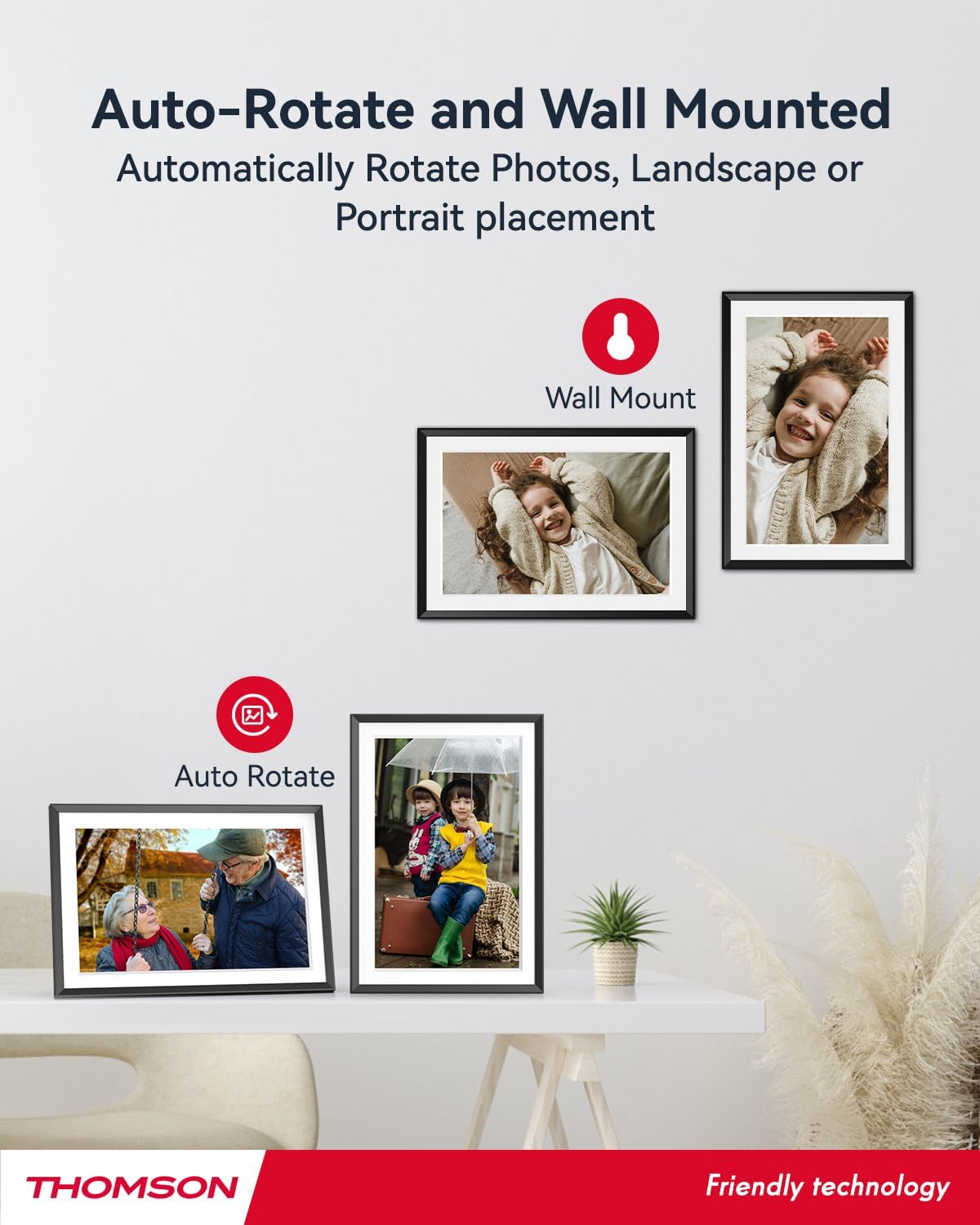
- Rotação Automática: Displays photos correctly in any orientation.
- Música de fundo: Reproduza música durante as apresentações de slides.
- Google Photo Support: Send photos directly from Google Photos.





3. Configuração
3.1 Desembalagem e Inspeção Inicial
- Remova cuidadosamente todos os componentes da embalagem.
- Verify that all items listed in the 'Product Overview' seção estão presentes.
- Inspect the frame for any signs of damage. If damaged, do not proceed and contact customer support.
3.2 Conexão de Energia
- Connect the power adapter to the DC-4.0 port on the back of the photo frame.
- Conecte o adaptador de alimentação a uma tomada elétrica padrão.
- A estrutura ligará automaticamente.
3.3 Conexão de rede (Wi-Fi)
- On the frame's touchscreen, navigate to 'Settings' or 'Wi-Fi Settings'.
- Selecione a rede Wi-Fi desejada na lista de redes disponíveis.
- Digite a senha do Wi-Fi usando o teclado na tela.
- Confirm the connection. Once connected, the frame will automatically synchronize the date and time.
3.4 App Installation (Thomson Smart Frame)
To share photos wirelessly from your smartphone, download the 'Thomson Smart Frame' app:
- For Android devices, search for 'Thomson Smart Frame' on the Loja Google Play.
- For iOS devices, search for 'Thomson Smart Frame' on the Loja de aplicativos da Apple.
- Follow the on-screen instructions within the app to pair it with your digital photo frame.
4. Instruções de operação
4.1 Adicionando fotos e vídeos
- Via Thomson Smart Frame App: Use the paired smartphone app to wirelessly send photos and videos to the frame.
- Via cartão SD/unidade USB: Insert a compatible SD card or USB drive into the respective slot. The frame will detect the media, and you can import files to the internal memory or play directly.
- Via Google Photos: The frame supports integration with Google Photos for direct photo sharing. Refer to the frame's on-screen instructions for linking your Google Photos account.
Navegação por tela sensível ao toque de 4.2 polegadas
The frame features an intuitive touchscreen interface. Tap to select, swipe to scroll, and pinch to zoom (if supported by the specific function).
4.3 Slideshow Settings
Customize your photo slideshow experience:
- Slideshow Speed: Ajuste a duração de exibição de cada foto.
- Efeitos de transição: Choose from various transition styles between photos.
- Música de fundo: Selecione o áudio files to play during the slideshow.
4.4 Rotação automática
The frame automatically detects its orientation (landscape or portrait) and adjusts the displayed photos accordingly. Ensure the auto-rotate function is enabled in the settings if you wish to utilize this feature.
4.5 Conexão Multi-Usuário
Multiple users can connect to the same frame via the Thomson Smart Frame app, allowing family and friends to share their photos to your frame from different locations.
5. Manutenção
5.1 Limpeza da tela
- Turn off the photo frame and unplug it from the power source.
- Use um pano macio e sem fiapos (por exemplo, um pano de microfibra) para limpar suavemente a tela.
- Para manchas persistentes, aplique ligeiramenteampen the cloth with water or a screen-cleaning solution specifically designed for electronic displays. Do not spray liquid directly onto the screen.
5.2 Cuidados Gerais
- Avoid exposing the frame to extreme temperatures, direct sunlight, or high humidity.
- Keep the frame away from water and other liquids.
- Do not block the ventilation openings on the frame.
- Handle the frame with care to prevent drops or impacts.
6. Solução De Problemas
| Problema | Possível causa | Solução |
|---|---|---|
| O frame não liga. | Adaptador de energia não conectado ou tomada com defeito. | Ensure power adapter is securely connected to the frame and a working electrical outlet. Try a different outlet. |
| Não é possível conectar ao Wi-Fi. | Senha incorreta, sinal fraco ou problema de rede. | Double-check Wi-Fi password. Move frame closer to router. Restart router and frame. |
| Photos not displaying. | Não suportado file format, no photos loaded, or storage issue. | Ensure photos are in supported formats (e.g., JPEG, PNG). Verify photos are loaded onto the frame's internal memory or connected storage. Check storage space. |
| Tela sensível ao toque sem resposta. | Falha temporária de software. | Restart the frame by unplugging and re-plugging the power adapter. |
7. Especificações
| Recurso | Detalhe |
|---|---|
| Marca | Thomson |
| Número do modelo | TDF-1001P |
| Tamanho da tela | 10.1 polegadas |
| Resolução de exibição | 1280 x 800 HD |
| Tipo de exibição | Tela sensível ao toque IPS |
| Memória interna | 32 GB |
| Memória expansível | SD Card/SDHC Card/MMC Card/USB Drive (up to 256GB) |
| Tecnologia de Conectividade | Wi-fi |
| Dispositivos compatíveis | Android and iOS Smartphones |
| Fonte de energia | Elétrico com fio |
| Proporção da tela | 16:10 |
| Material da estrutura | Plástico |
| Dimensões do produto (C x L x A) | 26.5 x 18.4 x 2.51 cm |
| Peso do produto | 530 gramas |
8. Garantia e Suporte
For warranty information or technical support, please refer to the documentation included with your purchase or visit the official Thomson website. You may also contact Thomson customer service directly for assistance with product issues or inquiries.


