1. Introdução
This manual provides detailed instructions for the installation, operation, and maintenance of your Luowice Solar Security Camera. This wireless outdoor camera features a 3W solar panel for continuous power, 360° pan and tilt functionality, 3MP color night vision, and is designed to be weatherproof for reliable outdoor use. Please read this manual thoroughly before use to ensure proper setup and functionality.

Image 1.1: Luowice Solar Security Camera with integrated solar panel.
2. Produto acabadoview
2.1 Principais Características
- 100% Wire-Free Setup: Operates on WiFi and powered by a 3W solar panel, eliminating the need for frequent battery charging and complex wiring.
- Cobertura de grande angular: Offers 355° horizontal and 90° vertical rotation for comprehensive area monitoring via the O-KAM PRO app.
- 3MP Color Night Vision: Provides clear, high-resolution video day and night, including full-color night vision with floodlights.
- Motion-Triggered Floodlights & Auto Tracking: Automatically activates floodlights and tracks human-shaped objects upon detection, enhancing security.
- Áudio bidirecional: Allows real-time communication with visitors or deterrence of intruders.
- Armazenamento local e em nuvem: Supports micro SD card (up to 128GB, not included) for 24/7 loop recording and optional cloud storage services.
- Projeto à prova de intempéries: IP66 rated, ensuring reliable performance in various severe weather conditions.
- Multi-User Sharing & Data Encryption: Securely share camera access with family members with advanced encryption.
2.2 Componentes
O pacote normalmente inclui:
- Luowice Solar Security Camera
- 3W Solar Panel (integrated or separate with mounting bracket)
- Suporte de montagem e parafusos
- Cabo de carregamento USB
- Manual do usuário
3. Instruções de configuração
3.1 Carregando a bateria
Before initial use, fully charge the camera's internal battery using the provided USB cable. Connect the cable to the camera's charging port and a standard 5V USB power adapter (not included). The indicator light will show charging status.
3.2 Instalação do aplicativo e criação de conta
- Baixe o O-KAM PRO Baixe o aplicativo da loja de aplicativos do seu smartphone (iOS ou Android).
- Abra o aplicativo e siga as instruções na tela para criar uma nova conta ou fazer login, caso já possua uma.
3.3 Conectando a câmera ao Wi-Fi
- In the O-KAM PRO app, tap the "+" icon to add a new device.
- Select your camera model or scan the QR code on the camera if prompted.
- Follow the app's instructions to connect the camera to your 2.4 GHz Wi-Fi network. Ensure your phone is connected to the same 2.4 GHz network during setup.
- Once connected, the camera's indicator light will change, and you will receive a confirmation in the app.

Image 3.1: The camera supports 2.4 GHz Wi-Fi for stable data transmission.
3.4 Montagem da câmera
Escolha um local com ótima exposição solar para o painel solar e um céu limpo. view of the area you wish to monitor. Ensure the camera is within range of your Wi-Fi network.
- Marque os locais de furação usando o suporte de montagem como gabarito.
- Faça furos e insira buchas de parede, se necessário.
- Fixe o suporte de montagem na parede com parafusos.
- Attach the camera to the mounting bracket. Adjust the angle of the solar panel to maximize sunlight exposure.

Image 3.2: Camera mounted outdoors, demonstrating continuous solar power.
4. Instruções de operação
4.1 Ao vivo View e controle de pan/tilt
Open the O-KAM PRO app and select your camera to access the live view. Use the on-screen controls to pan (355° horizontal) and tilt (90° vertical) the camera to adjust its viewângulo de engate.

Image 4.1: Remote pan and tilt control via the O-KAM PRO app.
Áudio bidirecional 4.2
Do show view, tap the microphone icon to speak through the camera's speaker. Tap the speaker icon to listen to audio from the camera's vicinity.

Image 4.2: Demonstrating two-way audio communication.
4.3 Detecção de Movimento e Alertas
The camera features advanced motion detection with human shape recognition. When motion is detected, the camera can automatically turn on floodlights, track the object, and send instant alerts to your phone.
- Setting Detection Sensitivity: In the app settings, adjust the detection sensitivity to minimize false alarms.
- Defining Detection Zones: Create specific detection zones to focus monitoring on critical areas and ignore irrelevant movements.
- Alertas: Receive instant app notifications and email alerts when motion is detected.

Image 4.3: Motion detection with intelligent recognition for humans, vehicles, and pets.

Image 4.4: Configuring custom motion detection zones.
4.4 Gravação e Armazenamento
A câmera suporta dois métodos principais de armazenamento:
- Cartão Micro SD: Insert a micro SD card (up to 128GB, not included) into the designated slot for continuous 24/7 loop recording, even without network access.
- Armazenamento em nuvem: Optional cloud storage services are available through the O-KAM PRO app for secure, remote access to your footage.

Imagem 4.5: Slot para cartão Micro SD para armazenamento local.
5. Manutenção
5.1 Limpeza
- Limpe regularmente a lente da câmera e o painel solar com um pano macio e seco.amp cloth to remove dust and debris. This ensures optimal image clarity and solar charging efficiency.
- Não use produtos químicos fortes ou produtos de limpeza abrasivos.
5.2 Proteção do Clima
The camera is IP66 weatherproof, designed to withstand rain, snow, and dust. However, extreme weather conditions may temporarily affect performance. Ensure all ports are securely sealed.
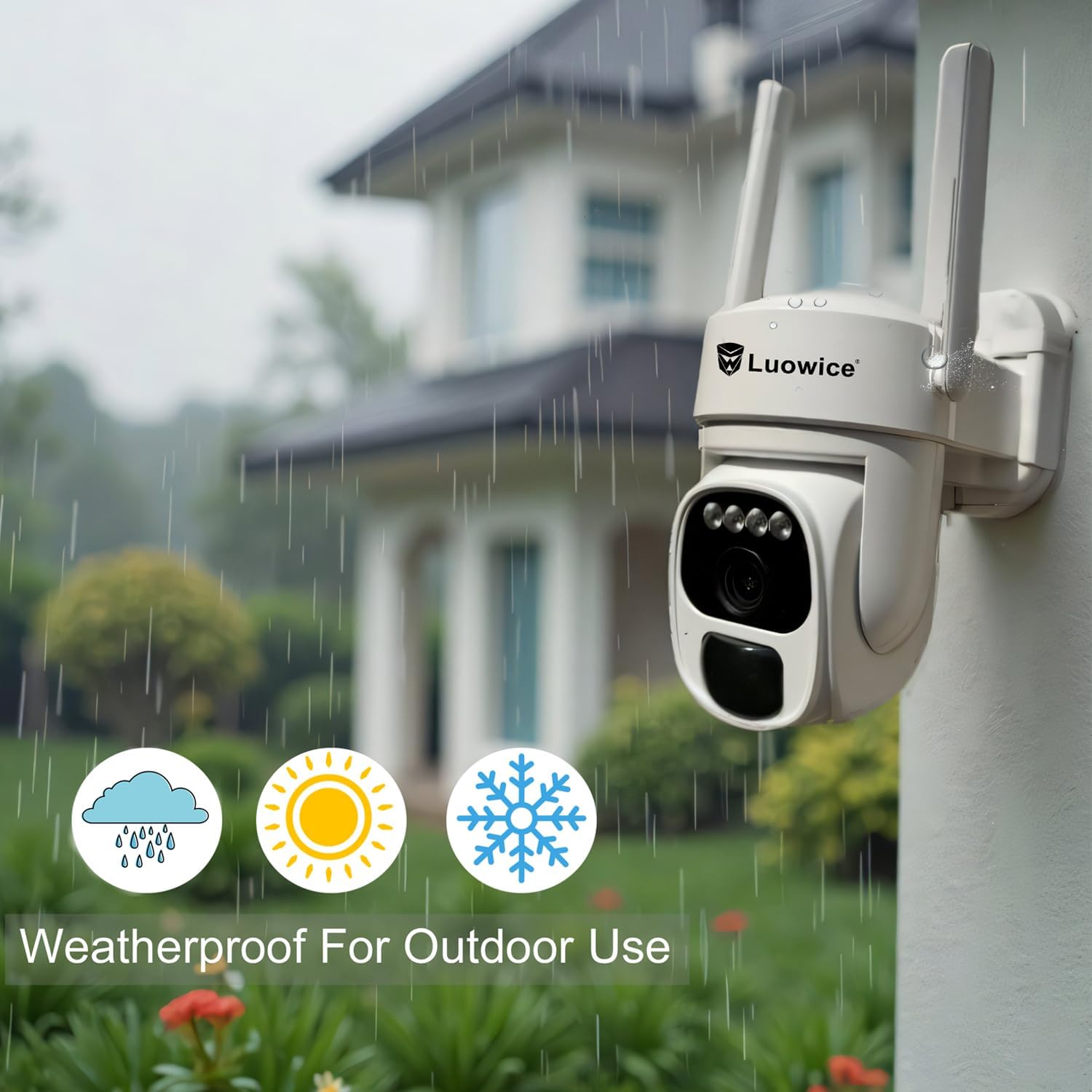
Image 5.1: The camera's weatherproof design for outdoor use.
6. Solução De Problemas
- A câmera não está conectando ao Wi-Fi: Ensure your Wi-Fi is 2.4 GHz. Check Wi-Fi signal strength at the camera's location. Restart your router and the camera.
- A bateria não carrega: Verify the solar panel is clean and receiving direct sunlight. Check the USB charging cable connection. Ensure the ambient temperature is within the operating range for charging.
- Má qualidade de vídeo: Clean the camera lens. Ensure adequate lighting. Check your internet connection speed.
- Alertas falsos de movimento: Adjust motion detection sensitivity in the app. Define specific detection zones to exclude irrelevant areas.
- Pan/Tilt not responding: Check app connectivity. Ensure there are no physical obstructions. Restart the camera.
7. Especificações
| Recurso | Especificação |
|---|---|
| Resolução de captura de vídeo | 3 MP |
| Fonte de energia | Energia solar (painel solar de 3W) |
| Protocolo de conectividade | Wi-Fi (2.4 GHz) |
| Faixa de Pan/Tilt | 355° Horizontal, 90° Vertical |
| Visão noturna | Color Night Vision with Floodlights |
| Opções de armazenamento | Cartão Micro SD (até 128 GB), armazenamento em nuvem |
| Classificação à prova de intempéries | IP66 |
| Pilhas necessárias | 1 bateria de íon de lítio (incluída) |
| Peso do item | 1.85 libras |
| Dimensões | 7.87 x 6.18 x 5.55 polegadas (Embalagem) |
| Dispositivos compatíveis | Smartphones, Tablets, Computers |
8. Garantia e Suporte
8.1 Informações de garantia
Luowice products typically come with a manufacturer's warranty. Please refer to the product packaging or the official Luowice website for specific warranty terms and conditions. Optional extended protection plans may be available for purchase.
8.2 Suporte ao cliente
For technical assistance, troubleshooting, or warranty claims, please contact Luowice customer support through their official website or the contact information provided with your product. When contacting support, please have your product model (B0DF4TVZ7Z) and purchase details ready.