1. Introdução
Thank you for choosing the EvoFox Ronin Wired Mechanical Gaming Keyboard. This manual provides detailed instructions for setting up, operating, and maintaining your keyboard to ensure optimal performance and longevity. The EvoFox Ronin is designed for a superior typing and gaming experience, featuring advanced sound dampening, customizable switches, and dynamic RGB lighting.

Image 1.1: EvoFox Ronin Wired Mechanical Gaming Keyboard (Black)
Principais características:
- 9-Layer Gasket Structure: Advanced design for reduced noise, improved stability, and enhanced tactile feedback.
- Hot-Swappable Outemu Red Silent Switches: Customizable, durable, and smooth typing experience with included switch puller.
- Retroiluminação RGB por tecla: 21 effects and Audio Sync Mode for personalized and immersive lighting.
- Botão de volume dedicado: Convenient control over audio levels.
- Powerful Windows Software: Program keys, create macros, control backlighting, and manage profiles with onboard memory.
- Compatibilidade entre plataformas: Easily switch between Windows and Mac modes.
- Detachable Braided USB-C Cable: Robust 1.5m cable with EMI ring for reliable connection and portability.
2. Conteúdo da embalagem
Por favor, verifique se todos os itens estão presentes em sua embalagem:
- 1 x EvoFox Ronin Mechanical Gaming Keyboard
- 1 x Extrator de Teclas
- 4 x Outemu Red Switches (Spare)
- 1 x Manual do Usuário
3. Produto acabadoview
3.1 Estrutura da junta
The EvoFox Ronin features an advanced 9-layer gasket structure. This design incorporates silicone gaskets, a mounting plate, and multiple layers of vibration and sound dampening materials to provide a stable, quiet, and comfortable typing experience by minimizing unwanted noise and resonance.
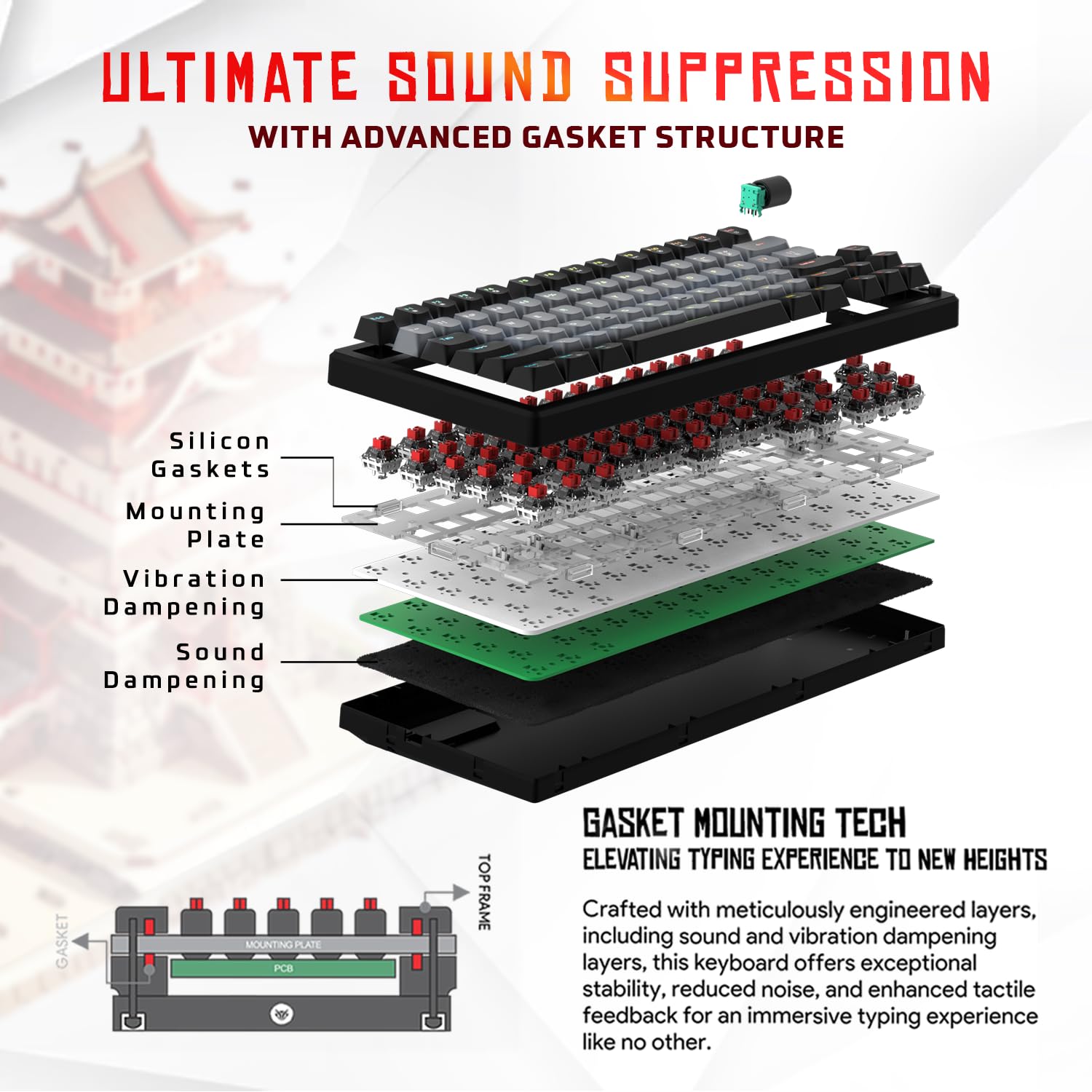
Imagem 3.1: Explodida view of the 9-layer gasket structure, showing silicone gaskets, mounting plate, and dampcamadas de ning.
3.2 Outemu Red Silent Switches
The keyboard is equipped with Outemu Red Dust Proof Switches, known for their linear and silent operation. These switches are hot-swappable, allowing users to easily replace them with other compatible 3-pin mechanical switches without soldering, enabling full customization of the typing feel.

Image 3.2: Close-up of Outemu Red switches and the included switch puller, demonstrating hot-swappable functionality.
3.3 Per-Key RGB Backlighting
Each key on the EvoFox Ronin features individual RGB backlighting, offering 16 million colors and 21 pre-set lighting effects. The lighting can be customized directly on the keyboard or through the dedicated software, including an Audio Sync Mode that reacts to sound.

Image 3.3: The EvoFox Ronin keyboard showcasing sua retroiluminação RGB personalizável por tecla.
3.4 Dedicated Volume Knob
A metal volume knob is integrated into the keyboard for quick and precise audio adjustments. Rotate to change volume, and press to mute/unmute.
3.5 Detachable USB-C Cable
The keyboard connects via a robust 1.5-meter braided USB-C cable, which is detachable for easy portability and storage. The cable includes an EMI ring to minimize signal interference.

Image 3.4: Features of the EvoFox Ronin, including the volume knob, detachable USB-C cable, and double-height adjustable legs.
4. Instruções de configuração
Follow these steps to set up your EvoFox Ronin keyboard:
- Desembale o teclado: Retire cuidadosamente o teclado e todos os acessórios da embalagem.
- Conecte o cabo USB-C: Insert the USB-C end of the provided cable into the port on the back of the keyboard.
- Conectar ao computador: Conecte a extremidade USB-A do cabo a uma porta USB disponível no seu computador (PC ou Mac).
- Instalação do driver: O teclado é plug-and-play. Seu sistema operacional deve detectar e instalar automaticamente os drivers necessários.
- Instalação opcional de software: For advanced customization, download the dedicated Windows software from the official EvoFox website.
5. Instruções de operação
5.1 Funções básicas das teclas
The EvoFox Ronin functions as a standard TKL (Tenkeyless) keyboard. All keys perform their labeled functions. The keyboard supports N-Key Rollover, ensuring every key press is registered accurately, even during rapid input.
5.2 Multimídia e Teclas de Função
Access multimedia and additional functions by pressing the Fn key in combination with the designated F-keys or other keys. Refer to the keycap legends for specific functions (e.g., Fn + F1 for media player, Fn + F2 for volume down).
5.3 Controle de Iluminação RGB
You can control the RGB lighting directly from the keyboard:
- Efeitos de mudança: Usar Fn+\| para alternar entre 21 efeitos de iluminação diferentes.
- Ajustar brilho: Usar Fn + Seta para cima para aumentar o brilho e Fn + seta para baixo para diminuir o brilho.
- Ajustar velocidade: Usar Fn + seta para a esquerda to decrease effect speed and Fn + seta para a direita Para aumentar a velocidade de ação.
- Audio Sync Mode: Activate specific modes that react to audio input.
5.4 Personalização de Software
The dedicated Windows software allows for comprehensive customization:
- Programação chave: Reconfigure qualquer tecla para uma função diferente.
- Criação de macros: Registre e atribua sequências de teclas complexas a uma única tecla.
- Backlighting Effects: Fine-tune RGB colors, effects, brightness, and speed.
- Prófile Gerenciamento: Crie e salve vários perfisfilepara diferentes aplicações ou jogos.
- Taxa de votação: Adjust the polling rate up to 1000Hz.

Image 5.1: Screenshot of the EvoFox Ronin's dedicated software, showing options for light settings, button settings, and macro management.
5.5 Cross-Platform Compatibility
The keyboard supports both Windows and Mac operating systems. Use the designated key combination (typically Fn + Win or similar, refer to keycap legends) to switch between modes, ensuring correct key mapping for your OS.
6. Manutenção
6.1 Limpeza do teclado
Para manter a aparência e a funcionalidade do seu teclado:
- Desconecte o teclado do computador antes de limpá-lo.
- Use uma lata de ar comprimido para remover poeira e detritos entre as teclas.
- Limpe as teclas e a superfície do teclado com um pano macio e levemente úmido.amp tecido. Evite umidade excessiva.
- Não use produtos químicos fortes ou produtos de limpeza abrasivos.
6.2 Substituição de Interruptores
The EvoFox Ronin features hot-swappable switches, allowing for easy replacement without soldering:
- Desconecte o teclado do computador.
- Utilize o extrator de teclas incluído para remover cuidadosamente a tecla desejada.
- Utilize a ferramenta extratora de interruptor incluída para segurar cuidadosamente as presilhas superior e inferior do interruptor e puxe-o para cima em linha reta.
- Align the pins of the new switch with the holes on the PCB and gently press it down until it clicks into place. Ensure the pins are not bent.
- Substitua a tecla.

Image 6.1: A keycap being removed from the keyboard using a keycap puller.
7. Solução De Problemas
If you encounter issues with your EvoFox Ronin keyboard, refer to the following common solutions:
- Teclado não responde:
- Certifique-se de que o cabo USB-C esteja firmemente conectado tanto ao teclado quanto ao computador.
- Tente conectar o teclado a uma porta USB diferente do seu computador.
- Teste o teclado em outro computador para descartar um problema específico deste computador.
- Reinicie o seu computador.
- Iluminação RGB não funciona/está incorreta:
- Check the on-board lighting controls (Fn key combinations) to ensure brightness is not set to zero or an effect is not disabled.
- If using the software, ensure it is running and the correct profile está ativo.
- Reinstall the keyboard software if issues persist.
- Teclas não registradas:
- Certifique-se de que não haja detritos presos sob a tecla ou o interruptor.
- If a specific key is not working, try replacing its switch (refer to Section 6.2).
- Check for bent pins on the switch if you recently replaced one.
- Software Issues (e.g., Antivirus Flagging):
- Ensure you download the software from the official EvoFox website to avoid unofficial versions.
- If your antivirus flags the software, you may need to add an exception for the software's executable file. Proceed with caution and only if you trust the source.
- Contact EvoFox support for the latest software version or assistance.
8. Especificações
| Recurso | Detalhe |
|---|---|
| Marca | EvoFox |
| Nome do modelo | EvoFox Ronin TKL Wired |
| Descrição do teclado | Mecânico |
| Tecnologia de Conectividade | USB-C (com fio) |
| Interruptores | Outemu Red Silent Dust Proof Switches (Hot-Swappable) |
| Iluminação de fundo | Per-Key RGB (16 Million Colors, 21 Effects, Audio Sync Mode) |
| Taxa de votação | Até 1000Hz |
| Rolagem de Chaves | N-Key Rollover (All Anti-Ghosting Keys) |
| Características especiais | Advanced Gasket Structure, Compact TKL Design, Multimedia Keys, Pro Mod Hotswap Module, Powerful Windows Software, Dedicated Volume Controller |
| Dispositivos compatíveis | Portátil, PC |
| Plataforma de Hardware | PC/Mac/Linux/Unix |
| Comprimento do cabo | 1.5m Detachable Braided Type-C with EMI Ring |
| Material | Plástico |
| Dimensões do produto | 32 x 13.5 x 2.6 cm |
| Peso do item | 640 g |
| País de origem | China |
9. Garantia e Suporte
The EvoFox Ronin Mechanical Gaming Keyboard comes with a standard manufacturer's warranty. Please refer to the warranty card included in your package for specific terms and conditions, including warranty period and coverage details.
For technical support, troubleshooting assistance, or warranty claims, please contact EvoFox customer support. You can find contact information on the official EvoFox website or through the manufacturer, Allied Electronics & Magnetics Private Limited.
Fabricante: Allied Electronics & Magnetics Private Limited
Endereço: C-64/4, Okhla Phase - 2, New Delhi - 110020


