1. Introdução
Thank you for choosing the IRONZON Fingerprint Door Lock with Mini G2 Gateway. This smart lock system provides advanced security and convenient access for various environments, including homes, hotels, offices, and apartments. It integrates multiple unlocking methods, including fingerprint recognition, passcodes, traditional keys, and smart app control via the included Mini G2 Gateway.
This manual will guide you through the installation, setup, operation, and maintenance of your new smart door lock, ensuring optimal performance and security.

Image 1.1: The IRONZON Fingerprint Door Lock, Mini G2 Gateway, and a smartphone displaying the control app.
2. Conteúdo da embalagem
Please verify that all components are present in your package before proceeding with installation:
- Front Handle Assembly (with fingerprint sensor and keypad)
- Conjunto da alça traseira
- Trava ajustável
- Placa de impacto e caixa de impacto
- Parafusos e eixos de montagem
- 2 x chaves mecânicas
- Mini G2 Gateway
- USB-C Power Cable for Gateway
- Manual do usuário (este documento)

Imagem 2.1: Terminadoview of the IRONZON Fingerprint Door Lock and its included accessories.
3. Principais características
- Vários métodos de desbloqueio: Access your door using fingerprint, passcode, mechanical key, or the smart app.
- Fast Biometric Recognition: Unlock the door in under 1 second with advanced fingerprint technology.
- Controle e monitoramento remoto: The included Mini G2 Gateway enables remote control and real-time status monitoring via the Tuya Smart App (2.4G Wi-Fi required).
- Temporary Access Codes: Generate and manage temporary passcodes for guests or service personnel.
- Registro de atividades: View a detailed history of who accessed the door and when through the app.
- Construção durável: All-metal design ensures longevity and blends with modern decor.
- Fecho ajustável: Compatible with most standard door preparations.
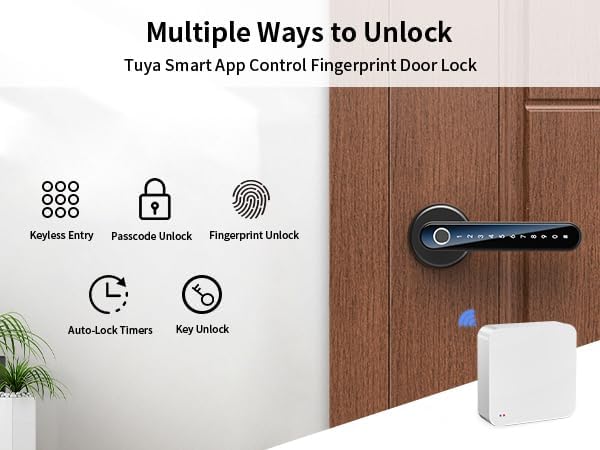
Image 3.1: Visual representation of the various unlocking methods available with the smart door lock.

Image 3.2: The Mini G2 Gateway enables remote control of the door lock from anywhere via the app.
4. Guia de configuração
4.1. Instalação
Before installation, ensure your door thickness is between 1⅜ inches (35mm) and 1¾ inches (45mm) and the backset distance is between 2⅜ inches (60mm) and 2¾ inches (70mm).
- Prepare a Porta: If replacing an existing lock, remove it. Ensure the door boreholes are clean and correctly sized.
- Instale a trava: Insert the adjustable latch into the door edge. Ensure the latch bolt faces the correct direction (slanted side towards the door frame). Secure with screws.
- Install the Front Handle: Insert the spindle through the latch. Position the front handle assembly on the exterior side of the door, ensuring the cable passes through the borehole.
- Install the Rear Handle: Connect the cable from the front handle to the rear handle assembly. Align the rear handle with the spindle and mounting posts. Secure with mounting screws from the interior side.
- Insira as baterias: Open the battery cover on the rear handle. Insert 4 AAA batteries (not included), ensuring correct polarity. Close the battery cover.
- Operação de teste: Teste manualmente a maçaneta e a trava para garantir o funcionamento correto.

Image 4.1: Detailed installation guide and applicable door dimensions for the smart lock.
4.2. Download e configuração do aplicativo
The IRONZON Fingerprint Door Lock uses the Tuya Smart App for smart features.
- Baixar aplicativo: Procurar "Tuya Smart" in your smartphone's app store (iOS or Android) and download it.
- Cadastre-se/Faça login: Abra o aplicativo e crie uma nova conta ou faça login se já tiver uma.
- Adicionar dispositivo: Tap the "+" icon in the top right corner or select "Add Device." Choose "Security & Video Surveillance" > "Smart Lock" or use the auto-scan feature.
- Bloqueio de par: Follow the on-screen instructions to put the lock into pairing mode (usually by pressing a button on the interior handle or entering a specific code on the keypad). The app will detect and connect to the lock via Bluetooth.
- Set Administrator: Once connected, you will be prompted to set up the administrator fingerprint and passcode. This is crucial for initial access and managing other users.
4.3. Mini G2 Gateway Pairing
The Mini G2 Gateway enables remote control and monitoring of your lock via Wi-Fi.
- Ligar o gateway: Connect the Mini G2 Gateway to a power source using the provided USB-C cable. The indicator light will flash.
- Adicionar Gateway ao Aplicativo: In the Tuya Smart App, tap "+" to add a new device. Select "Gateway" > "Wireless Gateway (Wi-Fi)" or use auto-scan.
- Conectar ao Wi-Fi: Follow the app instructions to connect the gateway to your 2.4GHz Wi-Fi network.
- Link Lock to Gateway: Once the gateway is online, navigate to your lock's settings within the Tuya Smart App. Select the option to link it to the newly added gateway. Ensure the gateway is within Bluetooth range of the lock for initial linking.

Image 4.2: Specifications and physical dimensions of the Mini G2 Gateway.
5. Instruções de operação
5.1. Métodos de desbloqueio
- Desbloqueio de impressão digital: Coloque o dedo cadastrado firmemente no sensor de impressões digitais. A fechadura será destravada se a impressão digital for reconhecida.
- Passcode Unlocking: Enter your registered passcode on the keypad, followed by the '#' key. The lock will unlock if the passcode is correct.
- Mechanical Key Unlocking: Insert the mechanical key into the keyhole located on the front handle and turn to unlock. This is a backup method for emergencies or battery depletion.
- Desbloqueio do aplicativo: Open the Tuya Smart App, select your lock, and tap the unlock icon. This can be done via Bluetooth (close range) or remotely via the Mini G2 Gateway (Wi-Fi).

Image 5.1: The Tuya Smart App provides multiple options for unlocking and managing the door lock.
5.2. User Management (via Tuya Smart App)
The app allows you to manage users, add/delete fingerprints and passcodes, and set access schedules.
- Adicionar usuário: In the app, navigate to your lock's settings and select "Member Management" or "Users." Follow the prompts to add new users, assigning them fingerprints or passcodes.
- Generate Temporary Codes: Select "Temporary Code" to create time-limited or one-time access codes for guests.
- View Registro de atividades: Access the "Log" section to review a chronological record of all lock and unlock events, including the method used and the user.
- Controle remoto: With the gateway connected, you can lock/unlock the door remotely, modify user access, and receive notifications.

Image 5.2: The app allows for remote monitoring of door status, viewing activity logs, and managing access.
6. Manutenção
6.1. Substituição da bateria
The lock requires 4 AAA batteries. When the battery level is low, the lock will provide an audible warning. Replace batteries promptly to avoid loss of function.
- Locate the battery cover on the interior handle.
- Remova o parafuso que prende a tampa da bateria.
- Remove the old batteries and insert 4 new AAA batteries, ensuring correct polarity.
- Recoloque a tampa da bateria e prenda-a com o parafuso.
Observação: If batteries completely deplete, you can use the mechanical key or connect a USB-C power bank to the emergency power port on the exterior handle to temporarily power the lock for entry.
6.2. Limpeza
Para manter a aparência e a funcionalidade da sua fechadura:
- Limpe a superfície da fechadura com um pano macio e seco.
- Evite usar produtos de limpeza abrasivos, solventes ou produtos químicos agressivos, pois estes podem danificar o acabamento e os componentes eletrônicos.
- Para um desempenho ideal, mantenha o sensor de impressões digitais e o teclado limpos e livres de detritos.
7. Solução De Problemas
| Problema | Possível causa | Solução |
|---|---|---|
| O bloqueio não responde. | Baterias descarregadas. | Replace batteries. Use mechanical key or emergency USB-C power. |
| Impressão digital não reconhecida. | Finger is wet/dirty, sensor is dirty, or fingerprint not properly registered. | Ensure finger and sensor are clean and dry. Re-register fingerprint, trying different angles. |
| Passcode not working. | Incorrect passcode entered, or passcode not registered. | Verify passcode. Ensure '#' is pressed after the code. Register passcode via app. |
| Não é possível conectar-se ao aplicativo. | Bluetooth/Wi-Fi off, lock/gateway out of range, or pairing issue. | Ensure Bluetooth is on. Move closer to the lock/gateway. Check Wi-Fi connection (2.4GHz only). Re-pair device in app. |
| O gateway não está conectando ao Wi-Fi. | Senha de Wi-Fi incorreta, rede de 5 GHz ou sinal fraco. | Verify Wi-Fi password. Ensure you are connecting to a 2.4GHz network. Move gateway closer to router. |
| Lock makes unexpected sounds or locks automatically. | Auto-lock feature enabled, or internal error. | Check auto-lock settings in the app. If persistent, perform a factory reset (refer to app instructions for reset procedure). |
8. Especificações
| Recurso | Detalhe |
|---|---|
| Marca | IRONZON |
| Nome do modelo | LOC191GWBUSIR |
| Tipo de bloqueio | Biometric (Fingerprint) |
| Métodos de desbloqueio | Fingerprint, Passcode, Key, App (Bluetooth/Wi-Fi via Gateway) |
| Método de controle | Aplicativo, remoto |
| Fonte de energia | 4 x pilhas AAA (não incluídas) |
| Energia de emergência | Porta USB-C |
| Espessura da porta | 1.38 - 1.77 polegadas (35 mm - 45 mm) |
| Backset Distance | 2.36 - 2.75 polegadas (60 mm - 70 mm) |
| Dimensões do item (C x L x A) | 6.3 x 2.3 x 2.3 polegadas |
| Peso do item | 1.94 libras (0.88 kg) |
| Rede de gateway | Wi-Fi 2.4G |
| Gateway Power Interface | Tipo-C USB (DC 5V/1A) |
| Gateway Bluetooth | Bluetooth 4.2 de baixo consumo |
9. Garantia e Suporte
IRONZON products are designed for reliability and performance. This product comes with a standard manufacturer's warranty against defects in materials and workmanship. Please refer to the warranty card included in your package for specific terms and conditions, including the warranty period and coverage details.
For technical support, troubleshooting assistance, or warranty claims, please contact IRONZON customer service through the following channels:
- E-mail: Refer to your product packaging or the IRONZON official website para o endereço de e-mail de contato mais atualizado.
- Suporte online: Visit the IRONZON official webSite com perguntas frequentes, artigos de suporte e formulários de contato.
When contacting support, please have your product model number (LOC191GWBUSIR) and purchase information readily available.


