1. Introdução
Thank you for choosing the TECPHILE K936 Wireless Keyboard and Mouse Combo. This product is designed to provide versatile and efficient input for multiple devices, featuring both Bluetooth 5.0 and 2.4GHz USB connectivity. This manual will guide you through the setup, operation, and maintenance of your new keyboard and mouse.
2. Conteúdo da embalagem
- TECPHILE K936 Wireless Keyboard
- TECPHILE Wireless Mouse
- USB Receiver (stored in the mouse battery compartment)
- Cabo de carregamento USB-C
- Keyboard Protective Cover
- Manual do usuário
3. Produto acabadoview
Familiarize yourself with the components of your TECPHILE K936 Wireless Keyboard and Mouse Combo.

Imagem 3.1: The TECPHILE K936 Wireless Keyboard and Mouse Combo in Grey. The keyboard features a full layout with a numeric keypad, and the mouse is a compact, ergonomic design.

Imagem 3.2: Diagram showing the dimensions of the keyboard (368mm x 121mm) and mouse (110mm x 63mm x 30mm).
Recursos do teclado:
- Multi-device connectivity: 3 x Bluetooth 5.0, 1 x 2.4GHz USB
- Dedicated function keys (F1-F12) with multimedia controls
- Bateria recarregável de lítio 300mAh
- Porta de carregamento tipo C
- Automatic sleep mode for power saving
- Scissor-leg key structure for comfortable typing
- Transparent protective cover included
Recursos do mouse:
- Dual-mode connectivity: 1 x Bluetooth, 1 x 2.4GHz USB
- Optical movement detection technology
- Design ambidestro
- Quiet click buttons
4. Configuração
4.1 Carregamento Inicial
Before first use, fully charge both the keyboard and mouse. Connect the provided USB-C charging cable to the charging port on the keyboard and mouse, and the other end to a 5V/1A power adapter (not included) or a computer USB port. The charging indicator light will show charging status and turn off when fully charged.
Note: Only use a 5V/1 Amp power adapter for charging to ensure optimal battery life.

Imagem 4.1: Illustration of the keyboard's battery specifications: 2-4 hours charging time, 300mAh battery capacity, and up to 180 days standby time.
4.2 Conectando o teclado
The keyboard supports up to three Bluetooth connections and one 2.4GHz USB connection.

Imagem 4.2: Diagram illustrating the keyboard's ability to connect to multiple devices via Bluetooth (3 channels) and 2.4GHz USB.
2.4GHz USB Connection:
- Locate the USB receiver inside the mouse's battery compartment.
- Conecte o receptor USB a uma porta USB disponível em seu computador ou dispositivo.
- Ligue o teclado. Ele deverá conectar-se automaticamente.
Conexão Bluetooth (BT1, BT2, BT3):
- Ligue o teclado.
- Pressione e segure o Fn key and one of the Bluetooth keys (BT1, BT2, ou BT3) for 3-5 seconds until the corresponding indicator light flashes rapidly. This indicates pairing mode.
- No seu dispositivo (computador, tablet, smartphone), acesse as configurações de Bluetooth e procure por novos dispositivos.
- Select "TECPHILE Keyboard" from the list of available devices to pair.
- Após o emparelhamento, a luz indicadora deixará de piscar e permanecerá acesa por alguns segundos antes de se apagar.
- Repeat for other Bluetooth channels to connect to additional devices.
4.3 Conectando o Mouse
The mouse supports one Bluetooth connection and one 2.4GHz USB connection.
2.4GHz USB Connection:
- Certifique-se de que o receptor USB esteja conectado ao seu dispositivo.
- Switch the mouse to 2.4GHz mode using the switch on the bottom of the mouse.
- O mouse deve se conectar automaticamente.
Conexão Bluetooth:
- Switch the mouse to Bluetooth mode using the switch on the bottom of the mouse.
- Press and hold the Bluetooth pairing button on the bottom of the mouse for 3-5 seconds until the indicator light flashes.
- No seu dispositivo, acesse as configurações de Bluetooth e procure por novos dispositivos.
- Select "TECPHILE Mouse" from the list to pair.
5. Instruções de operação
5.1 Switching Between Devices (Keyboard)
To switch between connected devices on the keyboard, simply press the Fn key along with the corresponding connection key (BT1, BT2, BT3, ou 2.4G for USB). The keyboard will switch to the selected device instantly.
5.2 Switching Between Devices (Mouse)
To switch between 2.4GHz USB and Bluetooth modes on the mouse, use the toggle switch located on the bottom of the mouse.
5.3 Function Keys (Keyboard)
The keyboard features dedicated function keys (F1-F12) that can be used in conjunction with the Fn Tecla para diversos controles de multimídia e sistema.
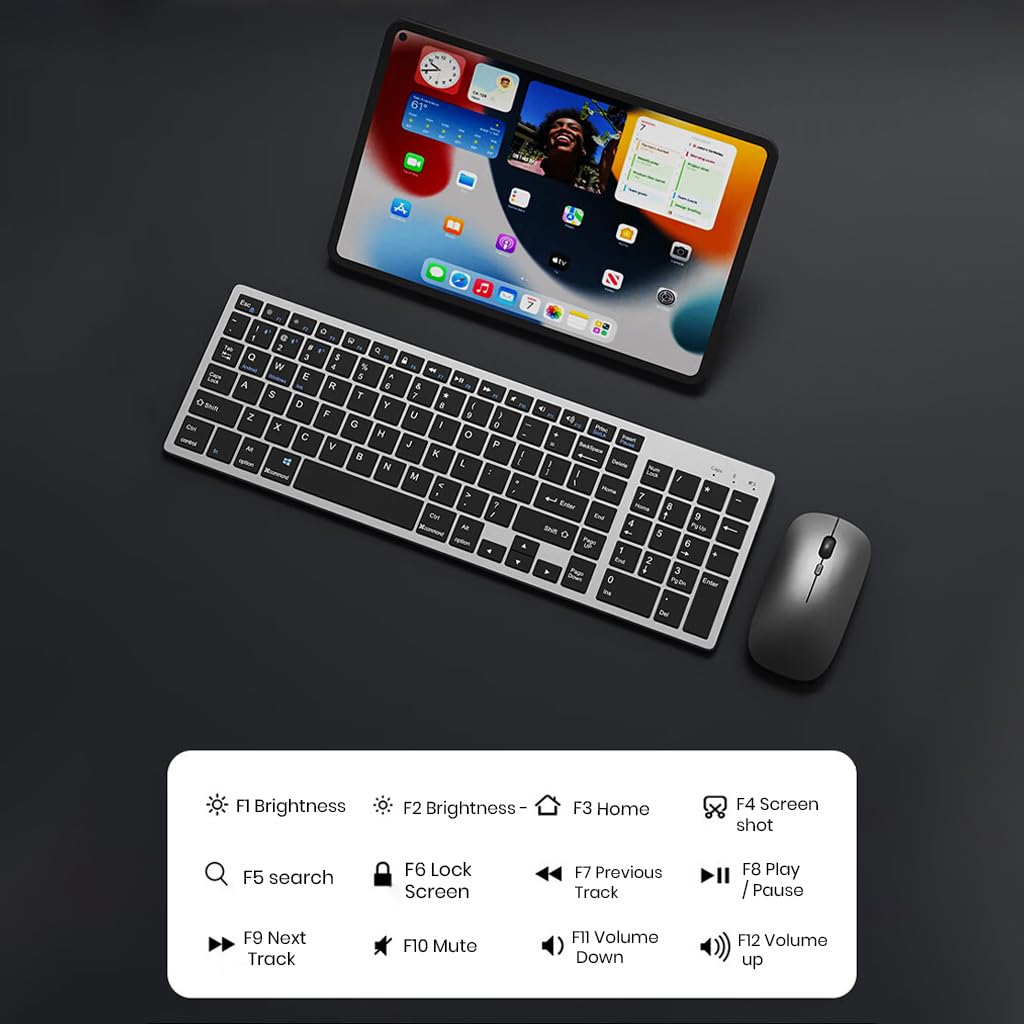
Imagem 5.1: The keyboard displaying its function keys and their associated actions, such as brightness control, home, screen shot, search, lock screen, media playback, and volume control.
- Fn+F1: Diminuição do brilho
- Fn+F2: Aumentar o brilho
- Fn+F3: Lar
- Fn+F4: Captura de tela
- Fn+F5: Pesquisar
- Fn+F6: Tela de bloqueio
- Fn+F7: Faixa anterior
- Fn+F8: Reproduzir/Pausar
- Fn+F9: Próxima faixa
- Fn+F10: Mudo
- Fn+F11: Diminuir volume
- Fn+F12: Aumentar o volume
5.4 Modo de economia de energia
The keyboard and mouse are equipped with an automatic sleep mode to conserve battery life. If inactive for 10 minutes, the devices will enter sleep mode. To wake them up, simply press any key on the keyboard or move/click the mouse.

Imagem 5.2: Diagram illustrating the auto-sleep mode and how to reactivate the keyboard and mouse by pressing any key.
6. Manutenção
- Limpeza: Use um pano macio e seco para limpar o teclado e o mouse. Para sujeira mais persistente, use um pano levemente umedecido.amp Pode-se usar um pano, garantindo que nenhum líquido entre no dispositivo.
- Capa protetora: Utilize the included transparent protective cover for the keyboard to guard against dust and accidental spills.
- Armazenar: Guarde os dispositivos em local fresco e seco, longe da luz solar direta e de temperaturas extremas.
- Carregamento: Always use a 5V/1A power adapter for charging to prevent damage and ensure battery longevity.

Imagem 6.1: The keyboard shown with its transparent protective keyskin, designed to prevent dust and spills.
7. Solução De Problemas
| Problema | Possível causa | Solução |
|---|---|---|
| Keyboard/Mouse not connecting via 2.4GHz USB. | USB receiver not properly inserted, low battery, incorrect mode selected. |
|
| Keyboard/Mouse not connecting via Bluetooth. | Not in pairing mode, device's Bluetooth is off, already connected to max devices, low battery. |
|
| Atraso ou conexão intermitente. | Interference, distance from receiver/device, low battery. |
|
| Keyboard keys not responding. | Low battery, device in sleep mode, connection issue. |
|
8. Especificações
| Recurso | Detalhe |
|---|---|
| Marca | TECPHIL |
| Modelo | K936 |
| Tecnologia de Conectividade | Keyboard: 3 x Bluetooth 5.0, 1 x 2.4GHz USB; Mouse: 1 x Bluetooth, 1 x 2.4GHz USB |
| Dispositivos compatíveis | Laptop, computador pessoal, smartphone, tablet |
| Sistema operacional | Android, iOS, Windows, macOS |
| Bateria do teclado | Bateria de íon de lítio de 300 mAh (recarregável) |
| Porta de carregamento | USB Tipo C |
| Tempo de carregamento | 2-4 horas (aprox.) |
| Tempo de espera | Até 180 dias |
| Dimensões do teclado (C x L x A) | 36 x 13 x 1.5 cm |
| Mouse Dimensions (LxWxH) | 11 x 6.3 x 3 cm (aprox.) |
| Peso do item | 661 g (combo) |
| Tecnologia de detecção de movimento | Óptico |
| Orientação das mãos | Ambidestro |
9. Garantia e Suporte
TECPHILE products come with a standard warranty. For warranty claims, technical support, or any product-related inquiries, please contact TECPHILE customer service through the retailer where the product was purchased or visit the official TECPHILE website para informações de contato.
Guarde o comprovante de compra para fins de garantia.
Manufacturer/Importer: TECPHILE, 2nd Floor, A36, Block B, Naraina Industrial Area Phase 2, Naraina, New Delhi, Delhi, 110028


