1. Introdução
The ORGBRO Z3 Bluetooth Thermal Label Printer is a versatile and portable device designed for efficient label creation. It supports a wide range of label sizes from 0.8 to 3.15 inches, making it suitable for various applications including home organization, small business needs, and office use. This manual provides detailed instructions to help you set up, operate, and maintain your label printer.
2. Conteúdo da embalagem
Verifique se todos os itens listados abaixo estão incluídos no seu pacote:
- ORGBRO Z3 Label Printer
- Cabo de carregamento USB
- Guia do usuário
- Roll of Labels (1.97"x1.18" square labels)
- USB Flash Drive (for PC drivers)
3. Produto acabadoview
Familiarize yourself with the physical components and controls of your ORGBRO Z3 Label Printer.
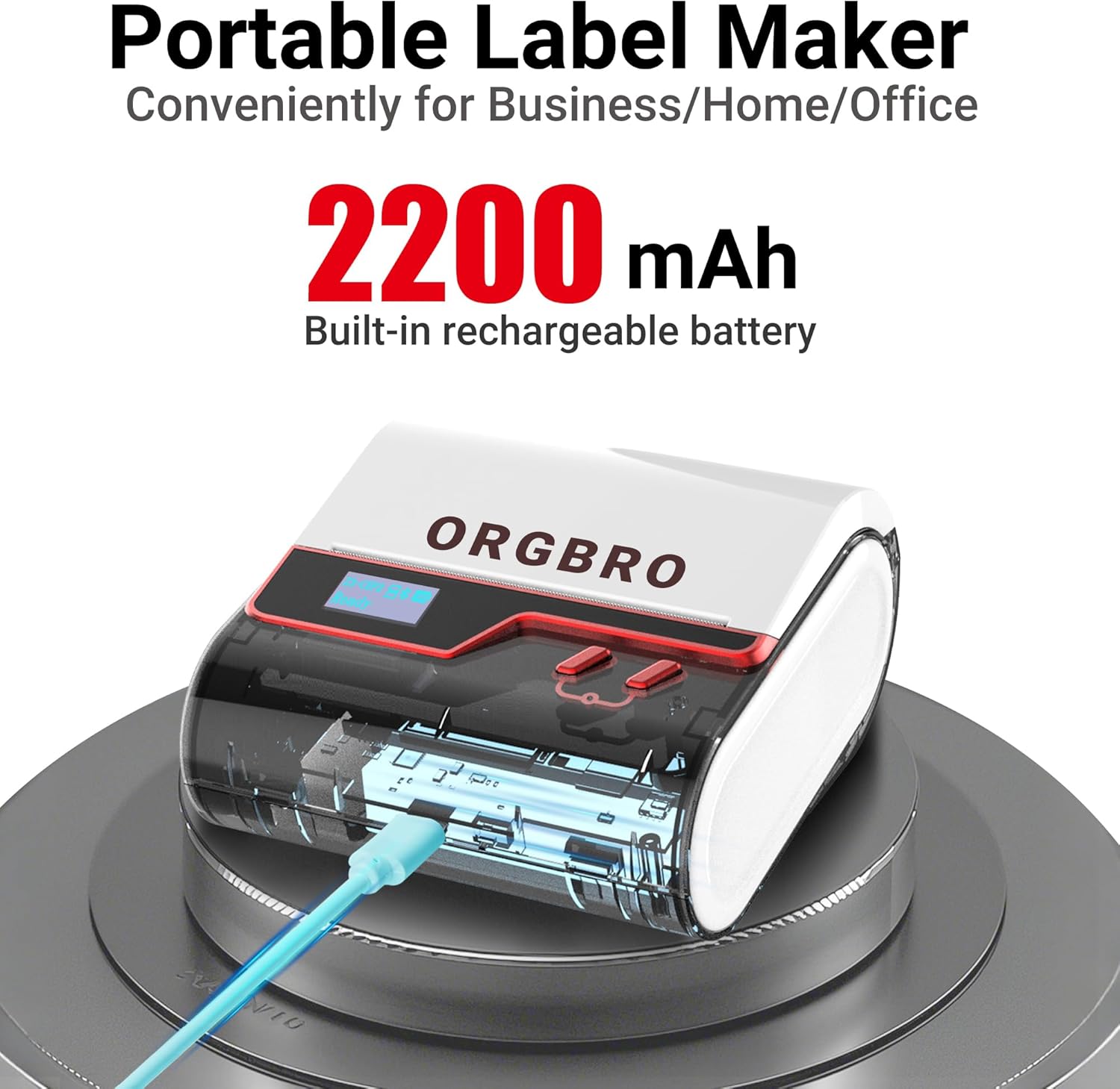
The ORGBRO Z3 Label Maker features a portable design with a built-in 2200mAh rechargeable battery, ensuring long-lasting use on the go.
The device includes a power button, an open cover button for loading labels, and a charging port. An LED screen displays essential information such as battery life, Bluetooth status, and print progress.
4. Principais características
- Versatile Label Compatibility: Supports labels from 0.8 to 3.15 inches wide, including square, round, transparent, and file rótulos.
- Impressão de alta qualidade: Achieves crisp 203dpi resolution at speeds up to 50mm/s, ensuring clear text, graphics, and barcodes without smudging.
- Impressão térmica sem tinta: Utilizes thermal printing technology, eliminating the need for ink or toner cartridges.
- Bateria de longa duração: Equipped with a 2200mAh rechargeable battery, providing up to 4 weeks of runtime on a single charge.
- Integração de aplicativos inteligentes: Connects via Bluetooth to the free '4BarCode' app (Android/iOS) or via USB to computers (Windows/Mac/Chrome OS/Linux) for label customization.
- Etiquetas personalizáveis: The '4BarCode' app offers over 80 fonts, 150+ frames, 670+ icons, and allows importing images for personalized labels.

The ORGBRO Z3 supports a wide range of label paper widths, from 0.78 to 3.15 inches, accommodating various label styles for diverse applications.

Experience fast and clear printing with the ORGBRO Z3, capable of producing up to 52 labels per minute with a crisp 203 DPI resolution.

The ORGBRO Z3 is ideal for various business applications, including creating shipping labels, product labels, QR codes, and clothing tags.

Organize your home efficiently with the ORGBRO Z3, perfect for labeling kitchen canisters, storage bins, and other household items.
5. Guia de configuração
5.1. Carregando o dispositivo
Before first use, fully charge the ORGBRO Z3 Label Printer using the provided USB cable. Connect the cable to the charging port on the device and a compatible USB power source. The LED screen will indicate charging status.
5.2. Carregando Etiquetas
- Press the open cover button on the side of the printer to open the top cover.
- Insert the roll of thermal labels into the compartment, ensuring the printing side faces upwards and the label edge is aligned with the print head.
- Feche bem a tampa superior até ouvir um clique.
5.3. Instalação e conexão do aplicativo
The ORGBRO Z3 can be connected via Bluetooth to your smartphone or via USB to your computer.
5.3.1. Smartphone Connection (Bluetooth)
- Download the free '4BarCode' app from your device's app store (available for Android and iOS).
- Certifique-se de que o Bluetooth esteja ativado em seu smartphone.
- Power on the ORGBRO Z3 Label Printer.
- Open the '4BarCode' app and follow the on-screen instructions to connect to your printer via Bluetooth. The printer's name (e.g., Z3-XXXX) should appear in the app's device list.
5.3.2. Computer Connection (USB)
- Connect the ORGBRO Z3 Label Printer to your computer using the provided USB cable.
- Install the necessary drivers from the included USB flash drive or download them from the official ORGBRO website.
- Follow the installation prompts to complete the driver setup.

The ORGBRO Z3 supports seamless connection to both phones (Android/iOS via Bluetooth) and computers (Windows/Mac/Chrome OS/Linux via USB).
6. Instruções de operação
Once connected, you can start creating and printing labels.
6.1. Creating Labels (Using '4BarCode' App)
- Open the '4BarCode' app on your smartphone.
- Select 'Create' to start a new label project.
- Choose your desired label size and orientation.
- Use the app's tools to add text, icons, images, barcodes, or QR codes. You can customize fonts, sizes, and styles.
- Arrange elements on the label canvas as needed.
6.2. Impressão de etiquetas
- Após criar seu rótulo, toque no botão "Imprimir" no aplicativo.
- Review a pré-impressãoview para garantir que o layout esteja correto.
- Adjust printing density or number of copies if necessary.
- Confirm the print command. The label will be printed from the device.
- Gently tear off the printed label along the serrated edge.

The '4BarCode' app provides multiple labels and templates, along with extensive customization options including over 80 fonts, 150+ frames, and 670+ icons.
7. Especificações
| Recurso | Detalhe |
|---|---|
| Mídia impressa | Papel térmico |
| Capacidade máxima de entrada de folhas | 230 folhas |
| Velocidade máxima de cópia (preto e branco) | 2 ppm |
| Resolução máxima de impressão | 203 dpi |
| Sheet Size (Included) | 1.97 polegadas (largura) |
| Tamanho máximo da mídia | 3.15 polegadas (largura) |
| Impressão frente e verso | Não (Simplex) |
| interface de hardware | USB |
| Tecnologia de Conectividade | Bluetooth, USB |
| Recurso especial | Portátil |
| Saída da impressora | Monocromático |
| Peso do item | 1.21 libras (0.55 kg) |
| Dimensões do produto | 4.42 x 4.42 x 2.41 polegadas |
| Baterias | 1 AA batteries required (included) - 2200mAh rechargeable |
8. Manutenção
- Limpeza: Limpe regularmente a cabeça de impressão com um pano macio e sem fiapos umedecido em álcool isopropílico. Certifique-se de que o dispositivo esteja desligado antes da limpeza.
- Armazenar: Guarde a impressora em local fresco e seco, longe da luz solar direta e de temperaturas extremas.
- Cuidados com a bateria: Para prolongar a vida útil da bateria, evite descarregá-la completamente com frequência. Carregue o dispositivo regularmente, mesmo que não o utilize por longos períodos.
- Rolos de etiquetas: Use only high-quality thermal label rolls compatible with the ORGBRO Z3 to ensure optimal print quality and prevent damage to the print head.
9. Solução De Problemas
- Impressora não conecta:
- Certifique-se de que a impressora esteja ligada e totalmente carregada.
- Verify Bluetooth is enabled on your device and the '4BarCode' app has permission to use it.
- For USB connection, ensure drivers are correctly installed and the cable is securely connected.
- Try restarting both the printer and your connecting device.
- Má qualidade de impressão:
- Check if the label roll is inserted correctly with the printing side facing up.
- Limpe a cabeça de impressão conforme descrito na seção Manutenção.
- Adjust the printing density settings in the '4BarCode' app.
- Ensure you are using compatible thermal labels.
- Etiquetas não estão sendo exibidas corretamente:
- Ensure the label roll is properly seated and not jammed.
- Verifique se há alguma obstrução no caminho da etiqueta.
- Verify the label width is within the supported range (0.8-3.15 inches).
10. Garantia e Suporte
ORGBRO products are designed for reliability and performance. For warranty information, technical support, or service inquiries, please refer to the contact details provided in your product packaging or visit the official ORGBRO website. Guarde o recibo de compra como comprovante para solicitações de garantia.


