1. Introdução
The MCHOSE G75 Pro is a versatile 75% layout wireless mechanical keyboard designed for optimal performance and user experience. It features a gasket-mounted structure with 5 layers of sound and shock-absorbing dampening, vibrant RGB backlighting, and tri-mode connectivity (2.4GHz wireless, Bluetooth, and wired USB-C). The keyboard also supports hot-swappable switches, allowing for easy customization and maintenance.
2. Conteúdo da embalagem
Por favor, verifique se todos os itens estão presentes em sua embalagem:
- MCHOSE G75 Pro Wireless Mechanical Keyboard
- Cabo USB-C para USB-A
- Receptor sem fio de 2.4 GHz
- Extrator de Keycap
- Manual do usuário (este documento)
3. Produto acabadoview
The MCHOSE G75 Pro features a compact 75% layout, which includes function keys, arrow keys, and a navigation cluster, while minimizing desk space. Its robust construction incorporates a gasket-mounted design for a flexible and comfortable typing feel.

Image: The MCHOSE G75 Pro keyboard showcasing seu layout compacto de 75%.
Internally, the keyboard utilizes a 5-layer dampening system, including Poron foam, IXPE foam, and a PET film, to enhance typing acoustics and reduce vibrations, providing a satisfying sound profile.

Image: Diagram illustrating the 5-layer gasket-mounted dampening structure of the keyboard.
The keyboard offers flexible connectivity options through a mode switch located on the side, allowing seamless transitions between wired, 2.4GHz wireless, and Bluetooth modes.
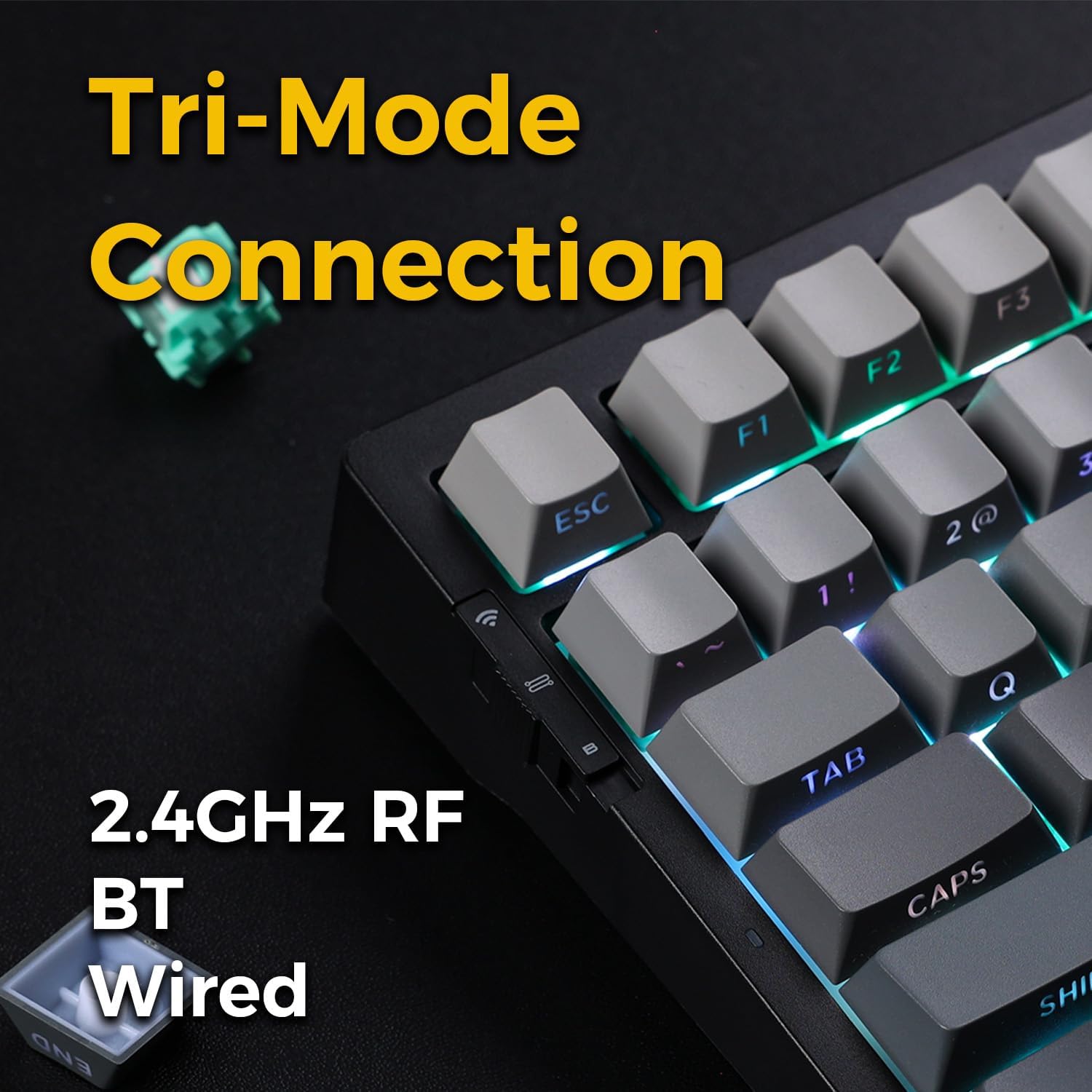
Image: Close-up of the tri-mode connection switch and USB-C port on the keyboard's side.
4. Configuração
4.1 Carregamento Inicial
Before first use, connect the keyboard to a USB power source using the provided USB-C cable. The keyboard is equipped with 2 Lithium Polymer batteries. A full charge ensures optimal wireless performance.
4.2 Modos de conectividade
The MCHOSE G75 Pro supports three connection modes: Wired, 2.4GHz Wireless, and Bluetooth. Use the switch on the side of the keyboard to select your desired mode.
4.2.1 conexão com fio
- Set the mode switch on the keyboard to the 'Wired' position.
- Conecte a extremidade USB-C do cabo ao teclado e a extremidade USB-A ao computador.
- O teclado será reconhecido automaticamente pelo seu sistema operacional.
Conexão sem fio 4.2.2 2.4GHz
- Ajuste a chave seletora de modo no teclado para a posição '2.4G'.
- Insira o receptor sem fio de 2.4 GHz em uma porta USB disponível no seu computador.
- The keyboard should connect automatically. If not, press and hold the Fn key + the 2.4G key (usually indicated by a wireless icon) for 3 seconds to initiate pairing.
4.2.3 Conexão Bluetooth
- Coloque a chave seletora de modo no teclado na posição 'BT'.
- No seu computador ou dispositivo, ative o Bluetooth e procure por novos dispositivos.
- No teclado, pressione e mantenha pressionada a tecla. Fn + 1, Fn + 2, ou Fn + 3 for 3 seconds to enter pairing mode for one of the three available Bluetooth channels. The indicator light will flash rapidly.
- Select 'MCHOSE G75 Pro' from the list of available devices on your computer.
- Após o emparelhamento, a luz indicadora deixará de piscar. Você pode alternar entre os dispositivos Bluetooth emparelhados pressionando Fn + 1, Fn + 2, ou Fn + 3 brevemente.
5. Instruções de operação
5.1 Funções Chave
The MCHOSE G75 Pro utilizes an Fn (Function) key for accessing secondary key functions, including multimedia controls, lighting adjustments, and system shortcuts. Refer to the keycap legends for specific Fn combinations.
Combinações comuns da tecla Fn:
- Fn+F1-F12: Access multimedia controls or system functions (e.g., volume, play/pause, brightness).
- Fn + Teclas de seta: Adjust RGB lighting effects (e.g., brightness, speed, direction).
- Fn + Backspace: Delete.
- Fn + WinTecla de bloqueio/desbloqueio do Windows.
5.2 Retroiluminação RGB
The keyboard features customizable RGB backlighting with south-facing LEDs for enhanced visibility and compatibility with various keycap profiles. You can adjust lighting modes, colors, and brightness.
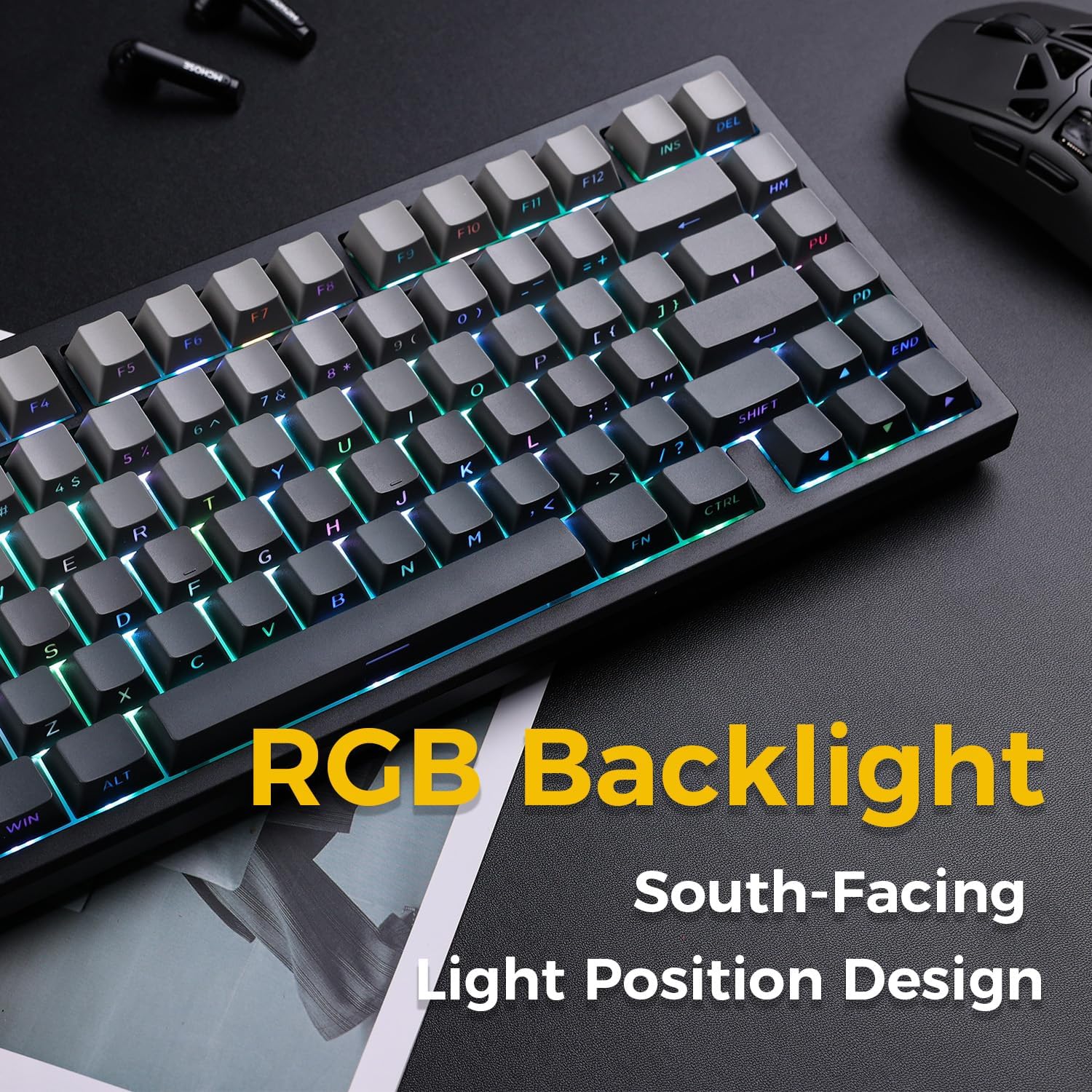
Image: The MCHOSE G75 Pro keyboard displaying its vibrant RGB backlighting.
Adjusting RGB Effects:
- Fn+\|Alterne entre diferentes efeitos de iluminação.
- Fn +: Decrease lighting speed.
- Fn + >: Increase lighting speed.
- Fn + Seta para cima: Aumenta o brilho.
- Fn + seta para baixoDiminua o brilho.
5.3 Interruptores Hot-Swappable
The MCHOSE G75 Pro is equipped with hot-swappable sockets, allowing you to easily change mechanical switches without soldering. This feature enables customization of typing feel and sound.
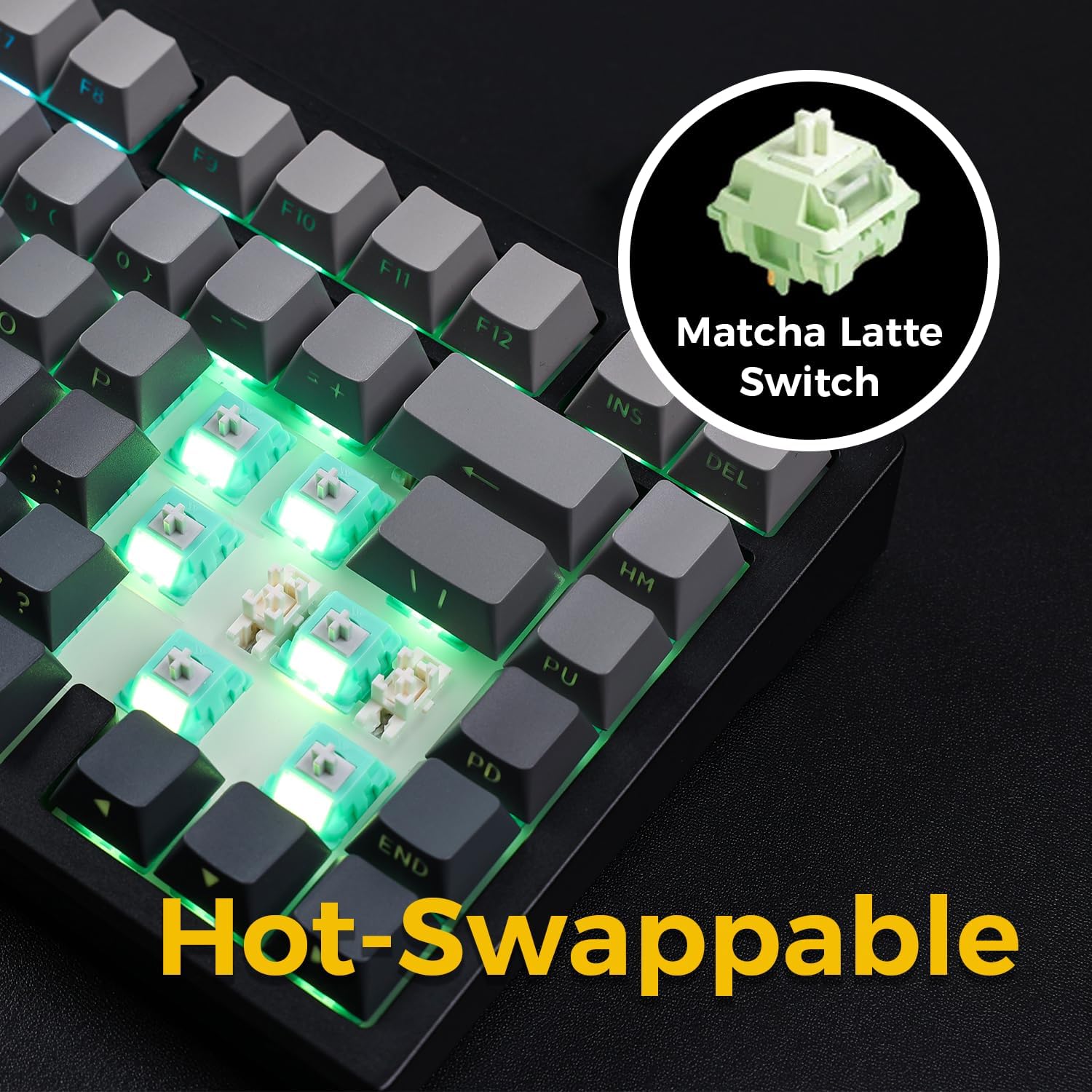
Image: The keyboard with several keycaps and switches removed, demonstrating the hot-swappable feature.
Especificações do switch:
The keyboard may come with Matcha Latte Switch V2 or Cabbage Tofu Switch V2, depending on the variant.
- Matcha Latte Switch V2:
Operating Force: 45±8gf
Pre Travel: 2.0±0.4mm
Curso total: 3.6 ± 0.2 mm - Cabbage Tofu Switch V2:
Operating Force: 45±5gf
Pré-viagem: 1.9±0.3mm
Travel distance: 4.0±0.5mm
6. Manutenção
6.1 Limpeza
Para manter a aparência e a funcionalidade do teclado:
- Desconecte o teclado do computador antes de limpá-lo.
- Use um pano macio e sem fiapos levementeampEncerre com água ou uma solução de limpeza suave para limpar as teclas e casing.
- For dust and debris between keycaps, use compressed air or the provided keycap puller to remove keycaps and clean thoroughly.
- Evite usar produtos químicos agressivos ou materiais abrasivos.
Substituição de teclas e interruptores 6.2
The included keycap puller can be used to carefully remove keycaps. For switch replacement, use a switch puller (not included unless specified) to gently remove the existing switch. Align the new 3-pin or 5-pin mechanical switch with the hot-swap socket and press firmly until it clicks into place. Ensure pins are not bent during installation.
7. Solução De Problemas
7.1 Teclado não responde
- Certifique-se de que o teclado esteja suficientemente carregado.
- Check the mode switch to confirm it is set to the correct connection type (Wired, 2.4G, or BT).
- Para conexão com fio, tente uma porta USB ou um cabo diferente.
- For 2.4GHz wireless, ensure the receiver is securely plugged in and try re-pairing (Fn + 2.4G key).
- For Bluetooth, ensure Bluetooth is enabled on your device and try re-pairing (Fn + 1/2/3).
- Reinicie o seu computador.
7.2 RGB Backlighting Not Working/Incorrect
- Certifique-se de que o teclado esteja ligado.
- Use Fn key combinations (e.g., Fn + Up/Down Arrow) to adjust brightness.
- Cycle through lighting effects using Fn + \|.
- If specific keys are not lighting up, check if the switch is properly seated or if the LED is damaged.
7.3 Software Compatibility (Windows/macOS)
While the keyboard functions plug-and-play, some advanced customization may require dedicated software. Please note that official software might have limited language support or compatibility issues, particularly with macOS. For optimal functionality, ensure you have the latest drivers or software from the MCHOSE official website, se disponível.
8. Especificações
| Recurso | Detalhe |
|---|---|
| Número do modelo | MC-G75 |
| Disposição | 75% |
| Conectividade | Conectividade sem fio de 2.4 GHz, Bluetooth, com fio (USB-C) |
| Tipo de teclado | Mecânico |
| Estilo de montagem | Junta montada |
| Dampening Layers | 5 Layers (Poron Foam, IXPE Foam, PET Film) |
| Iluminação de fundo | LEDs RGB voltados para o sul |
| Keycaps | PBT de dose dupla |
| Interruptores | Hot-Swappable (3-pin/5-pin compatible) |
| Bateria | 2 baterias de polímero de lítio (incluídas) |
| Dispositivos compatíveis | PC |
| Peso do item | 3.05 libras (aproximadamente 1.38 kg) |
| Dimensões da embalagem | 14.96 x 7.17 x 2.17 polegadas (aproximadamente 38 x 18.2 x 5.5 cm) |
9. Garantia e Suporte
Para informações sobre garantia e suporte técnico, consulte o site oficial da MCHOSE. website ou entre em contato com seu revendedor. Guarde o comprovante de compra para acionar a garantia.


