1. Produto acabadoview
The HP OfficeJet Pro 9125e is a versatile All-in-One printer designed for office and hybrid workspace environments. This certified refurbished unit offers print, scan, copy, and fax functionalities, along with advanced features like a color touchscreen and HP Wolf Pro Security. It is engineered for professional-quality color documents and efficient operation.
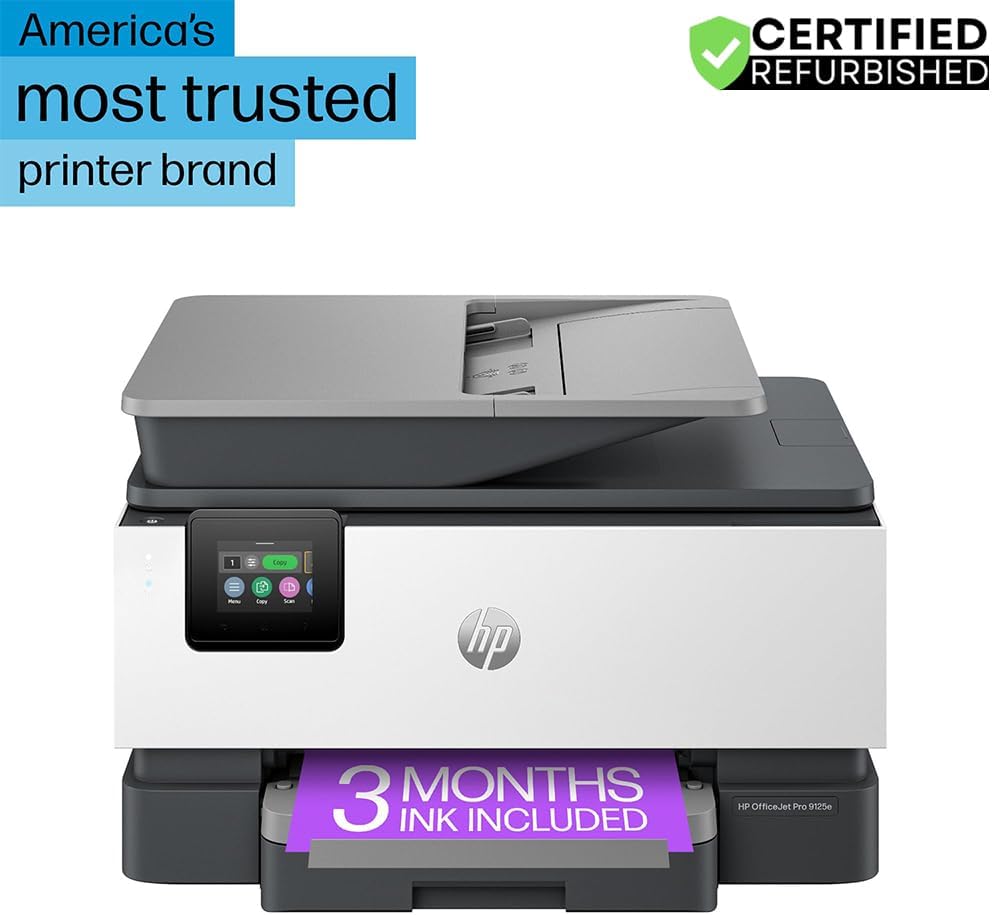
Figura 1: Frente view of the HP OfficeJet Pro 9125e All-in-One Printer.
Principais características:
- Funcionalidade tudo-em-um: Print, copy, scan, and fax capabilities.
- Impressão de alta velocidade: Up to 22 pages per minute (ppm) for black and 18 ppm for color.
- Conectividade sem fio: Reliable dual-band Wi-Fi with automatic connection issue resolution.
- HP Smart App: Enables printing, scanning, copying, and faxing directly from a smartphone.
- HP Wolf Pro Security: Integrated security tools to protect data and networks.
- Tela sensível ao toque colorida de 2.7 polegadas: Intuitive user interface for easy navigation.
- Alimentador automático de documentos (ADF): Para digitalização e cópia eficientes de várias páginas.
- Impressão Duplex: Automatic two-sided printing.
- Design Sustentável: Constructed with over 40% recycled plastic.

Figura 2: Overview of the HP OfficeJet Pro 9125e's primary functions and features.
2. Instruções de configuração
2.1 Desembalagem e Conteúdo
Carefully unpack the printer and ensure all components are present. The package should contain the following:
- HP OfficeJet Pro 9125e All-in-One Printer
- HP 936 Setup Black Ink Cartridge
- HP 936 Setup Cyan Ink Cartridge
- HP 936 Setup Magenta Ink Cartridge
- HP 936 Setup Yellow Ink Cartridge
- Cabo de alimentação
- Folheto Regulatório
- Folheto de Cuidados com a Tinta
- Pôster de configuração
- Guia de referência

Figure 3: Included items in the HP OfficeJet Pro 9125e package.
2.2 Configuração inicial da impressora
- Conexão de energia: Connect the power cord to the printer and then to a wall outlet.
- Ligar: Pressione o botão liga/desliga para ligar a impressora.
- Instalação do cartucho de tinta: Follow the on-screen instructions on the 2.7-inch touchscreen to install the HP 936 setup ink cartridges. Ensure each cartridge clicks into place.
- Carregamento de papel: Load plain paper into the 250-sheet input tray. Adjust the paper guides to fit the paper size.
- Idioma e região: Select your preferred language and region on the touchscreen.
- Conexão de rede: Connect the printer to your wireless network using the touchscreen. The dual-band Wi-Fi will help ensure a stable connection.
- HP Smart App Installation: Download the HP Smart App on your smartphone or computer for guided setup and advanced features.
- HP+ Activation (Optional): If you wish to enroll in the Instant Ink delivery service and extend your warranty, activate HP+ during the setup process. This may include 3 months of Instant Ink.
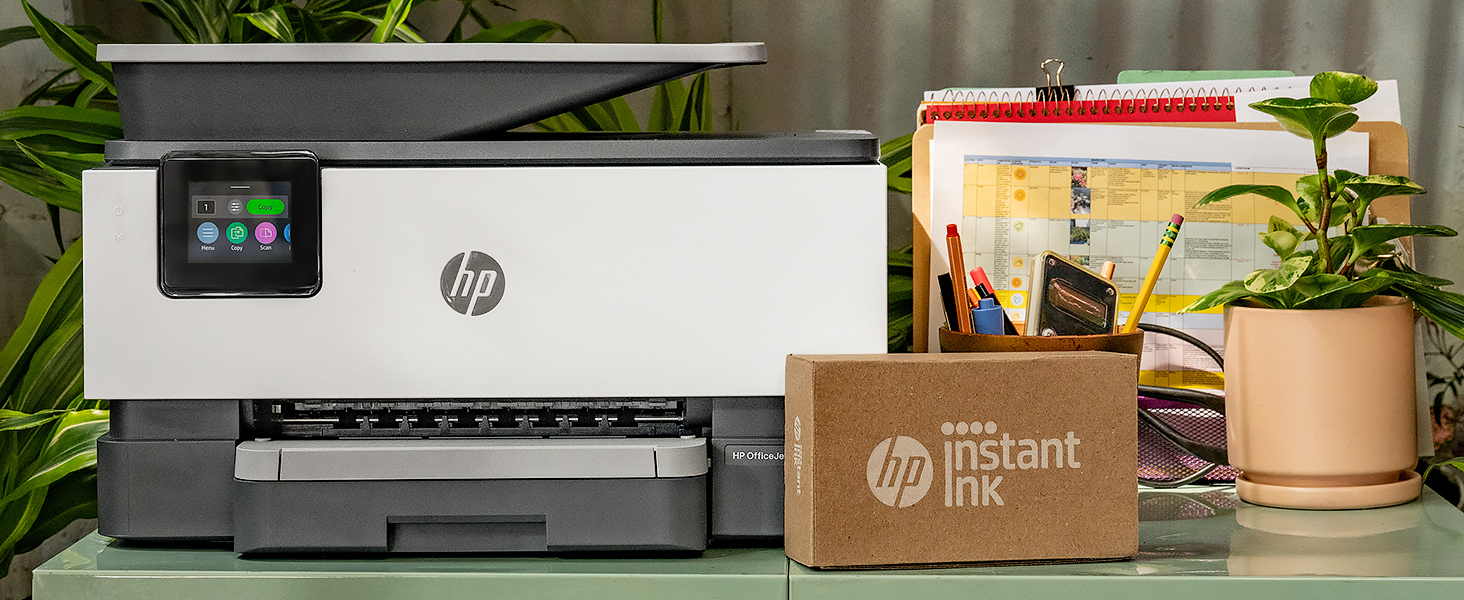
Figure 4: Printer ready for setup, showing the Instant Ink box.
3. Instruções de operação
3.1 Impressão de Documentos
The HP OfficeJet Pro 9125e supports printing from various devices, including computers and smartphones.
- A partir de um computador: Ensure the printer drivers are installed. Select "Print" from your application, choose the HP OfficeJet Pro 9125e, and adjust settings as needed (e.g., color, black and white, duplex printing).
- From a Mobile Device (HP Smart App): Open the HP Smart App, select "Print Documents" or "Print Photos," choose the file, and send it to the printer.
- Velocidades de impressão: Up to 22 ppm for black and 18 ppm for color.
- Impressão Duplex: The printer supports automatic two-sided printing. This option can be selected in your print settings.
3.2 Digitalização de Documentos
Documents can be scanned using the flatbed scanner or the Automatic Document Feeder (ADF).
- Utilizando a plataforma plana: Place a single document face down on the scanner glass. Close the lid. Select "Scan" on the printer's touchscreen or through the HP Smart App.
- Utilizando o ADF: Load multiple pages face up into the ADF. The ADF supports dual-pass 2-sided scanning. Select "Scan" on the printer's touchscreen or through the HP Smart App and choose the ADF option.
- Destinos de digitalização: Scanned documents can be sent to a computer, email, or cloud services via the HP Smart App.
3.3 Cópia de Documentos
The printer allows for quick and efficient copying.
- Initiate Copy: Press the "Copy" icon on the printer's touchscreen.
- Inserir documento: Place the document on the flatbed scanner or in the ADF.
- Ajustar configurações: Select the number of copies (up to 99), color or black and white, and other options like resizing or quality.
- Iniciar cópia: Press the "Start Copy" button on the touchscreen.
3.4 Envio de documentos por fax
The HP OfficeJet Pro 9125e includes fax functionality.
- Carregar documento: Place the document on the flatbed scanner or in the ADF.
- Enter Number: Press the "Fax" icon on the touchscreen and enter the recipient's fax number.
- Send Fax: Confirm settings and send the fax.
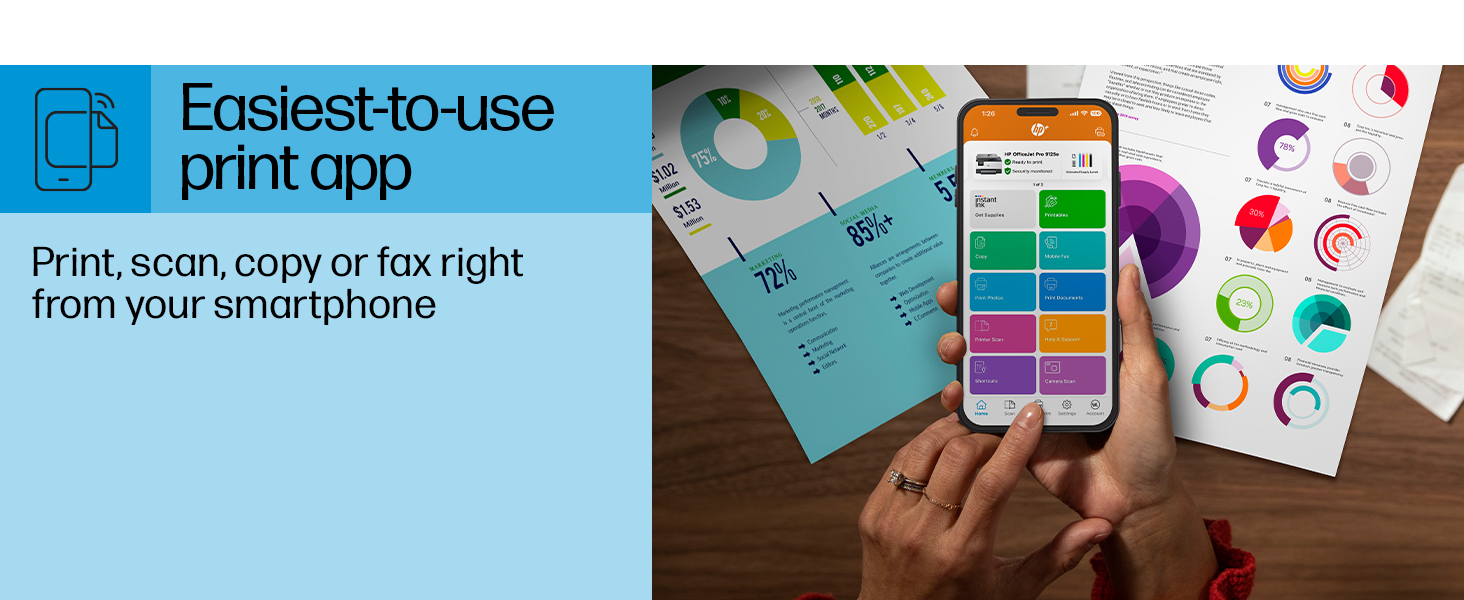
Figure 5: The HP Smart App allows control of print, scan, copy, and fax functions from a smartphone.
4. Manutenção
Substituição do cartucho de tinta 4.1
The printer uses HP 936 series ink cartridges (Black, Cyan, Magenta, Yellow). The touchscreen will indicate when ink levels are low or when a cartridge needs replacement.
- Abra a porta de acesso aos cartuchos de tinta.
- Press the tab on the old cartridge to release it, then pull it out.
- Unpack the new HP 936 cartridge, being careful not to touch the electrical contacts or ink nozzles.
- Insert the new cartridge into its corresponding slot until it clicks into place.
- Feche a porta de acesso ao cartucho de tinta.
4.2 Manuseio de Papel
- Input Tray: The printer features a 250-sheet input tray. Ensure paper is loaded correctly and paper guides are adjusted to prevent jams.
- Bandeja de saída: The output tray has a capacity of 60 sheets.
- Mídia suportada: The printer supports various paper types and sizes, including plain paper, photo paper, and envelopes. Supported sizes range from 3 x 5 inches to 8.5 x 14 inches.
- Envelope Stopper: Utilize the built-in envelope stopper to prevent jams when printing envelopes.
4.3 Limpeza
Regular cleaning helps maintain print quality and printer longevity.
- Exterior: Limpe a parte externa da impressora com um pano macio e seco.amp, pano sem fiapos.
- Vidro do scanner: Clean the scanner glass with a soft cloth and a non-abrasive glass cleaner.
- Rolos ADF: Refer to the HP support website or the HP Smart App for instructions on cleaning ADF rollers if paper feed issues occur.
5. Solução De Problemas
This section provides solutions to common printer issues. For more detailed troubleshooting, refer to the HP support website or the HP Smart App.
5.1 Problemas de conectividade
- Impressora offline: Ensure the printer is powered on and connected to the correct Wi-Fi network. Restarting both the printer and your router can often resolve temporary network glitches.
- Desconexão Wi-Fi: The printer's dual-band Wi-Fi is designed to automatically resolve connection issues. If problems persist, try reconnecting through the printer's touchscreen or the HP Smart App.
- Conexão USB/Ethernet: If using a wired connection, ensure cables are securely plugged into both the printer and the computer/router.
5.2 Print Quality Problems
- Estampas desbotadas ou com listras: Check ink levels and replace any low or empty cartridges. Perform a printhead cleaning cycle through the printer's maintenance menu.
- Cores incorretas: Ensure you are using genuine HP ink cartridges. Run a printhead alignment from the printer's maintenance menu.
- Atolamentos de papel: Follow the on-screen instructions to clear any jammed paper. Ensure paper is loaded correctly and not overfilled in the input tray.
5.3 Scanning/Copying Issues
- Blank Scans/Copies: Ensure the document is placed correctly on the scanner glass or in the ADF.
- Lines on Scans/Copies: Clean the scanner glass and the ADF rollers.
6. Especificações técnicas
| Recurso | Especificação |
|---|---|
| Nome do modelo | Impressora HP OfficeJet Pro 9125e |
| Funções | Imprimir, copiar, digitalizar, enviar fax |
| Tecnologia de impressão | Inkjet (Four-color inkjet cartridges) |
| Velocidade máxima de impressão (preto) | 22 ppm |
| Velocidade máxima de impressão (colorida) | 18 ppm |
| Max Print Resolution (Black) | 1200 x 1200 dpi |
| Resolução máxima de impressão (colorida) | Até 4800 x 1200 dpi otimizados |
| Impressão Duplex | Automático |
| Tipo de scanner | Easy slide-off glass, dual pass 2-sided ADF |
| Resolução máxima de cópia | 600 x 600 dpi (Black & Color) |
| Max Copies per Run | 99 |
| Conectividade | Ethernet, USB, Wi-Fi (Dual-band) |
| Método de controle | Aplicativo, tela sensível ao toque |
| Tamanho da tela sensível ao toque | 2.7 polegadas |
| Capacidade da folha de entrada | 250 folhas |
| Capacidade de saída da folha | 60 folhas |
| Tamanhos de mídia suportados | 3 x 5 inches to 8.5 x 14 inches |
| Capacidade de armazenamento de memória | 512 MB |
| Dimensões do produto (P x L x A) | 13.48" x 17.3" x 10.94" |
| Peso do item | 20.5 libras |
| Consumo de energia | 5.06 Watts |

Figure 6: Physical dimensions of the HP OfficeJet Pro 9125e.
7. Garantia e Suporte
7.1 Informações de garantia
- Certified Refurbished Warranty: This unit comes with a 90-day manufacturer warranty, ensuring reliable, like-new performance.
- Extended Protection Pack: The product bundle includes a 2-year CPS Enhanced Protection Pack.
- HP+ Offer Warranty: A one-year limited hardware warranty is provided, with an option to extend to two years upon acceptance of the HP+ Offer during setup.
For specific terms and conditions regarding your warranty, please refer to the documentation included with your product or visit the official HP support website.
7.2 Suporte ao cliente
For further assistance, technical support, or to access detailed user guides and drivers, please visit the official HP support website:
You can also utilize the HP Smart App for troubleshooting and accessing support resources directly from your mobile device.