1. Produto acabadoview
The TABWEE T20 is a versatile 10-inch Android tablet designed for both productivity and entertainment. It features a high-resolution Incell display, a powerful Octa-Core processor, and ample memory and storage, making it suitable for a wide range of applications from content creation to multimedia consumption.
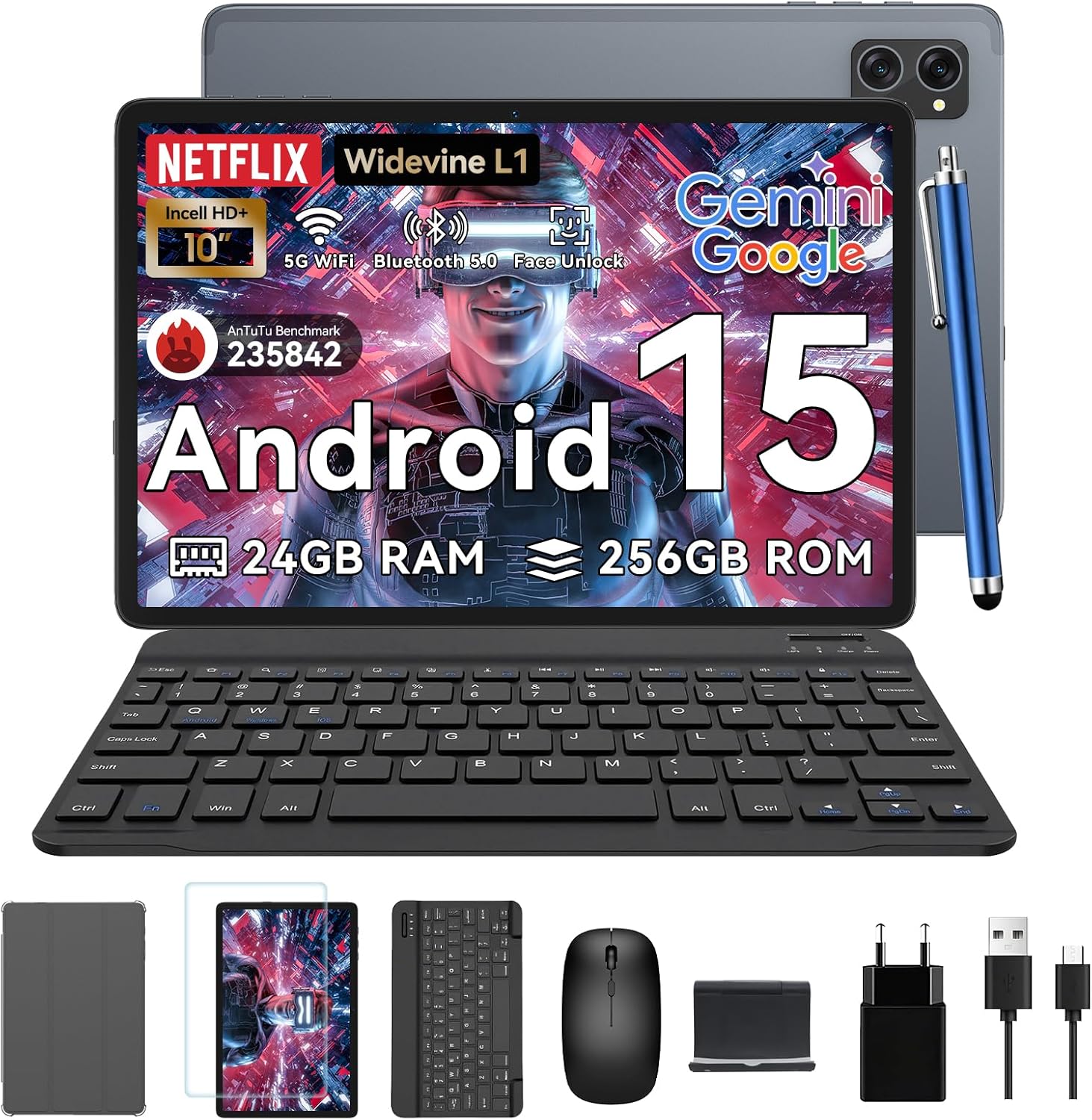
Figure 1.1: TABWEE T20 Tablet and its complete accessory package, including a Bluetooth keyboard, mouse, stylus, protective case, screen protector, charger, and USB cable.
O que está na caixa
Upon unboxing your TABWEE T20 Tablet, verify that all components are present:

Figure 1.2: Contents of the TABWEE T20 Tablet retail package.
- 1x TABWEE T20 Tablet
- 1x Teclado Bluetooth
- 1x Rato
- 1x Agulha de Ponta
- 1x capa protetora
- 1x Protetor de Tela
- 1x Tablet Stand
- 1x Carregador
- 1x Cabo USB
2. Configuração e uso inicial
Carregando o Tablet
Before first use, fully charge the tablet using the provided charger and USB cable. Connect the charger to a power outlet and the USB cable to the tablet's charging port. The charging indicator will illuminate.
Ligar/desligar
- Para ligar: Press and hold the Power button until the TABWEE logo appears on the screen.
- Para desligar: Mantenha pressionado o botão Liga/Desliga até que o menu de opções de energia apareça. Selecione "Desligar" e confirme.
- Reiniciar: No menu de opções de energia, selecione "Reiniciar" e confirme.
Assistente de configuração inicial
Ao ligar o tablet pela primeira vez, ele irá guiá-lo por um assistente de configuração inicial. Siga as instruções na tela para:
- Selecione seu idioma.
- Conecte-se a uma rede Wi-Fi.
- Faça login com sua conta do Google ou crie uma nova.
- Configure o bloqueio de tela (PIN, padrão, senha ou desbloqueio facial).
- Review e aceitar os termos e condições.
Acessórios de conexão
The TABWEE T20 comes with a Bluetooth keyboard and mouse for enhanced productivity.
- Teclado Bluetooth:
- Certifique-se de que o teclado esteja carregado e ligado.
- No tablet, vá para Configurações > Dispositivos conectados > Bluetooth.
- Turn on Bluetooth and tap "Pair new device".
- Select the keyboard from the list of available devices and follow pairing instructions.
- Bluetooth Mouse:
- Certifique-se de que o mouse esteja ligado e no modo de emparelhamento.
- No tablet, vá para Configurações > Dispositivos conectados > Bluetooth.
- Tap "Pair new device" and select the mouse from the list.
- Caneta: The included stylus can be used directly on the screen for navigation, drawing, and note-taking. It features palm-rejection precision.
3. Operando o tablet
Sistema operacional Android 15
The TABWEE T20 runs on Android 15, offering enhanced privacy controls, seamless cross-device collaboration, and improved multitasking capabilities.

Figure 3.1: Key features of the Android 15 operating system.
Integração de IA Gemini
The tablet integrates Google Gemini AI, which intelligently optimizes tasks, from photo editing to document formatting, while prioritizing security with a dedicated encrypted privacy space.

Figura 3.2: Overview of Gemini AI capabilities on the tablet.
Display and Multimedia
The 10.1-inch Incell HD+ display (1280x800 resolution) provides vivid colors and crisp details. With Widevine L1 certification, you can enjoy 1080P streaming on platforms like Netflix, Disney+, and Hulu.

Figure 3.3: Display features and eye-friendly modes.
The tablet also features Dual Smart-K Box Speakers for an immersive audio experience.

Figure 3.4: Dual Smart-K Box Speakers for enhanced audio.
Recursos da câmera
Equipped with an 8MP rear camera and a 5MP front camera, the tablet supports Google Lens integration for smart scanning and object recognition. Face Unlock is also supported for convenient security.

Figure 3.5: Camera specifications and features.

Figure 3.6: Smart Google Lens functionalities.
Conectividade
The TABWEE T20 supports dual-band 5G WiFi and Bluetooth 5.0 for fast and stable connections.
- Wi-fi: Connect to 2.4GHz or 5GHz networks for seamless streaming and quick downloads.
- Bluetooth 5.0: Pair with wireless earbuds, speakers, or other Bluetooth-enabled devices with 20% faster data transfer speed.
- Suporte OTG: Allows for easy transfer of files to and from external storage devices.

Figura 3.7: Conectividade Bluetooth 5.0 avançada.

Figure 3.8: Lightning Fast WiFi 5 Technology.
4. Manutenção e Cuidados
Proper maintenance ensures the longevity and optimal performance of your TABWEE T20 Tablet.
Gerenciamento de bateria
A bateria de 5000 mAh proporciona maior tempo de uso. Para maximizar a duração da bateria:
- Evite temperaturas extremas.
- Use the provided charger.
- Enable smart power-saving modes in settings.
- Feche os aplicativos não utilizados que estiverem sendo executados em segundo plano.

Figure 4.1: 5000mAh Mega Battery performance metrics.
Limpando o tablet
- Use um pano macio e sem fiapos para limpar a tela e a carcaça.
- Para manchas persistentes, aplique ligeiramenteampLimpe o pano com água ou um produto de limpeza para telas.
- Evite usar produtos químicos agressivos ou materiais abrasivos.
Gerenciamento de armazenamento e memória
The tablet comes with 256GB of internal storage and supports up to 2TB TF card expansion. It also features 24GB RAM (8GB physical + 16GB virtual) for smooth multitasking.

Figure 4.2: Storage and RAM expansion capabilities.
To optimize performance and storage:
- Limpe regularmente o cache e os arquivos temporários. files.
- Desinstale aplicativos não utilizados.
- Utilize the 2TB TF card slot for large files like 4K videos and design documents.
5. Solução De Problemas
This section addresses common issues you might encounter with your TABWEE T20 Tablet.
| Problema | Possível causa | Solução |
|---|
| O tablet não liga. | Bateria fraca; falha do sistema. | Charge the tablet for at least 30 minutes. If still unresponsive, press and hold the Power button for 10-15 seconds to force a restart. |
| Problemas de conexão Wi-Fi. | Senha incorreta; problemas com o roteador; fora do alcance. | Verify Wi-Fi password. Restart your router. Ensure tablet is within Wi-Fi range. Forget the network and reconnect. |
| Bluetooth accessories not pairing. | Accessory not in pairing mode; Bluetooth off on tablet. | Ensure accessory is in pairing mode. Turn Bluetooth off and on again on the tablet. Restart both devices. |
| Slow performance or app crashes. | Muitos aplicativos em execução; pouco espaço de armazenamento; software desatualizado. | Close background apps. Clear app caches. Free up storage space. Check for system updates in Configurações > Sistema > Atualização do sistema. |
| Tela não responde. | Falha temporária de software. | Force restart the tablet by holding the Power button for 10-15 seconds. |
Se o problema persistir após tentar essas soluções, entre em contato com o suporte ao cliente.
7. Garantia e Suporte
TABWEE is committed to providing excellent customer service and support for your T20 Tablet.
Informações de garantia
Your TABWEE T20 Tablet is covered by a Garantia de 2 anos from the date of purchase. This warranty covers manufacturing defects and ensures risk-free ownership.
Suporte ao cliente
For any technical assistance, troubleshooting, or warranty claims, please contact our support team:
- Suporte por e-mail: serviceplus.linda@gmail.com
- Online Call Support: Available 24/7 for US/CA customers.
- Repair Support: 2-Year Repair Support is provided.

Figure 7.1: TABWEE Customer Support Services.
Please have your purchase details and tablet model number ready when contacting support to expedite the process.


