1. Introdução
The Bartec TechRitePro Tool Kit is a professional-grade diagnostic and programming tool for Tire Pressure Monitoring Systems (TPMS). This manual provides essential information for the proper setup, operation, and maintenance of your TechRitePro device and included RiteSensors. It is designed to assist technicians in diagnosing, programming, and relearning TPMS sensors efficiently.
Key features include a 2.8-inch high-resolution color display, a graphical user interface, a rechargeable LiPo battery, and multi-language support. The tool supports improved LF signal and UHF detection for reliable performance.
2. O que está na caixa
Verifique se todos os componentes estão presentes ao desembalar:
- Bartec TechRitePro TPMS Diagnostic Tool (Model WRTTRP100)
- Heavy-Duty OBDII Cable/Connector
- 4 RiteSensors (Programmable Replacement TPMS Sensors)
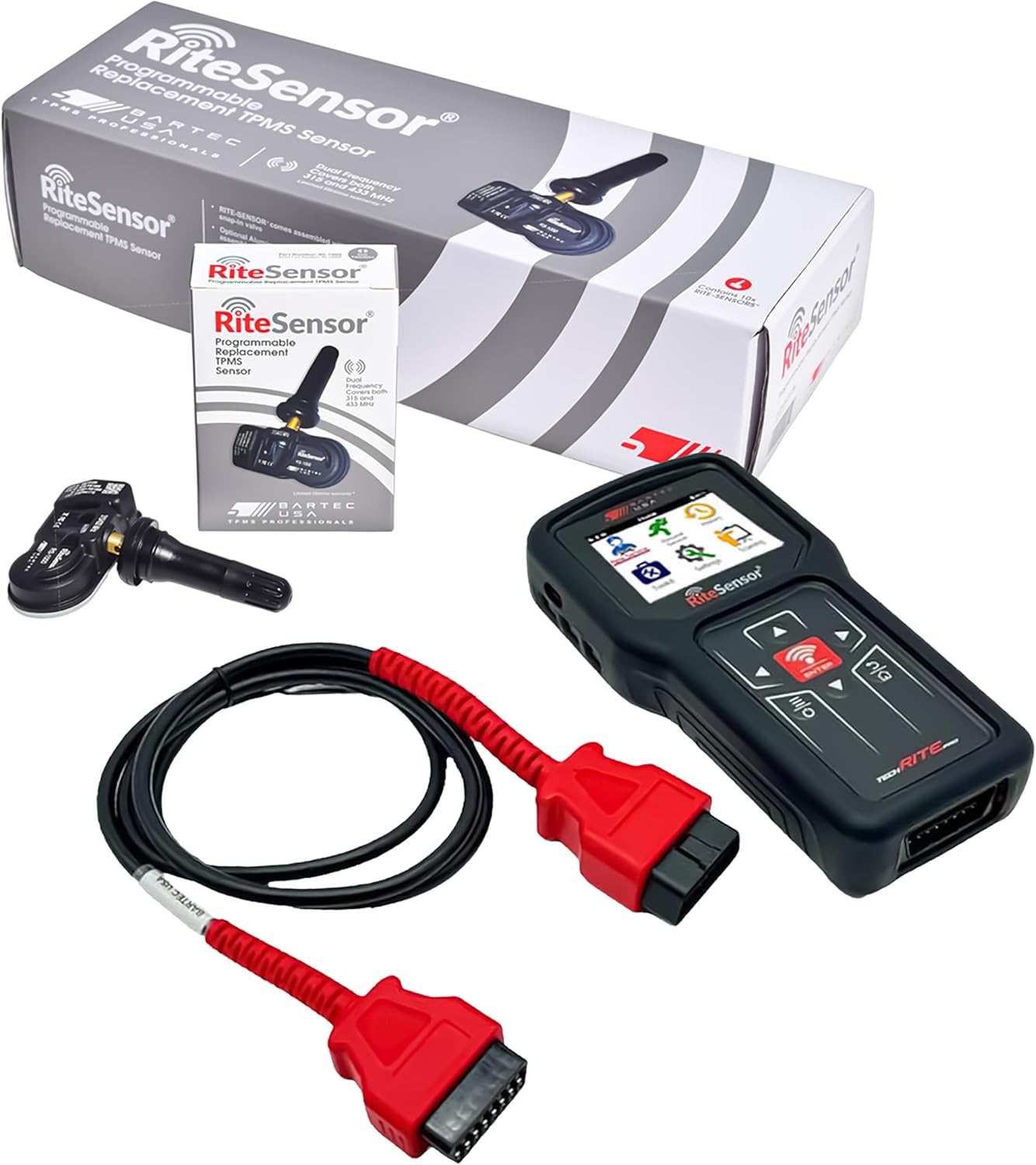
Figura 2.1: Contents of the Bartec TechRitePro Tool Kit. This image displays the TechRitePro diagnostic tool, the OBDII cable, and four RiteSensors, along with their individual packaging.
3. Configuração
3.1 Carregamento Inicial
Before first use, fully charge the TechRitePro device's internal 2.3Ah LiPo battery using the provided charging cable and a compatible power source. A full charge ensures uninterrupted performance during diagnostic and programming tasks. The device features a removable battery for convenience.

Figura 3.1: The TechRitePro tool highlighting its power features, including the rechargeable and removable battery.
3.2 Software Installation (TPMS Desktop)
The TechRitePro tool requires the "TPMS Desktop" software to be downloaded and installed on a PC or laptop for updates, data management, and extended functionalities.
- Visit the official Bartec website to locate the TPMS Desktop software download page.
- Baixe o instalador file para o seu computador.
- Siga as instruções na tela para concluir a instalação.
- Connect your TechRitePro device to the computer via the provided USB cable (if applicable, or follow software instructions for connection).

Figura 3.2: TPMS Desktop software is required for full functionality and updates.
3.3 Configuração Inicial do Dispositivo
Upon first power-on, the device may prompt you to set up basic configurations such as language. The TechRitePro supports multiple languages, including English, French, and Spanish. Navigate through the on-screen menus using the directional buttons and the ENTER button to select your preferences.

Figura 3.3: The TechRitePro tool's user interface, designed for global technicians with multi-language support.
4. Instruções de operação
4.1 Navegação do dispositivo
The TechRitePro features a 2.8-inch high-resolution color display and a graphical user interface. Use the directional buttons (Up, Down, Left, Right) to navigate through menus and options. The DIGITAR O botão confirma as seleções, e o VOLTAR button (often labeled with an arrow or 'ESC') returns to the previous screen.

Figura 4.1: The TechRitePro's 2.8-inch color display and user interface.
4.2 TPMS Sensor Activation and Health Check
To activate a TPMS sensor or perform a quick health check:
- Power on the TechRitePro tool.
- Select the "New Sensor" or "TPMS Health Check" option from the main menu.
- Follow the on-screen prompts to position the tool near each tire's sensor.
- The tool will activate the sensor and display its ID, pressure, temperature, and battery status.
- Confirm the sensor is functioning correctly.
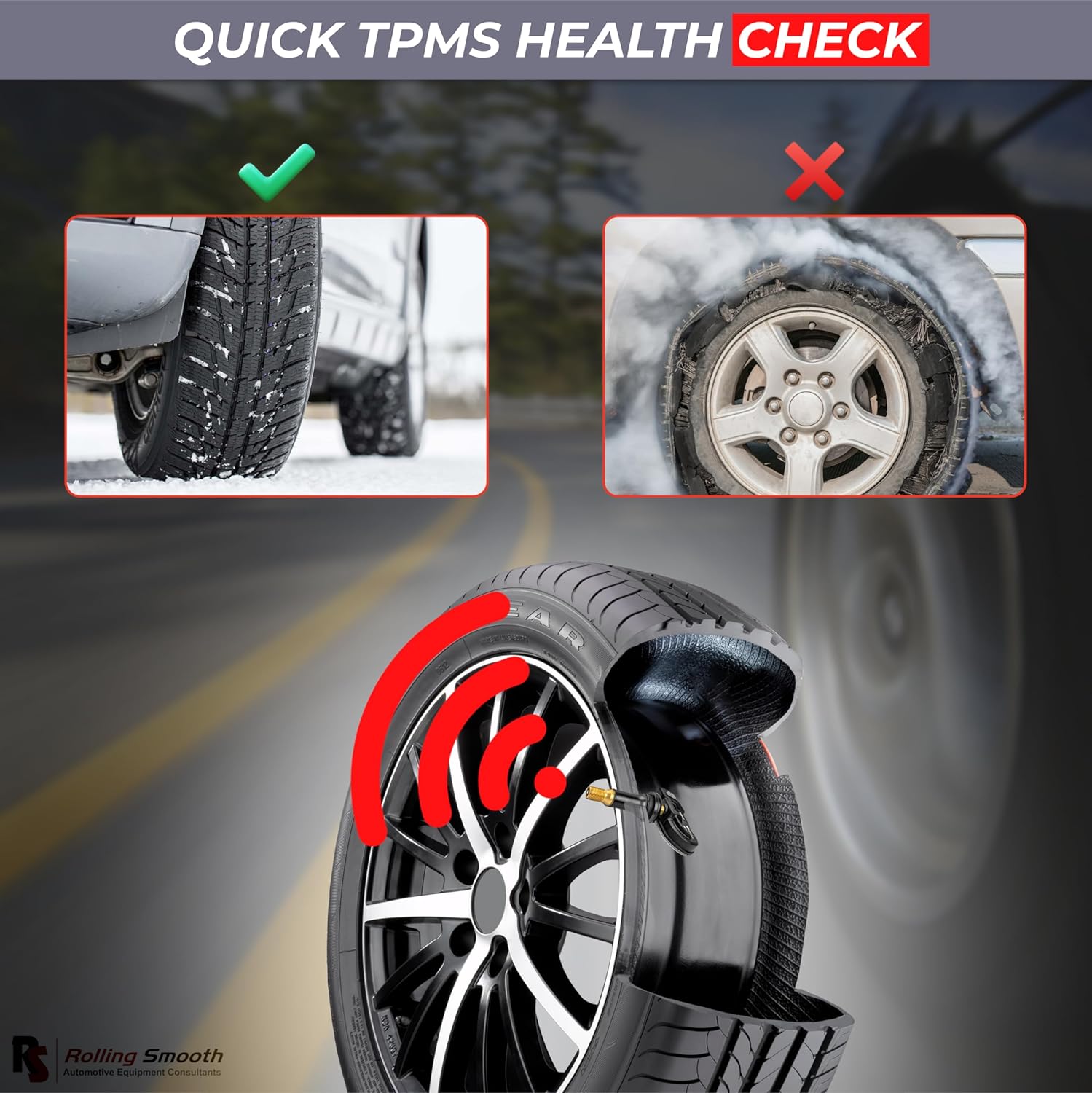
Figura 4.2: Performing a quick TPMS health check to ensure proper tire pressure monitoring.
4.3 Programação do Sensor TPMS
The TechRitePro tool allows for programming of the included RiteSensors or other compatible universal sensors.
- From the main menu, select the "Programming" or "New Sensor" option.
- Choose the desired programming method (e.g., Copy by Activation, Manual Input, Auto Create).
- Follow the on-screen instructions to program the new sensor. This may involve activating an existing sensor to copy its ID or manually entering sensor IDs.
- Ensure the programming is successful before installation.
4.4 TPMS Sensor Relearn Procedure
After replacing or programming TPMS sensors, a relearn procedure is often required for the vehicle's ECU to recognize the new sensor IDs.
- Connect the TechRitePro tool to the vehicle's OBDII port using the heavy-duty OBDII cable.
- Select the "Relearn" function from the tool's menu.
- Selecione a marca, o modelo e o ano do veículo.
- Follow the specific relearn procedure displayed on the tool, which may involve driving the vehicle, performing specific actions, or using the tool to force a relearn via OBDII.
- Confirm that the vehicle's TPMS warning light has turned off.

Figura 4.3: Using the TechRitePro tool for TPMS tracking and detection.
5. Manutenção
5.1 Limpando o Dispositivo
Limpe o dispositivo com um pano macio, damp pano. Não utilize produtos de limpeza abrasivos ou solventes. Certifique-se de que o dispositivo esteja desligado e desconectado de qualquer fonte de energia antes de limpá-lo.
5.2 Cuidados com a bateria
To prolong battery life, avoid fully discharging the battery frequently. Store the device in a cool, dry place when not in use. The removable battery allows for replacement if its capacity diminishes over time.
5.3 Atualizações de Software
Regularly check for software updates via the TPMS Desktop application. Updates often include new vehicle coverage, sensor programming capabilities, and performance enhancements.
6. Solução De Problemas
If you encounter issues with your TechRitePro tool, consider the following:
- Dispositivo não liga: Certifique-se de que a bateria esteja carregada. Conecte o dispositivo a uma fonte de energia e tente ligá-lo.
- Sensor não ativado: Verify the tool is positioned correctly near the sensor. Check the sensor's battery status (if possible). Ensure the sensor is compatible with the tool.
- OBDII Communication Failure: Check the OBDII cable connection to both the tool and the vehicle. Ensure the vehicle's ignition is on (or in the correct position for diagnostics).
- Problemas com atualizações de software: Ensure your PC has a stable internet connection. Temporarily disable any antivirus or firewall software that might interfere with the TPMS Desktop application.
- Leituras imprecisas: Ensure the sensors are correctly installed and programmed. Perform a relearn procedure if necessary.
For further assistance, refer to the Bartec support website ou entre em contato com o atendimento ao cliente.
7. Especificações

Figura 7.1: Size and weight specifications of the TechRitePro tool and included components.
| Recurso | Especificação |
|---|---|
| Marca | Bartec |
| Modelo | TECHRITEPRO (WRTTRP100) |
| Número do modelo do item | WRTTRP100 |
| Número da peça do fabricante | WRTP100-4 |
| Mostrar | 2.8" High-Resolution Color Display |
| Bateria | 2.3Ah LiPo (Rechargeable, Removable) |
| Conectividade | Conector OBDII |
| Comunicação do Sensor | Improved LF Signal, UHF Detection |
| Idiomas suportados | Inglês, Francês, Espanhol |
| Tipo de ajuste automotivo | Ajuste universal |
| UPC | 199284877863 |
| Certificações | FCC & IC Approved |

Figura 7.2: The TechRitePro tool is FCC and IC approved, ensuring compliance with regulatory standards.
8. Garantia e Suporte
For information regarding product warranty, please refer to the documentation included with your purchase or visit the official Bartec website.
For technical support, software updates, or service inquiries, please contact Bartec customer service or visit their online support portal.
9. Informações de segurança
- Leia e compreenda sempre todas as instruções antes de utilizar o dispositivo.
- Use o dispositivo apenas para a finalidade a que se destina.
- Não exponha o dispositivo a temperaturas extremas, umidade ou luz solar direta.
- Mantenha o dispositivo longe das crianças.
- Não tente desmontar ou reparar o dispositivo por conta própria. Consulte um técnico qualificado.
- Garanta ventilação adequada ao carregar o dispositivo.
- Always follow vehicle manufacturer's guidelines when performing TPMS service.


