1. Introdução
This manual provides essential information for setting up, operating, and maintaining your HP OMEN 31.5 inch UHD 144Hz Smart Gaming Monitor. This monitor is designed to deliver an immersive visual experience with its 4K UHD display, high refresh rate, and smart features.
Key features include a 4K UHD (3840 x 2160) IPS panel, 144Hz refresh rate, VESA DisplayHDR 400, 1ms GtG response time with Overdrive, and NVIDIA G-SYNC compatibility. It also offers smart functionalities for streaming and multi-device connectivity.
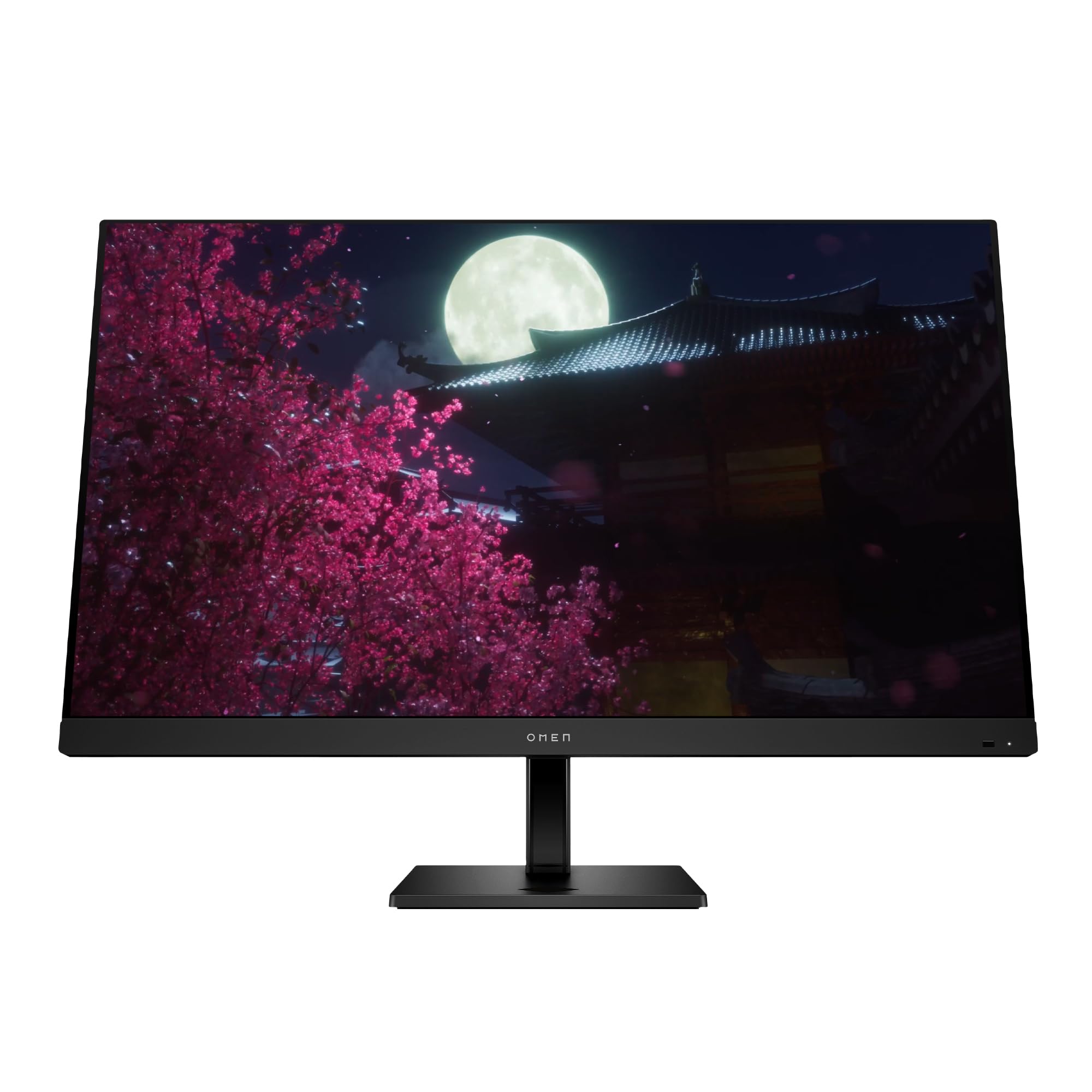
Image 1.1: The HP OMEN 31.5 inch UHD 144Hz Smart Gaming Monitor, highlighting its 4K UHD display, VESA DisplayHDR 400, integrated 3W speakers, and NVIDIA G-SYNC compatibility.
2. O que está na caixa
Verifique se todos os componentes estão presentes na embalagem antes de prosseguir com a montagem.
- HP OMEN 31.5 inch UHD 144Hz Smart Gaming Monitor
- Suporte para monitor (base e braço)
- Cabo DisplayPort
- Cabo HDMI
- Cabo USB Tipo C para Tipo C
- Cabo de alimentação AC
- IR and Bluetooth remote control
- 2 pilhas AAA (para o controle remoto)
- Suporte de cabo
- Quick Setup Poster
- Documentation (including Warranty card)

Image 2.1: Visual representation of the items included in the product packaging, such as the monitor, cables, remote, and documentation.
3. Configuração
3.1 Montagem do suporte do monitor
- Retire cuidadosamente o monitor e o suporte da embalagem.
- Fixe o suporte ao painel do monitor, certificando-se de que ele se encaixe firmemente no lugar.
- Attach the stand base to the stand neck, tightening any screws if necessary.
- Coloque o monitor montado sobre uma superfície plana e estável.
3.2 Conectando o Monitor
Conecte os cabos necessários ao monitor e ao seu computador ou outros dispositivos.
- Poder: Connect the AC power cable to the monitor's power input and then to a wall outlet.
- Entrada de vídeo: Connect either the DisplayPort cable, HDMI cable, or USB Type-C cable from your computer/device to the corresponding port on the monitor. The monitor supports 2 HDMI 2.1 ports, 1 DisplayPort 1.4, and 1 USB Type-C port.
- Dispositivos USB: Connect USB peripherals to the 2 USB 2.0 Type-A ports on the monitor.
- Saída de áudio: If desired, connect external speakers or headphones to the 3.5 mm Audio Jack (Audio Out).
- Rede: For smart features, connect an Ethernet cable to the RJ-45 port (100 Mbps, for Android TV OS use only).

Image 3.1: The rear panel of the monitor, illustrating the location of the 2 HDMI 2.1 ports, USB Type-C port, 2 USB 2.0 Type-A ports, 3.5 mm Audio Jack, DisplayPort 1.4, and RJ-45 port.
3.3 Inicialização Inicial
- Certifique-se de que todos os cabos estejam conectados com segurança.
- Press the power button on the monitor or use the remote control to turn on the monitor.
- Follow any on-screen prompts for initial setup, such as language selection and network connection for smart features.
4. Operando o monitor
4.1 Basic Controls and OSD Navigation
The monitor can be controlled using the physical buttons located on the monitor or the included IR and Bluetooth remote control. The On-Screen Display (OSD) menu allows you to adjust various settings.
- Use the remote control's directional buttons to navigate the OSD menu.
- Press the 'OK' or 'Enter' button to select an option.
- Use o botão 'Voltar' ou 'Sair' para retornar ao menu anterior ou sair do OSD.
4.2 Configurações e recursos de exibição
Otimize seu viewMelhore sua experiência ajustando as seguintes configurações:
- Resolução: The monitor supports 4K UHD (3840 x 2160) resolution. Ensure your connected device is configured to output at this resolution for optimal clarity.
- Taxa de atualização: Set your device's display settings to 144Hz for smooth motion and responsive gameplay.
- VESA DisplayHDR 400: Enable HDR settings on your device and in the monitor's OSD for enhanced contrast and color depth in compatible content.
- Compatível com NVIDIA G-SYNC: For NVIDIA graphics card users, enable G-SYNC in your NVIDIA Control Panel to synchronize the monitor's refresh rate with your GPU's frame rate, reducing screen tearing and stuttering.
- Dolby Vision e Dolby Atmos: Experience enhanced visuals and immersive audio with Dolby support. Ensure your content and connected devices are compatible.
- HP Eye Ease with Eyesafe Certification: This feature reduces blue light emissions to help minimize eye strain during extended use, without compromising color accuracy.

Image 4.1: The monitor features HP Eye Ease with Eyesafe Certification, designed to provide comfortable viewing by reducing blue light while maintaining color quality.
4.3 Recursos inteligentes e conectividade
The OMEN 32x monitor offers advanced smart functionalities:
- Multi-View: Split your screen to display content from two different sources simultaneously. For example, use a wired connection on one side and wireless casting on the other.
- Multi-Platform Streamer Honors: Stream content directly from your screen to multiple platforms. Refer to the monitor's smart OS interface for configuration.
- Shared Keyboard/Mouse (KB/M): Easily switch your keyboard and mouse control between multiple connected devices, simplifying your setup.
- Home Panel Integration: Control smart home devices like lights and thermostats, view doorbell notifications, and full-screen camera feeds directly from the monitor's home panel.

Image 4.2: The monitor's capability to live stream to multiple platforms and utilize a split-screen Multi-View feature for enhanced multitasking.

Image 4.3: The monitor's smart home panel, allowing control of lights, temperature, and displaying doorbell notifications and full-screen camera views.
4.4 Ajustes Ergonômicos
Ajuste o monitor para melhor viewconforto:
- Ajuste de altura: The stand allows for a 100mm height adjustment range.
- Inclinar: The monitor can be tilted from -5° to +20° to find your preferred viewângulo de engate.

Image 4.4: Illustration of the monitor's ergonomic adjustments, including its tilt range (-5° to +20°) and 100mm height adjustable range.
5. Manutenção
5.1 Limpando o Monitor
- Sempre desligue o monitor e desconecte o cabo de alimentação antes de limpá-lo.
- Use um pano macio e sem fiapos levemente dampFinalize com água ou um limpador de telas não abrasivo.
- Não aplique o produto de limpeza diretamente na tela.
- Evite usar produtos químicos agressivos, solventes ou materiais abrasivos, pois podem danificar a tela ou o equipamento.asing.
5.2 Cuidados Gerais
- Evite colocar objetos pesados sobre o monitor ou seus cabos.
- Não bloqueie as aberturas de ventilação do monitor.
- Mantenha o monitor longe da luz solar direta, fontes de calor e umidade excessiva.
6. Solução De Problemas
Se você encontrar problemas com seu monitor, consulte as seguintes soluções comuns:
| Problema | Solução possível |
|---|---|
| Sem energia | Ensure the power cable is securely connected to both the monitor and a working power outlet. Check if the power button is pressed. |
| Sem sinal / Tela em branco | Verify that the video cable (DisplayPort, HDMI, or USB-C) is correctly connected to both the monitor and your computer. Ensure the correct input source is selected in the monitor's OSD menu. Try restarting your computer. |
| Imagem piscando ou distorcida | Check the video cable for damage. Ensure your graphics drivers are up to date. Adjust the refresh rate in your computer's display settings. Disable G-SYNC temporarily to see if the issue persists. |
| As cores parecem incorretas | Adjust color settings in the OSD menu. Perform a factory reset of the monitor settings. Ensure your graphics card color settings are correctly configured. |
| Controle remoto não funciona | Check and replace the AAA batteries. Ensure there are no obstructions between the remote and the monitor's IR receiver. Re-pair the Bluetooth remote if necessary. |
If the problem persists after trying these solutions, contact HP customer support.
7. Especificações
| Recurso | Detalhe |
|---|---|
| Número do modelo | 99Z68AA#ABA |
| Tamanho da tela | 31.5 polegadas |
| Tipo de painel | IPS |
| Resolução | 4K UHD (3840 x 2160) |
| Taxa de atualização | 144Hz |
| Tempo de resposta | 1ms GtG (with Overdrive) |
| Suporte HDR | Tela VESA HDR 400 |
| G-SYNC Compatibility | Compatível com NVIDIA G-SYNC |
| Taxa de contraste | 1000:1 |
| Brilho | 400 nits (pico) |
| Viewângulos de engate | 178° (Alta) / 178° (V) |
| Oradores | Four integrated 3W speakers |
| Portas de entrada de vídeo | 2 x HDMI 2.1, 1 x DisplayPort 1.4, 1 x USB Type-C |
| Portas USB | 2 x USB 2.0 Type-A (Battery Charging 1.2) |
| Saída de áudio | 3.5 mm Jack de áudio |
| Porta de rede | 1 x RJ-45 (100 Mbps, for Android TV OS only) |
| Ergonomia | Height adjustable (100mm), Tilt (-5° to +20°) |
| Dimensões (LxPxA) | 28.11 x 9.58 x 16.93 polegadas (com suporte) |
| Peso | 23.3 libras (com suporte) |
| Cor | Preto |
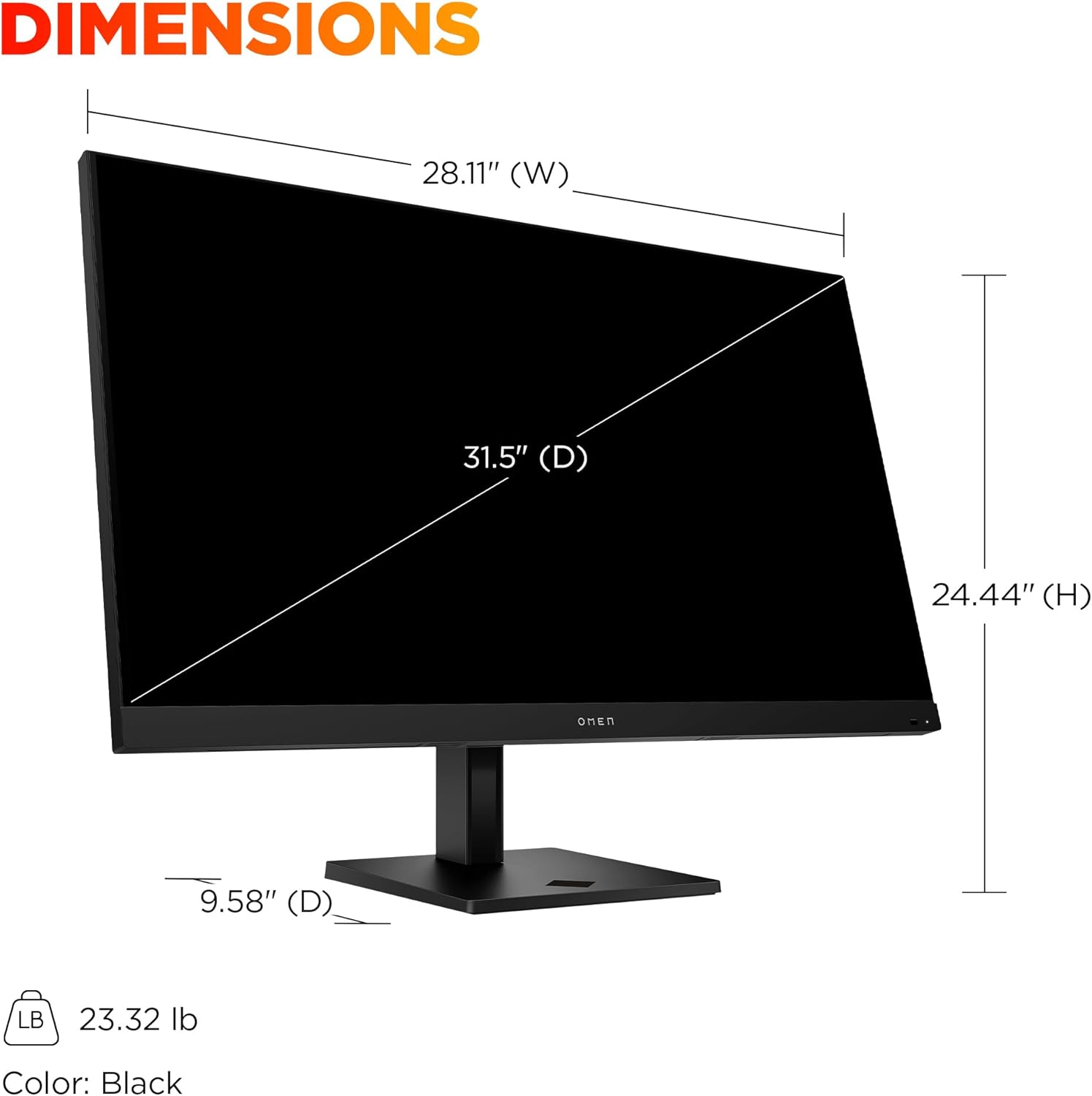
Image 7.1: Detailed dimensions of the HP OMEN 31.5 inch monitor, including width, height, and depth, along with its weight.
8. Garantia e Suporte
8.1 Informações de garantia
This HP OMEN monitor comes with a HP 3-year limited warranty. Please refer to the warranty card included in your product packaging for full terms and conditions. Keep your proof of purchase for warranty claims.
8.2 Suporte ao cliente
For technical assistance, troubleshooting beyond this manual, or warranty service, please contact HP customer support. You can find support contact information on the official HP website or through the documentation provided with your monitor.
Online resources, drivers, and FAQs may also be available on the Suporte HP website.