1. Introdução
This manual provides essential information for the safe and efficient use of your KOORUI G2711P 27-inch IPS Full HD Gaming Monitor. Please read it thoroughly before operating the device and retain it for future reference.
The KOORUI G2711P monitor features a 27-inch IPS non-glare panel with Full HD (1920x1080) resolution, a 200Hz refresh rate, and a 1ms MPRT response time, designed for an immersive gaming and viewing experience. It includes multiple connectivity options and eye-care features.

Imagem 1.1: Frente view of the KOORUI G2711P 27-inch IPS Full HD Gaming Monitor.
2. Informações de segurança
- Não exponha o monitor à chuva ou umidade para evitar incêndio ou choque elétrico.
- Não abra o monitor casing. Não existem peças que possam ser reparadas pelo usuário no interior. Encaminhe todos os serviços de manutenção para pessoal qualificado.
- Coloque o monitor em uma superfície estável e plana para evitar que ele caia.
- Assegure-se de que haja ventilação adequada ao redor do monitor. Não obstrua as aberturas de ventilação.
- Utilize apenas o adaptador de energia fornecido com o monitor.
- Desligue o monitor da tomada durante tempestades com raios ou quando não for utilizá-lo por longos períodos.
3. Configuração
3.1 Desembalagem
Carefully remove all components from the packaging. Ensure all parts listed in the packing list are present and undamaged. Keep packaging materials for future transport or return.
3.2 Montagem do suporte
- Fixe a base do suporte ao pescoço do suporte.
- Secure the assembled stand to the back of the monitor panel. Refer to the product images for visual guidance on the attachment method.

Image 3.1: Monitor dimensions and side view, illustrating the stand attachment area.
3.3 Conectando a um dispositivo
The monitor supports various input options:
- HDMI: Connect an HDMI cable from your computer or other device to one of the two HDMI 2.0 ports on the monitor.
- Porta de exibição (DP): Connect a DisplayPort cable from your computer to the DP 1.4 port on the monitor.
- Audio Out (A/O): Connect external speakers or headphones to the audio output port if desired, as the monitor does not have built-in speakers.

Imagem 3.2: Traseira view of the monitor showing HDMI, DisplayPort, and Audio Out connections, along with the 75x75mm VESA mount.
3.4 Conexão de Energia
Connect the power adapter to the monitor's power input, then plug the power cable into a wall outlet. The monitor is designed for 110V power input.
4. Instruções de operação
4.1 Ligar/Desligar
Press the power button, typically located on the back or bottom of the monitor, to turn the monitor on or off. An indicator light will show the power status.
4.2 Navegação no menu do menu OSD (On-Screen Display)
The monitor features a 5-way joystick for intuitive OSD menu navigation. This joystick allows you to access and adjust various display settings.
- Pressione o joystick: Confirme a seleção.
- Move joystick up/down: Adjust or select options.
- Move joystick left/right: Adjust or select options.
- Move joystick back (usually left): Exit menu or go back.

Image 4.1: Illustration of the 5-way joystick control for OSD menu navigation.
4.3 Configurações de exibição
- Resolução: The native resolution is 1920x1080 Full HD. Ensure your device is set to this resolution for optimal display quality.
- Taxa de atualização: The monitor supports up to 200Hz. Adjust your graphics card settings to utilize the higher refresh rate for smoother visuals.
- Tempo de Resposta (MPRT): The monitor features 1ms MPRT (Moving Picture Response Time) for reduced motion blur. This setting can usually be enabled or adjusted in the OSD menu.
- Sincronização adaptável: This technology synchronizes the monitor's refresh rate with your graphics card's frame rate to eliminate screen tearing and stuttering. Enable it in the OSD menu and your graphics card control panel.
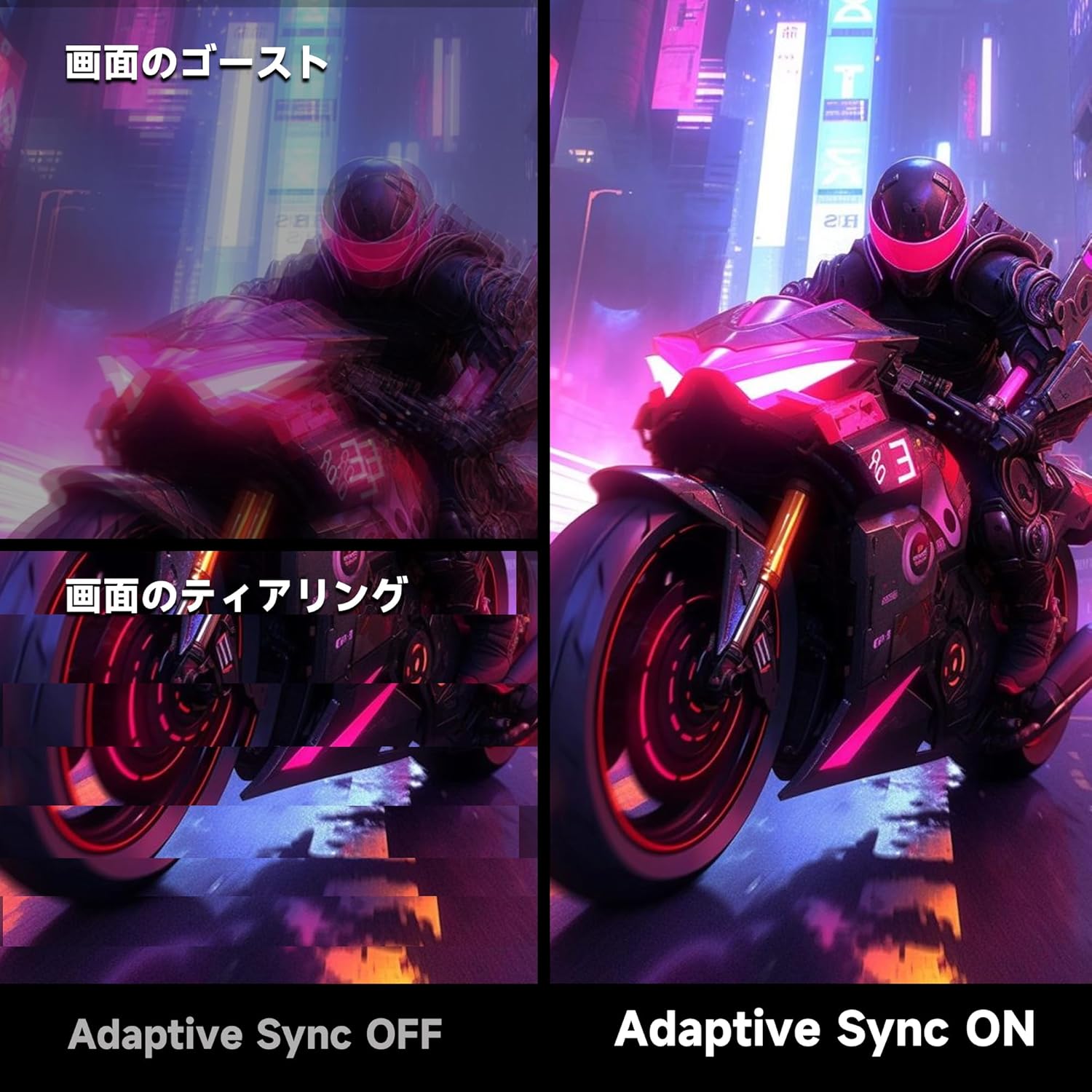
Image 4.2: Visual comparison demonstrating the effect of Adaptive Sync being OFF (showing ghosting and tearing) versus ON (smooth image).

Image 4.3: Comparison illustrating the difference in motion clarity between 200Hz 1ms MPRT and 75Hz 5ms settings.
- HDR 400: The monitor supports HDR 400 for enhanced contrast and color depth. Enable HDR in your operating system settings for compatible content.

Image 4.4: Visual representation of HDR 400 providing more impressive and vibrant images compared to standard HDR 10.
- Configurações de cores: The monitor offers 93% DCI-P3 color gamut for accurate and vibrant color reproduction. Adjust brightness, contrast, and color temperature via the OSD menu.

Image 4.5: Display showing a wide range of colors, indicating 93% DCI-P3 color gamut coverage for accurate and vivid visuals.
- Características de cuidados com os olhos: The monitor incorporates 'Blue Light Reduction' and 'Flicker-Free' technologies to minimize eye strain during prolonged use. These settings can be adjusted in the OSD menu.
- Função da mira: For shooting games, a built-in crosshair overlay can be enabled via the OSD menu to assist with aiming.

Image 4.6: A gaming scene demonstrating the monitor's crosshair function, which can be toggled ON or OFF to assist players in shooting games.
5. Manutenção
5.1 Limpeza da tela
Limpe suavemente a tela com um pano macio e sem fiapos. Para manchas persistentes, dampen the cloth with a small amount of screen cleaner specifically designed for monitors. Do not spray cleaner directly onto the screen.
5.2 Limpeza do Casing
Use um pano macio e seco para limpar o monitor.asing. Avoid using abrasive cleaners or solvents that may damage the surface.
6. Solução De Problemas
- Sem energia: Certifique-se de que o cabo de alimentação esteja firmemente conectado tanto ao monitor quanto à tomada. Verifique se a tomada está funcionando.
- Sem Sinal: Verify that the video cable (HDMI or DisplayPort) is correctly connected to both the monitor and your computer. Ensure the correct input source is selected in the monitor's OSD menu.
- Tela piscando: Check the video cable connection. Try a different cable or port. Ensure your graphics card drivers are up to date.
- Image Distortion/Tearing: Ensure Adaptive Sync is enabled in both the monitor's OSD and your graphics card settings. Check for correct resolution and refresh rate settings.
- Poor Color Quality: Adjust color settings (brightness, contrast, color temperature) in the OSD menu. Ensure HDR is enabled for HDR content.
7. Especificações
| Recurso | Especificação |
|---|---|
| Marca | KOORUI |
| Modelo | G2711P |
| Tamanho da tela | 27 polegadas |
| Tipo de painel | IPS, Antirreflexo |
| Resolução | 1920 x 1080 (Full HD) |
| Proporção da tela | 16:9 |
| Taxa de atualização | 200Hz |
| Tempo de resposta | 1ms MPRT (GTG) |
| Brilho | 300 cd/m² |
| Taxa de contraste | 1000:1 |
| Viewângulo de engate | 178° (Horizontal/Vertical) |
| Gama de cores | 93% DCI-P3 |
| Suporte HDR | HDR 400 |
| Conectividade | 2x HDMI 2.0, 1x DisplayPort 1.4, 1x Saída de Áudio |
| Oradores | Não incluso |
| Compatibilidade de montagem VESA | 75x75mm |
| Dimensões (L x A x P) | 61.34 x 47.23 x 21.49 cm (com suporte) |
| Peso | 5.8 kg |
| Entrada de energia | 110V |
8. Garantia
The KOORUI G2711P monitor screen is covered by a Garantia de 1 ano from the date of purchase. All other included accessories are covered by a Garantia de 3 anoGuarde o comprovante de compra para eventuais solicitações de garantia. A garantia cobre defeitos de fabricação e mau funcionamento em condições normais de uso.
9. Suporte
For technical assistance, troubleshooting, or warranty inquiries, please contact KOORUI customer support through the retailer where you purchased the product or visit the official KOORUI website for contact information. When contacting support, please have your monitor model number (G2711P) and proof of purchase readily available.


