Produto acimaview
O rastreador aéreo Tukio Tags are smart Bluetooth trackers designed to help you locate your valuable items quickly and efficiently. Working exclusively with Apple's Find My network, these tags provide worldwide tracking, one-click search, and lost reminders. Each tag is compact, portable, and features a replaceable battery for long-lasting use.

Image: The Tukio Air Tracker Tags and included accessories.
Informações de segurança
AVISO:
To avoid danger of suffocation, keep this bag away from babies and children. Do not use this bag in cribs, beds, carriages, or play pens. This bag is not a toy.
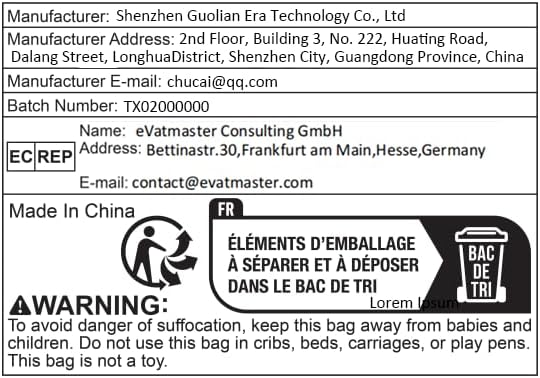
Image: Safety warning and manufacturer details from product packaging.
O que está na caixa
Your Tukio Air Tracker Tags pacote inclui os seguintes itens:

Image: Contents of the Tukio Air Tracker Tags pacote.
- Inteligente Tag: 4 peças
- Protetor de silicone: 4 peças
- Key Ring: 4 peças
- Corda: 4 peças
- Manual do usuário: 1 peça
- Bateria (integrada): 4 pieces (CR2032)
Note: Replacement batteries are not included.
Guia de configuração
Follow these steps to set up your Tukio Air Tracker Tags with your Apple device.
Compatibilidade
O rastreador aéreo Tukio Tags are designed to work exclusively with Apple's Find My network. They are compatible with iOS devices only and do not support Android devices.

Image: Compatibility with Apple iOS devices.
Emparelhando seu Air Tracker Tag
- Open the "Find My" App and Enable Bluetooth: Ensure your Apple device's Bluetooth is turned on. The "Find My" app is Apple's built-in application for locating devices.
- Adicionar novo item: In the "Find My" app, navigate to the "Items" tab. Press "Add New Item" and then select "Other Supported Item". Note: This is not for "Add AirTag".
- Connect to "Lucid tag": Bring the Air Tracker Tag close to your iPhone. The app will search for nearby devices. Once "Lucid tag" appears, select it and click "Continue" until the pairing process is complete.

Image: Step-by-step pairing instructions.

Image: Detailed pairing and reset instructions.
Instruções de operação
Once your Air Tracker Tag is paired, you can utilize its features to keep track of your belongings.
Finding Your Items
To locate an item, open the "Find My" app. You can either click "Play Sound" to make the tag emit an audible alert (80-100 dB volume level) or use "Directions" to get navigation to its last known location.

Image: Using "Play Sound" and "Directions" in the Find My app.

Image: Locating items with sound and map.
Left-Behind Alarms
Receive instant notifications on your Apple device if you leave your Air Tracker Tag behind or if it goes out of range. This feature helps prevent items from being misplaced.

Imagem: Example of a Left-Behind Alarm notification.

Image: Left-Behind Reminder in action.
Modo Perdido
If your item is lost, you can activate "Lost Mode" in the Find My app. This allows anyone who finds your tag to securely access your contact information by tapping the tag with their NFC-enabled smartphone. You will receive a notification when the location becomes available.

Image: Activating Lost Mode in the Find My app.

Image: Detailed steps for activating Lost Mode.
Integração Siri
For quick location of items nearby, simply ask Siri. For example, say "Hey Siri, where are my keys?" and Siri will assist you in finding the item tag.

Image: Using Siri to locate your items.
Sharing Items
You can share the location of your items with family members or trusted contacts through the Find My app. Both parties must be using iOS 17, iPadOS 17, macOS 14, or later versions.

Image: Sharing item location with others.
Global Tracking
Leveraging the vast network of Apple devices, your Air Tracker Tag can be located worldwide, even when out of your Bluetooth range. The Find My network anonymously and securely sends you the location of your tag.

Image: Global tracking capabilities.
You can also display the last known location on the map to find your item when you are out of Bluetooth range.

Image: Finding items far away using last known location.
Suggested Use Cases
O rastreador aéreo Tukio Tags are versatile and can be attached to a variety of daily items:
- Chaves: Attach to your house or car keys.
- Carteiras: Slip into your wallet or purse.
- Bagagem: Secure to your suitcase or travel bag.
- Mochilas/Bolsas: Clip onto school bags, handbags, or camera bags.
- Other Valuables: Use with USB flash drives, pet collars, or even bicycles.

Image: Various applications for the Air Tracker Tag.

Image: More examples of suitable items for tracking.
Manutenção
Vida útil da bateria e alertas
Each Tukio Air Tracker Tag comes with a built-in CR2032 battery that provides approximately 365 days (1 year) of battery life. When the battery level is low, the tracker will emit a "ziz" sound. Please check the battery status in the Find My app promptly to prevent losing your items.

Image: Information on replaceable and long-life batteries.

Image: Low battery alert in the Find My app.
Substituindo a bateria
Quando a bateria precisar ser substituída, siga estas etapas:
- Abra a tampa traseira: Hold the back cover with both thumbs and turn it to the left (counter-clockwise) to open it.
- Remova a bateria antiga: Carefully take out the old CR2032 battery.
- Insira a bateria nova: Put in a new CR2032 battery. Pay attention to ensure that the battery logo (the "+" sign) is facing up and is aligned with the power port inside the tag.
- Close the Back Cover: Locate the notch on the back cover and align it with the corresponding position on the left side of the tag. Then, turn the cover to the right (clockwise) to tighten it securely.

Image: Visual guide for easy battery replacement.
Video: Step-by-step guide on how to replace the battery in your Air Tracker Tag.
Solução de problemas
If you encounter issues with your Tukio Air Tracker TagExperimente as seguintes soluções:
- Tag Not Connecting:
- Certifique-se de que o Bluetooth esteja ativado no seu dispositivo iOS.
- Certifique-se de que o tag is within Bluetooth range (up to 55-60m / 180-196ft in open areas).
- Check the battery level in the Find My app. If low, replace the battery.
- Tente reiniciar o tag: Press the function button 11 times quickly until you hear a long beep to restore factory settings. Then attempt to re-pair.
- Som não reproduzido:
- Verifique o tag has sufficient battery.
- Garantir o tag is within Bluetooth range.
- Verifique as configurações de volume do seu dispositivo.
- A localização não está sendo atualizada:
- Ensure your iOS device has an active internet connection (Wi-Fi or cellular data).
- Confirm that Location Services are enabled for the Find My app on your device.
- Se o tag is out of your personal Bluetooth range, its location updates rely on other Apple devices in the Find My network. Ensure there are other Apple devices nearby the taglocalização de.
Especificações
| Recurso | Detalhe |
|---|---|
| Número do modelo | TX02 |
| Dimensões | 1.22 x 1.22 x 0.35 polegadas (30.9 mm x 30.9 mm x 8.3 mm) |
| Peso | 0.247 onças (aproximadamente 7g) |
| Material | Plástico |
| Cor | Branco |
| Tipo de Bateria | CR2032 (included, replaceable) |
| Duração da bateria | Até 1 ano |
| Conectividade | Bluetooth 5.3 |
| Tracking Range (Open) | Up to 55-60 meters (180-196 feet) |
| Tracking Range (Obstacle) | 30-50 metros (98-164 pés) |
| Nível de volume | 80-100 dB |
| Compatibilidade | Apple Find My network (iOS Only) |

Image: Physical and technical specifications.

Image: Indoor and outdoor tracking range details.
Garantia e Suporte
For any inquiries, technical support, or warranty claims, please contact the manufacturer directly.
| Detalhes de contato | Informação |
|---|---|
| Fabricante | Shenzhen Guolian Era Technology Co., Ltd |
| Endereço do fabricante | 2nd Floor, Building 3, No. 222, Huating Road, Dalang Street, Longhua District, Shenzhen City, Guangdong Province, China |
| E-mail do fabricante | chucai@qq.com |
| EU Representative (EC REP) | eVatmaster Consulting GmbH |
| EU Representative Address | Bettinastr.30, Frankfurt am Main, Hesse, Germany |
| EU Representative E-mail | contact@evatmaster.com |
For quick assistance regarding your order, please go to your order page on Amazon, find the order number of the product, and contact the seller directly.


