1. Introdução
This manual provides essential instructions for setting up, operating, and maintaining your CONSUMER CELLULAR Iris Connect smartphone. The Iris Connect is designed for reliable performance, featuring a 6.5-inch display, 32GB of storage, and running on Android 13. Please read this manual thoroughly to ensure proper use and to maximize your device's capabilities.
2. O que está na caixa
Upon unboxing your CONSUMER CELLULAR Iris Connect, verify that all the following items are included:
- CONSUMER CELLULAR Iris Connect Smartphone
- Cabo USB
- Guia de início rápido
3. Dispositivo acabadoview
Familiarize yourself with the physical components of your Iris Connect smartphone.

Figura 3.1: Frente e verso view of the Iris Connect smartphone, highlighting its sleek design and camera placement.

Figura 3.2: Frente view of the Iris Connect, showcasing the 6.5-inch display and front-facing camera.
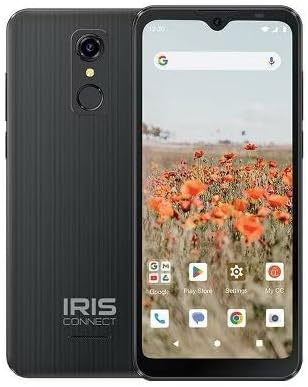
Figura 3.3: Voltar view of the Iris Connect, showing the main camera, flash, and fingerprint sensor.
Componentes principais:
- Tela de 6.5 polegadas: High Definition+ screen for clear visuals.
- Câmera frontal (8MP): Localizado na parte superior da tela, para selfies e videochamadas.
- Câmera principal (13MP): Located on the rear, for high-resolution photos and videos.
- Scanner de impressão digital: Integrated on the rear for secure unlocking.
- Botão de energia: Typically on the right side, used to turn the device on/off or wake/sleep the screen.
- Botões de volume: Ao lado do botão liga/desliga, para ajustar os níveis de áudio.
- Porta USB-C: Na parte inferior, para carregamento e transferência de dados.
- Conector de áudio de 3.5 mm: Para conectar fones de ouvido.
4. Configuração
4.1. Inserindo o cartão SIM e o cartão microSD
- Localize a bandeja do SIM na lateral do seu dispositivo.
- Insert the SIM ejector tool (not included, use a thin paperclip) into the small hole next to the tray and press gently until the tray pops out.
- Place your Nano-SIM card(s) into the designated slots with the gold contacts facing down.
- If desired, insert a microSD card (up to 256GB) into its dedicated slot for expanded storage.
- Reinsira cuidadosamente a bandeja no dispositivo até que ela se encaixe no lugar.
4.2. Assistente de Inicialização e Configuração Inicial
- Pressione e segure o Botão de energia até que a tela acenda.
- Siga as instruções na tela para selecionar seu idioma, conectar-se a uma rede Wi-Fi e configurar sua conta do Google.
- You may be prompted to transfer data from an old device or set up security features like the fingerprint scanner.
4.3. Carregando o dispositivo
Before first use, it is recommended to fully charge your device. The Iris Connect features a 3500 mAh battery with an approximate charging time of 2.5 hours.
- Conecte o cabo USB à porta USB-C na parte inferior do seu telefone.
- Connect the other end of the USB cable to a compatible power adapter (not included) and plug it into a wall outlet.
- O indicador de carregamento aparecerá na tela.
5. Instruções de operação
5.1. Navegação Básica
- Tocar: Toque em um ícone para abrir um aplicativo ou selecionar um item.
- Deslize: Arraste o dedo pela tela para rolar ou navegar entre as telas.
- Pitada: Use dois dedos para ampliar ou reduzir as fotos e web páginas.
- Tela inicial: O ponto central para seus aplicativos e widgets.
- Gaveta de aplicativos: Deslize o dedo para cima a partir da tela inicial para acessar todos os aplicativos instalados.
5.2. Fazendo chamadas
- Toque no Telefone ícone na sua tela inicial ou na gaveta de aplicativos.
- Digite o número de telefone usando o teclado de discagem ou selecione um contato da sua agenda.
- Toque no Chamar botão para iniciar a chamada.
5.3. Envio de mensagens
- Abra o Mensagens aplicativo.
- Toque no Iniciar bate-papo or Nova mensagem ícone.
- Digite o número do destinatário ou selecione-o em seus contatos e, em seguida, digite sua mensagem.
- Toque no Enviar botão.
5.4. Conectando-se ao Wi-Fi
- Vá para Configurações > Rede e internet > Internet.
- Ativar/desativar Wi-Fi On.
- Selecione a rede Wi-Fi desejada na lista e digite a senha, se solicitado.
5.5. Emparelhamento Bluetooth
- Vá para Configurações > Dispositivos conectados > Preferências de conexão > Bluetooth.
- Alternar Bluetooth On.
- Selecione Parear novo dispositivo and choose your desired device from the list. Follow any on-screen prompts to complete pairing.
5.6. Uso da câmera
The Iris Connect features a 13MP main camera and an 8MP front-facing camera.
- Abra o Câmera aplicativo.
- Toque no Obturador botão para tirar uma foto.
- Switch between photo and video modes, or front and rear cameras, using the on-screen icons.
5.7. Leitor de impressão digital
To set up the fingerprint scanner for secure unlocking:
- Vá para Configurações > Segurança e privacidade > Desbloqueio do dispositivo > Impressão digital.
- Follow the on-screen instructions to register your fingerprint(s).
6. Manutenção
6.1. Limpeza do dispositivo
To keep your device clean and functional:
- Use um pano macio e sem fiapos para limpar a tela e a carcaça.
- Evite usar produtos químicos agressivos, produtos de limpeza abrasivos ou sprays aerossóis.
- Certifique-se de que as portas estejam livres de poeira e detritos.
6.2. Cuidados com a bateria
To optimize your battery life (up to 26 hours of use):
- Evite temperaturas extremas.
- Do not leave the device charging for extended periods after it's full.
- Ajuste o brilho da tela e feche os aplicativos não utilizados para economizar energia.
6.3. Atualizações de software
Regularly check for software updates to ensure your device has the latest features and security patches:
- Vá para Configurações > Sistema > Atualização do sistema.
- Siga as instruções na tela para baixar e instalar as atualizações disponíveis.
7. Solução De Problemas
This section addresses common issues you might encounter with your Iris Connect smartphone.
- Dispositivo não liga: Certifique-se de que a bateria esteja carregada. Conecte o carregador e aguarde alguns minutos antes de tentar ligar novamente.
- Sem sinal de rede: Check if your SIM card is correctly inserted. Verify that Airplane Mode is off (swipe down from the top of the screen to check quick settings). Contact your service provider if the issue persists.
- Aplicativos travando ou congelando: Try restarting the app. If the issue continues, restart the phone. You may also clear the app's cache or data via Configurações > Aplicativos > [Nome do aplicativo] > Armazenamento e cache.
- Desempenho lento: Close unused apps, clear cache, or consider uninstalling rarely used applications to free up storage.
- Unable to connect to Wi-Fi/Bluetooth: Ensure Wi-Fi/Bluetooth is enabled in settings. Try forgetting the network/device and reconnecting. Restart your phone and the router/Bluetooth device.
- Forgot screen lock password/pattern: Se você tiver uma conta do Google vinculada, poderá redefinir os dados. Caso contrário, talvez seja necessário restaurar as configurações de fábrica (o que apagará todos os dados).
For more complex issues, please refer to the official CONSUMER CELLULAR support resources or contact their customer service.
8. Especificações
Detailed technical specifications for the CONSUMER CELLULAR Iris Connect smartphone (Model: SH4650).
| Recurso | Especificação |
|---|---|
| Nome do modelo | Conexão Íris |
| Número do modelo | SH4650 |
| Sistema operacional | Androide 13.0 |
| Tamanho da tela | 6.5 polegadas |
| Resolução de exibição | 1440 x 810 |
| Modelo de CPU | Snapdragon 710 |
| Velocidade da CPU | 2 GHz |
| Tamanho da memória RAM instalada | 3 GB |
| Armazenamento interno | 32 GB |
| Armazenamento expansível | Até 256 GB via microSD |
| Câmera principal | 13 MP |
| Câmera Frontal | 8 MP |
| Capacidade da bateria | 3500 Miliamp Horas |
| Classificação de potência da bateria | 3600 (likely Wh or similar unit, as mAh is 3500) |
| Tempo de carregamento | 2.5 horas |
| Conectividade | 4G LTE, Bluetooth, Wi-Fi |
| Características especiais | Dual Camera, Expandable Storage, Fingerprint Scanner, Long Battery Life |
| Conector de áudio | 3.5 Milímetro |
| Dimensões | 8 x 6 x 3 polegadas |
| Peso do item | 6.5 onças |
9. Garantia e Suporte
For information regarding your product's warranty, please refer to the warranty card included with your purchase or visit the official CONSUMER CELLULAR website. For technical assistance, troubleshooting beyond this manual, or customer service inquiries, please contact CONSUMER CELLULAR support directly.
CONSUMER CELLULAR Official Website: www.consumercelular.com


