1. Introdução
The STC My Home Q30 WiFi Range Extender is designed to expand and strengthen your existing Wi-Fi network, eliminating dead zones and providing stable, high-speed internet coverage throughout your home or office. This dual-band booster supports both 2.4GHz and 5GHz frequencies, offering speeds up to 1200 Mbps for seamless streaming, gaming, and browsing.
1.1 Conteúdo da embalagem
- STC My Home Q30 WiFi Range Extender
- Power Adapter (Integrated)
- Guia de início rápido
2. Produto acabadoview
Familiarize yourself with the STC My Home Q30 extender's components and indicators.

Imagem 2.1: Frente view of the STC My Home Q30 WiFi Range Extender. The device is white with a black central panel featuring the 'stc' logo.

Imagem 2.2: Close-up frontal view of the STC Q30 extender, highlighting the indicator lights and WPS button area.

Imagem 2.3: Voltar view of the STC Q30 extender, showing the ventilation and power plug area.
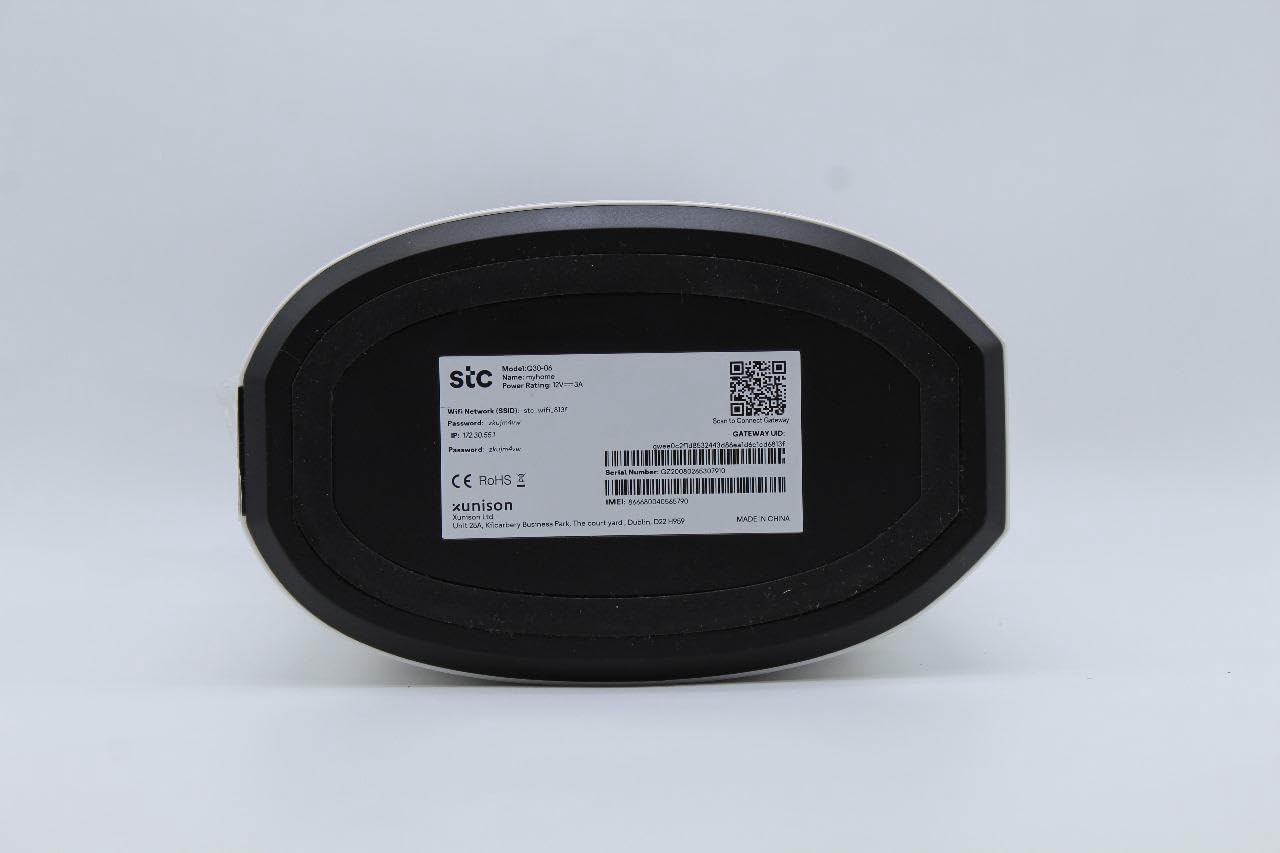
Image 2.4: Bottom label of the STC Q30 extender, displaying model information, serial number, default login details, and a QR code for quick access or setup.
2.1 Luzes indicadoras
- LED de energia: Indica o status de energia.
- LED Wi-Fi: Indicates Wi-Fi signal status and activity.
- LED de intensidade do sinal: Shows the strength of the signal received from the main router.
2.2 Botões e Portas
- Botão WPS: For quick and easy setup with WPS-enabled routers.
- Botão de reinicialização: Used to restore the extender to factory default settings (typically a small pinhole button).
- Conexão de Rede: For connecting wired devices or for initial setup.
3. Instruções de configuração
The STC My Home Q30 offers two primary methods for setup: WPS (Wi-Fi Protected Setup) and Web Interface.
3.1 WPS Setup (Recommended for Quick Setup)
- Plug the Q30 extender into an electrical outlet near your main Wi-Fi router. Wait for the Power LED to turn solid.
- Pressione o botão WPS no seu roteador Wi-Fi principal.
- Within two minutes, press the WPS button on the STC My Home Q30 extender.
- Wait for the Wi-Fi LED on the extender to turn solid, indicating a successful connection.
- Relocate the extender to a suitable location between your router and the Wi-Fi dead zone. Ensure the Signal Strength LED indicates a good connection (e.g., green or blue).
3.2 Web Configuração da interface
- Plug the Q30 extender into an electrical outlet near your main Wi-Fi router. Wait for the Power LED to turn solid.
- Connect your computer or mobile device to the extender's default Wi-Fi network (e.g., "STC_Extender" or similar, usually found on the product label). No password is required initially.
- Abra um web navegador e insira o endereço IP ou nome de domínio padrão (por exemplo,
192.168.1.1orstcextender.net) provided on the product label or quick start guide. - Faça login usando o nome de usuário e a senha padrão (por exemplo,
admin/adminor as specified on the label). - Follow the on-screen instructions of the setup wizard to select your main Wi-Fi network and enter its password.
- Configure the extender's Wi-Fi network name (SSID) and password. You can choose to keep the same as your main network or create a new one.
- Complete the setup. The extender will restart.
- Relocate the extender to an optimal position and connect your devices to the extended network.
4. Instruções de operação
Once set up, the STC My Home Q30 operates automatically. Here are some operational guidelines:
- Posicionamento ideal: Place the extender roughly halfway between your main router and the area with weak Wi-Fi signal. The Signal Strength LED should indicate a strong connection to the router.
- Dispositivos de conexão: Devices will automatically connect to the strongest available Wi-Fi signal. If you created a new SSID for the extender, connect to that network.
- Ethernet Port Usage: The Ethernet port can be used to connect a wired device (e.g., smart TV, gaming console, PC) to the extended network, providing a stable wired connection.
5. Manutenção
Regular maintenance ensures optimal performance and longevity of your STC My Home Q30 extender.
- Atualizações de firmware: Periodically check the STC support website for firmware updates. Updating firmware can improve performance, add features, and fix bugs. Access the web Interface para realizar atualizações.
- Limpeza: Gently wipe the device with a dry, soft cloth. Do not use liquid cleaners or abrasive materials. Ensure ventilation holes are clear of dust.
- Reiniciando: If you experience connectivity issues, try unplugging the extender from the power outlet for 10 seconds and then plugging it back in.
- Restauração de fábrica: If the extender is not functioning correctly or you forget the login credentials, perform a factory reset by pressing and holding the Reset button for 5-10 seconds with a paperclip until the LEDs flash. Note that this will erase all custom settings.
6. Solução De Problemas
Consulte os seguintes problemas comuns e suas soluções.
- Sem energia:
- Certifique-se de que o extensor esteja firmemente conectado a uma tomada elétrica em funcionamento.
- Check if the Power LED is illuminated.
- Sem acesso à internet após a configuração:
- Verifique se o seu roteador principal possui uma conexão ativa com a internet.
- Check the Signal Strength LED on the extender. If it's red or off, the extender is too far from the router or the connection is poor. Relocate the extender closer to the router.
- Certifique-se de ter inserido a senha correta da rede Wi-Fi do seu roteador principal durante a configuração.
- Try restarting both the router and the extender.
- Velocidade lenta em redes extensas:
- Relocate the extender to an optimal position where the Signal Strength LED indicates a strong connection (e.g., green or blue). Avoid placing it near large metal objects or other interference sources.
- Certifique-se de que seu roteador principal esteja fornecendo velocidade adequada.
- Check for firmware updates for the extender.
- Não é possível acessar Web Página de gerenciamento:
- Certifique-se de que seu dispositivo esteja conectado à rede Wi-Fi do extensor.
- Verify the IP address or domain name entered in the browser.
- Limpe o cache do seu navegador ou tente usar um navegador diferente.
- Se você esqueceu suas credenciais de login, restaure as configurações de fábrica.
7. Especificações
| Número do modelo | Q30 |
| Marca | STC (Generic) |
| Taxa de transferência de dados | Até 1200 Mbps |
| Band Frequency Supported | 2.4 GHz, 5 GHz (Banda Dupla) |
| Dispositivos compatíveis | WiFi-enabled devices |
| Cor | Branco |
| Peso do item | 1.33 quilos |
| Dimensões da embalagem | 34.8 x 18 x 14.8 cm |
8. Garantia e Suporte
For warranty information and technical support, please refer to the documentation included with your purchase or contact your retailer. STC provides reliable network expertise, and support channels are typically available through the point of purchase or the official STC website.
Guarde o comprovante de compra para eventuais solicitações de garantia.


