1. Produto acabadoview
The Xprinter XP-420B is a high-speed direct thermal label printer designed for various applications, including shipping labels. It offers a maximum print speed of 152 mm/s (6 inches/second) and a resolution of 203 DPI, ensuring clear and precise prints. Its robust double-walled clamshell design enhances durability, and the intelligent print head temperature control system ensures stable output. This printer is compatible with both Windows and Mac operating systems, making it a versatile solution for your labeling needs.
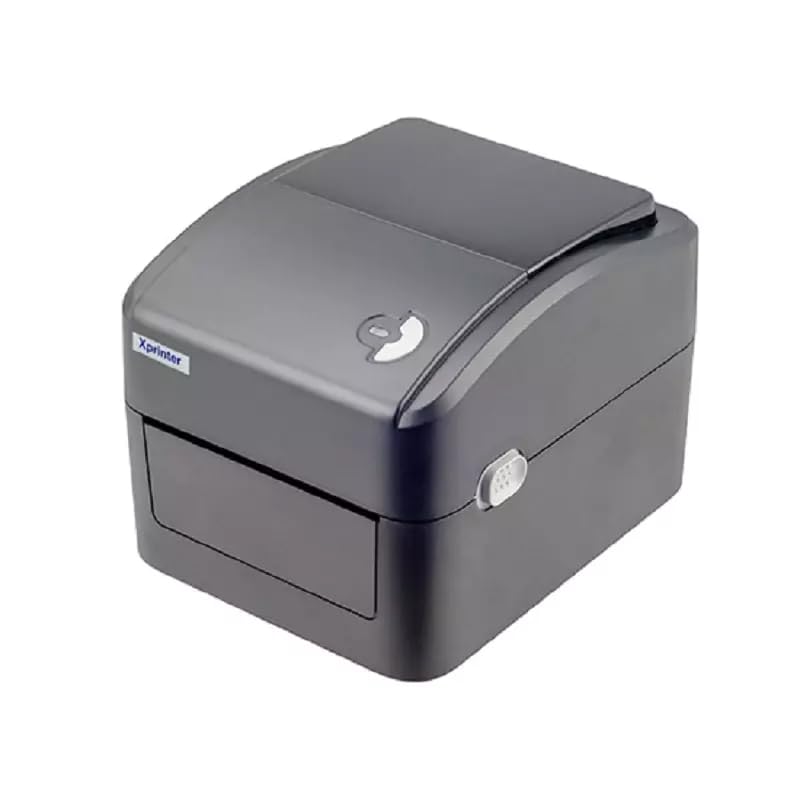
Figura 1: Frente view of the Xprinter XP-420B thermal label printer.
2. Guia de configuração
2.1 Desembalagem e Inspeção Inicial
- Retire cuidadosamente a impressora e todos os acessórios da embalagem.
- Verify that all components are present: printer unit, power adapter, USB cable, and user manual.
- Inspect the printer for any visible damage that may have occurred during transit.
2.2 Conectando a Impressora
- Connect the power adapter to the printer's power port and then plug it into a power outlet.
- Connect one end of the provided USB cable to the printer's USB port and the other end to an available USB port on your computer.
- Power on the printer using the power switch, usually located on the side or rear.

Figure 2: Xprinter XP-420B showing USB connectivity.
2.3 Carregando Etiquetas
- Abra a tampa superior da impressora pressionando as travas de liberação em ambos os lados.
- Place the roll of thermal labels onto the label spindle, ensuring the labels feed from the bottom of the roll.
- Feed the leading edge of the labels through the label guide until it extends slightly past the print head.
- Adjust the movable label guides to fit the width of your labels snugly, without pinching them.
- Close the top cover firmly until it latches securely.
- The printer will automatically calibrate and detect the label size.
2.4 Instalação do driver
Before printing, you must install the appropriate printer drivers on your computer. Drivers are typically provided on a CD included with the printer or can be downloaded from the official Xprinter website. The XP-420B supports both Windows and Mac operating systems.
- Para Windows: Run the setup executable from the driver CD or downloaded file e siga as instruções na tela.
- Para Mac: Download the Mac driver from the Xprinter website and follow the installation prompts.
3. Instruções de operação
3.1 Impressão básica
- Certifique-se de que a impressora esteja ligada e conectada ao computador.
- Open the document or application from which you wish to print (e.g., shipping software, word processor).
- Selecione "Imprimir" no menu do aplicativo.
- Choose "Xprinter XP-420B" as your printer.
- In the printer settings or preferences, ensure the correct label size is selected. The printer supports adjustable label sizes.
- Clique em "Imprimir" para enviar o trabalho para a impressora.
3.2 Adjusting Label Size
The XP-420B allows for adjustable label sizes. This adjustment is primarily done through the printer driver settings on your computer and by physically adjusting the label guides within the printer.
- Ajuste de software: In your printing application or printer driver settings, navigate to the "Page Setup" or "Paper Size" options. Select or define the custom dimensions for your labels (e.g., 4x6 inches for shipping labels).
- Ajuste físico: As described in Section 2.3, ensure the internal label guides are set correctly to the width of your loaded labels.
4. Manutenção
4.1 Limpeza da cabeça de impressão
Regular cleaning of the print head is crucial for maintaining print quality and extending the printer's lifespan. It is recommended to clean the print head after every roll of labels or if print quality degrades.
- Desligue a impressora e desconecte o cabo de alimentação.
- Abra a tampa superior da impressora.
- Se a impressora tiver sido usada recentemente, aguarde alguns minutos para que a cabeça de impressão esfrie.
- Limpe delicadamente a superfície da cabeça de impressão com um cotonete embebido em álcool ou um pano que não solte fiapos.ampenriquecido com álcool isopropílico.
- Deixe a cabeça de impressão secar completamente antes de fechar a tampa e religar a energia.
4.2 Limpeza Geral
- Use um pano macio e seco para limpar a parte externa da impressora.
- Remove any dust or label debris from the inside of the printer using a soft brush or compressed air.
- Não utilize produtos de limpeza abrasivos ou solventes.
5. Solução De Problemas
| Problema | Possível causa | Solução |
|---|---|---|
| A impressora não está respondendo | Power off; USB cable disconnected; Driver issue. | Ensure power is on and connected. Check USB cable. Reinstall printer driver. |
| Qualidade de impressão ruim (desbotada, com linhas) | Cabeça de impressão suja; Tipo de etiqueta incorreto; Configuração de densidade de impressão baixa. | Clean the print head (Section 4.1). Ensure you are using direct thermal labels. Adjust print density in driver settings. |
| Etiquetas não alimentadas corretamente | Labels improperly loaded; Label guides not adjusted; Sensor obstruction. | Reload labels correctly. Adjust label guides. Clean any dust or debris from sensors. |
| A impressora imprime etiquetas em branco. | Labels loaded upside down; Not a direct thermal label. | Ensure labels are loaded with the printable side facing up. Verify labels are direct thermal. |
6. Especificações do produto
| Recurso | Detalhe |
|---|---|
| Marca | Impressora X |
| Nome do modelo | XP-420B |
| Tecnologia de Conectividade | USB |
| Tecnologia de impressão | Térmica direta |
| Resolução | 203 DPI |
| Max Velocidade de Impressão | 152 mm/s (6 inches/second) |
| Memória | 8MB SDRAM, 8MB Flash |
| Saída da impressora | Monocromático |
| Peso do item | 3 quilos |
| Dimensões do produto | 20 cm de profundidade x 6 cm de largura x 10 cm de altura |
| Compatibilidade | Windows, Mac |
7. Garantia e Suporte
7.1 Informações de garantia
A impressora Xprinter XP-420B vem com um Garantia de 1 anos a partir da data da compra. Esta garantia cobre defeitos de fabricação e mau funcionamento sob condições normais de uso. Guarde o comprovante de compra para solicitações de garantia.
7.2 Suporte ao cliente
For technical assistance, troubleshooting beyond this manual, or warranty service, please contact Xprinter customer support. Refer to the contact information provided with your product packaging or visit the official Xprinter website para obter os detalhes de suporte mais atualizados.


