1. Introdução
This manual provides essential information for setting up, operating, maintaining, and troubleshooting your Roku Smart TV 2025 – 24-Inch Select Series 720p HD TV. Please read these instructions carefully before using your television.
The Roku Select Series HD TV offers a streamlined entertainment experience. It features bright HD picture quality, auto speech clarity, and a night mode. Access free live television directly from the home screen and utilize the voice remote for content discovery across various applications. This television is suitable for various rooms including bedrooms, living rooms, kitchens, or children's rooms.
2. O que está na caixa
Verifique se todos os componentes estão presentes na embalagem:
- Roku Select Series 24" HD TV
- Suportes e parafusos
- Roku Voice Remote with batteries
- Guia de início rápido
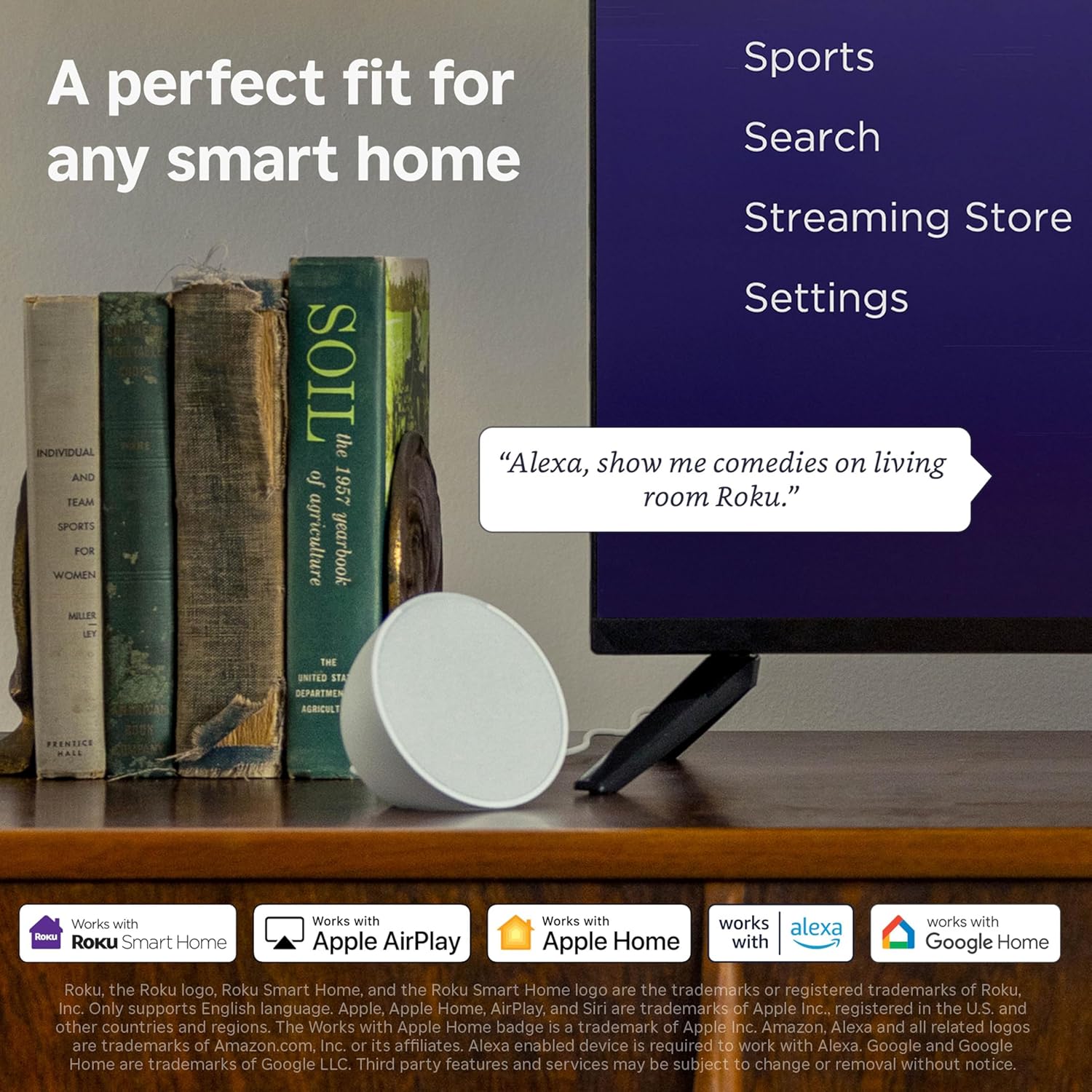
Image: The Roku Select Series TV box contents, showing the television, remote, and stand components.
3. Configuração
3.1 Montagem dos suportes de TV
- Coloque a TV com cuidado, com a tela voltada para baixo, sobre uma superfície macia e limpa para evitar arranhões.
- Alinhe cada suporte com os orifícios de parafuso correspondentes na parte inferior da TV.
- Fixe os suportes utilizando os parafusos fornecidos. Certifique-se de que estejam bem apertados.
3.2 Conectando Periféricos
Your Roku TV includes multiple ports for connecting external devices:
- Portas HDMI: Connect devices such as cable boxes, gaming consoles, or Blu-ray players. The HDMI 1 (ARC) port supports Audio Return Channel for simplified audio connections.
- Porta USB: For media playback from a USB drive or powering compatible devices.
- Entrada de antena/cabo: Conecte uma antena para transmissões via sinal aberto ou uma conexão de TV a cabo.
- Saída de áudio óptica: Para conectar a uma barra de som ou receptor de áudio.
- Entrada AV: Para conectar dispositivos mais antigos usando cabos de vídeo composto e áudio estéreo.

Image: Close-up of the back of the Roku TV, highlighting the HDMI, USB, optical, and AV input ports.
3.3 Inicialização da alimentação e conexão de rede
- Ligue o cabo de alimentação à TV e, em seguida, a uma tomada de parede.
- Insira as pilhas AAA incluídas no controle remoto por comando de voz.
- Pressione o botão liga/desliga no controle remoto para ligar a TV.
- Follow the on-screen instructions to select your language, connect to your Wi-Fi network, and activate your Roku account.
4. Operando sua Roku TV
4.1 Using the Voice Remote
The Roku Voice Remote simplifies navigation and content search. It features dedicated buttons for popular streaming services and voice control capabilities.
- Botão de voz: Press and hold to speak commands for searching content, launching apps, or controlling playback.
- Painel de navegação: Use the directional arrows and OK button to move through menus and select items.
- Atalhos do aplicativo: Dedicated buttons provide quick access to services like Netflix, Disney+, and Prime Video.
- Controles de volume: Adjust TV volume directly from the remote.
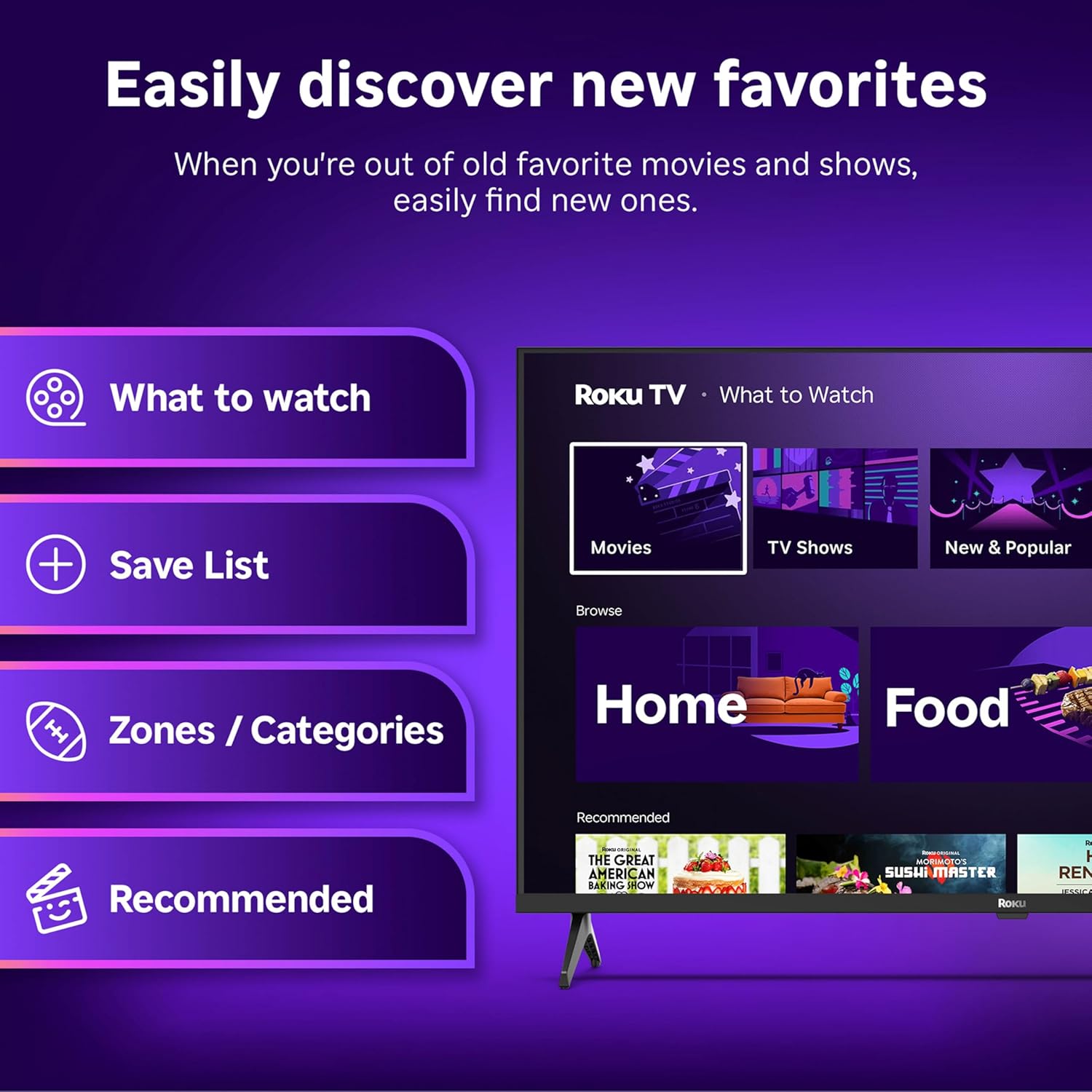
Image: The Roku Voice Remote, showing its layout and key functions.
4.2 Streaming and App Navigation
The Roku TV home screen provides quick access to all your streaming channels and inputs. You can customize the order of your apps for personalized access.
- Tela inicial: Displays your installed apps, recommended content, and TV inputs.
- Streaming Store: Browse and add new streaming channels.
- TV ao vivo: Access free live television channels directly from the home screen.
- Procurar: Use the search function or voice remote to find movies, shows, actors, or directors across various services.

Image: The Roku TV user interface, showing the home screen with app tiles and menu options.
4.3 Configurações de imagem e som
Your Roku TV features Smart Picture technology to optimize viewing and offers enhanced audio features.
- Smart Picture: Automatically adjusts picture settings based on the content being viewed (e.g., movie, sports, vivid, standard).
- Clareza de áudio: Designed for clear speech and louder sound.
- Bluetooth Headphone Mode: Connect your wireless headphones for private listening.

Image: A vibrant nature scene displayed on the Roku TV, demonstrating the clear picture quality.
4.4 Integração com Casa Inteligente
The Roku TV integrates with various smart home ecosystems for convenient voice control and content sharing.
- Controle de voz: Compatible with Roku Voice, Siri, Alexa, and Google Assistant for hands-free operation.
- Apple AirPlay: Effortlessly share videos, photos, and music from your Apple devices to your TV.

Image: A Roku TV screen with a smart speaker nearby, illustrating voice control integration with smart home systems.
5. Manutenção
5.1 Limpando sua TV
- Desligue sempre a TV da tomada antes de limpá-la.
- Use um pano macio e sem fiapos para limpar delicadamente a tela e o gabinete.
- Para manchas persistentes, aplique levementeampMolhe o pano com água ou um limpador de telas suave e não abrasivo. Nunca borrife o limpador diretamente na tela.
- Evite usar produtos químicos agressivos, esponjas abrasivas ou solventes.
5.2 Atualizações de Software
Your Roku TV receives automatic software updates to provide new features and improve performance. Ensure your TV is connected to the internet to receive these updates.
6. Solução De Problemas
If you encounter issues with your Roku TV, try the following basic troubleshooting steps:
- Sem energia: Verifique se o cabo de alimentação está firmemente conectado tanto à TV quanto a uma tomada elétrica em funcionamento. Tente usar outra tomada.
- Sem imagem/som: Verify that the correct input source is selected. Check all cable connections (HDMI, AV, etc.) are secure.
- O controle remoto não está respondendo: Substitua as pilhas do controle remoto. Certifique-se de que não haja obstruções entre o controle remoto e a TV.
- Problemas de conexão de rede: Restart your Wi-Fi router. Go to the TV's network settings to reconnect to your Wi-Fi.
- App Not Loading: Try restarting the app. If the issue persists, remove the app and reinstall it from the Streaming Store.
- Restauração de fábrica: As a last resort, a factory reset can resolve many software issues. This will erase all personal settings and installed apps. Access this option through the TV's Settings menu.
7. Especificações
| Recurso | Especificação |
|---|---|
| Marca | Roku |
| Número do modelo | 24R2D5 |
| Tamanho da tela | 24 polegadas |
| Tecnologia de exibição | LIDERADO |
| Resolução | 720p |
| Taxa de atualização | 60 Hz |
| Proporção da tela | 16:9 |
| Tecnologia de Conectividade | Wifi Bluetooth |
| Características especiais | Bluetooth Headphone Mode, Dolby Audio, Voice Remote |
| Peso do item | 5.7 libras |
| Dimensões do produto | 7 x 21.1 x 14.3 polegadas |
| Pilhas necessárias | 2 pilhas AAA (para o controle remoto) |
8. Garantia e Suporte
For warranty information and technical support, please refer to the documentation included with your product or visit the official Roku support website. Guarde o recibo de compra para reclamações de garantia.
Roku offers various support resources, including online FAQs, troubleshooting guides, and customer service contact options.


