1. Introdução
This manual provides essential information for setting up, operating, maintaining, and troubleshooting your NIMO 17.3-inch FHD Laptop N171. Please read this guide thoroughly to ensure proper use and to maximize the lifespan of your device.
2. O que está na caixa
- 1 x NIMO N171 Laptop
- 1 x Type-C 65W PD Fast Charger
- 1 x Manual do Usuário
- Windows 11 Home (Pre-installed)
3. Configuração
3.1 Inicialização da alimentação e carregamento
Before first use, ensure your laptop is fully charged. Connect the provided 65W Type-C PD Fast Charger to the laptop's Type-C charging port and then to a power outlet. The charging indicator light will illuminate.

Image: The 65W Type-C PD charger, illustrating its compatibility with laptops, tablets, and smartphones, and emphasizing a clutter-free charging solution.
Press the power button located on the keyboard to turn on the laptop. Follow the on-screen instructions to complete the initial Windows 11 setup, including language, region, network connection, and user account creation.
3.2 Configuração do Leitor de Impressões Digitais
For enhanced security and quick login, set up the fingerprint reader. During the Windows 11 setup or later via Windows Settings (Accounts > Sign-in options), you can register your fingerprints. The fingerprint sensor is integrated into the touchpad.

Image: Close-up of the fingerprint sensor integrated into the laptop's touchpad, highlighting its secure one-touch login capability.
4. Instruções de operação
4.1 Exibição
Your NIMO N171 features a 17.3-inch Full HD (1920x1080) IPS anti-glare display. This screen provides wide viewing angles and vibrant colors for an immersive visual experience. The narrow bezels contribute to an 85% screen-to-body ratio.

Image: The NIMO laptop showcasing its 17.3-inch FHD IPS display with narrow bezels, emphasizing visual enjoyment and eye protection features.
4.2 Teclado e touchpad
The laptop is equipped with a full-size backlit keyboard, allowing for comfortable typing in various lighting conditions. It also includes a numeric keypad for efficient data entry. The integrated touchpad supports multi-touch gestures for navigation.

Image: The NIMO laptop's backlit keyboard and touchpad with an integrated fingerprint reader, illustrating ease of use in low-light conditions and secure login.
4.3 Portas e Conectividade
The NIMO N171 offers a variety of ports for connecting peripherals and external displays:
- USB 3.2 Gen1 ports (multiple)
- Porta USB 2.0
- USB Type-C 3.2 Gen1 port (data and charging)
- Standard HDMI 1.4 port
- Conector de áudio
- Slot para cartão Micro SD
- Ranhura de bloqueio Kensington

Image: A detailed diagram showing the various ports on the NIMO laptop, including USB, HDMI, Type-C, Audio Jack, and Micro SD slot, highlighting versatility.
4.4 Gerenciamento de bateria
The laptop is equipped with a 53.58 Wh battery, providing up to 7 hours of usage. For optimal battery life, avoid extreme temperatures and do not overcharge. Use only the provided 65W Type-C PD charger.

Image: Two individuals using the NIMO laptop in different settings, illustrating the laptop's large capacity battery and its suitability for extended use.
4.5 Webcam Privacy
The laptop includes a built-in privacy camera switch for the 2.0 MP webcam. Slide the switch to physically disable the camera when not in use, ensuring your privacy.
5. Manutenção
- Limpeza: Use um pano macio e sem fiapos levementeampPara limpar a tela, utilize água ou um produto de limpeza específico para telas. Para o teclado e o chassi, use um pano seco e macio. Evite produtos químicos agressivos.
- Armazenar: Guarde o laptop em local fresco e seco, longe da luz solar direta e de temperaturas extremas.
- Proteção: Use a protective case when transporting the laptop. Avoid placing heavy objects on top of it.
- Atualizações de software: Atualize regularmente seu sistema operacional e drivers para garantir desempenho e segurança ideais.
6. Solução De Problemas
- O computador portátil não liga: Ensure the charger is properly connected and the battery has sufficient charge. Try a different power outlet.
- A tela está em branco: Connect an external monitor to check if the display output is working. Restart the laptop.
- Desempenho lento: Feche aplicativos desnecessários, verifique se há malware e certifique-se de ter espaço de armazenamento livre suficiente.
- Problemas de conectividade (Wi-Fi/Bluetooth): Check if wireless features are enabled. Restart your router or Bluetooth device.
- Superaquecimento: Ensure the laptop's vents are not blocked. Use the laptop on a hard, flat surface.
For persistent issues, refer to the NIMO support section or contact customer service.
7. Especificações
| Recurso | Especificação |
|---|---|
| Nome do modelo | NIMO N171 |
| Mostrar | 17.3 Inches FHD (1920x1080) IPS Anti-Glare |
| Processador | Intel Core i3-1215U (6 Cores, 8 Threads, up to 4.4GHz) |
| BATER | 16 GB DDR4 (3200 MHz) |
| Armazenar | SSD PCIe de 256 GB |
| Gráficos | Intel Integrated Graphics |
| Sistema operacional | Windows 11 Início |
| Conectividade sem fio | 802.11a/b/g/n/ac, Bluetooth 5.2 |
| Portos | USB 3.2 Gen1, USB 2.0, USB Type-C (PD), HDMI 1.4, Audio Jack, Micro SD |
| Duração da bateria | Up to 9 Hours (53.58 Wh) |
| Webcâmera | 2 MP with Privacy Switch |
| Características especiais | Fingerprint Reader, Backlit Keyboard, Numeric Keypad |
| Dimensões (CxLxA) | 15.61 x 9.84 x 0.76 polegadas |
| Peso | 4.6 libras |
8. Garantia e Suporte
Your NIMO N171 laptop comes with comprehensive support:
- Garantia de 2 anos: Nimo Direct Inc. provides a 2-year warranty covering manufacturing defects.
- Política de devolução de 90 dias: You may return any Nimo product for any reason within 90 days of purchase from Nimo Direct Inc.
- Suporte ao cliente 24 horas por dia, 7 dias por semana: Dedicated support is available for instant issue resolution.
Informações de contato:
For product-related questions or support, please contact us:
- E-mail: serviço@nimopc.com
- On-line: Visit the official NIMO website or product page for contact options.
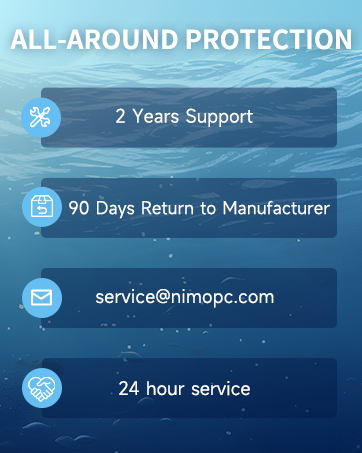
Image: Two customer service representatives with headsets, representing professional customer assistance.

Image: A technician working on a circuit board, symbolizing the 2-year support provided for Nimo products.

Image: A delivery person handing a package to a customer, representing the 90-day return policy.
9. Informações de segurança
Please adhere to the following safety guidelines to prevent damage to your laptop and ensure personal safety:
- Use only original chargers and regularly inspect cables for damage.
- Handle the laptop by its base and consider using a protective case.
- Avoid placing heavy items on the laptop.
- Place the laptop on a hard, flat surface to prevent overheating. Keep it away from extreme temperatures and moisture.
- Do not overcharge the battery. Discontinue use if the battery swells or shows signs of damage.
- Set strong passwords, keep software updated, use antivirus protection, and regularly back up your data.
- In case of liquid spills, immediately unplug the laptop and allow it to dry completely before attempting to power it on.
- For any issues, consult professionals. Do not attempt to disassemble or repair the laptop yourself.
This laptop is provided "as is," with no express or implied warranties except the manufacturer's limited warranty (if applicable). Implied warranties of merchantability or fitness for a specific purpose are disclaimed. We are not liable for damages resulting from misuse (e.g., non-approved chargers, unauthorized repairs), physical damage, or failure to follow safety rules, including data loss or business interruption. Users must back up data regularly. This disclaimer does not exclude liability for manufacturing defects or violations of mandatory local laws. Using the laptop signifies your acceptance of these terms, governed by applicable jurisdiction laws.


