Introdução
Thank you for choosing the ProtoArc KM310 Dual Mode Mechanical Keyboard and Mouse Kit. This kit provides a versatile and efficient solution for your computing needs, offering both 2.4G wireless and Bluetooth connectivity. The mechanical keyboard features a UK QWERTY layout with responsive red switches, while the ergonomic mouse offers adjustable DPI and quiet clicks. This manual will guide you through the setup, operation, and maintenance of your new device.
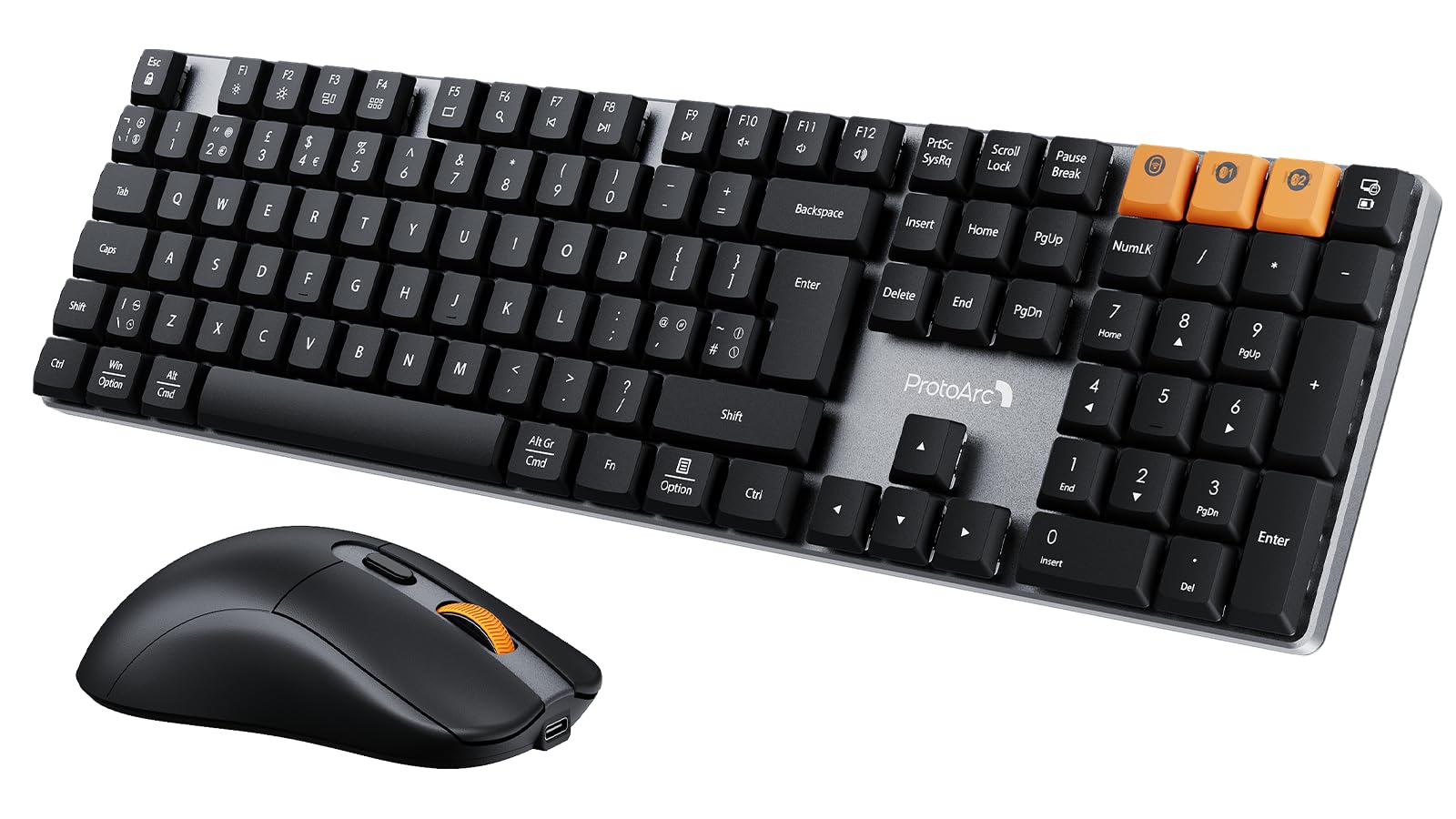
Image: The ProtoArc KM310 keyboard and mouse kit, showcasing its sleek design on a modern desk setup.
Conteúdo da embalagem
- ProtoArc KM310 Mechanical Keyboard
- Mouse sem fio ProtoArc
- USB 2.4G Receiver (stored in the mouse battery compartment)
- Cabo de carregamento USB-C
- Manual do usuário
Instruções de configuração
Configuração do teclado
The keyboard supports both 2.4G wireless and Bluetooth connectivity. You can connect up to three devices simultaneously (one via 2.4G, two via Bluetooth).
Conexão sem fio 2.4G:
- Localize o receptor USB 2.4G, geralmente armazenado no compartimento da bateria do mouse.
- Conecte o receptor USB a uma porta USB disponível em seu computador.
- Ligue o teclado usando o botão liga/desliga localizado na lateral ou na parte traseira.
- Imprensa Fn + 4 to switch the keyboard to 2.4G mode. The indicator light will flash briefly, then remain solid when connected.
Conexão Bluetooth (BT1 / BT2):
- Ligue o teclado usando o botão liga/desliga.
- Imprensa Fn + Q (para BT1) ou Fn + W (for BT2) to select a Bluetooth channel. The indicator light will flash slowly.
- Para entrar no modo de emparelhamento, pressione e segure Fn + Q or Fn + W for 3-5 seconds until the indicator light flashes rapidly.
- On your device (computer, laptop, tablet), enable Bluetooth and search for "ProtoArc KM310".
- Select "ProtoArc KM310" to pair. The indicator light will stop flashing and remain solid when connected.
- Repeat for a second Bluetooth device using Fn + W.
Configuração do mouse
The mouse also supports both 2.4G wireless and Bluetooth connectivity.
Conexão sem fio 2.4G:
- Certifique-se de que o receptor USB 2.4G esteja conectado ao seu computador.
- Ligue o mouse usando o botão liga/desliga na parte inferior do aparelho.
- Press the mode switch button on the underside of the mouse until the indicator light shows 2.4G mode (usually green). The mouse should connect automatically.
Conexão Bluetooth:
- Ligue o mouse usando o botão liga/desliga.
- Press the mode switch button on the underside of the mouse to cycle through Bluetooth modes (BT1 or BT2, usually blue).
- Press and hold the mode switch button for 3-5 seconds until the indicator light flashes rapidly.
- On your device, enable Bluetooth and search for "ProtoArc Mouse".
- Select "ProtoArc Mouse" to pair. The indicator light will stop flashing and remain solid when connected.

Image: The ProtoArc KM310 keyboard and mouse connected to multiple devices (desktop, laptop, tablet) via 2.4G and Bluetooth.
Instruções de operação
Funções do teclado
- Chaves Mecânicas: O teclado apresenta um design de baixo perfil.file mechanical red switches for a smooth and responsive typing experience with low sound.
- UK QWERTY Layout: Standard UK QWERTY layout with a full numeric keypad.
- Chaves multimídia: Use o Fn key in combination with the F-keys (F1-F12) for various multimedia and shortcut functions (e.g., volume control, media playback, brightness adjustment). Refer to the keycap legends for specific functions.
- Pés com inclinação ajustável: The keyboard includes adjustable tilt legs on the underside, allowing you to set it at a 6° or 9° angle for improved ergonomic comfort during long typing sessions.

Imagem: Um close-up view of the ProtoArc KM310 mechanical keyboard, highlighting the low-profile red switches and keycap design.

Image: The ProtoArc KM310 keyboard from a side angle, demonstrating the adjustable tilt legs set at a 9-degree angle.
Funções do mouse
- DPI ajustável: The mouse offers three adjustable DPI levels: 1000, 1600, and 2400. Press the DPI button (usually located behind the scroll wheel) to cycle through these settings and adjust cursor sensitivity.
- Clique Silencioso: Designed for quiet operation, reducing click noise by up to 90%.
- Design ergonômico: The mouse features an ergonomic grip for comfortable use, reducing hand fatigue during extended periods.
- Ultraleve: Weighing approximately 63g, the mouse is designed to be ultra-light, contributing to efficient work and reduced fatigue.

Image: The ProtoArc wireless mouse illustrating its adjustable DPI settings (1000, 1600, 2400) and quiet click feature.

Image: A hand demonstrating the natural and ergonomic grip of the ProtoArc wireless mouse.

Image: A comparison showing the ProtoArc wireless mouse's ultra-lightweight design (63g) compared to a traditional mouse (100g), emphasizing reduced fatigue.
Instruções de carregamento
Both the keyboard and mouse are equipped with built-in rechargeable batteries and use a USB-C charging port.
- Carregamento: Connect the provided USB-C cable to the charging port on the keyboard/mouse and the other end to a USB power source (e.g., computer USB port, wall adapter).
- Indicador de carga: An indicator light will typically show red during charging and turn off or change color when fully charged.
- Tempo de carregamento: Uma carga completa geralmente leva de 2 a 3 horas.
- Tempo de espera: The devices offer a standby time of 150-200 days on a full charge.
- Uso durante o carregamento: Both devices can be used while charging.
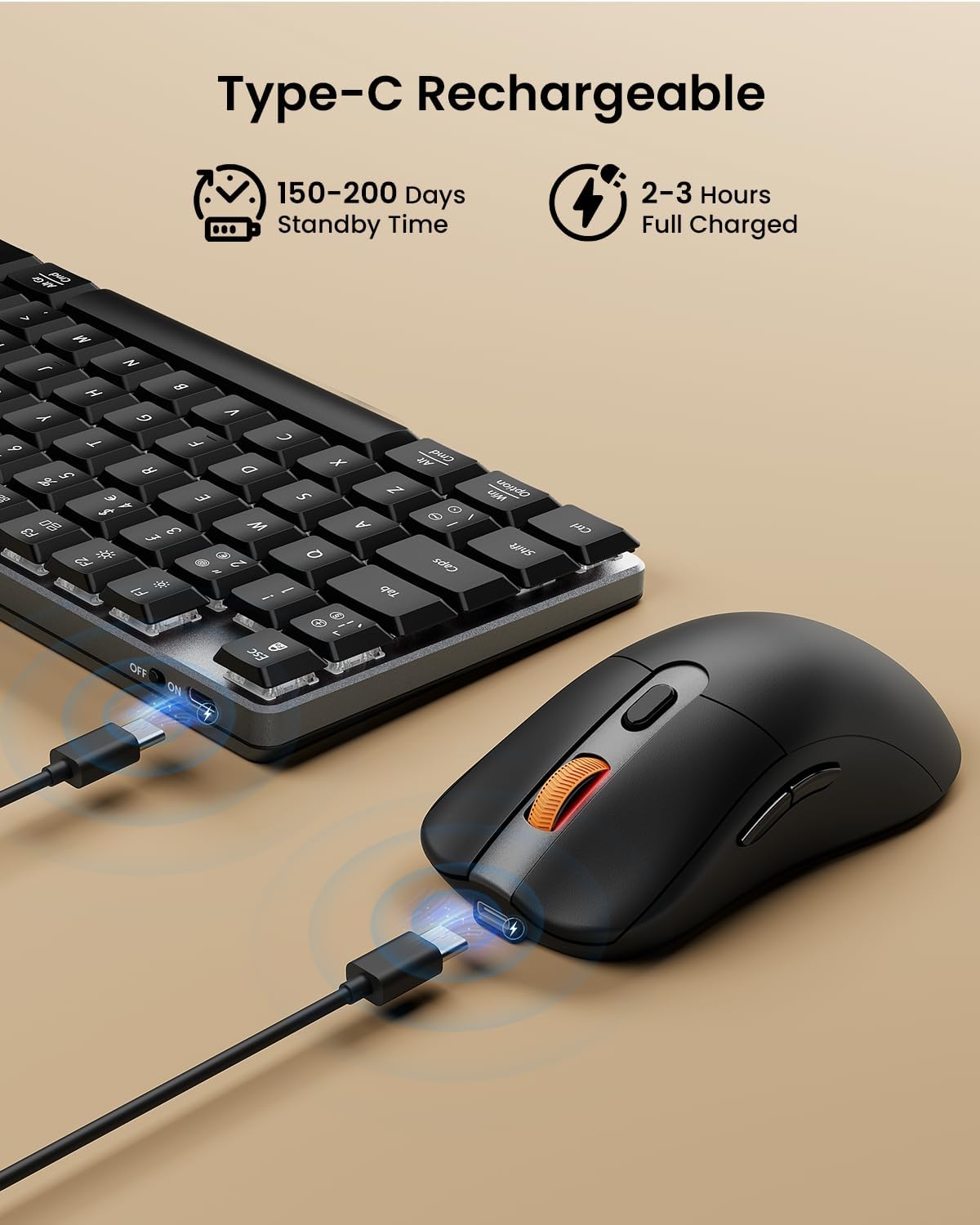
Image: The ProtoArc keyboard and mouse being charged simultaneously via USB-C cables, illustrating the charging ports and cables.
Manutenção
- Limpeza: Use a soft, dry cloth to clean the surfaces of the keyboard and mouse. For deeper cleaning, especially between keys, use compressed air. Avoid using harsh chemicals or abrasive materials.
- Armazenar: When not in use for extended periods, turn off the devices to conserve battery life. Store them in a cool, dry place.
- Cuidados com a bateria: Avoid fully discharging the battery frequently. Charge the devices regularly to maintain optimal battery health.
Solução de problemas
Teclado/Mouse não responde:
- Ensure the devices are turned on.
- Verifique os níveis da bateria e carregue-a se necessário.
- For 2.4G connection, ensure the USB receiver is securely plugged into a working USB port. Try a different USB port.
- For Bluetooth connection, ensure Bluetooth is enabled on your device and the correct channel (BT1/BT2) is selected on the keyboard/mouse. Try re-pairing the device.
- Move the devices closer to the receiver/device to rule out interference.
Atrasos ou desconexões:
- Ensure there are no strong sources of interference (e.g., Wi-Fi routers, other wireless devices) nearby.
- Try connecting via the other mode (e.g., if using 2.4G, try Bluetooth, or vice-versa).
- Update your computer's Bluetooth drivers if connecting via Bluetooth.
Keys Not Working Correctly:
- Check for any debris under the keycaps.
- Ensure the keyboard is not in a special mode that might alter key functions.
Especificações
| Marca | ProtoArco |
| Número do modelo | KM310 |
| Cor | Preto |
| Tecnologia de Conectividade | Bluetooth, USB sem fio de 2.4 GHz |
| Compatibilidade do sistema operacional | Windows, macOS, Linux |
| Recursos especiais (teclado) | Rechargeable mechanical keyboard, UK QWERTY layout, Red switches, Numeric keypad, Shortcut and multimedia keys, Adjustable tilt legs |
| Special Features (Mouse) | Adjustable DPI (1000/1600/2400), Silent click, Ergonomic grip, Ultra-lightweight (approx. 63g) |
| Dispositivos compatíveis | Computador pessoal, laptop, tablet |
| Descrição do teclado | Mecânico |
| Tecnologia de detecção de movimento | Óptico |
| Fonte de energia | Alimentado por bateria (recarregável via USB-C) |
| Tempo de espera da bateria | 150-200 dias |
| Tempo de carga total | 2-3 horas |
Garantia e Suporte
ProtoArc products are designed for reliability and performance. For any questions, technical support, or warranty claims, please contact ProtoArc customer service. Details can typically be found on the official ProtoArc website ou através da sua plataforma de compra.
Guarde o comprovante de compra para fins de garantia.


