1. Introdução
This manual provides essential information for setting up, operating, maintaining, and troubleshooting your PRITOM TAB10 Android 14 Tablet. Please read it thoroughly to ensure proper use and to maximize your device's performance.
The PRITOM TAB10 is a 10.1-inch tablet featuring the Android 14 Go operating system, a Quad-Core processor, 32GB of internal storage (expandable), and a 6000mAh battery. It is designed for general use, including browsing, media consumption, and light gaming.
2. Dispositivo acabadoview

Imagem: Frente e verso view of the PRITOM TAB10 Tablet, showcasing its sleek design and rear camera.

Image: Diagram illustrating the location of the headphone jack, volume buttons, power button, front camera, USB-C port, rear camera, flash, and speakers on the PRITOM TAB10 Tablet.
Familiarize-se com os componentes físicos do seu tablet:
- Plug do fone de ouvido: Para conectar fones de ouvido com fio.
- Volume +/-: Ajusta o nível de saída de áudio.
- Ligar/desligar: Press and hold to power on/off or restart. Short press to sleep/wake.
- Câmera frontal: Para videochamadas e selfies.
- Porta USB-C: Para carregamento e transferência de dados.
- Câmera traseira: Para tirar fotos e gravar vídeos.
- Clarão: Fornece iluminação para a câmera traseira.
- Palestrantes: Para saída de áudio.
- Slot para cartão Micro SD: For expanding storage (supports up to 512GB TF Card, not included).
3. Configuração
3.1 Desembalagem
Upon opening the package, ensure all components are present. The standard package includes the PRITOM TAB10 Tablet and a charger.
3.2 Carregando o dispositivo
Before first use, fully charge your tablet. Connect the provided charger to the USB-C port on the tablet and plug it into a power outlet. The battery indicator on the screen will show charging status.
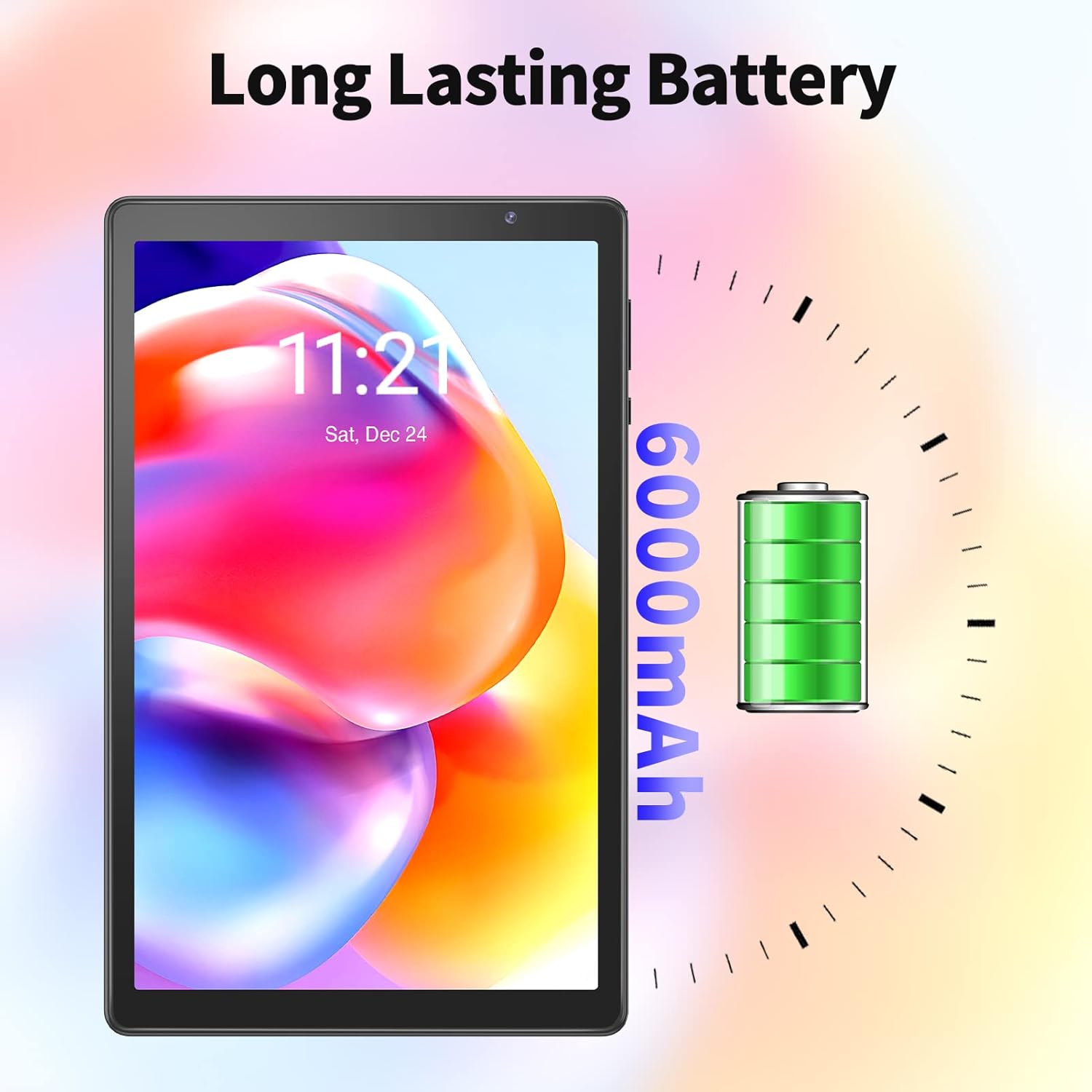
Image: The PRITOM TAB10 Tablet screen showing a battery icon and '6000mAh' indicating its battery capacity.
3.3 Inicialização Inicial
Press and hold the Power On/Off button until the PRITOM logo appears on the screen. The tablet will boot up to the initial setup screen.
3.4 Configuração inicial
Follow the on-screen prompts to configure your tablet:
- Seleção de idioma: Escolha o seu idioma preferido.
- Conexão Wi-Fi: Select your Wi-Fi network and enter the password. The tablet supports 802.11ac and 802.11n wireless standards.
- Conta do Google: Inicie sessão com a sua conta Google ou crie uma nova. Isso é necessário para acessar a Google Play Store e outros serviços do Google.
- Data e hora: Defina a data e a hora corretas.
- Segurança: Configure um bloqueio de tela (PIN, padrão ou senha) para a segurança do dispositivo.
4. Instruções de operação
4.1 Navegação básica
The PRITOM TAB10 uses a capacitive touchscreen. Common gestures include tapping, swiping, pinching (for zoom), and long-pressing.
4.2 Android 14 Go System
Your tablet runs on the stable Android 14 Go system, optimized for efficient performance on devices with 4GB RAM. This system ensures quick app launches and smooth video playback.

Image: The PRITOM TAB10 Tablet displaying the Android 14 interface with multiple application icons, indicating access to Google Play Store apps.
4.3 Gerenciamento de aplicativos
As a GMS Certified device, you can download thousands of applications from the Google Play Store, including popular apps like Netflix, YouTube, and Skype. To install apps, open the Play Store, search for your desired app, and tap 'Install'.
4.4 Utilização da câmera
The tablet features a 2.0 MP front camera and a 2.0 MP rear camera. Open the Camera app to take photos or record videos. Tap the screen to focus and press the shutter button to capture.
4.5 Expansão de armazenamento
The tablet comes with 32GB of internal storage. If more space is needed, you can insert a Micro SD card (up to 512GB, not included) into the dedicated slot to store additional pictures, videos, and files.
4.6 Recursos de exibição
The 10.1-inch HD IPS display offers a resolution of 1280 x 800 pixels, providing clear images and rich colors. The Eye Health mode filters out blue light to reduce visual fatigue and optimizes backlight for a more comfortable viewexperiência.
5. Manutenção
5.1 Limpeza do tablet
Use a soft, lint-free cloth to clean the screen and body of the tablet. Avoid using harsh chemicals or abrasive materials, as these can damage the device.
5.2 Atualizações de Software
Periodically check for system updates in the tablet's settings. Keeping your software up-to-date ensures optimal performance, security, and access to new features.
5.3 Cuidados com a bateria
To prolong battery life, avoid exposing the tablet to extreme temperatures. It is recommended to fully charge the tablet before it completely drains. The 6000mAh battery provides up to 8 hours of mixed use.
6. Solução De Problemas
If you encounter issues with your PRITOM TAB10 Tablet, refer to the following common solutions:
- Dispositivo não liga: Ensure the tablet is sufficiently charged. Connect the charger and wait a few minutes before attempting to power on again.
- Desempenho lento: Close unused applications, clear cache, or restart the tablet. Consider uninstalling rarely used apps to free up storage.
- Problemas de conectividade Wi-Fi: Verifique se o Wi-Fi está ativado nas configurações. Reinicie o roteador e o tablet. Certifique-se de estar dentro do alcance do sinal Wi-Fi.
- Applications Crashing/Freezing: Force close the app, clear its cache, or reinstall it. Ensure the tablet's software is up-to-date.
- Tablet Freezes or Enters Boot Loop: If the tablet becomes unresponsive or gets stuck during startup, a factory reset might be necessary. Note: A factory reset will erase all data on the device. Para problemas persistentes, entre em contato com o suporte ao cliente.
For more detailed troubleshooting, consult general Android device support resources online.
7. Especificações
| Recurso | Especificação |
|---|---|
| Nome do modelo | M10-TAB10 |
| Sistema operacional | Androide 14 |
| Tamanho da tela | 10.1 polegadas |
| Resolução da tela | 1280 x 800 pixels (HD IPS) |
| Processador | Quad-Core (Allwinner) |
| BATER | 4GB (+2GB Expand) |
| Armazenamento interno | 32 GB |
| Armazenamento expansível | Micro SD card slot (up to 512GB TF Card) |
| Capacidade da bateria | 6000mAh |
| Duração média da bateria | Até 8 horas |
| Câmera Frontal | 2.0 MP |
| Câmera Traseira | 2.0 MP |
| Tipo sem fio | 802.11ac, 802.11n |
| Peso do item | 1.79 libras |
| Dimensões do produto | 13 x 8 x 0.4 polegadas |
8. Garantia e Suporte
The PRITOM TAB10 Tablet comes with a 1-year worry-free guarantee. If you experience a quality issue with the tablet, it may be returned for a free replacement.
PRITOM is committed to providing reliable customer service and technical support. If you have any problems or require assistance, please do not hesitate to contact PRITOM customer service for on-time technical support.
For support, please refer to the contact information provided with your product packaging or visit the official PRITOM website.


