1. Introdução
O Pretoview Tab20WIFI is a 10.1-inch Android 15 tablet designed for versatile use, from entertainment to productivity. It features a vibrant HD+ IPS display, a powerful quad-core processor, and ample storage with expansion capabilities. This manual provides essential information for setting up, operating, maintaining, and troubleshooting your device.

O Pretoview Tab20WIFI tablet offers a 10.1-inch display, WiFi 5 connectivity, Android 15, 12GB RAM + 64GB storage, a 6600mAh battery, and Widevine L1 support.
2. Configuração
2.1 Conteúdo da embalagem
Antes de começar, verifique se todos os itens estão presentes na embalagem:
- Pretoview Tab20WIFI Tablet
- Cabo USB Tipo-C
- Adaptador de alimentação 10W
- Protetor de tela (pré-aplicado ou incluído)
- Estojo protetor
- Manual do usuário
2.2 Carregamento Inicial
It is recommended to fully charge the tablet before first use. Connect the provided Type-C USB cable to the tablet's charging port and the 10W power adapter to a wall outlet. The charging indicator will show the battery status.
2.3 Ligar/Desligar
- Para ligar: Press and hold the Power Button located on the side of the tablet until the Blackview O logotipo aparece na tela.
- Para desligar: Press and hold the Power Button until the power options menu appears. Select "Power Off" and confirm.
- Reiniciar: Press and hold the Power Button until the power options menu appears. Select "Restart" and confirm.
2.4 Configuração Inicial
Ao ligar o tablet pela primeira vez, siga as instruções na tela para configurá-lo:
- Selecione seu idioma preferido.
- Conecte-se a uma rede Wi-Fi.
- Faça login com sua conta do Google ou crie uma nova.
- Review e aceitar os termos e condições.
- Configure o bloqueio de tela (PIN, padrão, senha ou desbloqueio facial).
2.5 Expansão de armazenamento
The tablet supports up to 1TB TF (microSD) card expansion. To insert a TF card:
- Locate the Micro SD slot on the side of the tablet.
- Gently insert the TF card into the slot until it clicks into place.
- The tablet will detect the new storage. You may be prompted to format it for use as portable or internal storage.

The tablet features 12GB RAM (4GB physical + 8GB virtual) and 64GB internal storage, expandable up to 1TB with a TF card (not included).
3. Operando o tablet
3.1 Display and Touch Interaction
The tablet features a 10.1-inch HD+ IPS display with an 800x1280 resolution and 149 PPI, offering clear visuals. It supports 10-point multi-touch and a 120Hz sampling rate for responsive interaction.
3.2 Navegação e Interface
Your tablet runs on Android 15. Navigate using gestures or on-screen buttons:
- Tela inicial: Deslize para a esquerda ou para a direita para acessar diferentes telas iniciais.
- Gaveta de aplicativos: Deslize de baixo para cima na tela para view todos os aplicativos instalados.
- Notificações e configurações rápidas: Swipe down from the top of the screen to access notifications and quick settings toggles (Wi-Fi, Bluetooth, brightness, etc.).
3.3 Conectividade
The tablet supports 5G Wi-Fi and Bluetooth 5.0 for wireless connections.
- Wi-fi: Vá para Configurações > Rede e internet > Wi-Fi Para se conectar às redes disponíveis.
- Bluetooth: Vá para Configurações > Dispositivos conectados > Bluetooth to pair with Bluetooth devices like headphones, keyboards, or mice.

Bluetooth 5.0 allows connection to various external devices such as keyboards, mice, styluses, USB drives, headsets, and speakers.
3.4 Câmeras
The tablet is equipped with an 8MP rear camera and a 5MP front camera. Open the Camera app to capture photos and videos.
- Toque no botão do obturador para tirar uma foto.
- Alterne entre as câmeras frontal e traseira usando o ícone da câmera.
- Explore different modes like video, portrait, or panorama if available.
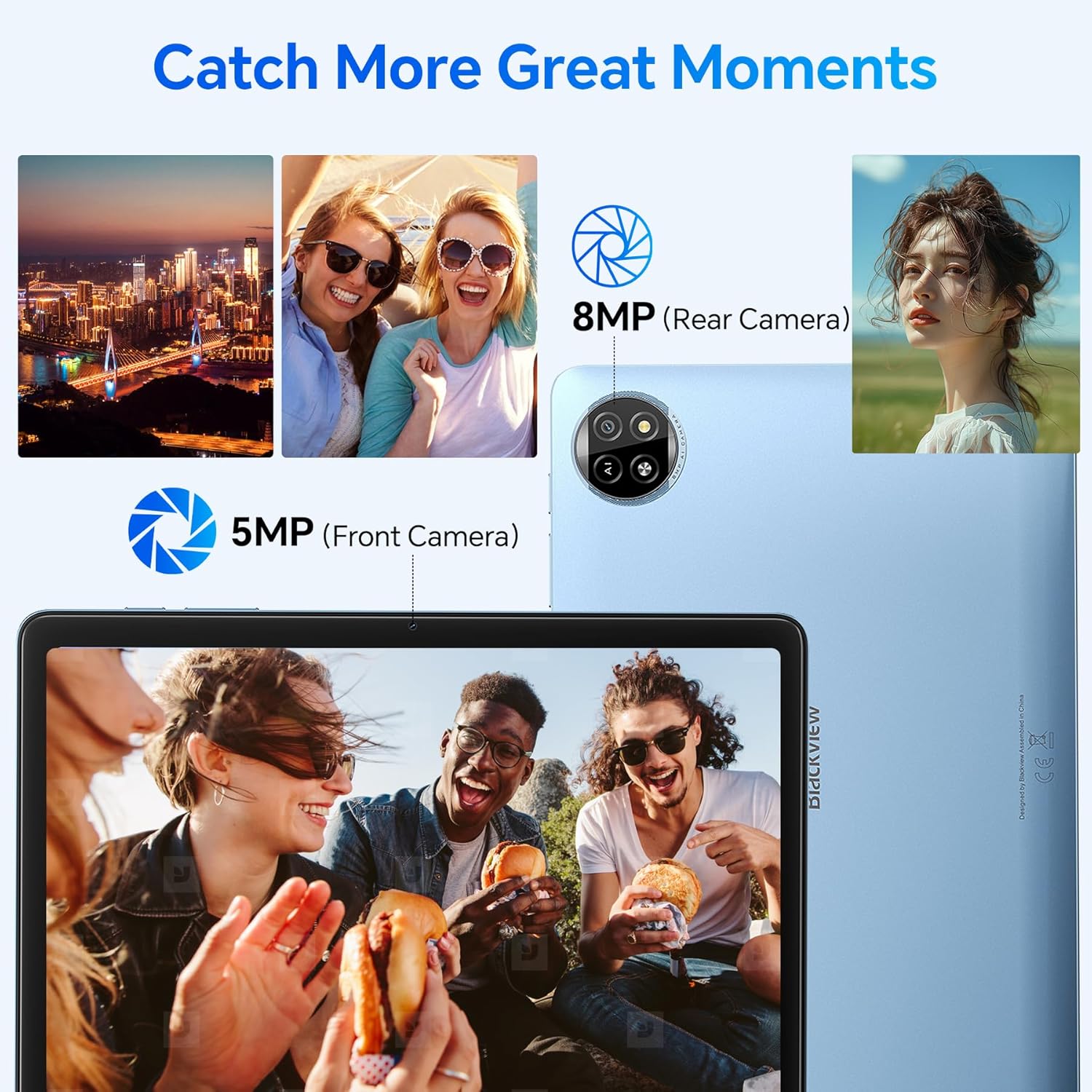
The tablet features an 8MP rear camera and a 5MP front camera for capturing moments.
3.5 Desbloqueio facial
Set up Face Unlock for convenient and secure access to your tablet.
- Vá para Configurações > Segurança e privacidade > Desbloqueio do dispositivo > Desbloqueio facial.
- Siga as instruções na tela para registrar seu rosto.
- Once set up, simply look at the front camera to unlock your device.
3.6 Apps and Features
- Instalando aplicativos: Baixe e instale aplicativos da Google Play Store.
- Função de tela dividida: To use two apps simultaneously, open one app, then swipe up from the bottom of the screen and hold to access recent apps. Drag one app to the top or side of the screen, then select another app for the remaining space.

The split-screen function allows you to boost productivity by using two applications simultaneously.
- Casting Screen: Share your tablet's screen to a compatible smart TV or display. Go to Settings > Connected devices > Connection preferences > Cast and select your desired device.

Utilize the casting screen feature to display your tablet's content on a larger screen.
- Suporte Widevine L1: Enjoy high-quality streaming from platforms like Netflix, YouTube, HBO, and Prime Video due to Widevine L1 certification.

Widevine L1 support ensures high-quality streaming experiences for various media platforms.
- Doke AI: The tablet integrates Doke AI, powered by advanced AI models, to provide intelligent services such as smart assistance, content generation, and image processing.

Doke AI offers intelligent services through applications like Hi Doki, Soundle, VidGen, and ImageX.
4. Manutenção
4.1 Cuidados com a bateria
The tablet is equipped with a 6600mAh Lithium Polymer battery. To maximize battery life:
- Evite temperaturas extremas.
- Não deixe a bateria descarregar completamente com frequência.
- Utilize o carregador e o cabo fornecidos para um carregamento ideal.
- Feche os aplicativos não utilizados que estiverem sendo executados em segundo plano.
- Ajuste o brilho da tela para um nível confortável.

The 6600mAh battery provides approximately 7 hours of web browsing, 6 hours of video playback, 6 hours of gaming, 22 hours of audio playback, and 6 days of standby time.
4.2 Limpeza
Para limpar seu tablet:
- Use um pano macio e sem fiapos.
- Para manchas persistentes, aplique ligeiramenteampLimpe o pano com água ou um produto de limpeza para telas eletrônicas.
- Evite produtos químicos agressivos, materiais abrasivos ou umidade excessiva.
4.3 Atualizações de Software
Verifique e instale regularmente as atualizações de software para garantir o melhor desempenho, segurança e acesso a novos recursos. Acesse Configurações > Sistema > Atualização do sistema.
5. Solução De Problemas
Aqui estão soluções para problemas comuns que você pode encontrar:
| Emitir | Solução possível |
|---|---|
| O tablet não liga. | Certifique-se de que a bateria esteja carregada. Conecte o carregador e aguarde alguns minutos antes de tentar ligar novamente. Se não responder, pressione e segure o botão liga/desliga por 10 a 15 segundos para forçar a reinicialização. |
| Problemas de conexão Wi-Fi | Check if Wi-Fi is enabled in Quick Settings or Settings. Restart your Wi-Fi router. Forget the network and reconnect. Ensure you are within range of the Wi-Fi signal. |
| Desempenho lento ou travamento de aplicativos | Close unused background apps. Clear cache for problematic apps (Settings > Apps > [App Name] > Storage & cache > Clear cache). Restart the tablet. Ensure sufficient storage space is available. |
| A tela não responde | Restart the tablet. Ensure the screen is clean and free of debris. If the issue persists, a factory reset might be necessary (back up data first). |
| A bateria descarrega rapidamente | Reduce screen brightness. Disable Wi-Fi/Bluetooth when not in use. Close power-intensive apps. Check battery usage in Settings to identify draining apps. |
If these solutions do not resolve your issue, please refer to the Warranty & Support section for further assistance.
6. Especificações
Especificações técnicas detalhadas para o Blackview Tab20WIFI tablet:
| Recurso | Detalhe |
|---|---|
| Nome do modelo | Tab20WIFI |
| Número do modelo do item | T310 |
| Sistema operacional | Androide 15 |
| Tamanho da tela | 10.16 polegadas |
| Resolução máxima da tela | 800x1280 pixels |
| BATER | 4GB (expandable with 8GB virtual RAM) |
| Tamanho da memória flash (ROM) | 64 GB |
| Armazenamento expansível | Até 1 TB via cartão TF |
| Tipo sem fio | 802.11ax (5G WiFi), Bluetooth 5.0 |
| Tipo de Bateria | Polímero de lítio 6600mAh |
| Duração média da bateria | 8 hours (average use) |
| Peso do item | 2.57 libras |
| Dimensões do produto | 12 x 6 x 0.5 polegadas |
| Cor | Cinza |

Terminado Físicoview do Negroview Tab20WIFI, detailing component locations.
7. Garantia e suporte
7.1 Pretoview Two-Year Warranty Support
Pretoview products undergo strict quality control from design to production. The Blackview Tab20WIFI tablet comes with a 24-month free repair warranty and lifetime technician support.

Pretoview provides a two-year warranty and lifetime technical support for its products.
7.2 Contate o Suporte
For technical assistance, warranty claims, or any product-related inquiries, please contact Blackview customer support through their official channels. Refer to the packaging or the official Blackview website para informações de contato.


